

You can connect the same integration more than once, for example two Slack workspaces or two Google Workspaces. Each connection has its own name, its own connector page and its own syncs, and you choose which one Corma uses in workflows and access requests.
Add another connection
Click Connectors in the sidebar, then Add connector to open the Connector catalog. It also lists the integrations you have already connected.
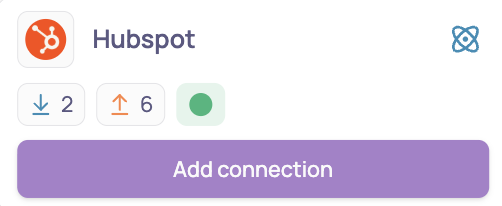
On the tile of a connected integration, click Add connection.
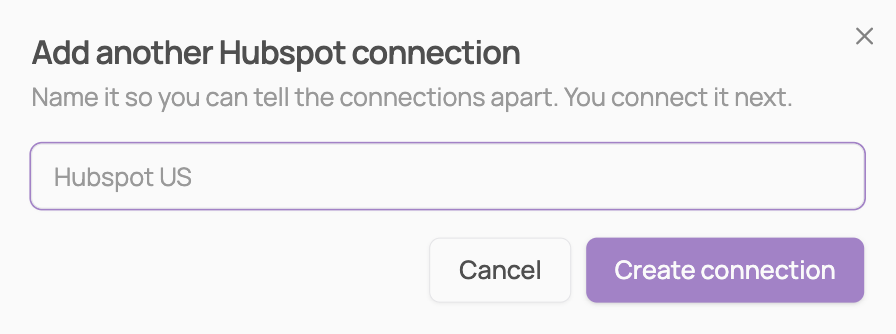
Enter a name in the Connection name field, for example "Hubspot US", and click Create connection.
Follow the usual setup steps of the integration to connect the new account.
Two connections of the same integration can't share a name. If you close the setup before it finishes, nothing is added: click Add connection again to start over.
On the Connectors page, each connection has its own card, with the connection name under the integration name. The connector page shows the name in the breadcrumb.
Rename a connection
Open the connection's connector page.
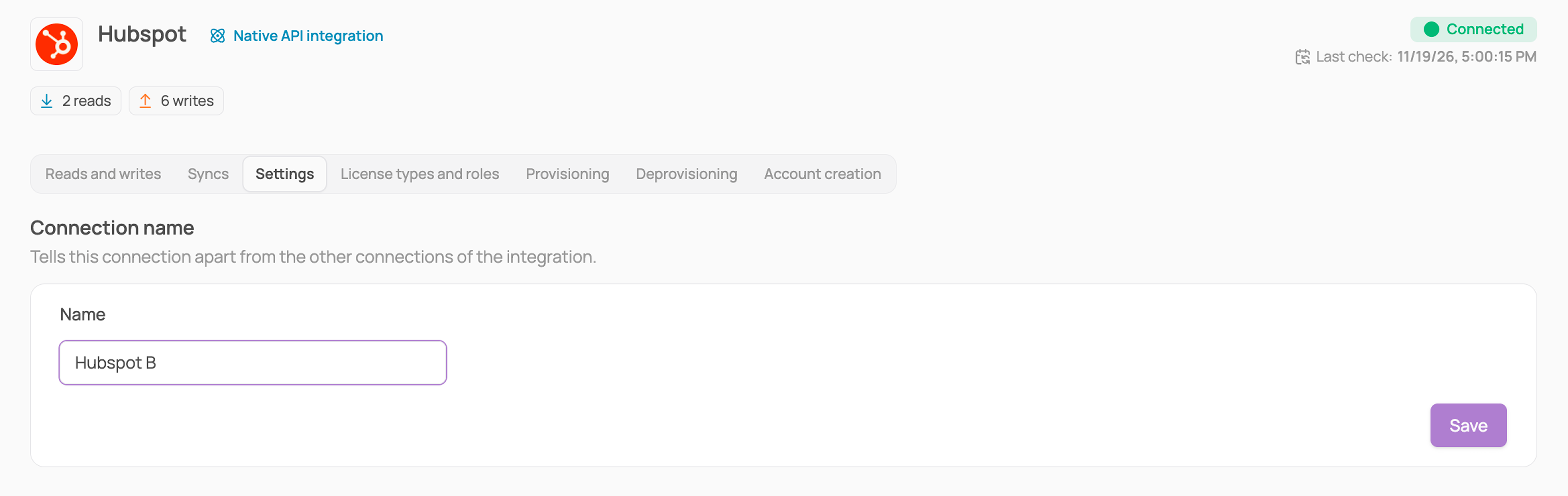
Go to the Settings tab, edit the Name field in the Connection name card, and click Save.
Reconnect a connection
When a connection shows Invalid credentials, click Reconnect on its connector page and sign in with the same account it was created with. Corma checks that it is the same account and refuses a different one, so your licenses and users stay linked to the right place.
To connect a different account, add a new connection instead.
Delete a connection
Click Delete connection on the connection's connector page. Only that connection is removed, and the other connections of the same integration stay connected.
The users and licenses it brought into Corma stay in Corma, but are no longer linked to a connection.
Workflow steps that used it need a new connection before they can run again.
Corma can refuse the deletion, for example while a sync is running, and shows the reason.
Choose a connection in a workflow
When an app has several connections, the action library shows one group of actions per connection, named after the connection. Each step for that app has a required Connection field at the top of the step panel, and choices such as channels or groups load from that connection.
Send message to channel always posts with Corma's Slack notifications bot, so it has no Connection field.
Choose a connection for access requests
Open the app's settings

Go to the Requests tab.
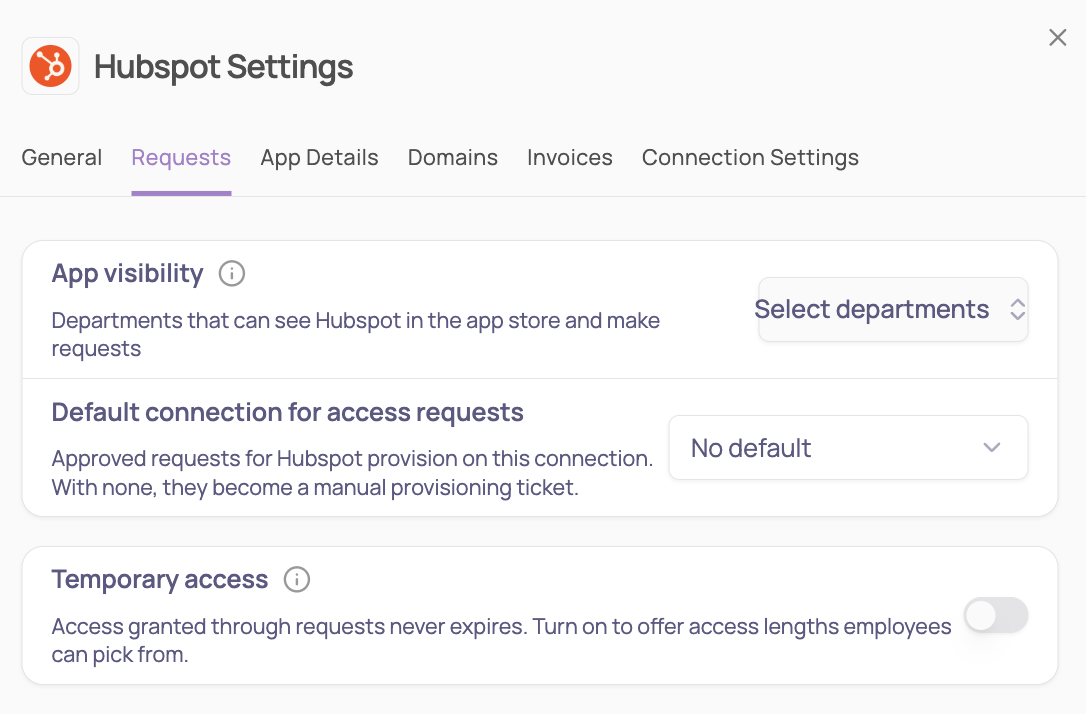
In Default connection for access requests, pick the connection.
When a request is approved, Corma provisions the account on that connection. The approver sees the connection name but can't change it. If no default is set, approval creates a manual provisioning ticket instead.
This setting only appears when the app has two or more connections.
Good to know
A new connection starts fresh: it does not copy the reads and writes, field mappings or workflows of your other connections.
When several bundles provision the same app, Corma asks you to pick which bundle applies, and the onboarding uses that bundle's connection.
Access reviews, contracts and seat counts stay per app, not per connection.
Custom agents have one connection per app.
Not sure which connection a license comes from? Open the connection's connector page and check its Syncs tab.