
How to understand sync failures
When Corma can no longer sign in to one of your apps, the connector stops syncing: its reads stop pulling in data and its writes can’t make changes. Corma flags the connector and shows you the exact error the app sent back. The connector stays flagged until you reconnect it.
Where to spot a failing connector
On the Connectors page
Click Connectors in the sidebar.
Look at the red Errors badge next to Connected. It shows how many of your connectors need attention.
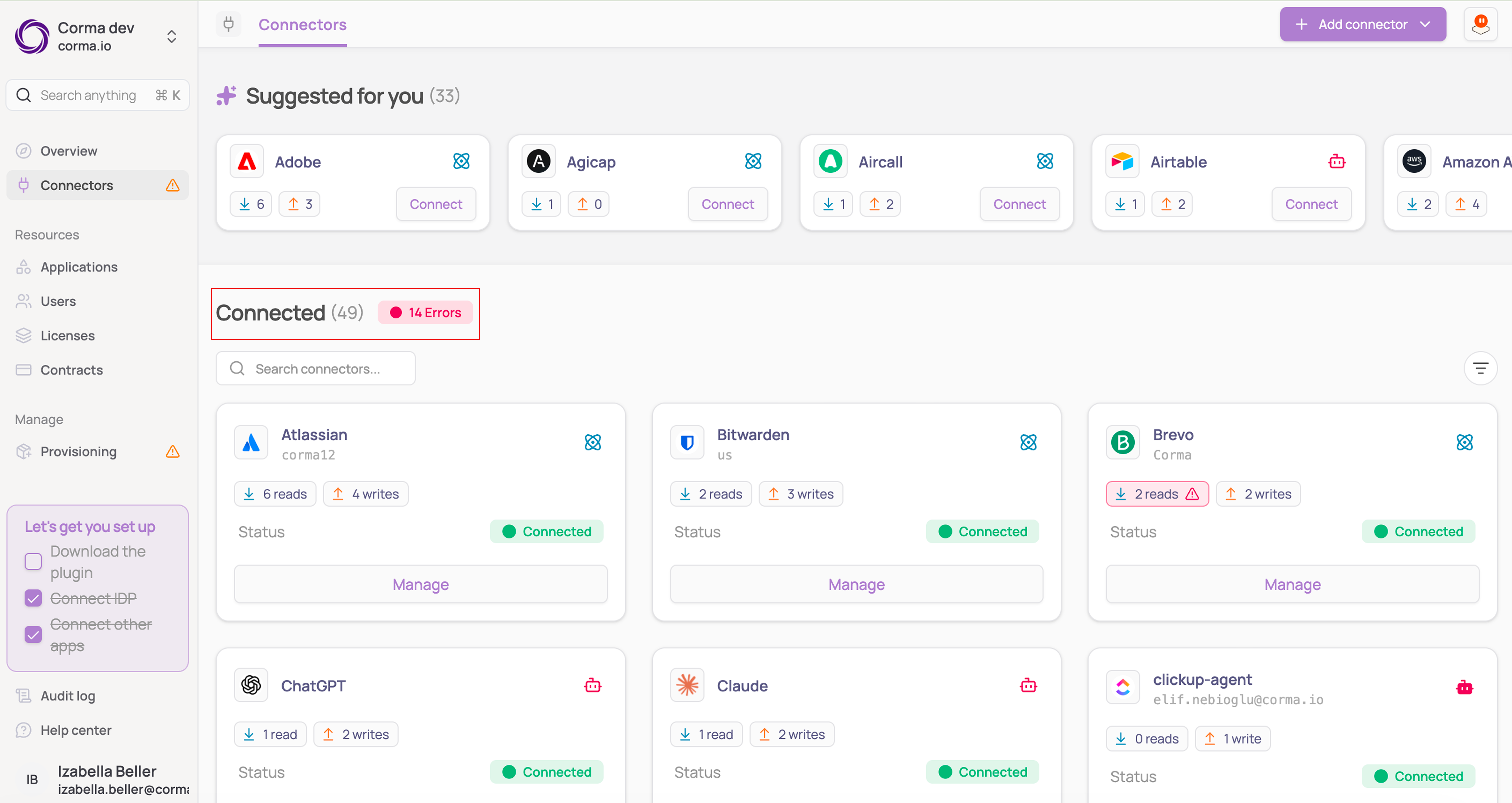
Click the Errors badge to filter the list and see only the connectors with sync failures.
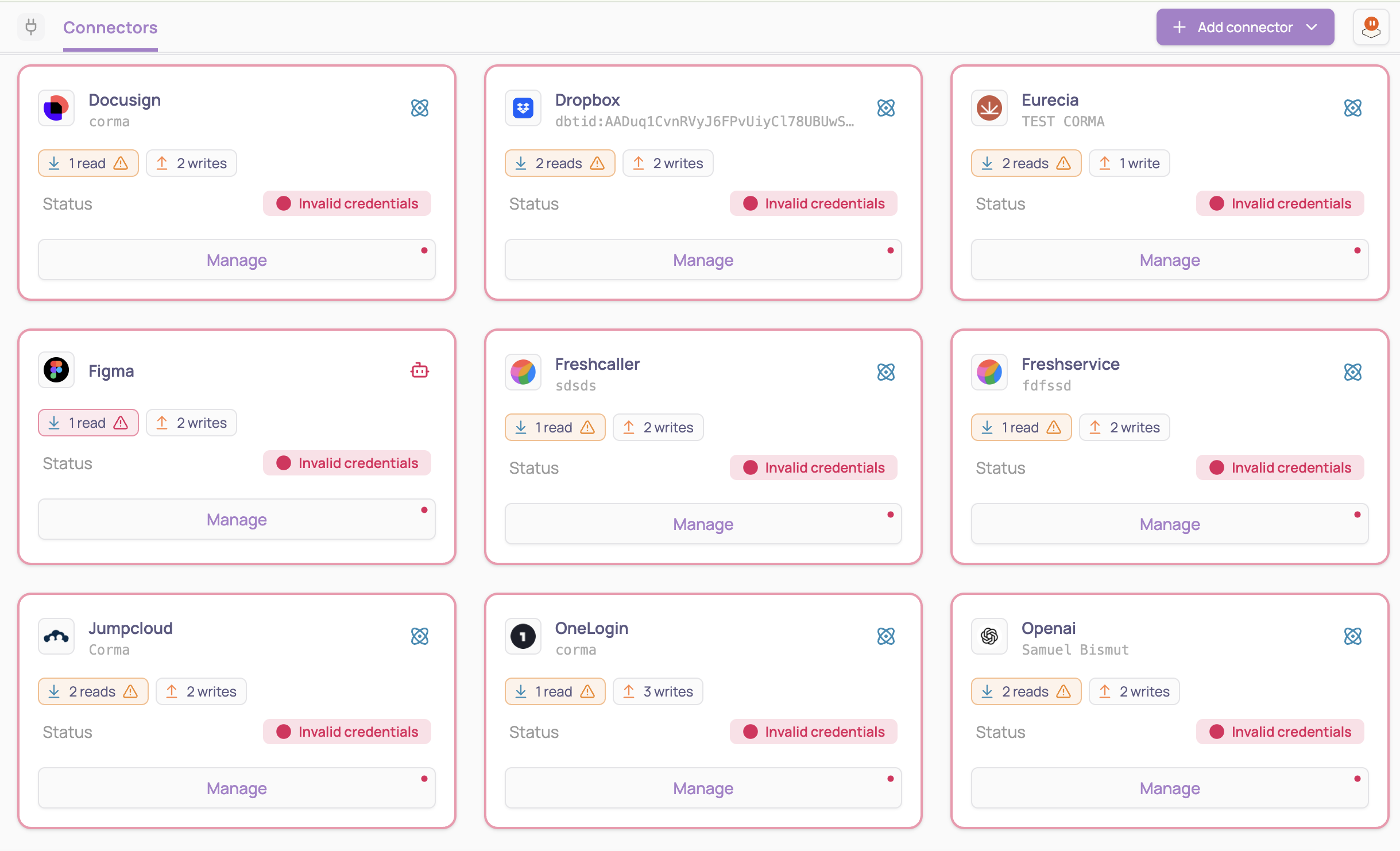
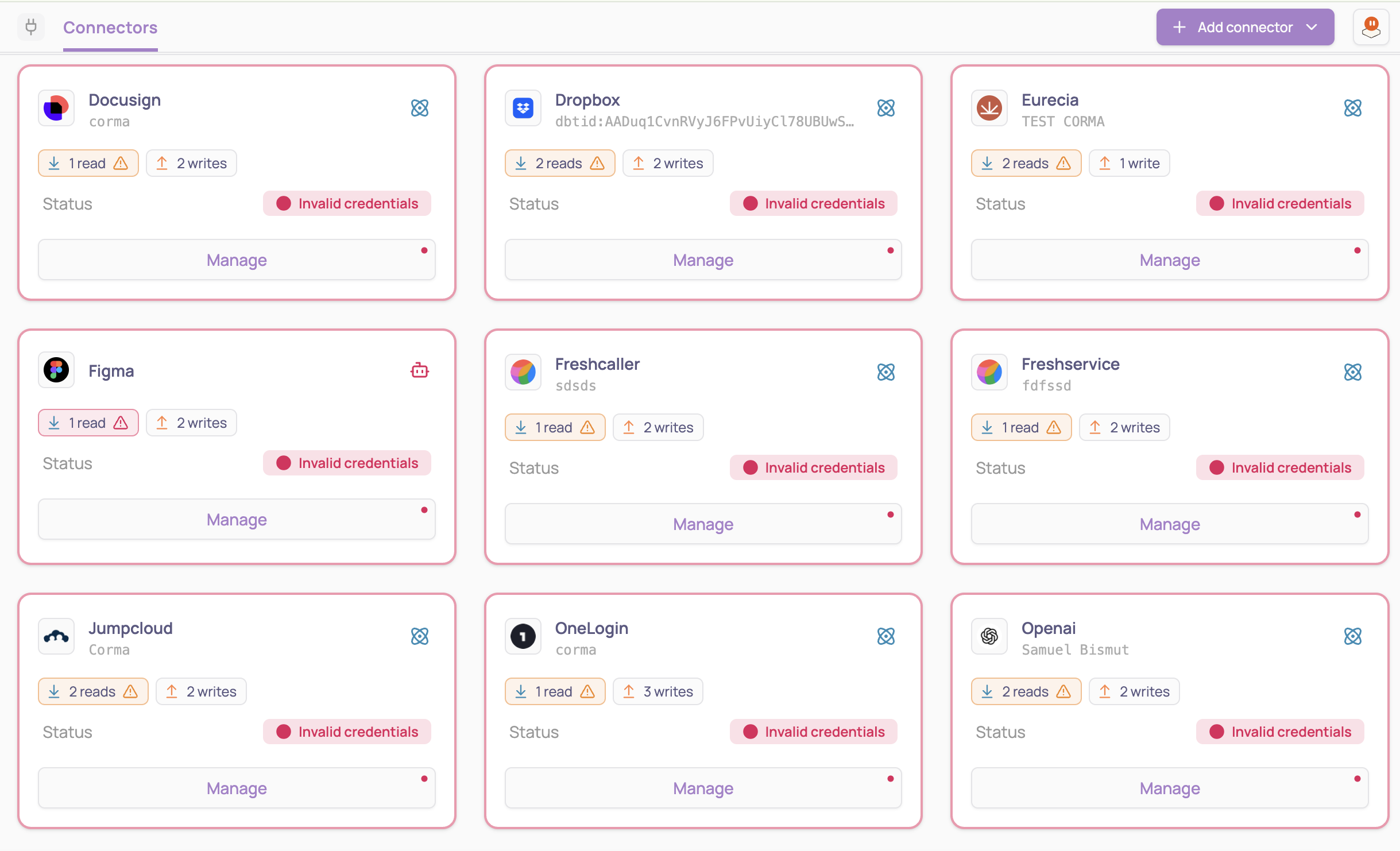
Each failing connector card has a pink border, the status Invalid credentials, and a red dot on the Manage button. A warning icon next to the read or write count means those operations are no longer running.
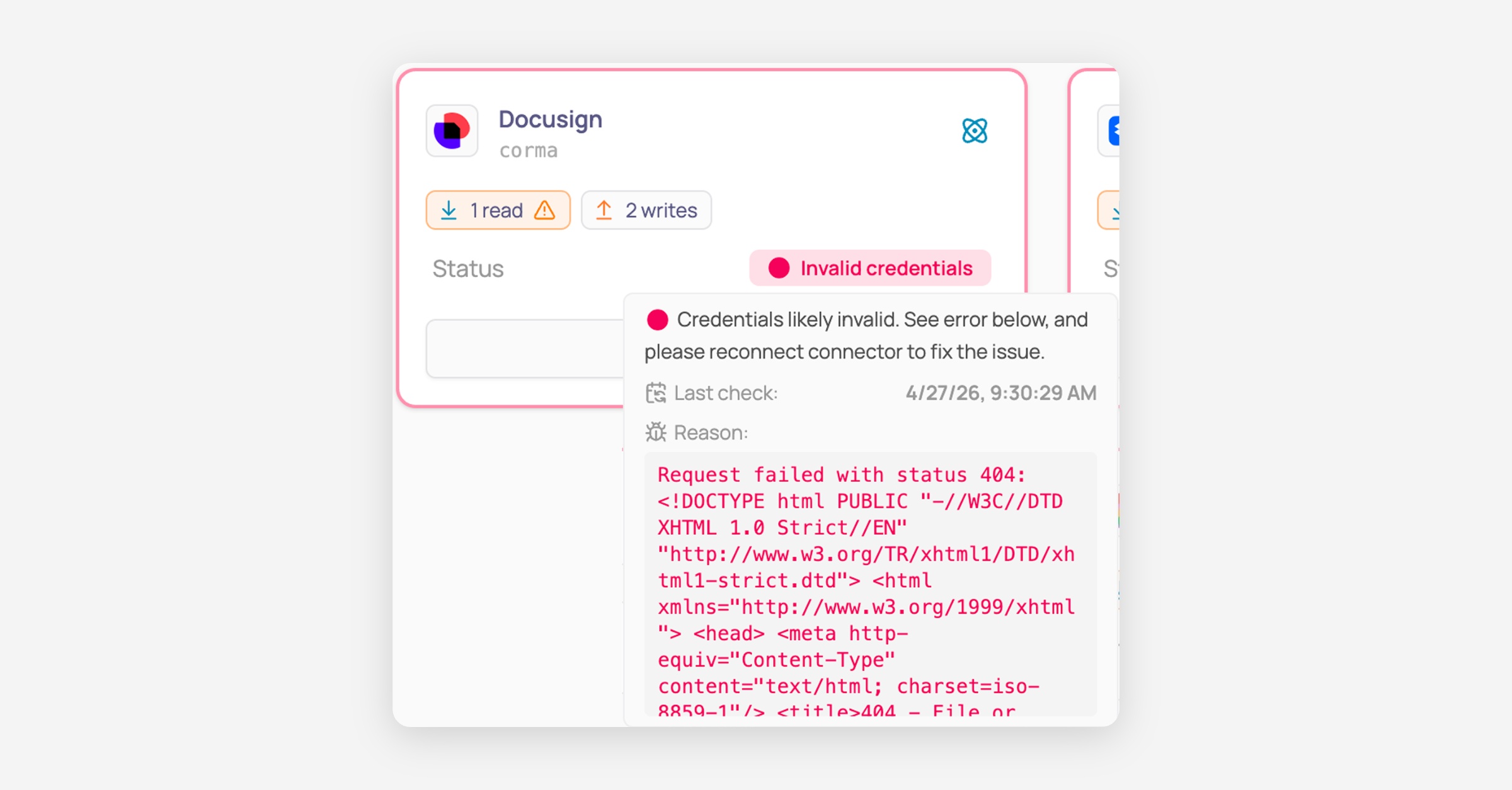
Hover over the status on the card to see a quick summary: the Last check date and the Reason Corma got from the app.
On the connector's page
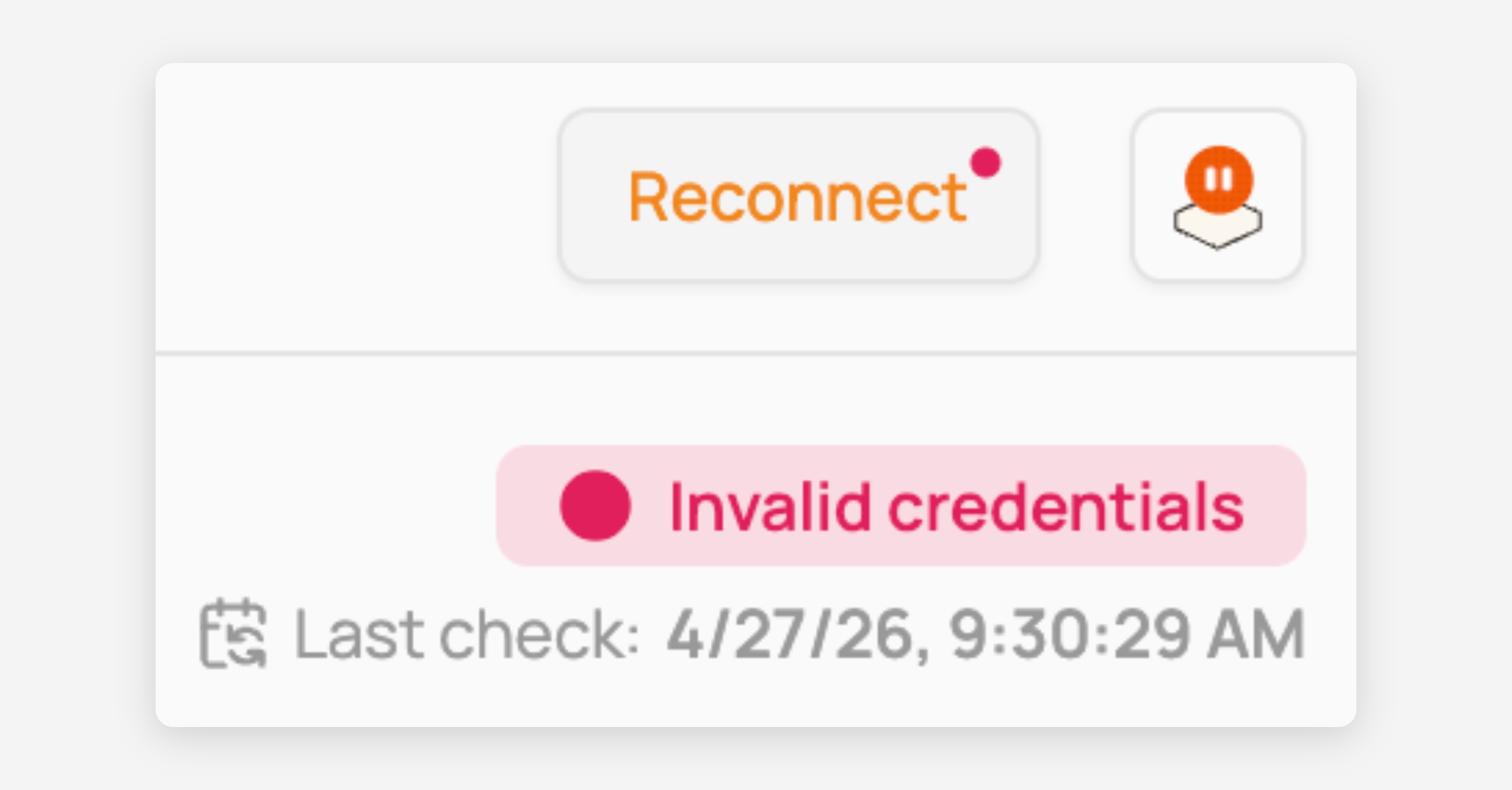
Click Manage on the failing connector. The connector’s page opens on the Settings tab, marked with a red dot. At the top right, the status shows Invalid credentials with the Last check date.

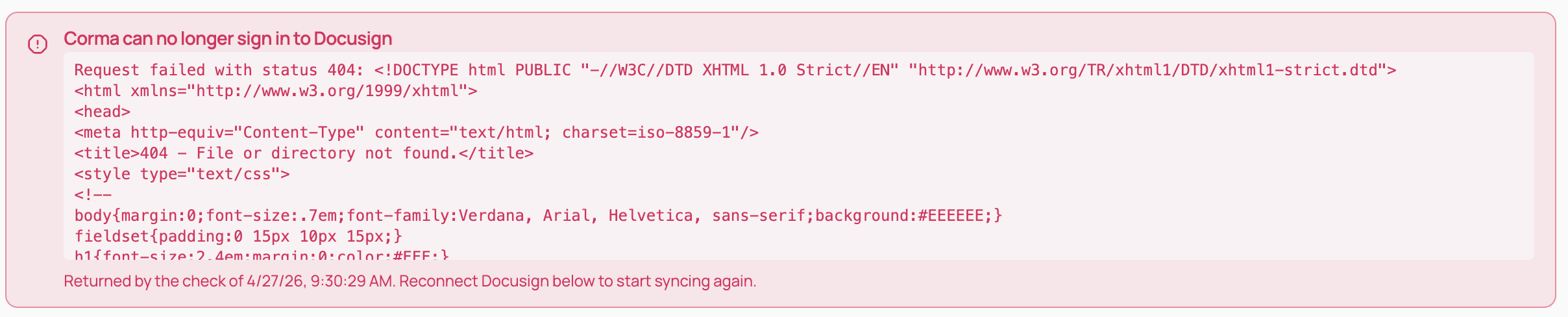
Read the red banner at the top of the tab. It explains why Corma can’t sign in and shows the full error the app sent back.
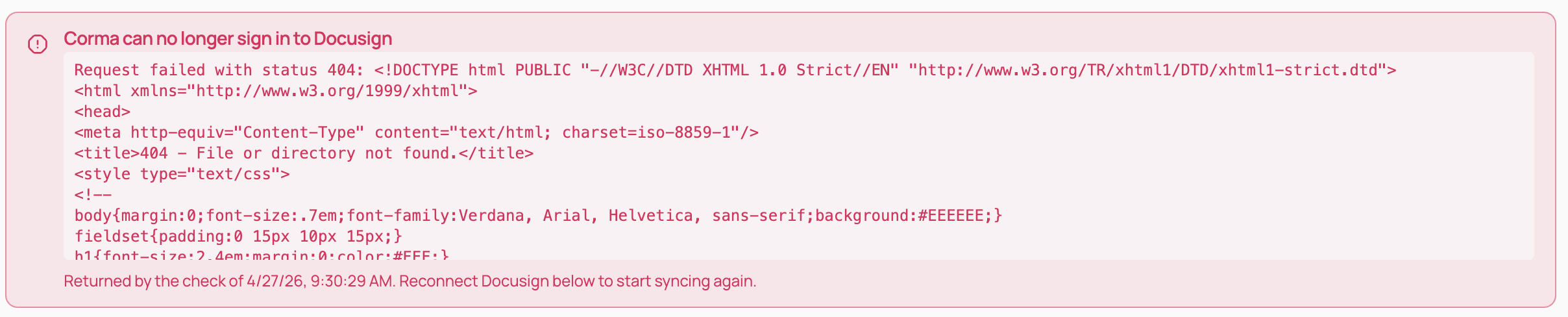
Under the error, check the date of the check that returned it. If the app sent no reason, the banner shows Unknown error.
How to read the error
The error panel shows three pieces of information.
What you see | What it means |
|---|---|
Credentials likely invalid | Corma tried to sign in to the app and was refused. In most cases, the API key, token or session Corma uses has expired, been revoked, or lost permissions. |
Last check | When Corma last tried to sign in to the app and was refused. Once a connector is flagged, Corma does not retry on its own, so this date does not update until you reconnect. |
Reason | The exact message the app sent back to Corma. It's technical, but it's the most useful thing to share with the app's admin or with our support team. |
Common reasons and what they usually mean
These are common examples. The exact message depends on the app, and Corma shows it as the app sent it.
Reason you see | What it usually means | What to check |
|---|---|---|
Request failed with status 404 (sometimes followed by a web page) | Corma couldn't find the app at the address it was given. | The app's URL, subdomain or tenant may have changed, or the account may have been moved or closed. |
Request failed with status 400, for example Invalid API call | The request was rejected because the structure or data provided did not match what the app expected (this is an invalid request error, not an access/permission error). | Verify that all required fields and settings in Corma are properly configured. If the error persists, reach out to Corma support for assistance. |
Could not exchange persistent token / expired or invalid persistent token | The sign-in Corma received when you connected has expired or was revoked. | Reconnect and sign in again. If it keeps happening, check the token's expiry date in the app. |
Incorrect credentials | The username, password or key Corma has is no longer accepted. | The password or key was changed or deleted in the app. |
The saved session is no longer authenticated | For agent connectors, the browser session Corma uses was signed out. | Sign in again through Reconnect. Sessions can end after a password change, a 2FA reset or an inactivity timeout. |
The status says likely invalid because Corma only sees the app’s answer. Sometimes the cause is on the app’s side, such as an outage or a change in its API. In that case your credentials may still be valid, but the connector stays flagged until you click Reconnect. If reconnecting doesn’t fix it, contact us with the Reason text.
How to check the sync history
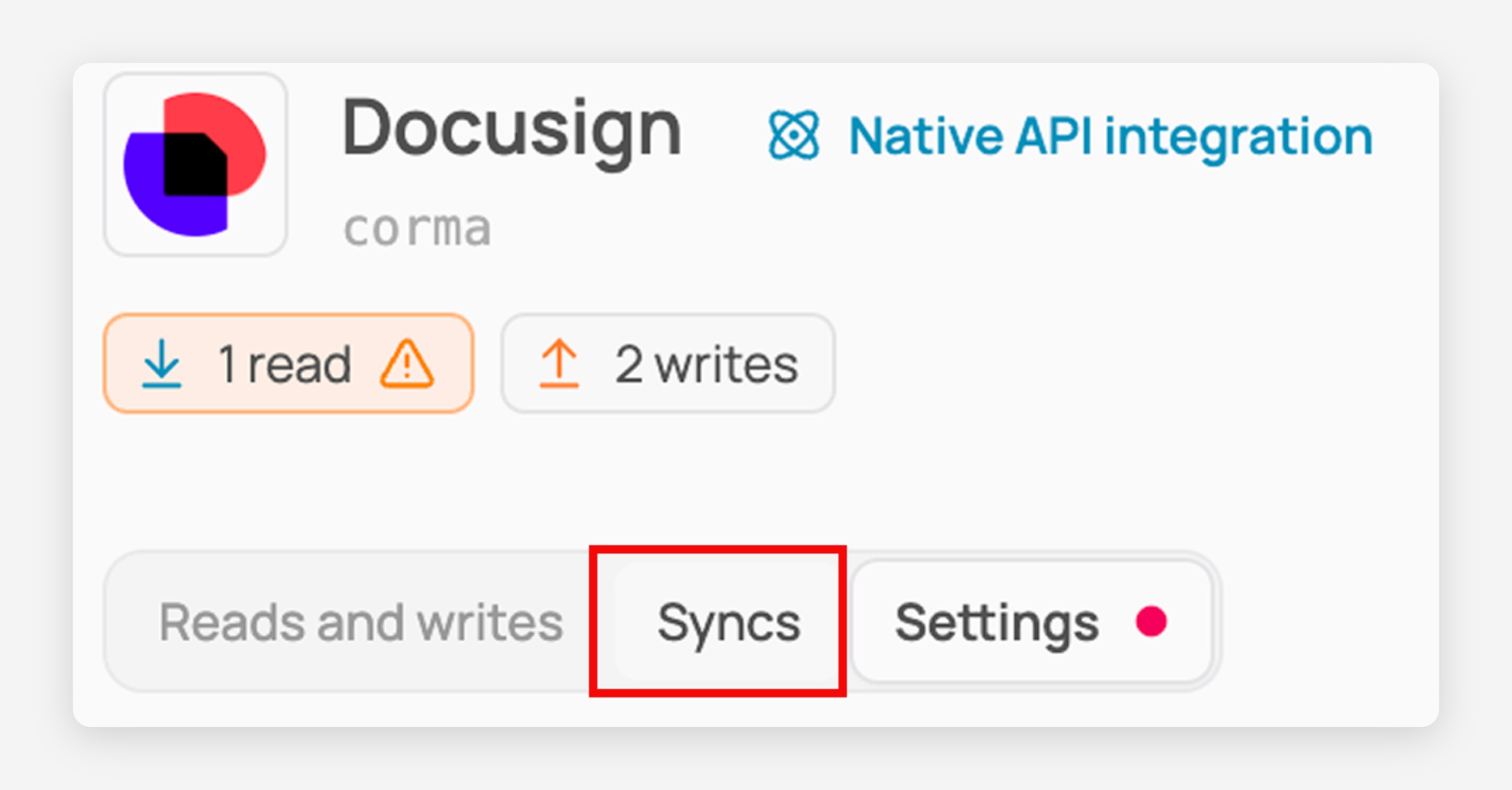
On the connector’s page, open the Syncs tab.
Each row shows one sync: which operation ran, when it started, how long it took, its status, and the error if it failed.
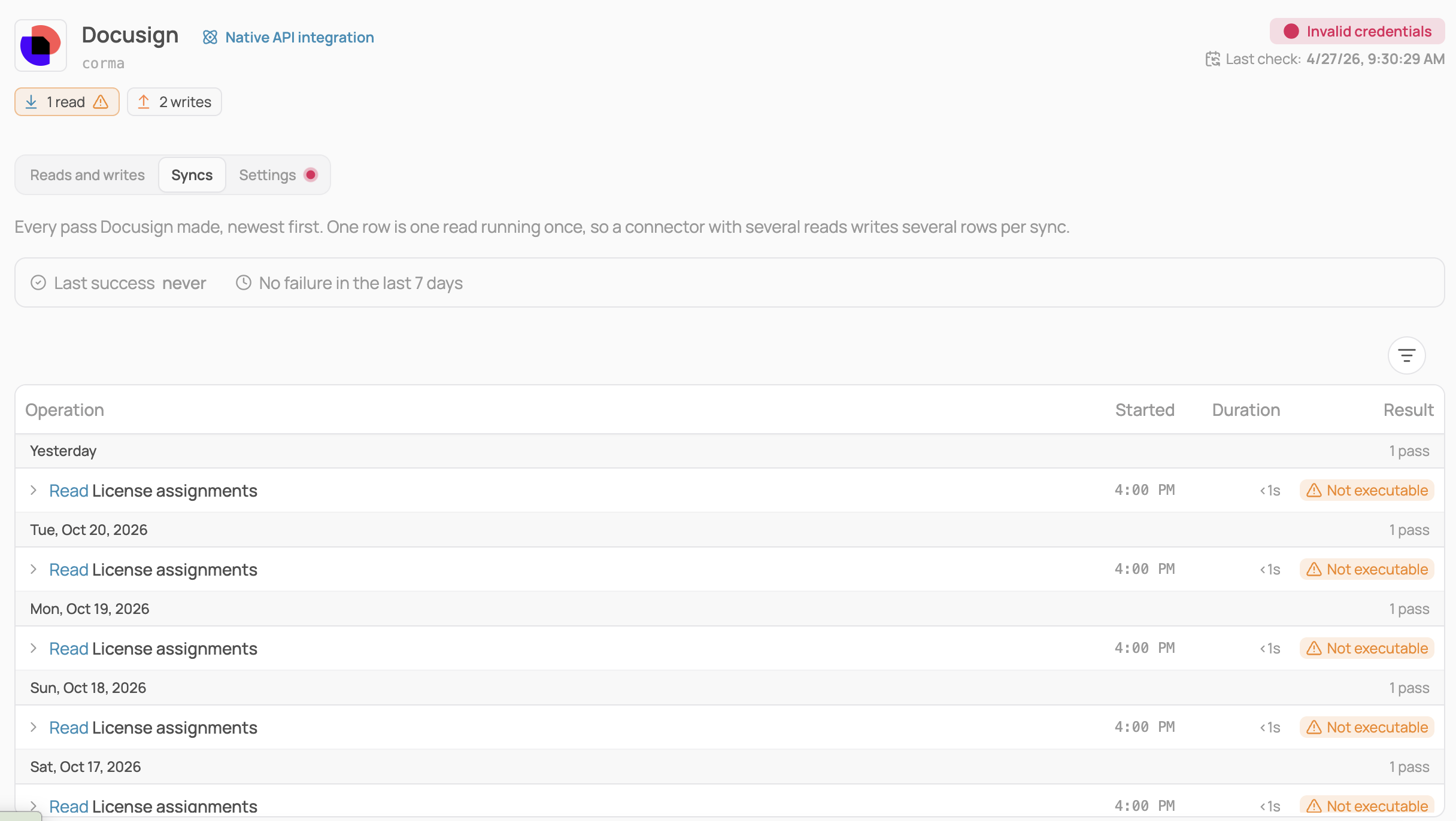
If a sync was skipped, the row tells you why, for example because the operation is switched off or a setting is missing.

A sync can fail even when the credentials are valid, for example when the app limits how many requests Corma can send.
How to fix a failing connector
Prerequisites: you need admin privileges in Corma, and valid credentials for the app (an API key, token, or an account that can sign in).
Click Connectors in the sidebar, then click Manage on the failing connector.
Open the Settings tab and read the Reason in the red banner to understand what went wrong.
If needed, fix the cause in the app first: generate a new API key, restore the missing permissions, or check the app's URL.
Under Connector management, click Reconnect (also available at the top right of the page).
Follow the connection flow again and enter the new credentials. What Corma already synced, and the reads and writes you had switched on, are kept.
Once reconnected, the status goes back to Connected and syncing starts again. Open the Syncs tab to confirm the next syncs succeed.
Agent and custom agent connectors
For connectors that sign in through a browser session (shown as Agent integration or Custom agent integration), you can also update how Corma signs in.
On the Settings tab, scroll to Connection settings. It shows the connector’s name, how and when it was connected, and its Login URL.
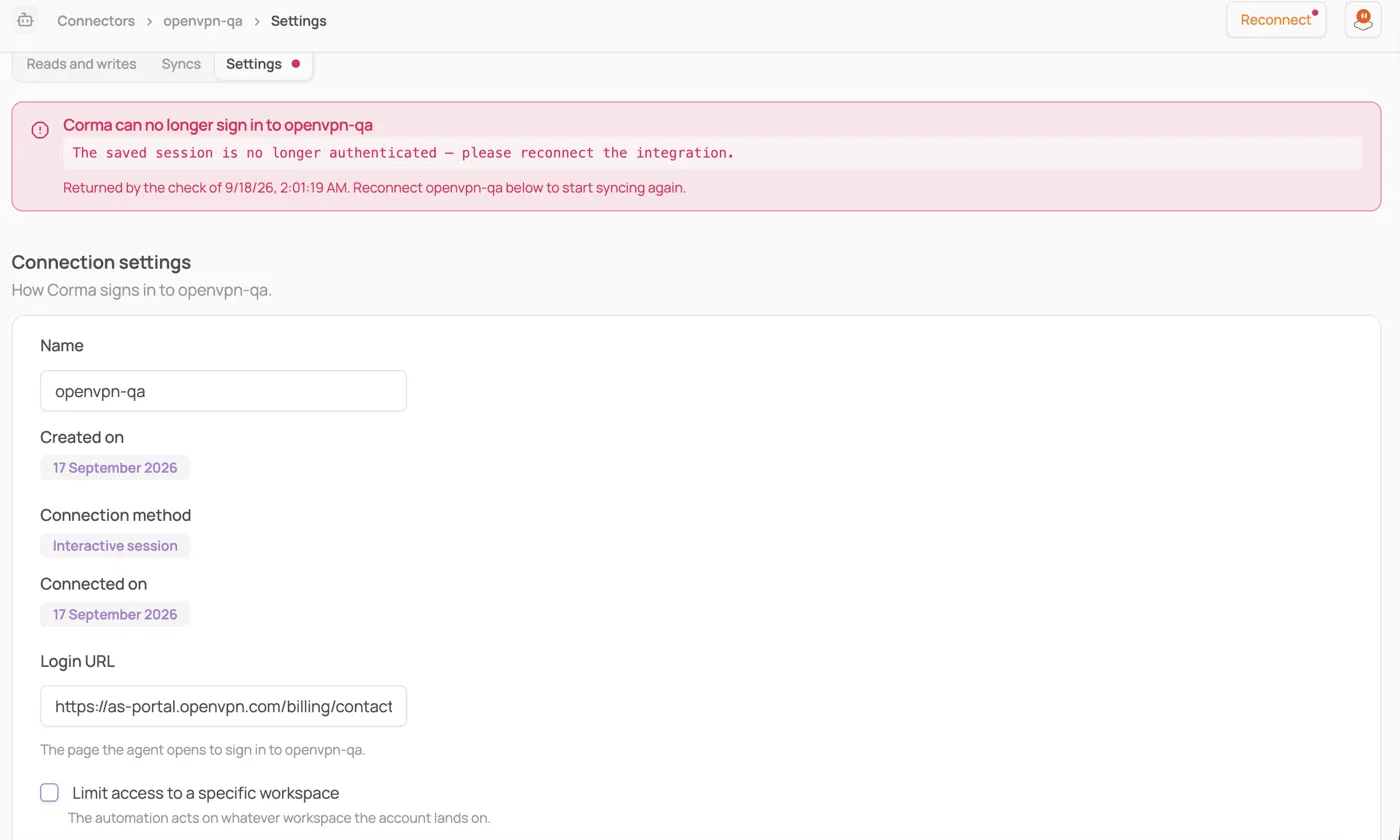
Update the fields you need, for example the Login URL if the app’s sign-in page changed.
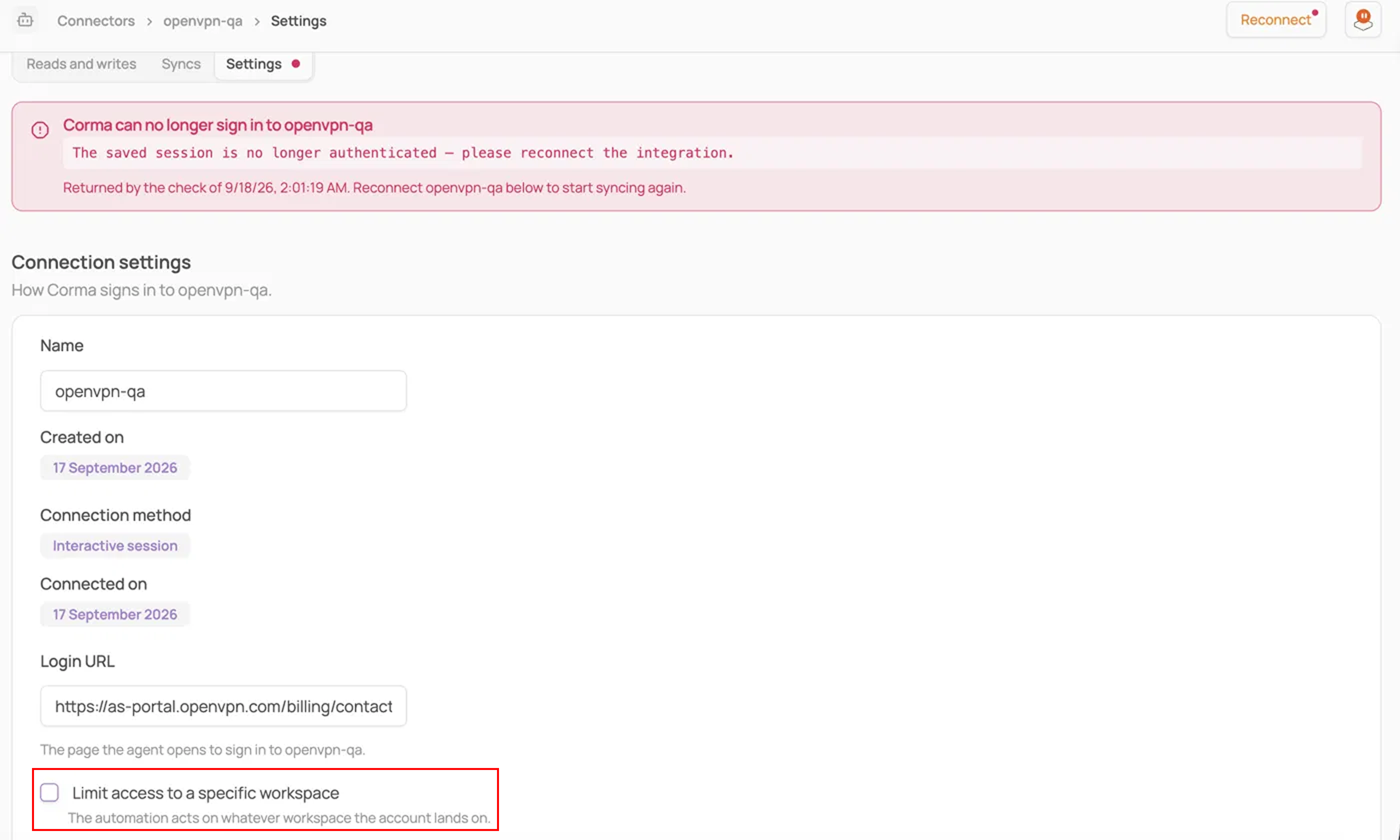
If the account has access to several workspaces, tick Limit access to a specific workspace.
Click Test connection to check that Corma can sign in.
A connection cannot be tested if disconnected. Reconnect it from the danger zone below — a test would sign in and silently mark it active again.
Click Save.
Reconnect keeps everything Corma already synced. Disconnect stops every sync, and data already synced is kept.
On an API connector, it also deletes the credentials Corma stores, so you will need to enter them again to reconnect.
On an agent connector, it signs Corma out but keeps the saved credentials.
Custom agent connectors also have Delete, which removes the agent, its credentials and everything it was trained to do. This cannot be undone. Only disconnect or delete if you no longer want to use the connector.
Only disconnect if you no longer want to use the connector.