
Account creation: outbound data mapping.
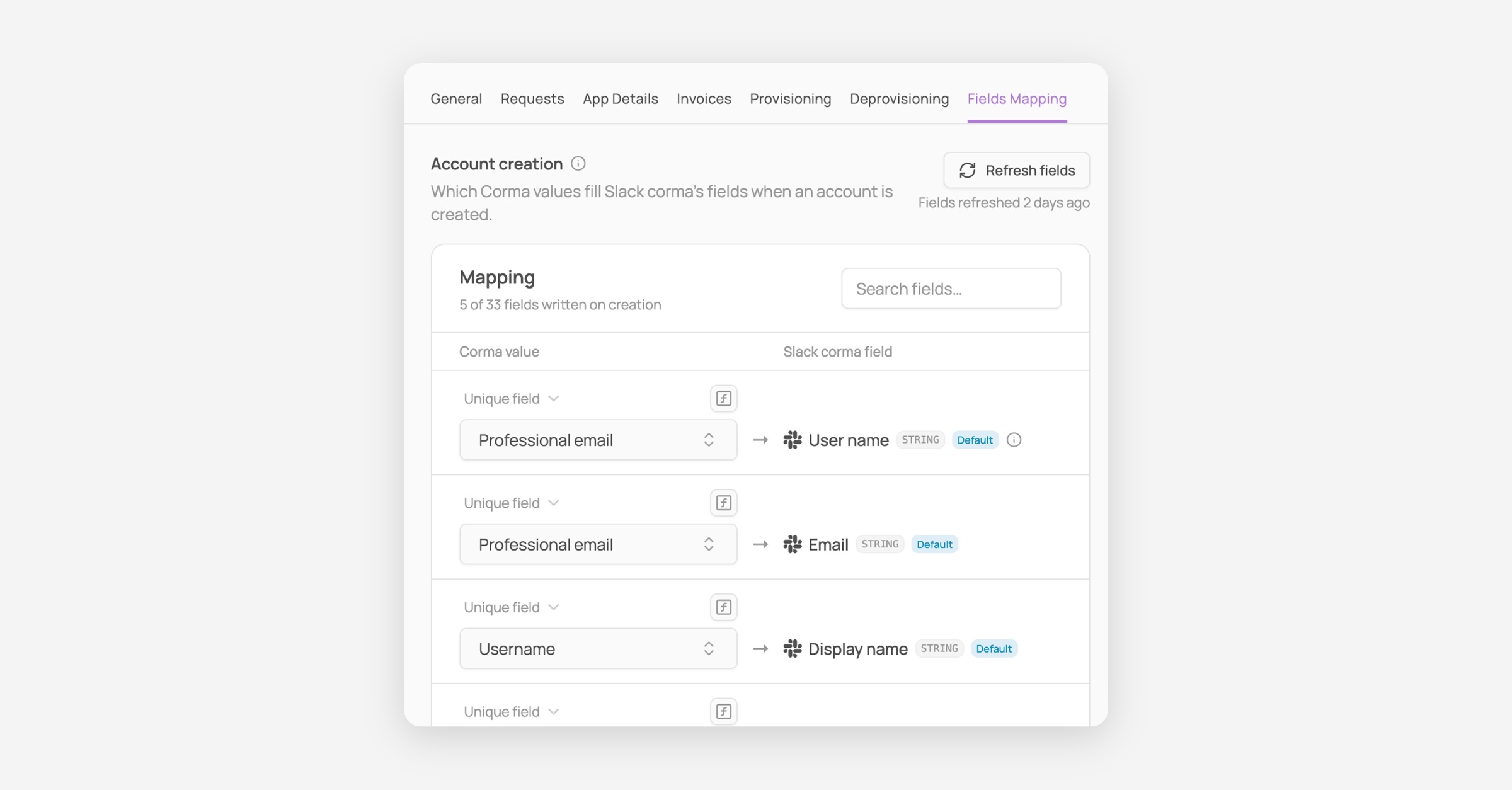
Choose which Corma user values fill the fields of an application when Corma creates an account in it. Go to the application, open Settings, then the Fields Mapping tab. Only admins can change these settings.
How it works
When Corma creates an account, for example during an onboarding workflow or a standalone provisioning, it fills the application's fields with values from the Corma user. Outbound data mapping lets you choose which value goes into which field. Combined with inbound data mapping, the data you keep in your HR tool can flow all the way to your applications.
Available for applications with provisioning. Corma never writes to HR tools.
Map the fields of an application
Open the application from Applications, then click Settings at the top right.

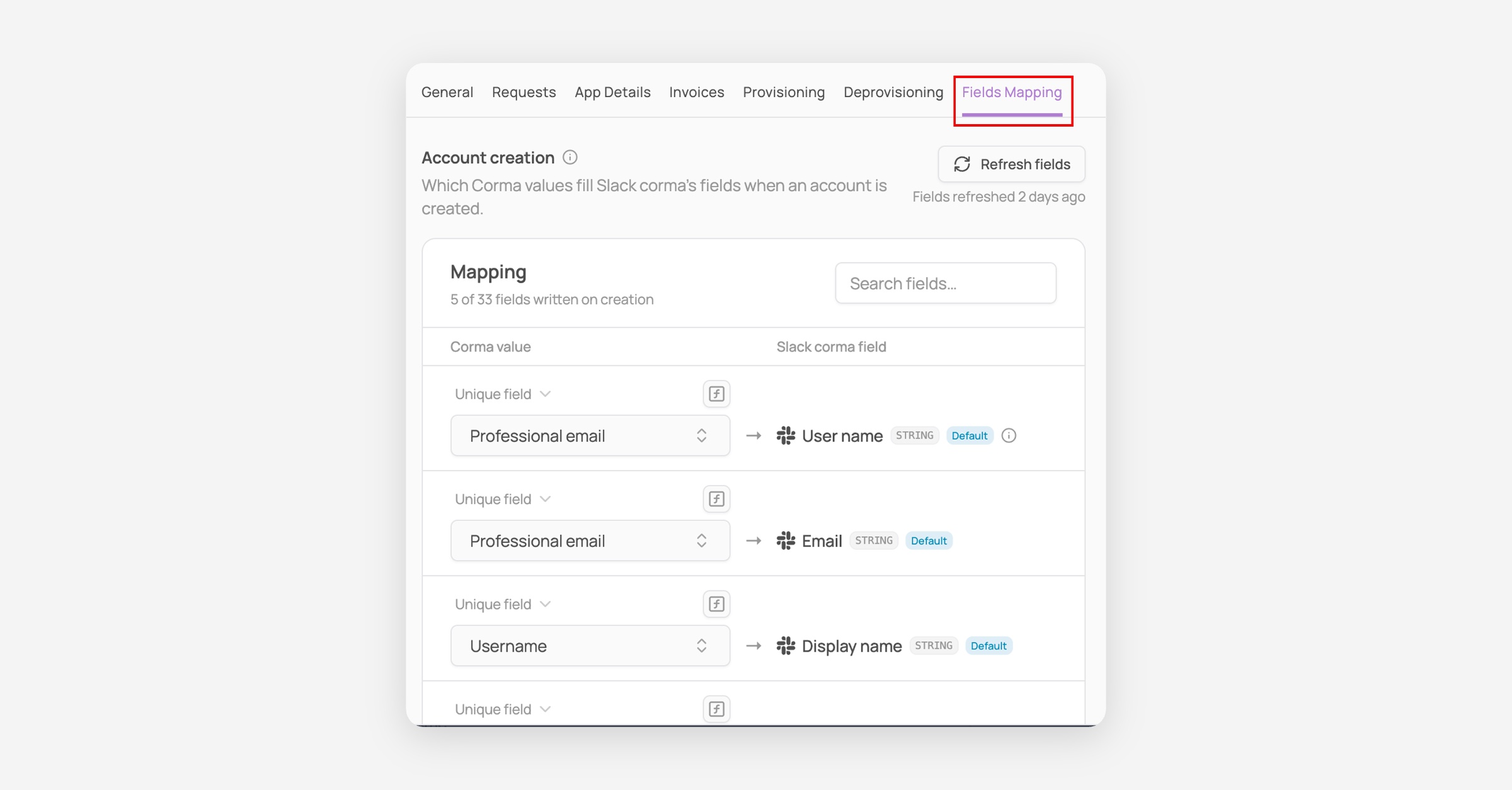
Open the Fields Mapping tab. The Account creation section lists the fields of the application on the right, and shows how many are written.
Click the dropdown on the left of the field you want to fill and select a Corma value, for example
user.emailoruser.department. Use Search Corma values to find one fast.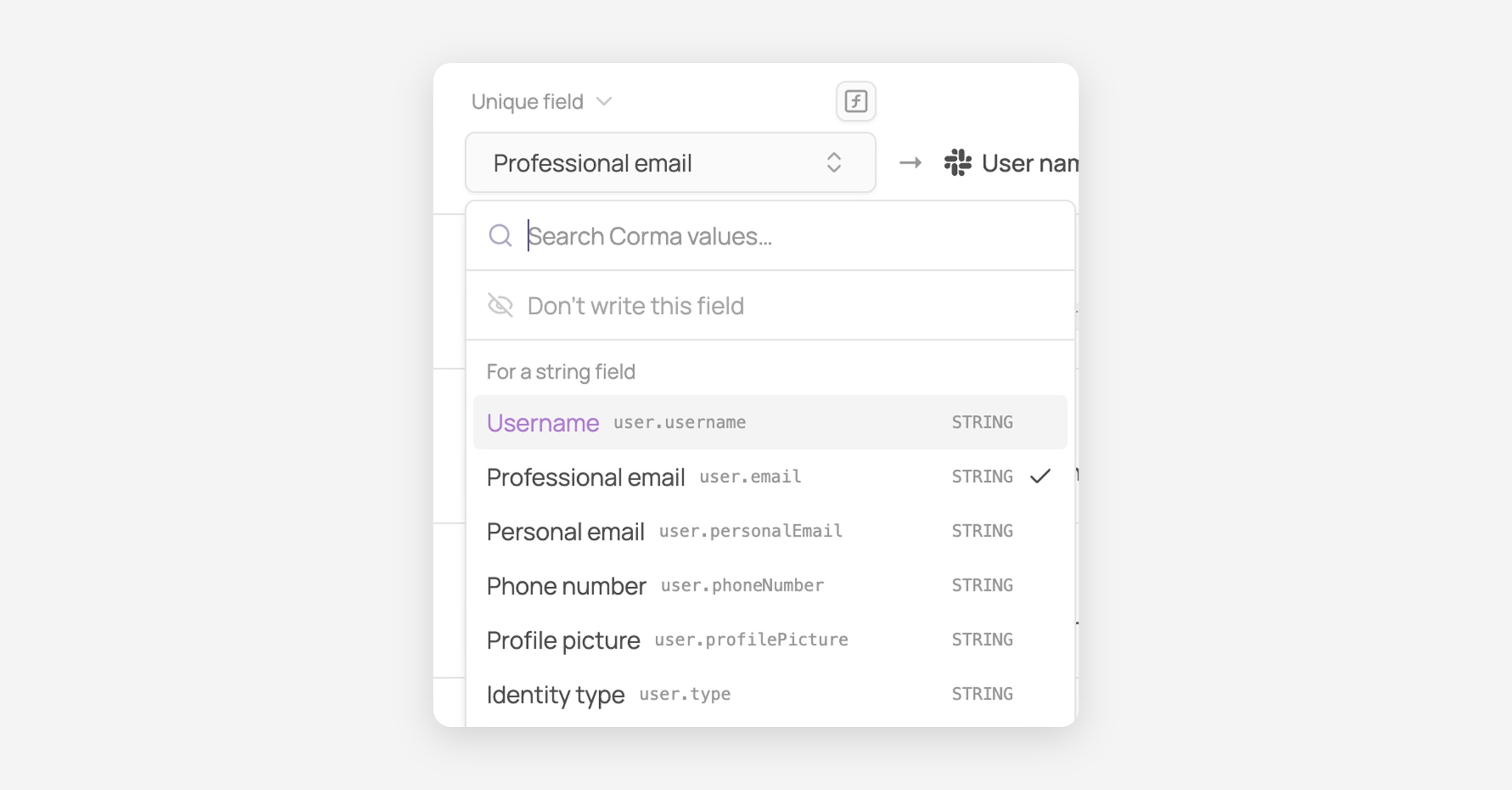
To leave a field empty, select Don't write this field.
Fields that Corma fills automatically are tagged Default.
Required fields, such as the username or the email of the account, can't be switched off.
Use an expression
If one value is not enough, build the field with an expression.
Click the ƒ icon next to the field.
Type your expression using Corma values and functions. Values start with
user., for exampleuser.manager.emailor a custom field you created.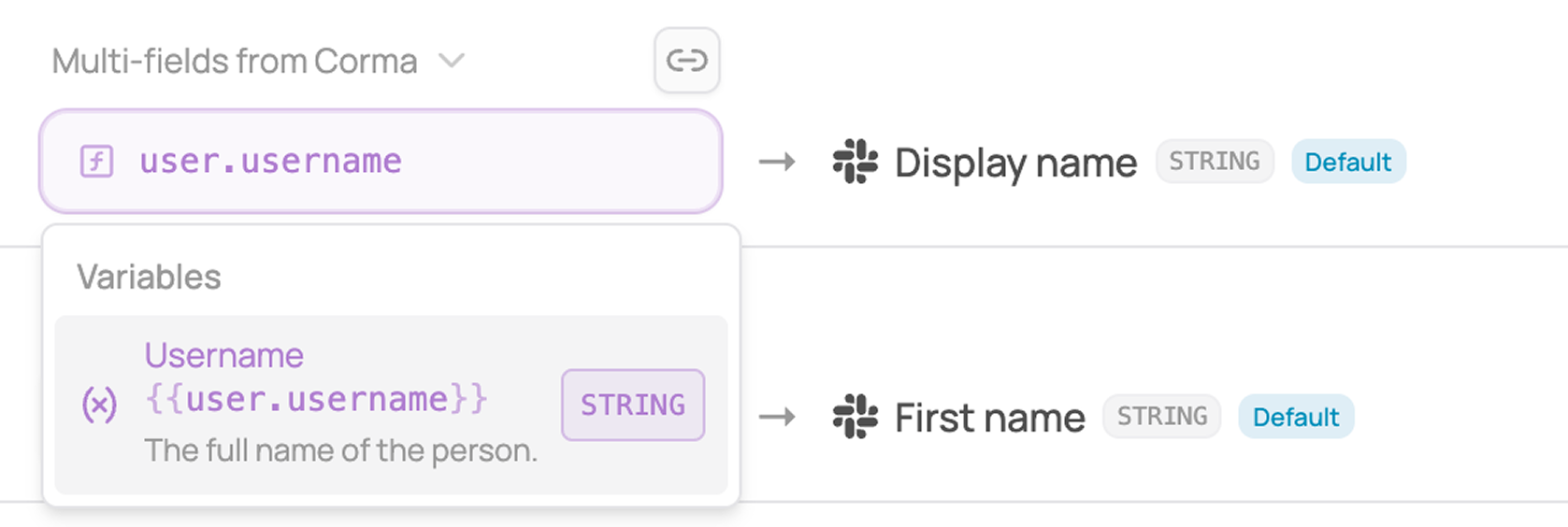
The functions are the same as in inbound mapping. See HR Properties: inbound data mapping.
Refresh the application fields
Corma syncs the list of fields of each application (including custom fields you created in the application) once a day. If you added a field recently and don't see it, click Refresh fields. The page shows when fields were last refreshed.
Good to know
You can use any Corma user field, including custom fields created in Settings → HR Properties.
A mapping is saved per application.