

Labels are colour-coded markers you can create and apply to your apps, users and licenses. Use them to tag anything Corma doesn't already track for you, such as tool categories, criticality, cost centres or onboarding cohorts; and then filter your lists by them. Only admins can create and manage labels.
What is a label
A label belongs to one scope: Apps, Users or Licenses. A label created for apps cannot be applied to a user, and the same name can exist in two different scopes.
Field | Description |
|---|---|
Name | Required. Must be unique within its scope, for example, |
Description | Optional, shown in the Labels settings table |
Color | One of 10 presets, or a custom color of your choice |
Items | How many apps, users or licenses currently carry the label |
Last applied | When the label was last applied to an object |
Created | When the label was created |
An object can carry as many labels as you need, and a label can be applied to as many objects as you need.
Labels are deliberately not a status. Criticality, enforcement and review status keep their own dedicated fields; use labels for your own classifications.
Where to manage labels
Click your workspace name at the top of the sidebar, then Settings.
In the settings sidebar, click Labels.
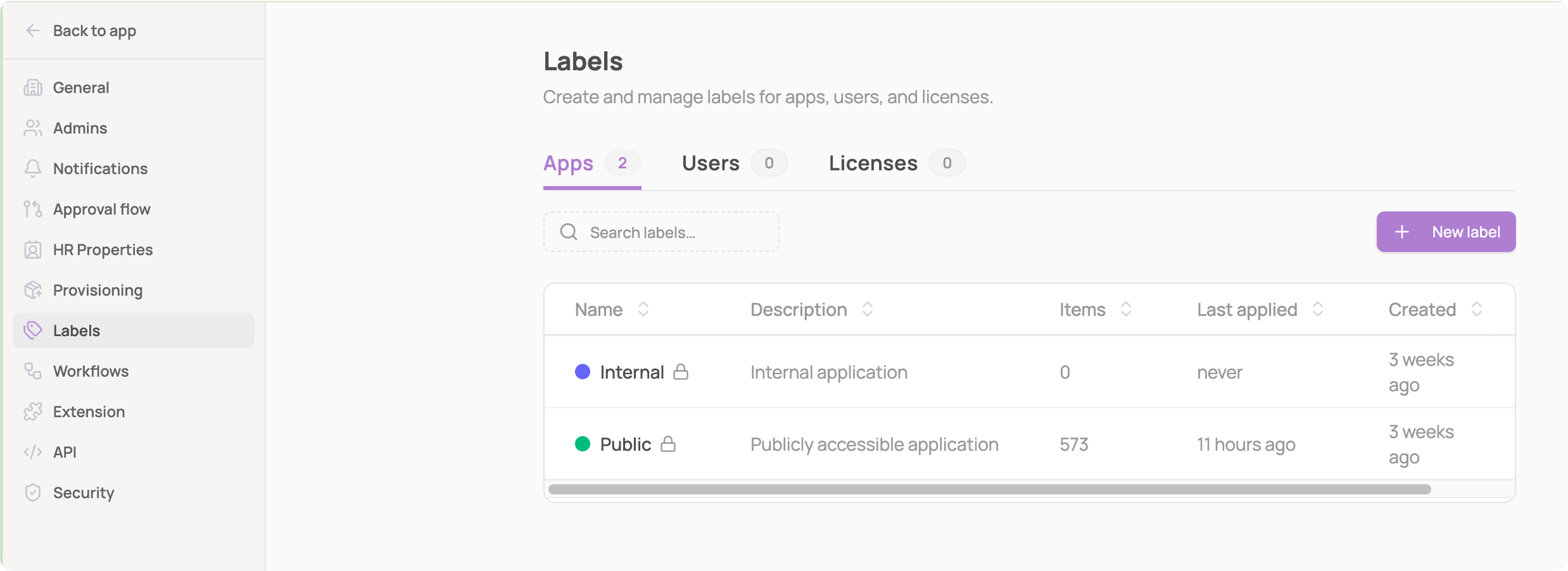
The page is split into Apps, Users and Licenses, each showing how many labels exist in that scope. Every column in the table can be sorted by clicking the arrows next to its header, and the search field filters labels by name.
Create a label
Go to Settings → Labels and open the tab for the scope you want: Apps, Users or Licenses.
Click New label.
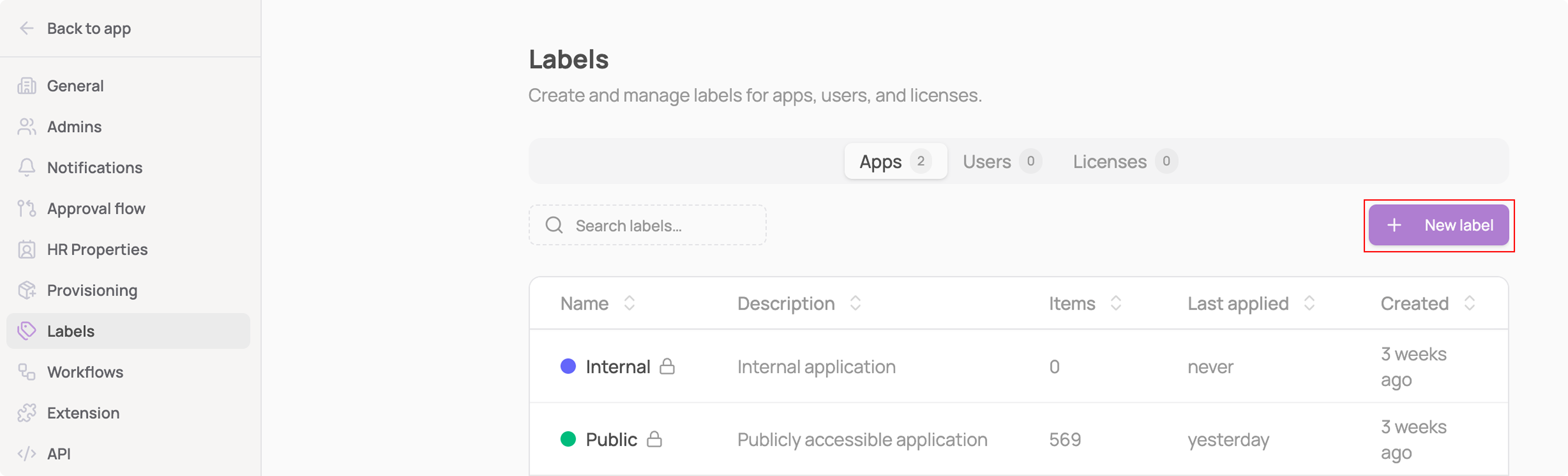
Give the label a Name. Keep it short; long names are truncated in table cells and only show in full on hover.
(Optional) Add a Description to explain when the label should be used. It appears in this settings table, so it's the fastest way to keep your team applying labels consistently.
Pick a Color from the ten presets, or click the multicolor swatch at the end of the row to set your own. The Preview updates live so you can see the label exactly as it will appear in the product.
Click Create label.
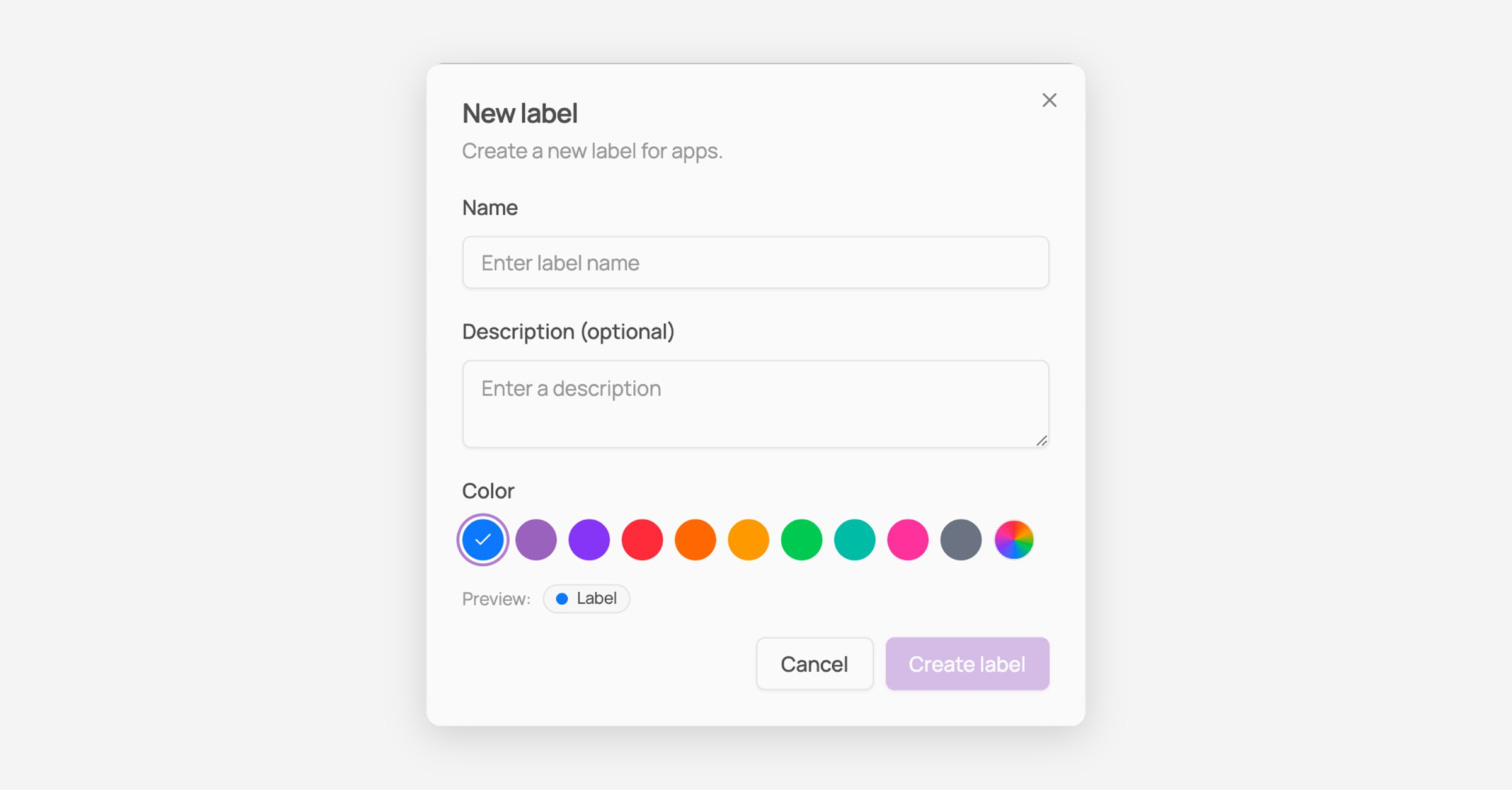
The label is now available in that scope and ready to apply to your apps, users or licenses.
Names must be unique within a scope, and the check ignores capitalization — if
Financealready exists, you cannot also createfinance. The same name in a different scope is fine, so an app label and a user label can both be calledFinance.
Corma-generated labels
Two labels for apps come built in: Public and Internal. Corma creates and maintains them, so they cannot be renamed, recolored or deleted.
You can recognize them by the padlock next to their name. Hovering the row shows the message "These labels are Corma generated and cannot be edited." They appear padlocked in the label picker as well.
You can filter your lists by Public and Internal like any other label — the restriction is on editing the labels themselves.
Row actions
Hover a row and click the ⋮ icon in the Actions column to open the row menu:
Edit label: opens the same modal as clicking the row.
View labeled apps (or users, licenses): opens the matching list, already filtered on that label. The quickest way to audit what a label is actually being used on.
Delete label: removes the label from every object carrying it. A confirmation tells you how many items are affected before you commit.
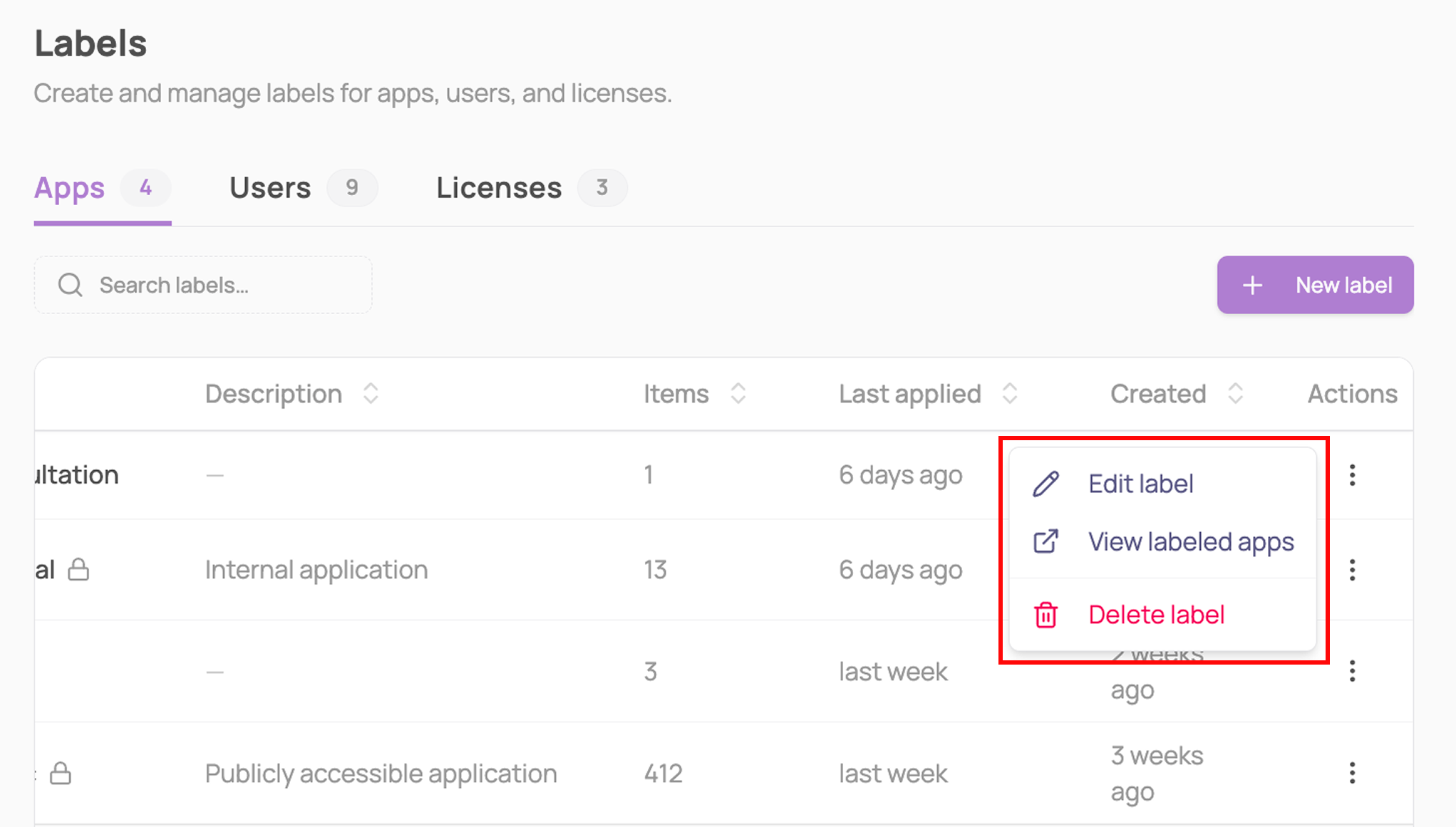
Deleting a label cannot be undone!