

Overview
Security page
Corma's Security module helps IT teams detect, monitor, and manage unsanctioned applications across the organisation.
Within the Security module, Shadow IT refers to applications used by employees without formal approval from IT. These apps often go unnoticed, creating security, compliance, and financial risks. Corma automatically detects these apps and presents them in a dedicated interface, enabling IT admins to take swift and informed action.
Access the Security module by clicking on the dedicated page in the left sidebar.

The module is organised into three tabs: Overview, Shadow IT policies, and SSO tokens. The Overview groups everything into three columns, each answering a different question: what have we found, is our enforcement actually reaching people, and what is happening on the apps we have ruled out.
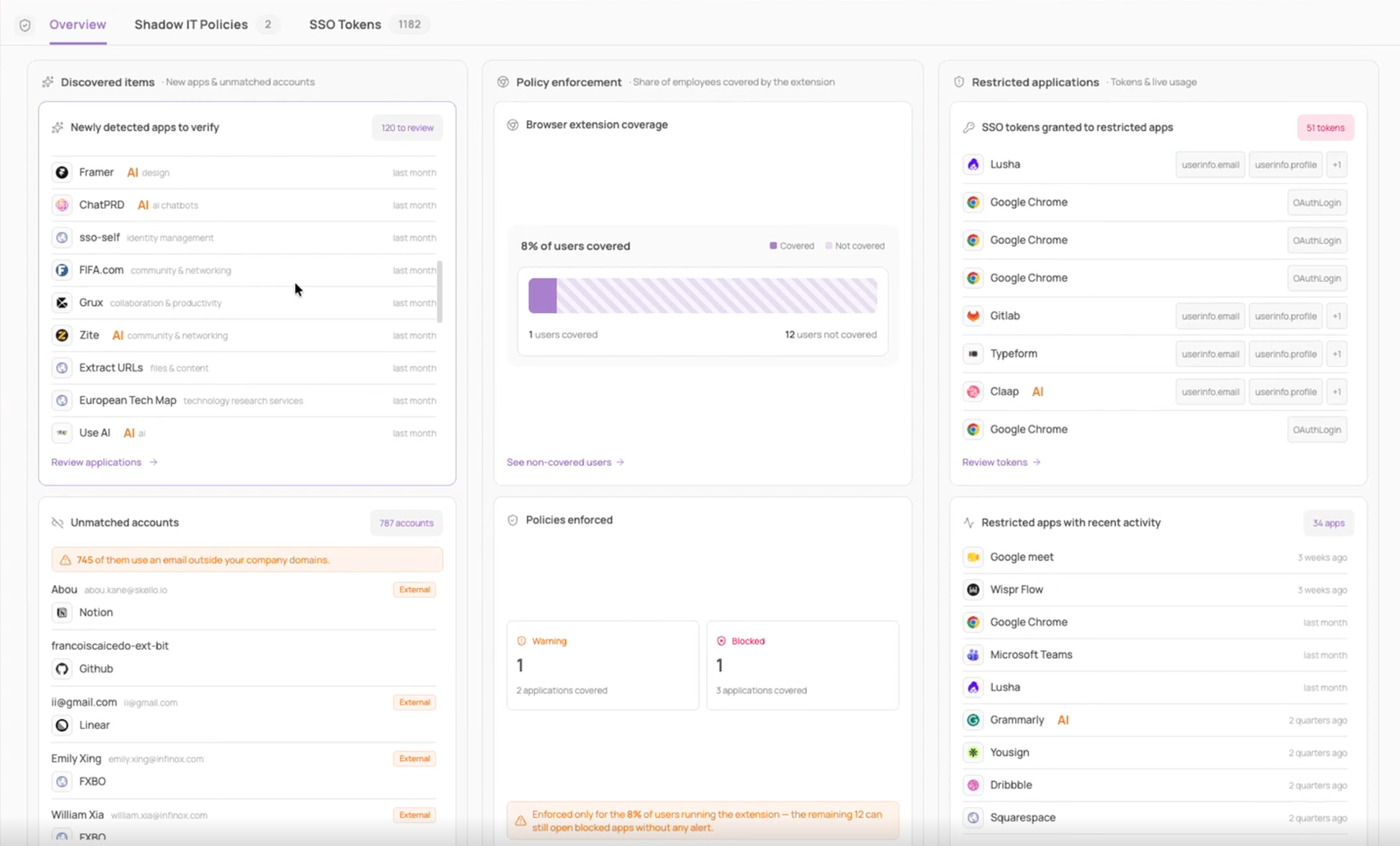
Discovered items
New apps and unmatched accounts, meaning everything Corma has found that does not yet have a decision attached to it.
Newly detected apps to verify: applications Corma has detected in your environment that have not been categorized yet. Each row shows the app, its category, and when it was last seen, and AI tools are tagged AI so you can spot them at a glance. The counter tells you how many are waiting on a decision. Use Review applications to open the full list and assign a status.
Unmatched accounts: accounts detected inside your applications that Corma could not link to a known identity in your directory. Each row shows the account, the application it was found in, and an External tag when the account signs in with an email outside your company domains. A banner at the top of the card counts how many of them are external, which is usually where you want to start. Use Match accounts to link them to a user or flag them for removal.
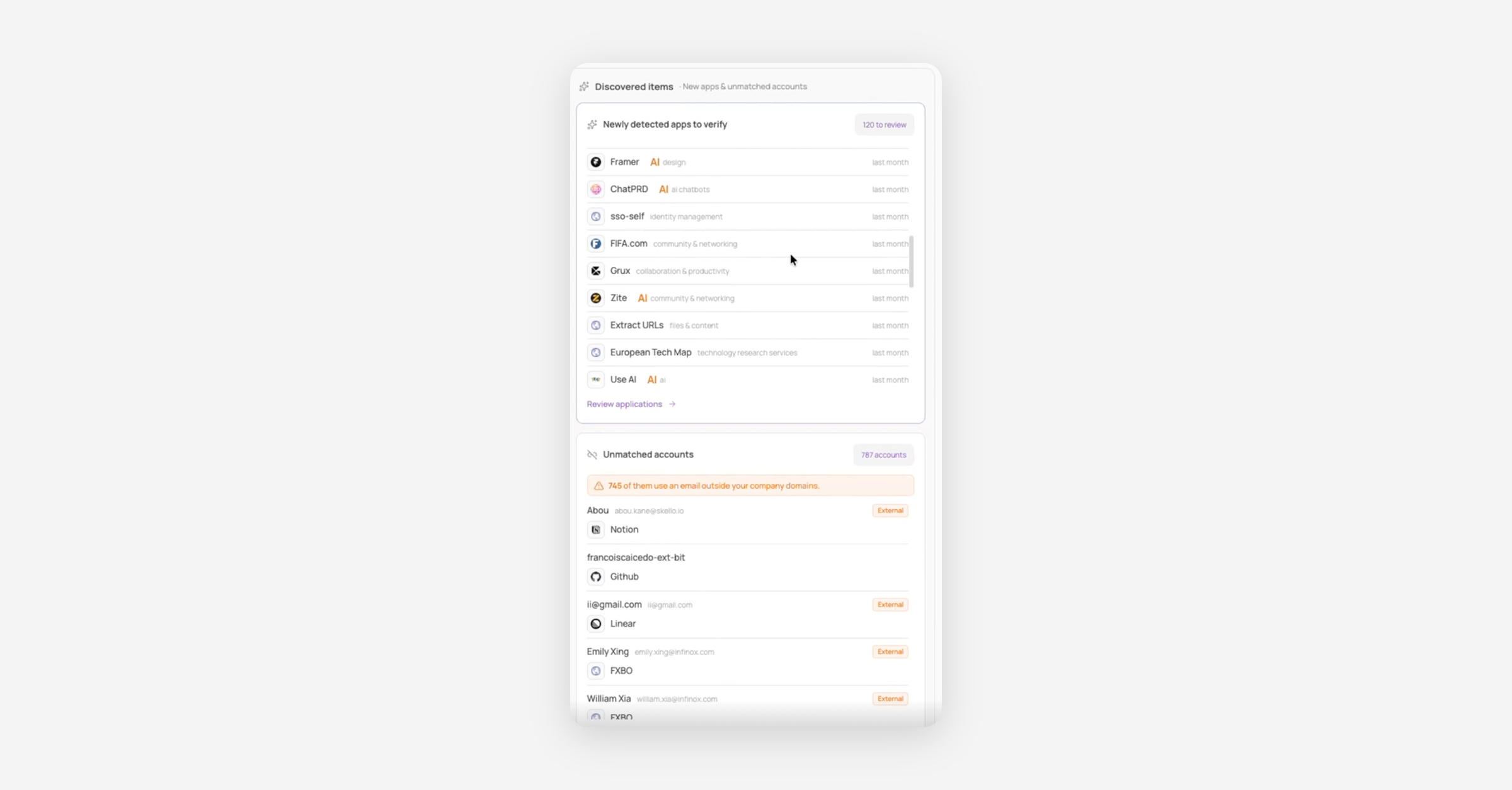
Policy enforcement
Share of employees covered by the extension, and who your live policies are actually reaching.
Browser extension coverage: the share of users who have the Corma browser extension installed, split into covered and not covered headcount. Coverage matters because Shadow IT policies are delivered through the extension: a user without it can open a blocked app without seeing anything. Use See non-covered users to get the list and chase installation.
Policies enforced: how many Warning and Blocked policies are live, and how many applications each of them covers. The card carries a reminder that enforcement only reaches users running the extension, so read these numbers alongside your coverage figure rather than on their own. Use Review policies to open the Shadow IT policies tab.
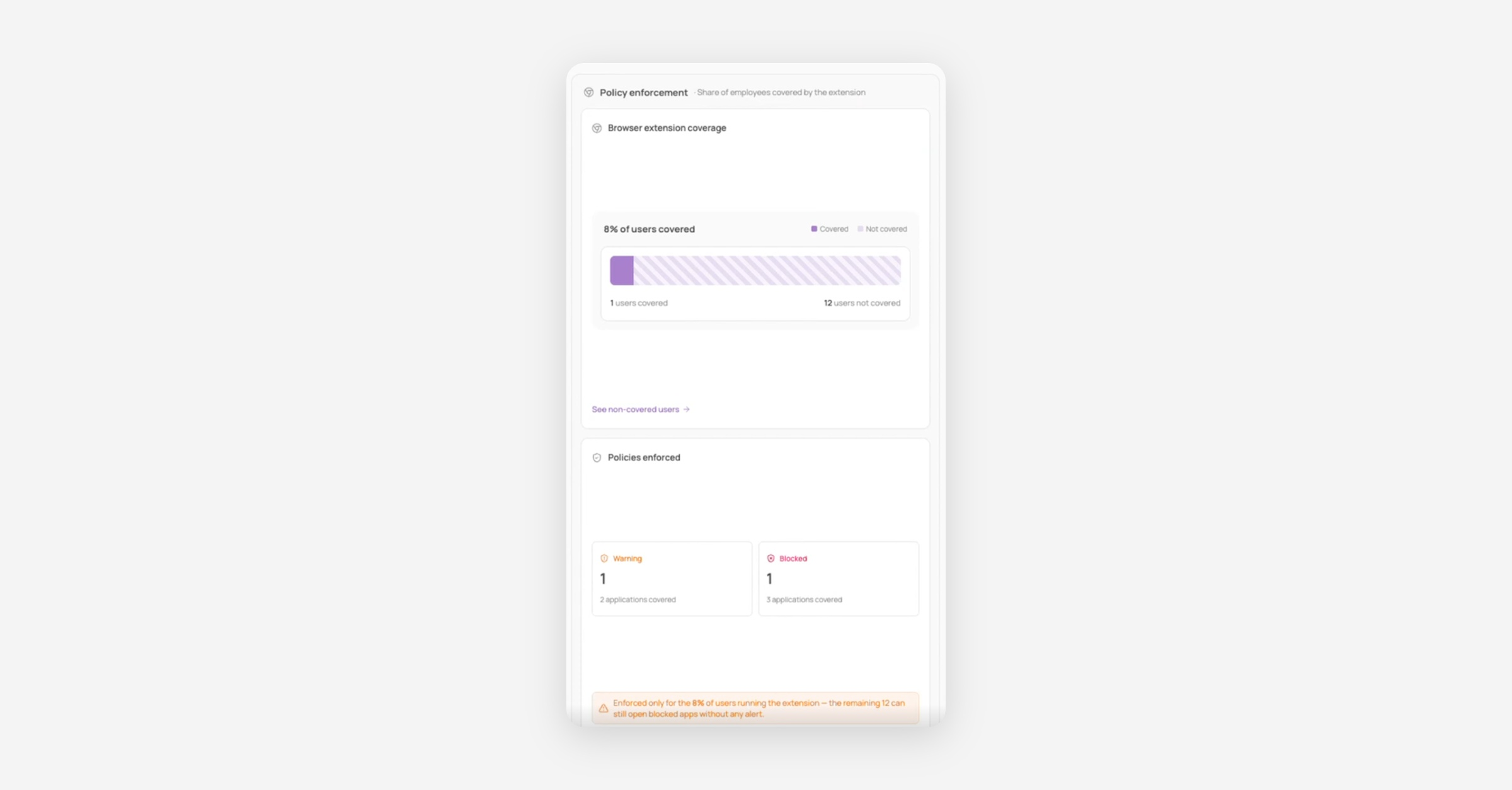
Restricted applications
Tokens and live usage on the apps you have explicitly ruled out.
SSO tokens granted to restricted apps: third-party tokens employees have granted to restricted applications, with the scopes attached to each one shown as chips. AI tools are tagged AI. Use Review tokens to open the SSO tokens tab and revoke.
Restricted apps with recent activity: restricted applications that have been opened recently, with the time of the last recorded activity, so you can tell an app someone touched this week from one nobody has opened in two quarters. Use See all applications for the full list.
Categorize applications
Corma admins are prompted to categorize applications used across the organisation using one of the following statuses:
Authorized: Apps validated and managed by the company. Authorized apps only will be taken into consideration when offboarding a user.
Restricted: Apps IT flags as not permitted, which no user should use. Opening one of these apps generates a strong notification to prevent the user from continuing.
Tolerated: Apps not managed by IT but which users are authorized to use. These do not generate browser notifications when used.
Pending review: Apps detected by Corma that need to be reviewed by IT before receiving one of the statuses above.
Statuses are visible to employees in the App store from the browser extension and in the Employee Portal, so they always know where an app stands before they use it.
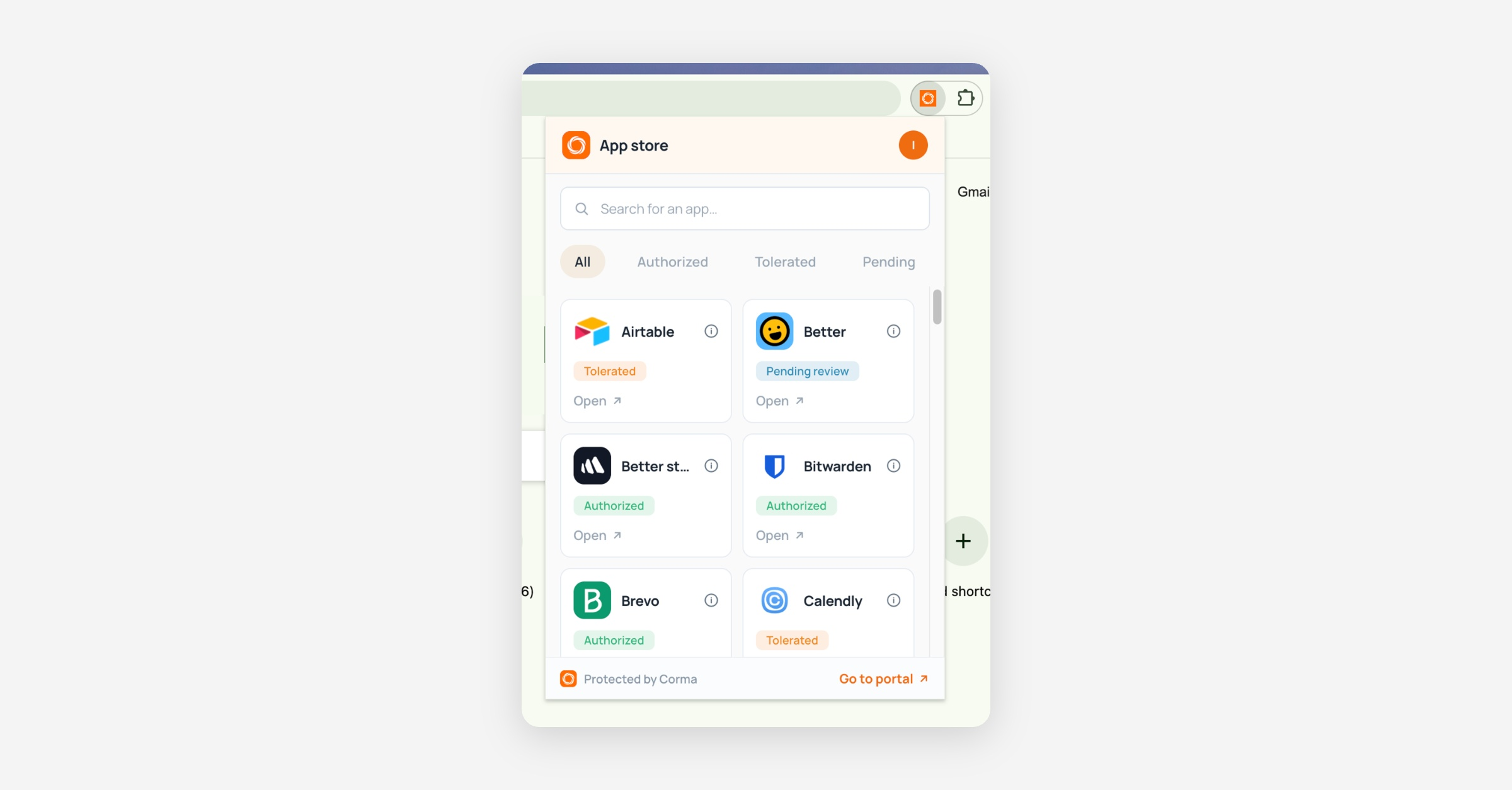
Note that a status and a policy are two different things. The status records your decision about an app. A policy decides what an employee actually sees when they open it, and a policy applies whatever the app's status is.
Corma compliance risk score
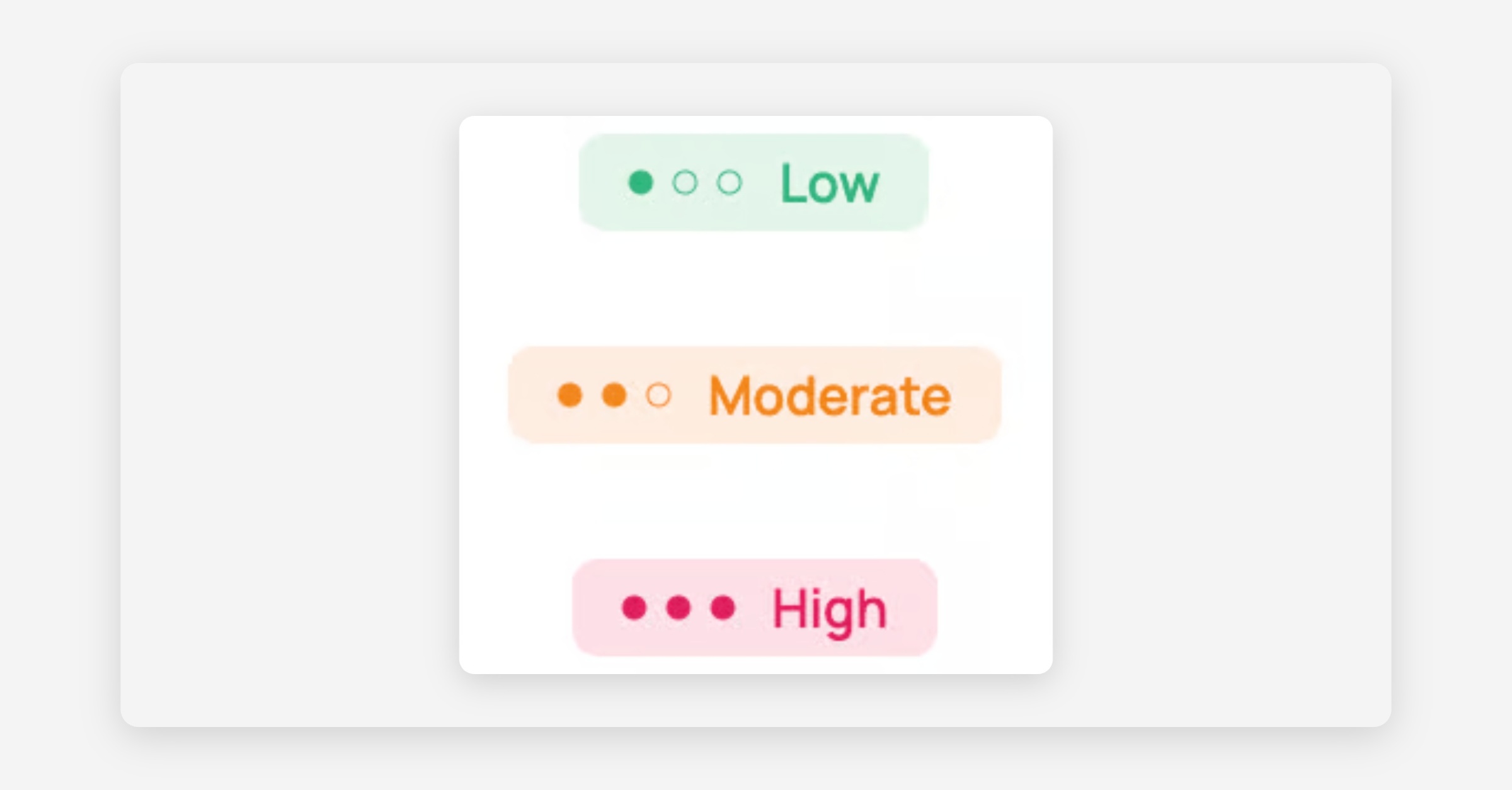
Corma automatically assigns a compliance risk score to each Shadow IT application, Low, Moderate, or High, based on factors such as data hosting location, data sensitivity, security certifications, and known security incidents. Scores are a starting point, not a fixed value: you can override or remove the score on the application's own page if your own assessment differs.
🎯 Use cases
Admin