

Overview
Corma's Devices module brings every computer from your MDM (Jamf, Microsoft Intune) into one table, so you know which devices exist, who uses them, and where the Corma OS agent is still missing.
See your whole fleet at a glance: the Device inventory card shows how many devices you have, split by source, and how many have no owner yet.
Know who owns each device: Corma matches each device to a user from the user name in your MDM. When there's no exact match, it suggests an owner you can accept in one click.
Spot the gaps in your OS agent rollout: the OS agent deployment card shows the share of your Windows devices covered by a connected OS agent, how many devices have the agent installed, how many of those are inactive, and how many have no agent at all. Inactive devices don't count as covered.
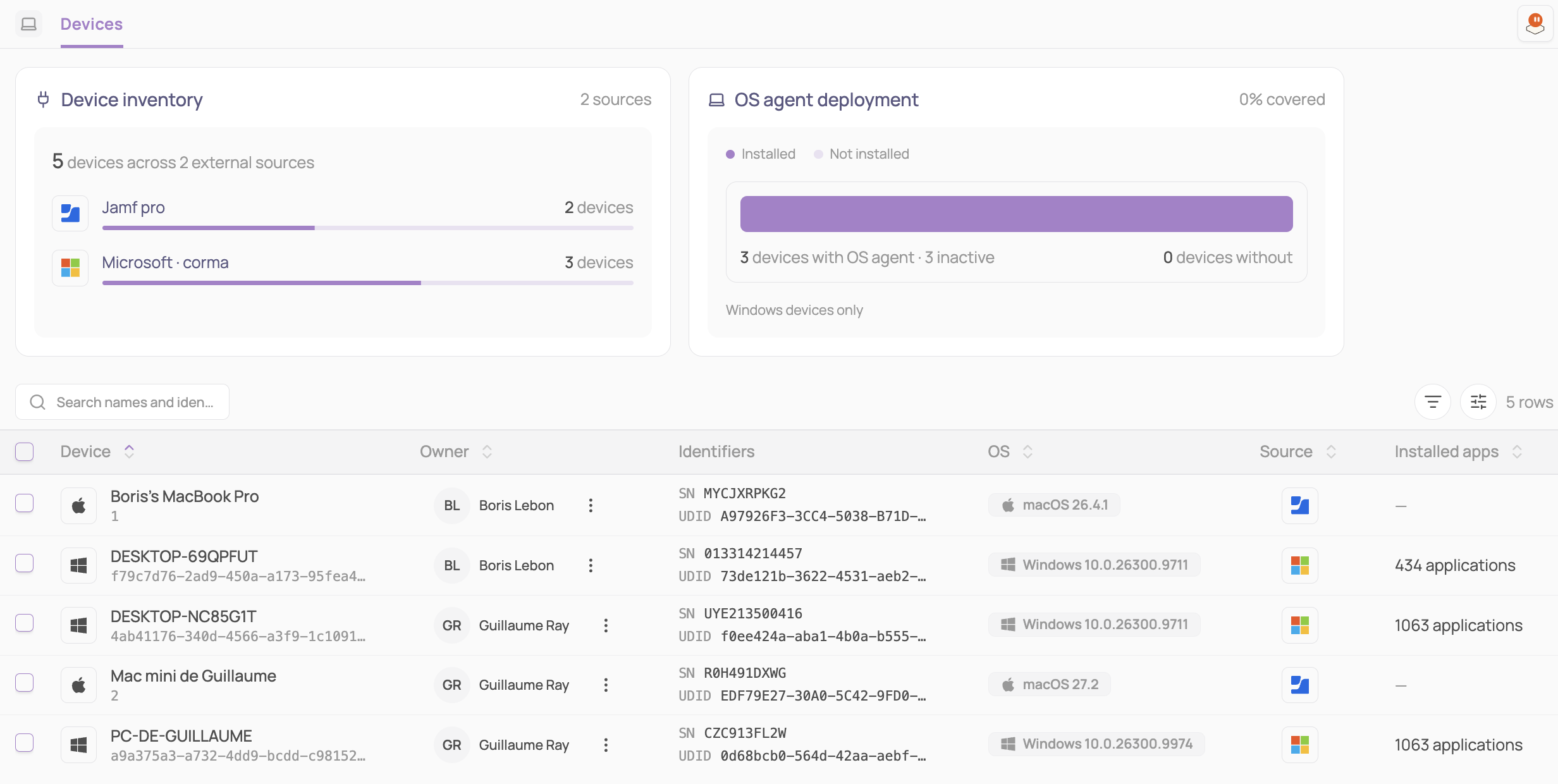
ℹ️ The Devices page is only visible to admins. It appears in the sidebar under Resources, between Users and Licenses.
Filtering devices
Click the filter icon above the table to narrow the device list:
Filter | What it does |
|---|---|
Source | Filter by the connection the device comes from (e.g. your Jamf connection) |
OS | Filter by operating system: Windows or macOS |
Owner | Show only Matched or Unmatched devices |
OS agent | Filter by OS agent status (see below) |
ℹ️ To find where the OS agent still needs work, filter OS on Windows and OS agent on Not installed and Inactive.
OS agent status
Connected: the OS agent is installed and reporting to Corma
Inactive: the OS agent is installed but has stopped reporting to Corma
Not installed: Windows device without the OS agent
Not available: the OS agent doesn't run on this operating system (e.g. macOS)
Device owners
Each device shows its owner, taken from your MDM. When Corma can't find a match, the device shows as Unmatched.
Accept: confirm the owner Corma suggests
Attribute an identity: pick the owner yourself when there's no suggestion
Reset to MDM: go back to the owner from your MDM. The current owner stays until the next sync
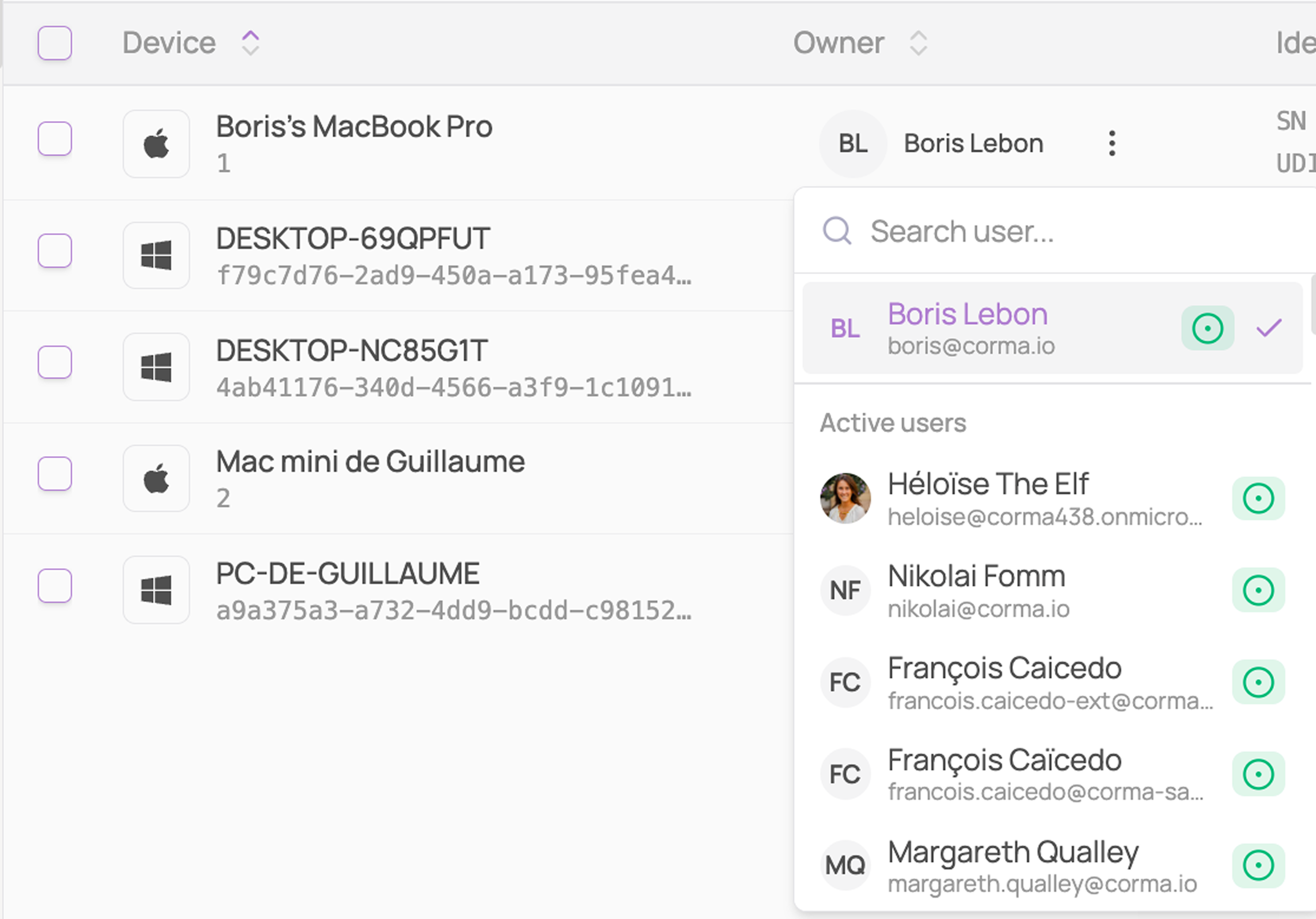
ℹ️ An owner you set in Corma is kept when your MDM syncs again, until you click Reset to MDM.
Table columns
The main table shows:
Device: the device name
Owner: the user the device belongs to, or Unmatched
Identifiers: the device's serial number (SN) and unique device ID (UDID). Show or hide it from the column picker
OS: the operating system logo and version, as reported by your MDM
OS agent: the agent status, as defined above
Source: the logo of the tool the device comes from
Installed apps: the number of applications detected on the device
Last contact: the last time the device checked in with your MDM
You can search by device name or identifier, and sort by any column.
Syncing your devices
Corma supports two MDMs for device sync: Jamf and Microsoft Intune. To see your devices in Corma, activate device sync in the connector:
Open your Jamf or Microsoft connector in Corma.
In the Reads section, activate Devices.
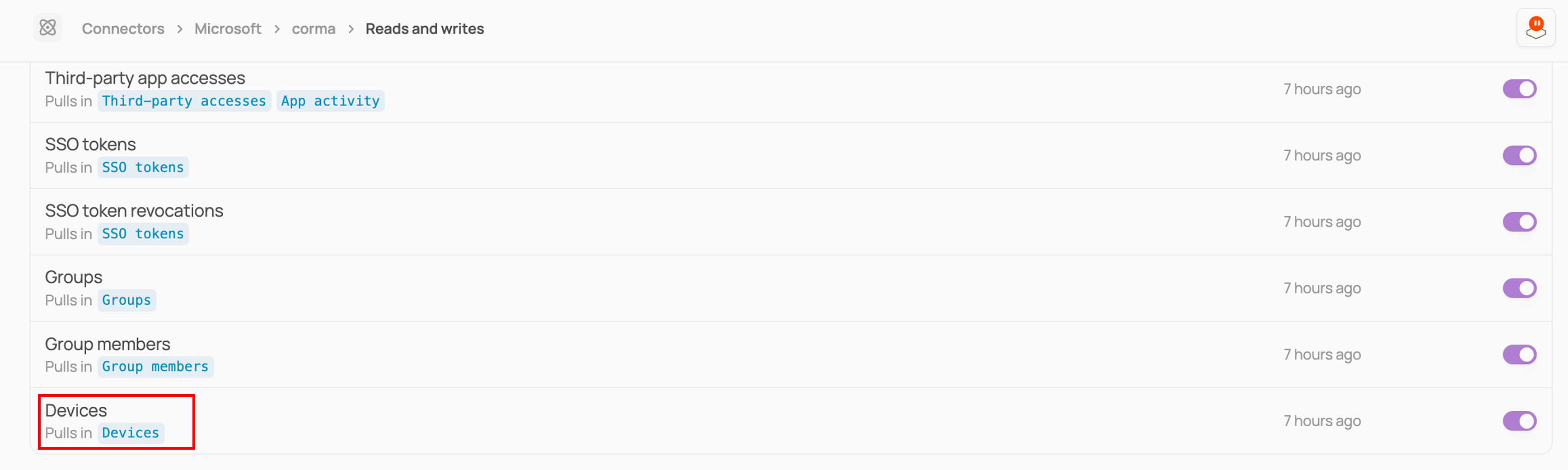
ℹ️ Your devices appear on the Devices page after the next sync of the connector.
🎯 Use cases
Deploying an MSI via Microsoft Intune