
HR Properties
Choose which field from your HR tool or identity provider fills each Corma user field. Go to Settings → HR Properties to set it up. Only admins can change these settings.
How it works
Until now, Corma decided which source field went into which user field. With inbound data mapping, you decide. Each Corma user field reads from one source that you pick.
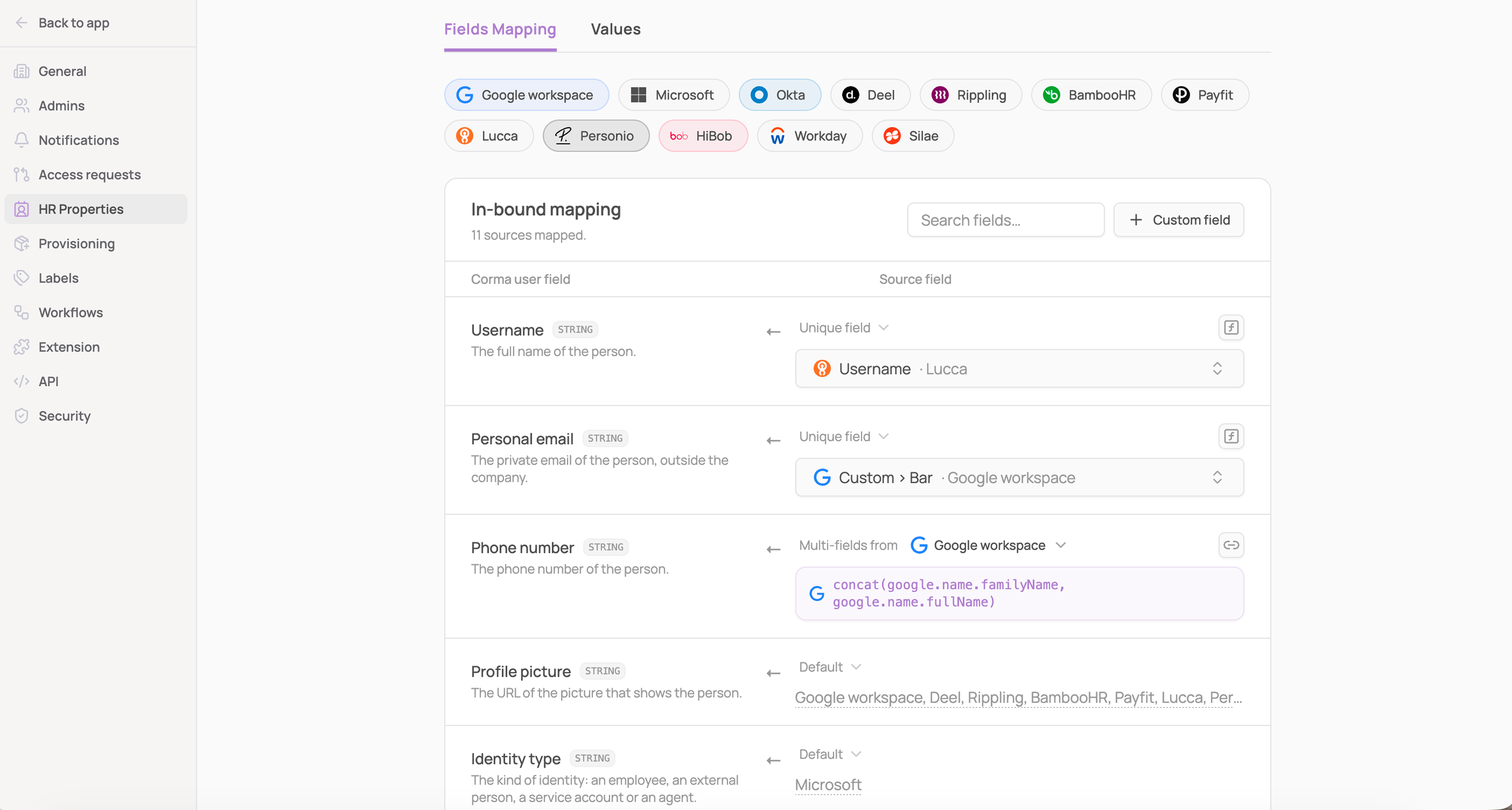
Every field is in one of four modes:
Mode | What it does |
|---|---|
Default | Every connected source writes the field, as Corma always did. If several sources write it, the last sync wins. |
Unique field | One field from one source fills the field. |
Multi-fields | An expression combines several fields of one source. |
Manual | No source writes the field. You fill it in Corma. |
Professional email can't be mapped. Corma uses it to recognize the same person across your tools.
The names of Corma's built-in fields can't be changed. If you want a field with your own name, create a custom field (see below).
Map a field to a source field
Open Settings → HR Properties and stay on the Fields Mapping tab.
Find the Corma user field you want to map, or use Search fields.
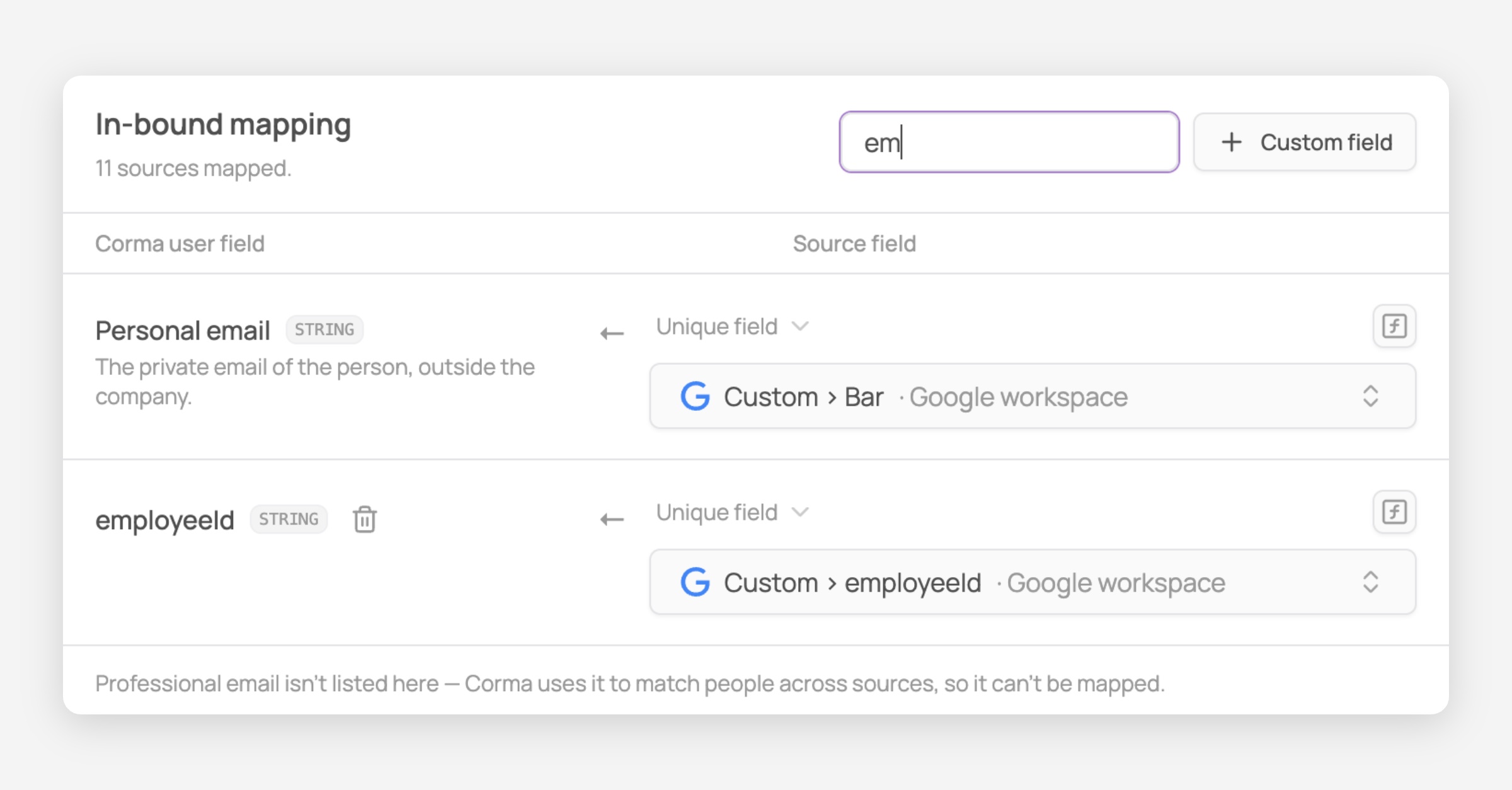
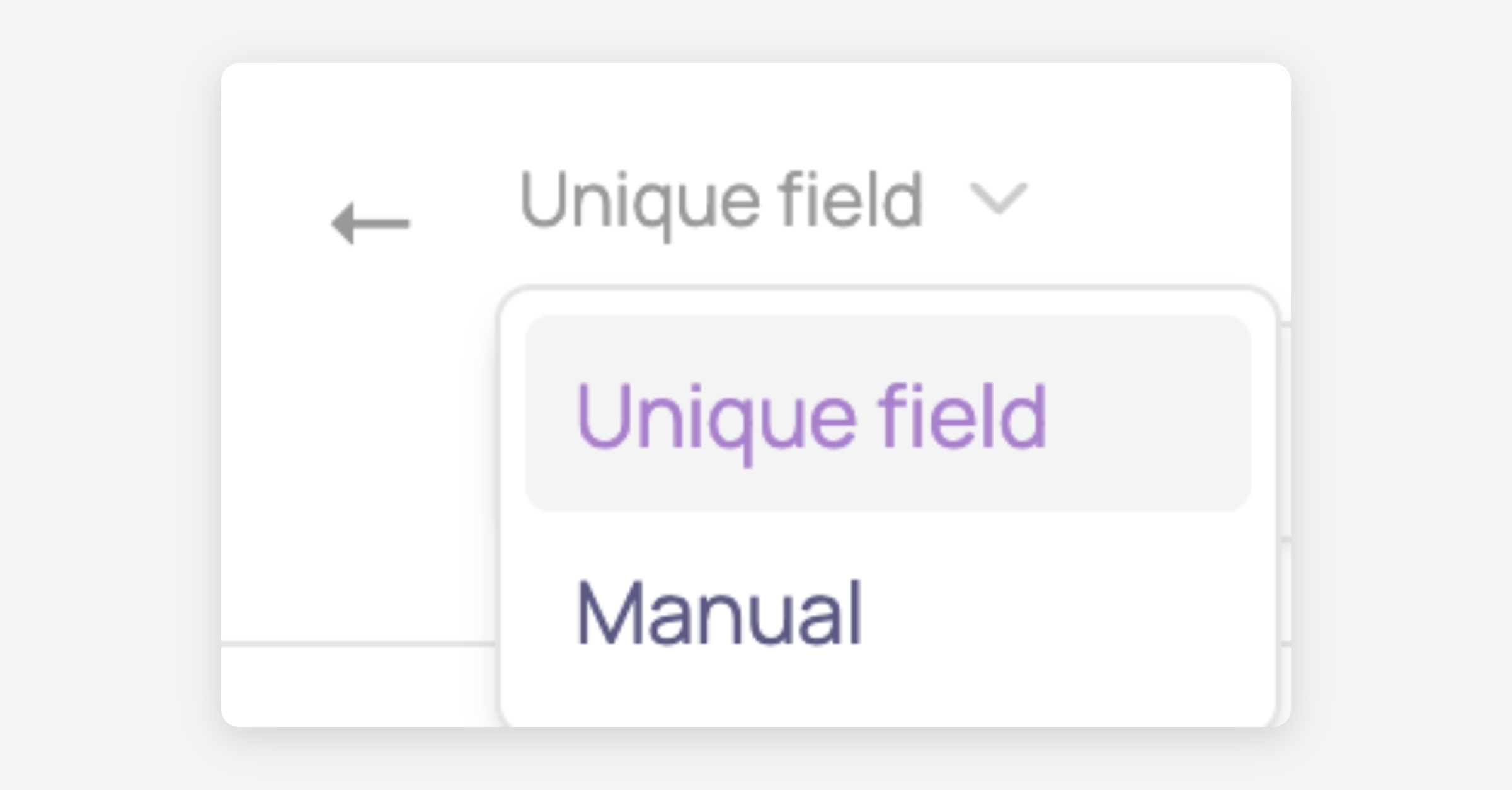
Open the mode dropdown next to the field and select Unique field.
Pick the source field. The list shows the fields of every tool you have connected, for example
Username · LuccaorName › Display name · Google workspace.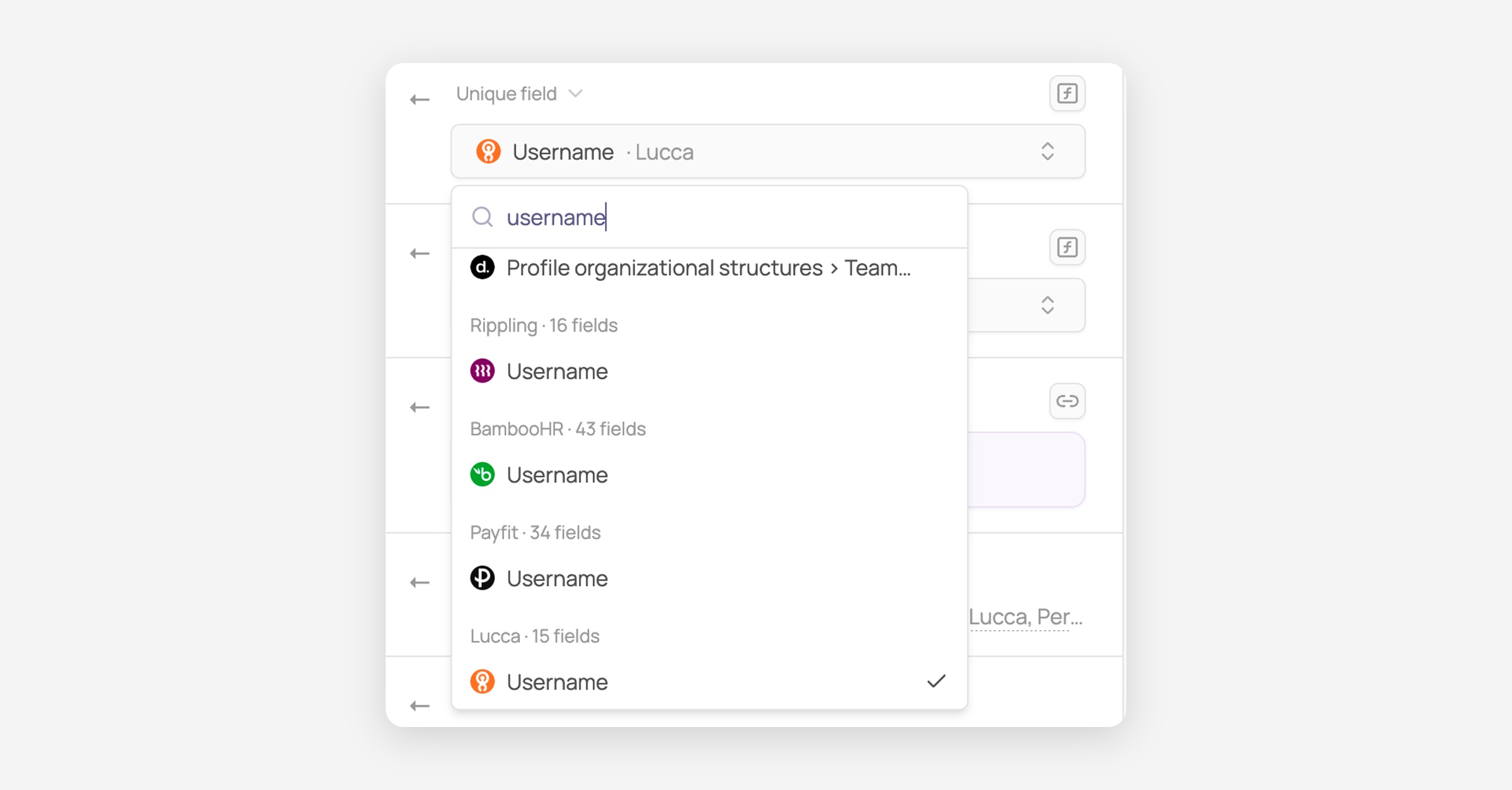
To stop syncing a field, select Manual. It then stays editable only inside Corma.
A field that has no source shows No source fills this field. Pick a source or set it to Manual.
Combine several fields with an expression
Use an expression when one field is not enough, for example to build a username from a first and a last name.
Click the expression button (the ƒ icon) next to the field.

Type your expression. Pick functions and variables from the suggestions that appear as you type. For example:
concat({{google.name.givenName}}, " ", {{google.name.familyName}})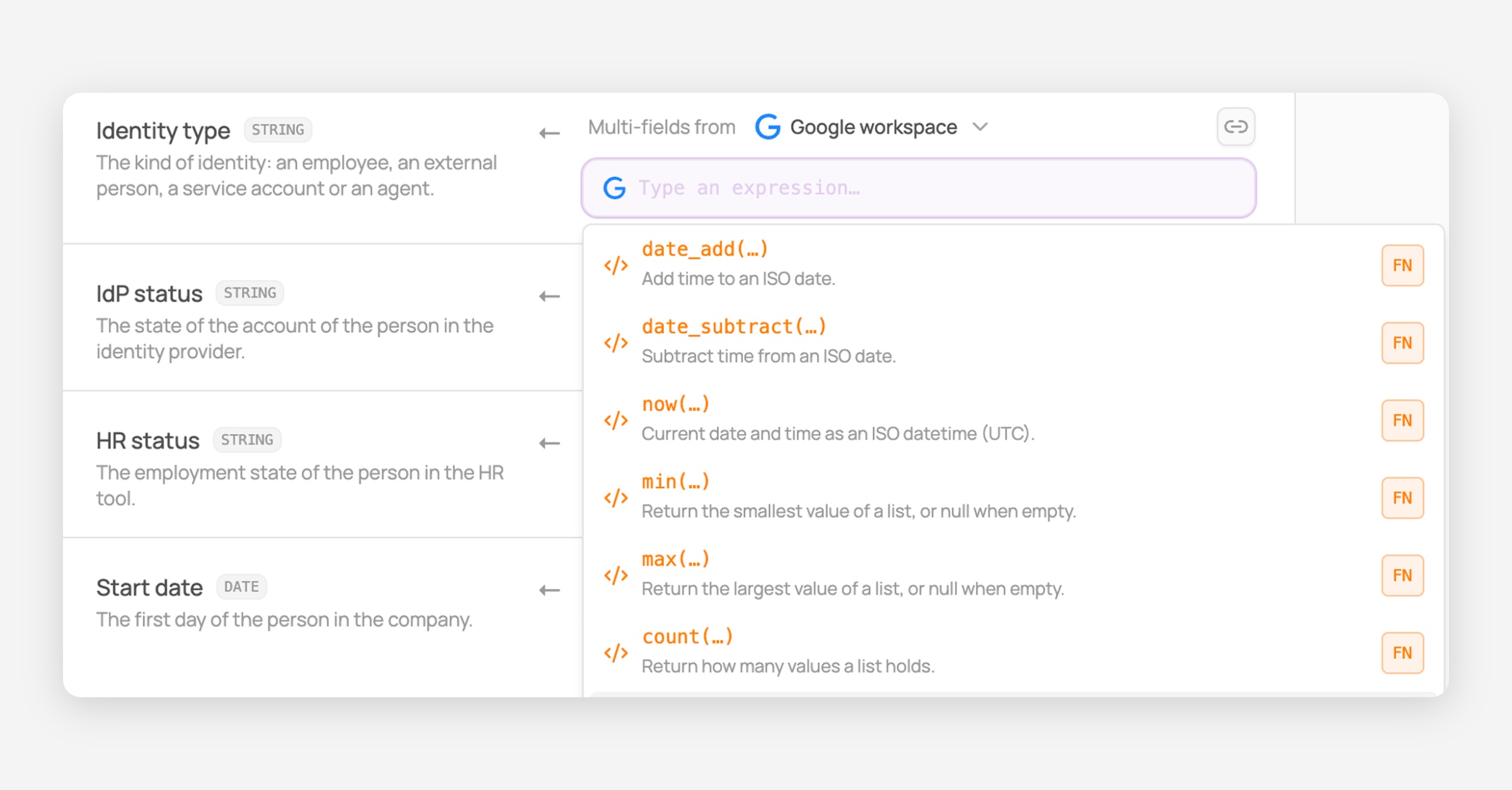
The result is written to the Corma field every time that source syncs a user.
An expression can only use fields from one source. Combining fields from several sources is not available yet.
Available functions
Type | Functions |
|---|---|
Text |
|
Logic |
|
Comparison |
|
Dates |
|
Lists |
|
coalescereturns the first value that is not empty. Use it when the information can sit in two different fields of the same source.
Create a custom field
If Corma's built-in fields are not enough, add your own.
Click "+ Custom field" at the top of the mapping table.

Name the field and choose its type.
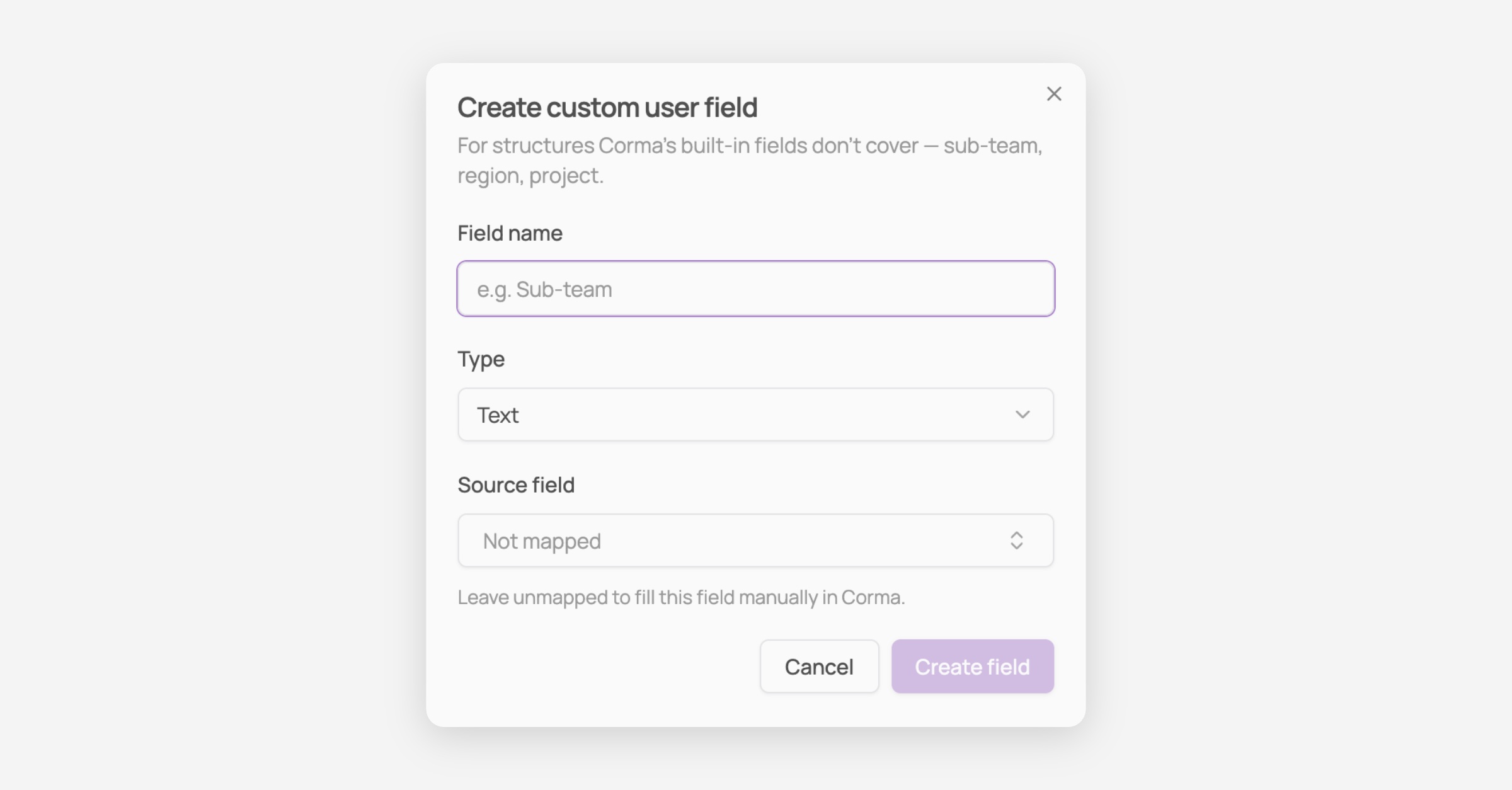
Choose its source, or keep it manual, then confirm.
Type | Use it for |
|---|---|
Text | Any free text, for example an employee ID |
Number | Numeric values |
Boolean | Yes or no |
Date | A date, for example an office arrival date |
User | A reference to another Corma user |
Custom fields show on the user's page in Corma. To remove one, click the bin icon next to it.
Use custom fields from your own tools
Custom fields you created in your HR tool or identity provider (for example in Deel, Personio or HiBob) are available in the source picker, next to the standard fields.
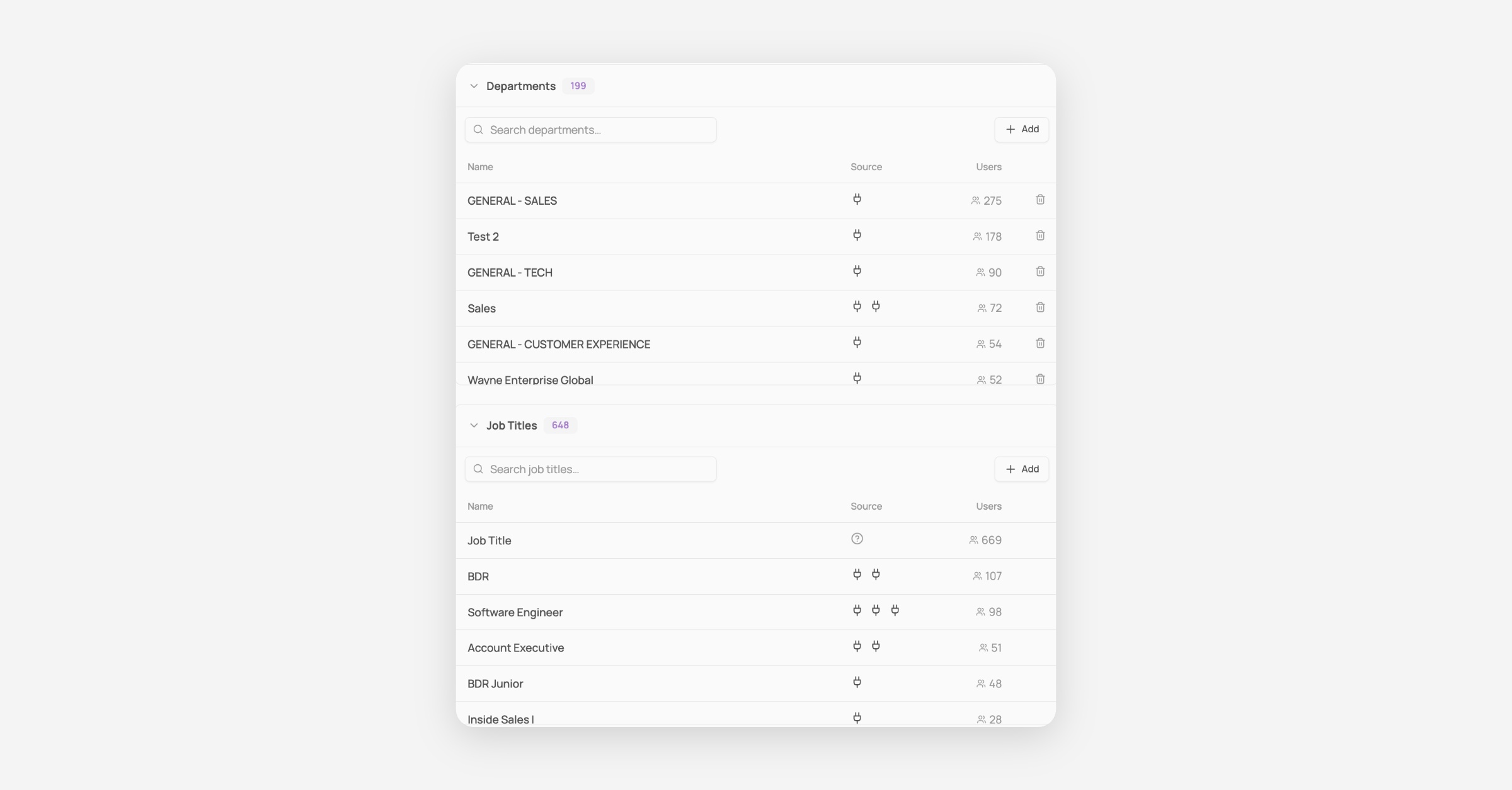
Values tab
The Values tab lists the departments and job titles synced from your HR tools, with their source and how many users belong to each.
Good to know
A field mapped to a source is read-only in Corma. To change it, change it in the source tool. Default and Manual fields stay editable.
If an expression returns an empty value, Corma leaves the existing value untouched.
Custom fields can't be used in the Workflow Builder yet.
To choose what Corma writes into an application when it creates an account, see Account creation: outbound data mapping.
Choose which field from your HR tool or identity provider fills each Corma user field. Go to Settings → HR Properties to set it up. Only admins can change these settings.