
General settings
A map of the Settings page of the workspace accessible to admins
Overview
Corma's Settings page is where you configure how your entire workspace behaves, company-wide defaults, admin access, notifications, approval fallbacks, and automation rules, all in one place.
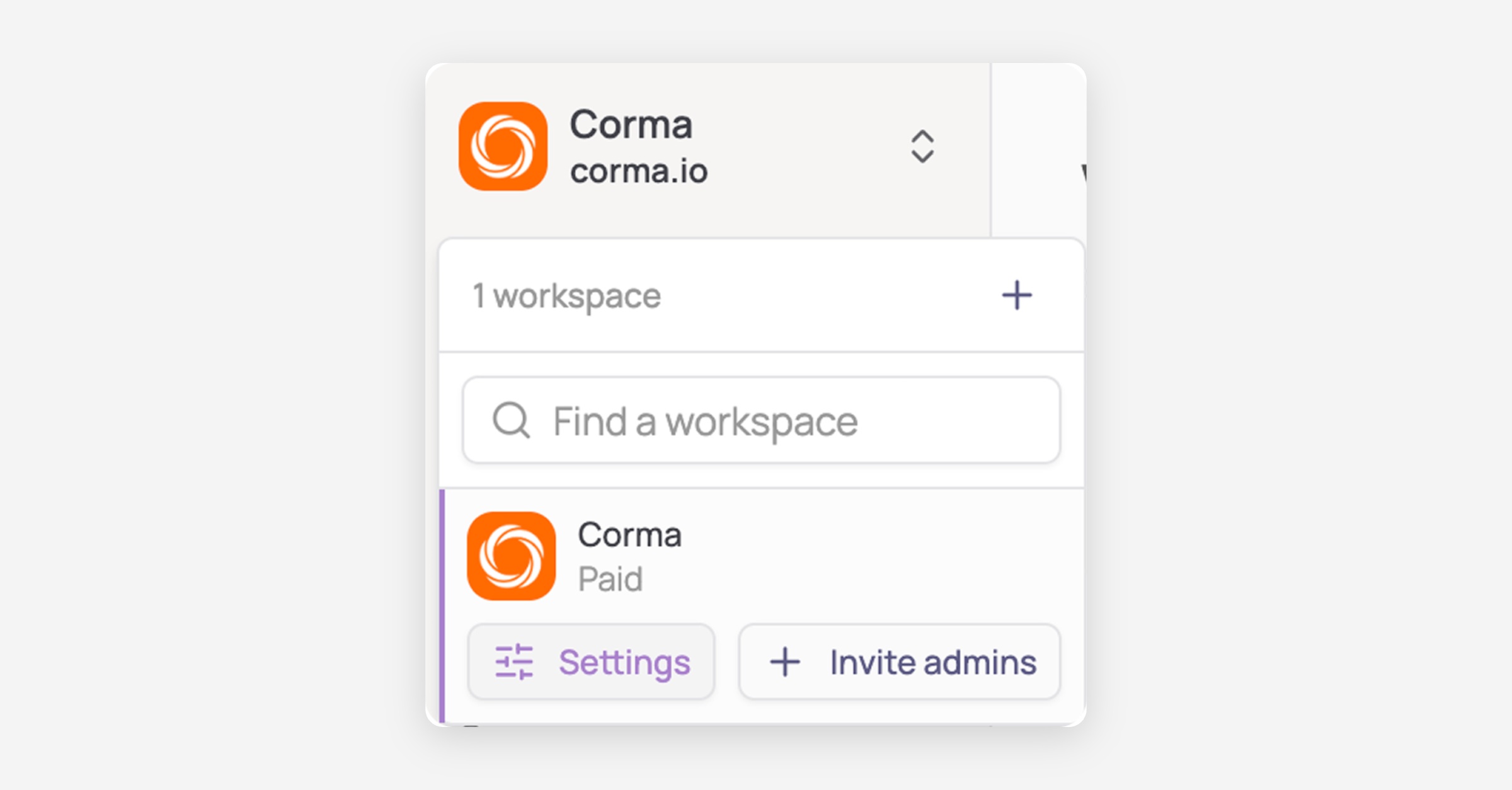
Access it by clicking your workspace name at the top of the sidebar, then "Settings".
General
Workspace: Name, Industry, Logo, Main currency, and Timezone (used to schedule date-based events).
Company domains: users signing up with an email from these domains automatically join your Corma workspace.
IT team: set your preferred contact method (Email, Link, or Chat), IT team email, Finance team email, and your Access management owner, the fallback user who gets tasked with manually provisioning access when Corma can't automate it via API.
Danger zone: permanently delete your workspace.
Currency
By default, all monetary values in Corma are shown in Euros (EUR). You can change this at any time:
Go to Settings → General
Open the Main currency dropdown
Select your preferred currency from the list of 166 available currencies
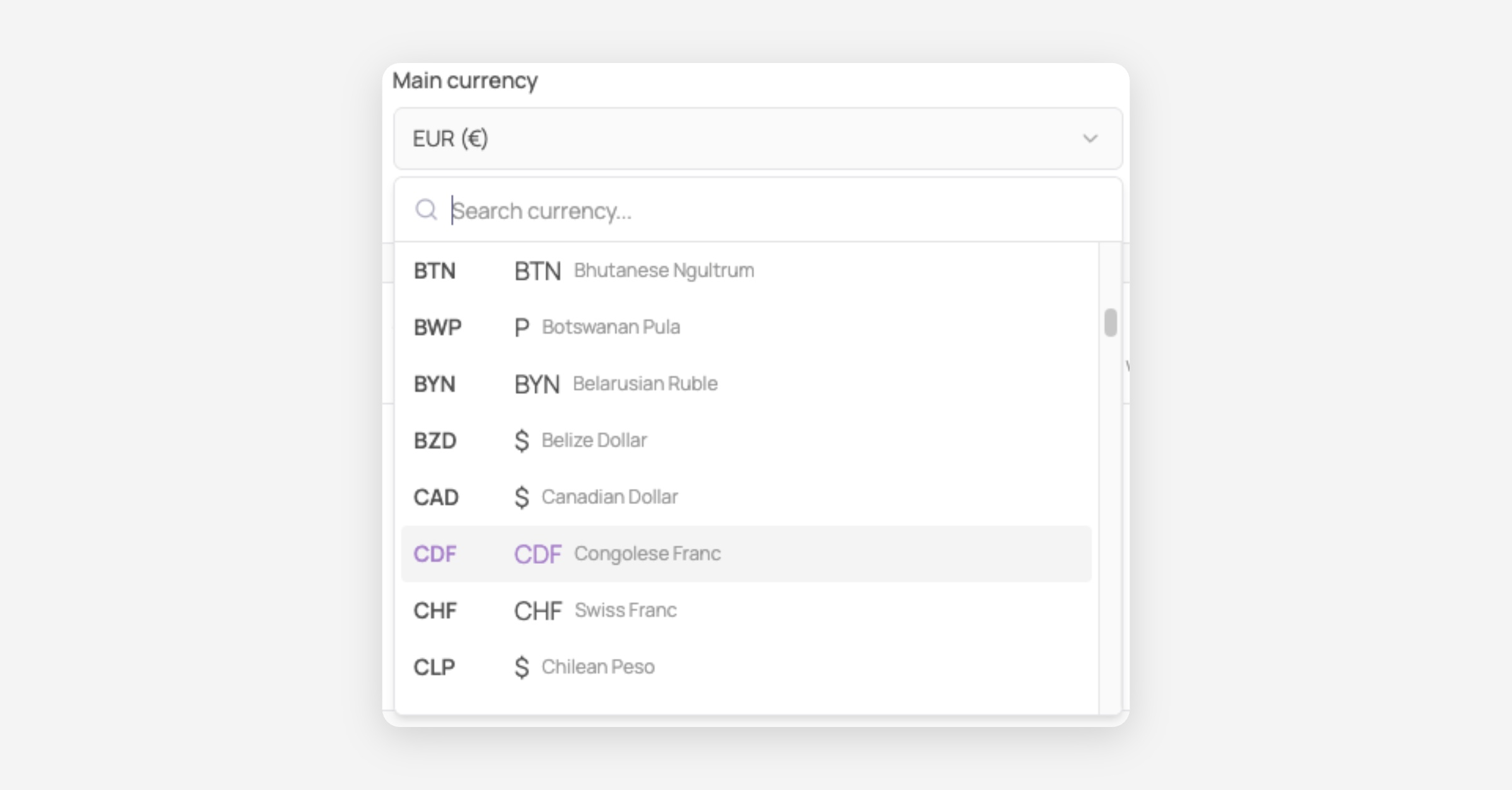
Once selected, the new currency applies automatically across all pages — costs, expenses, and financial totals. Currency conversions use daily-updated exchange rates.
Admins
Manage everyone with admin access to your workspace. Click "Invite admin", then search for an existing user or enter an email address directly to send the invite.
See the full guide: How to invite an admin
Notifications
Notification channels: choose how your team gets notified of workspace activity. Email, Slack, and Microsoft Teams are available today; Google Chat is marked "Upvote feature", meaning it is not yet available to connect.
Reminder frequency: control how often Corma sends reminders for pending Tickets and pending Access reviews.
See the full guide: Notifications channels
Approval flow
Set the company-wide default approval flow, used as a fallback for any application without its own configured approval flow. Add approval steps and assign a step type (e.g. Manager, specific user) to each. You can still configure a custom approval flow for a specific app from that app's own page.
See the full guide: How to set approval flows for access requests
HR Properties
View and manage the departments and job titles synced from your HR system, including which source each one came from and how many users belong to it.
Provisioning
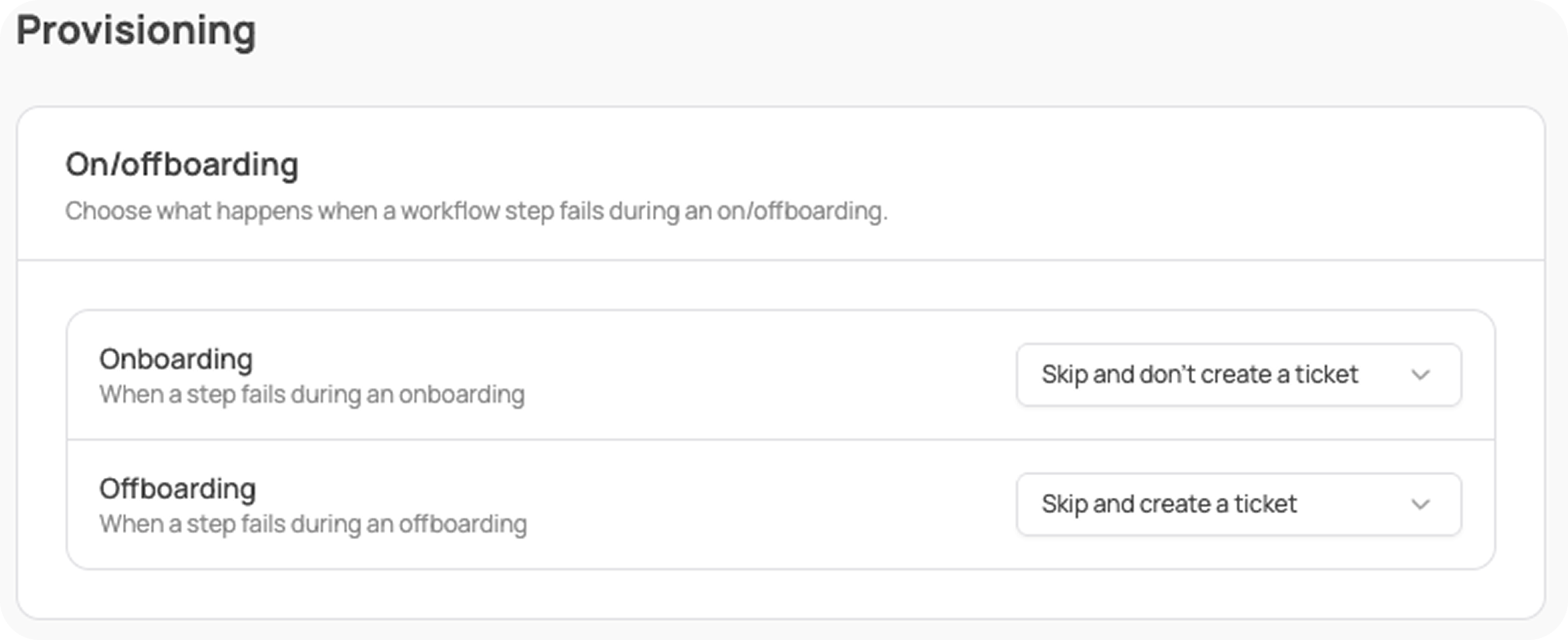
Choose what happens when a workflow step fails partway through an onboarding or offboarding: stop the process entirely, skip the step silently, or skip it and create a ticket so someone can follow up manually.
Labels
Create and manage the labels you apply to your apps, users and licenses. Labels are color-coded markers for your own classifications, such as tool categories, criticality or cost centres. Each one belongs to a single scope: Apps, Users or Licenses. Two app labels, Public and Internal, are maintained by Corma and cannot be edited.
See the full guide: Labels
Workflows
Control the trigger timing for "User start date reached" and "User end date reached" workflow triggers, how many days ahead of the date each one fires, and at what time of day (in your company's timezone).
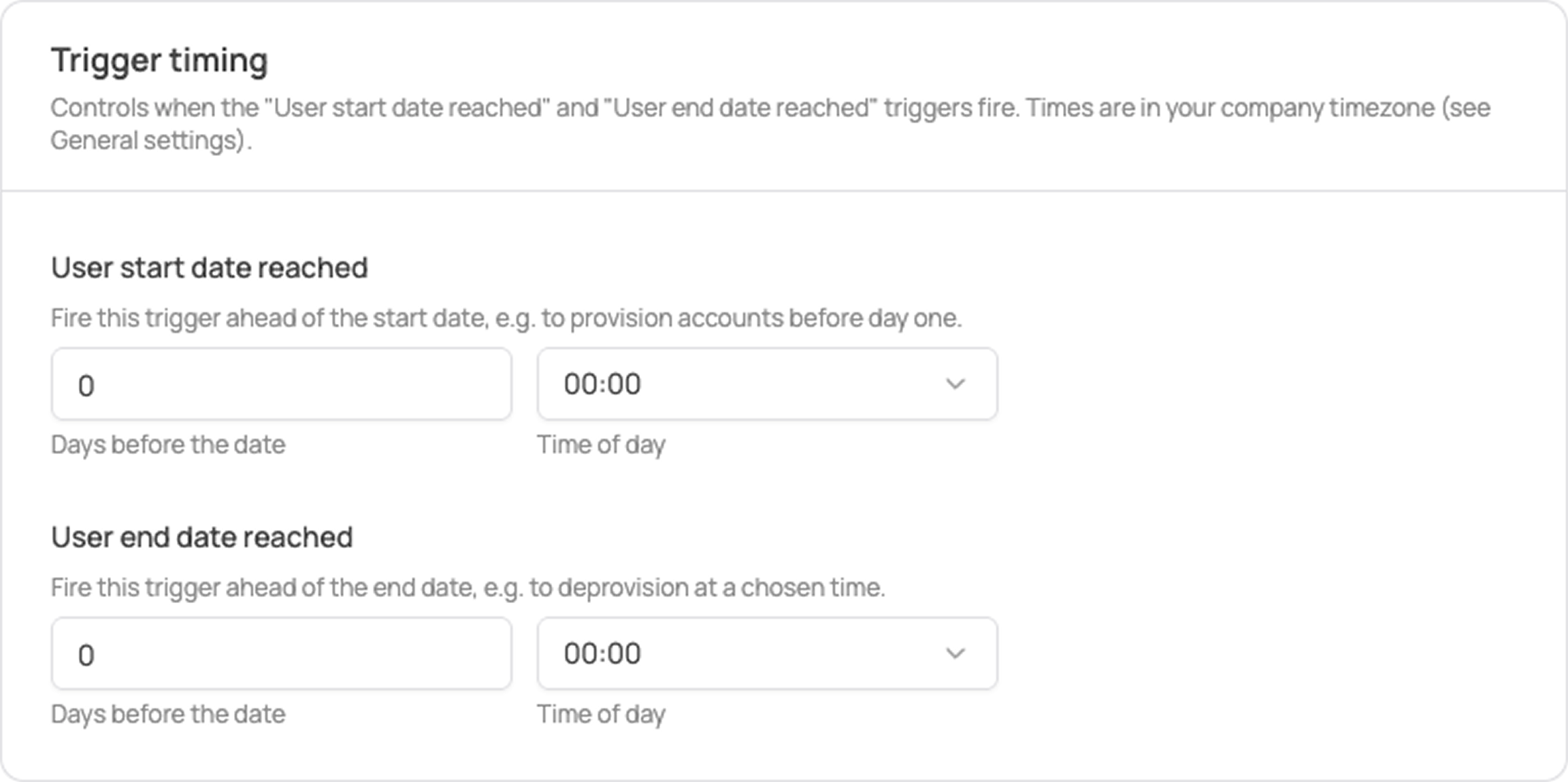
See the related guide: Workflow Builder, which covers the triggers this timing setting controls.
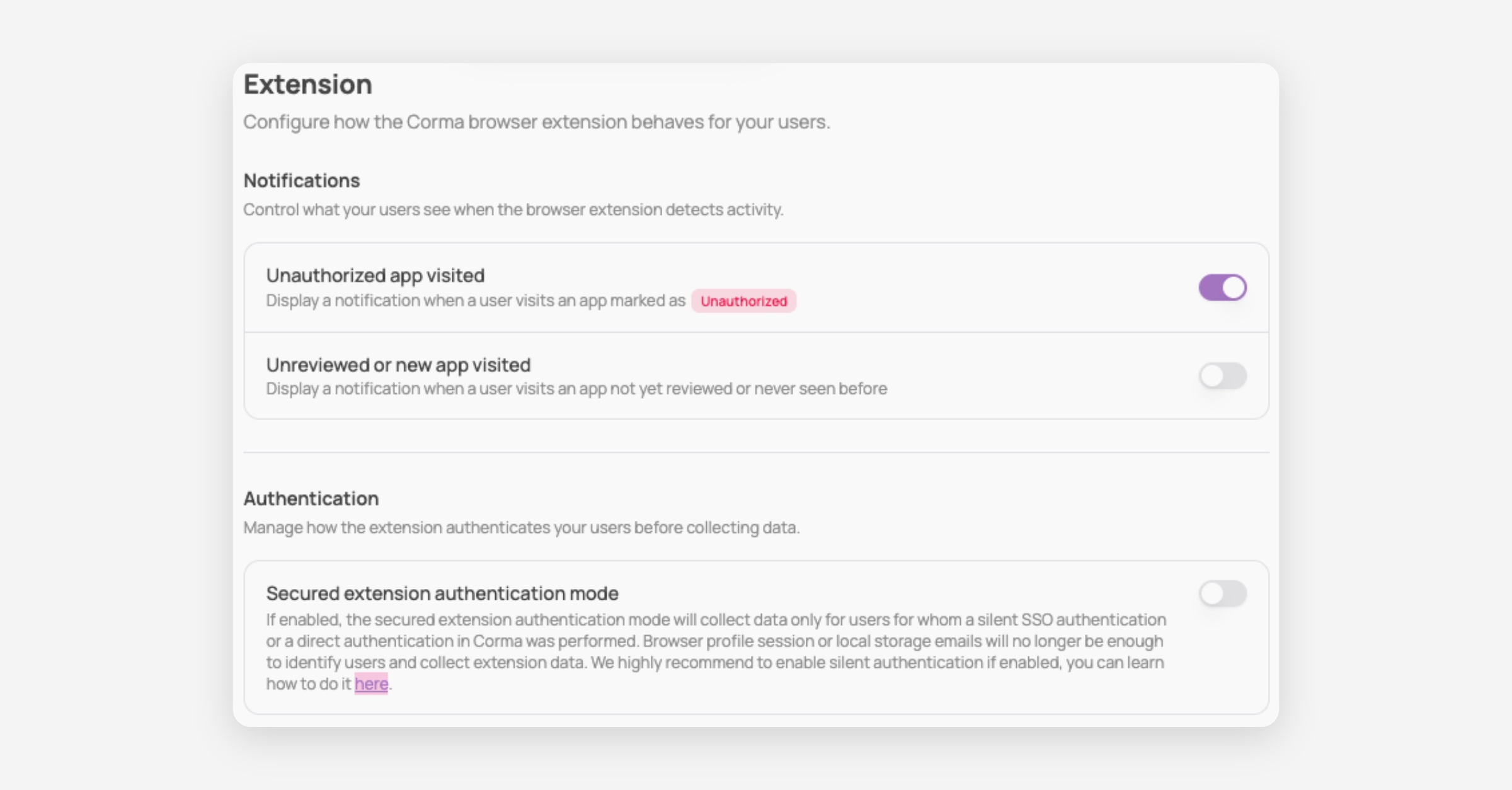
Extension
Notifications: control what the Corma browser extension shows users, toggle alerts for unauthorized apps visited, or for unreviewed/new apps visited.
Authentication: enable Secured extension authentication mode to collect extension data only from users with a verified SSO or direct Corma authentication, rather than relying on browser session or local storage.
API
Extend Corma by integrating it into your own systems via our open API. Generate, refresh, or delete API keys directly from this page.
See the full guide: API