
Tickets
Overview
The Tickets Module helps you track and manage every access request and access-related action across your organization, from a standalone access request to a manual provisioning or revocation task.
Access the Tickets module by clicking on the dedicated page in the sidebar.
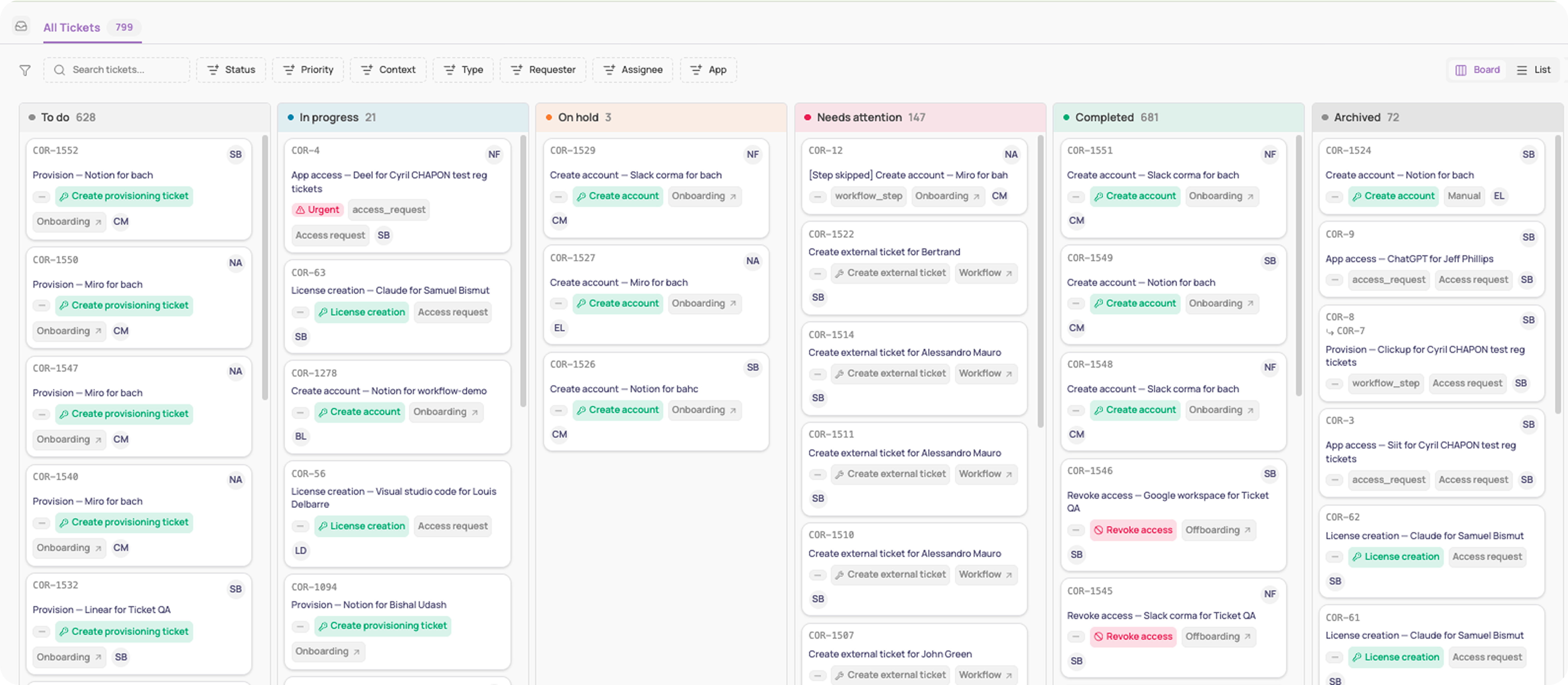
All tickets tab
The All Tickets tab provides a comprehensive view of every ticket in your organization: access requests, license actions (creation, modification, revocation), account creation and revocation tasks, and steps triggered by onboarding, offboarding, or workflow automations.
Tickets can be filtered by status, priority, context, type, requester, assignee, or app.
Customize this view to a board or a list, categorized by:
To do
In progress: tickets with an ongoing approval flow, or workflow actions currently in progress
On hold: tickets manually paused after work had started, distinct from To do tickets that haven't been touched yet
Needs attention: tickets where a workflow action failed and needs human intervention
Completed
Archived: tickets manually archived by a user, or automatically archived when an access request is declined
Your tickets
Tickets assigned to you, or awaiting your approval, are available separately from the main Tickets module. Click your name in the sidebar, switch to Employee mode, then click Tickets under Owner, this gives you a personalized view of only what needs your attention, instead of every ticket across the organization.
Ticket context
Every ticket carries a context, showing what triggered it: Onboarding, Offboarding, Access request, Access review, Revoke request, Workflow, or Manual.
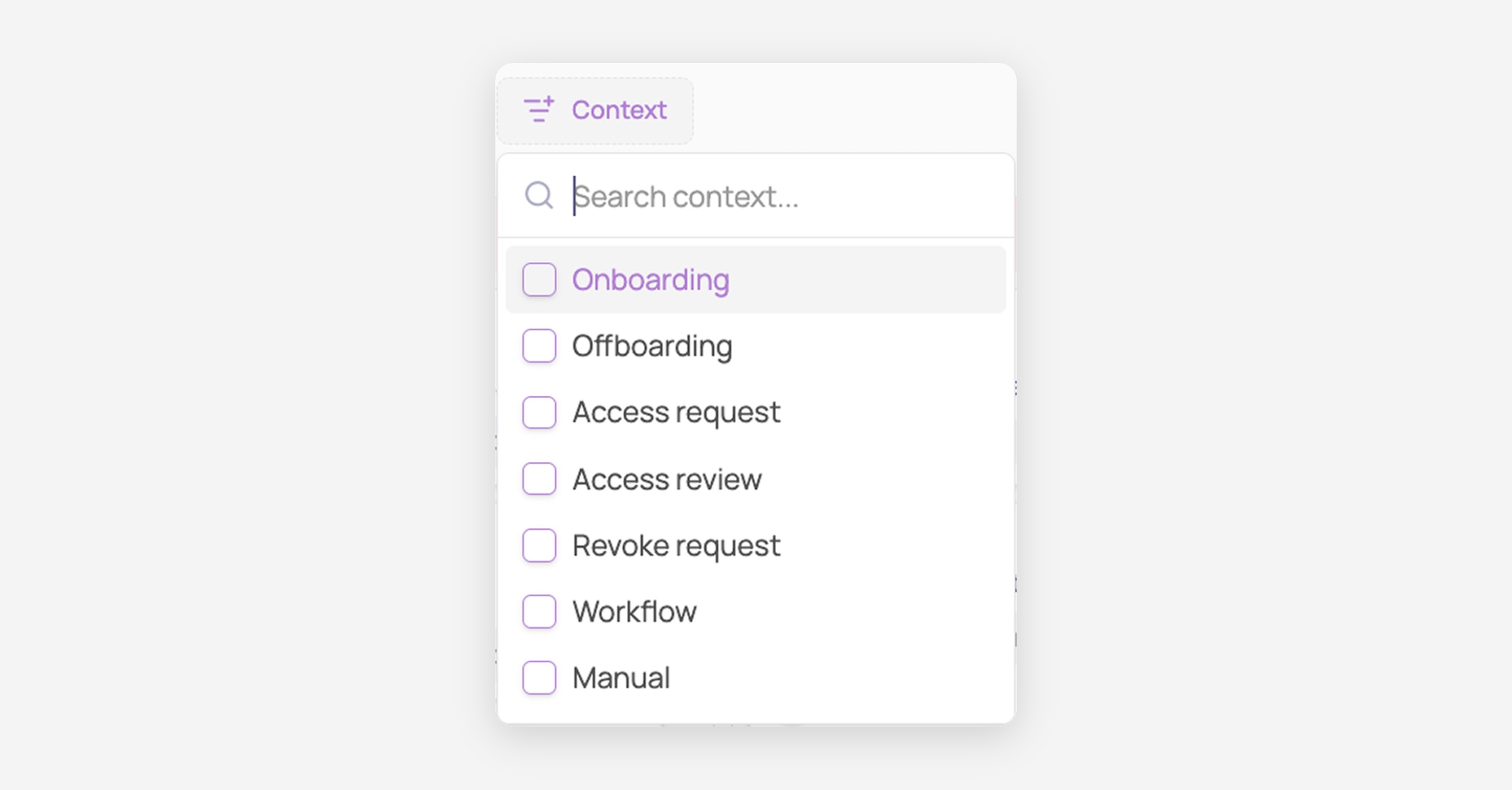
A Workflow context ticket can also come from a failed automated step, or from an Ask for approval step that is waiting on someone's decision. In the second case, the workflow stays paused until the ticket is resolved, or the deadline has passed.
Automated actions
Every ticket also shows the underlying automated action tied to it, for example "Create Account" on a specific app, or "Create Provisioning Ticket." This is the actual system action Corma carries out on the target app to fulfill the ticket.
This creates or updates the user's account on that app. It does not add a new app to your Applications directory.
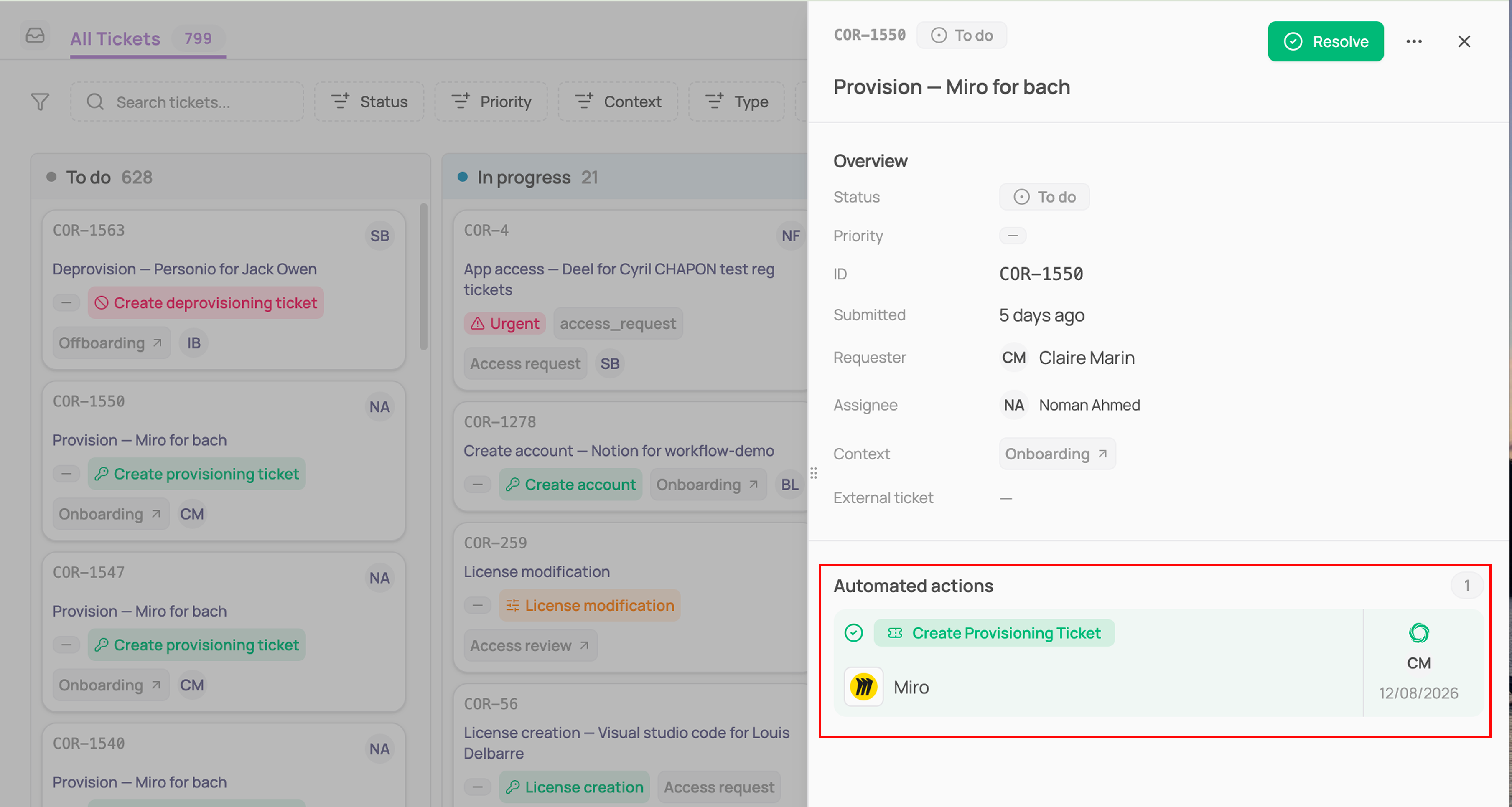
If the action was skipped or needs attention, the ticket's title is prefixed with "[Step skipped]" and the ticket lands in the Needs attention column.
See How to configure automatic provisioning and deprovisioning for an app to set up the automated actions a ticket carries out.
Parent tickets and sub-tickets
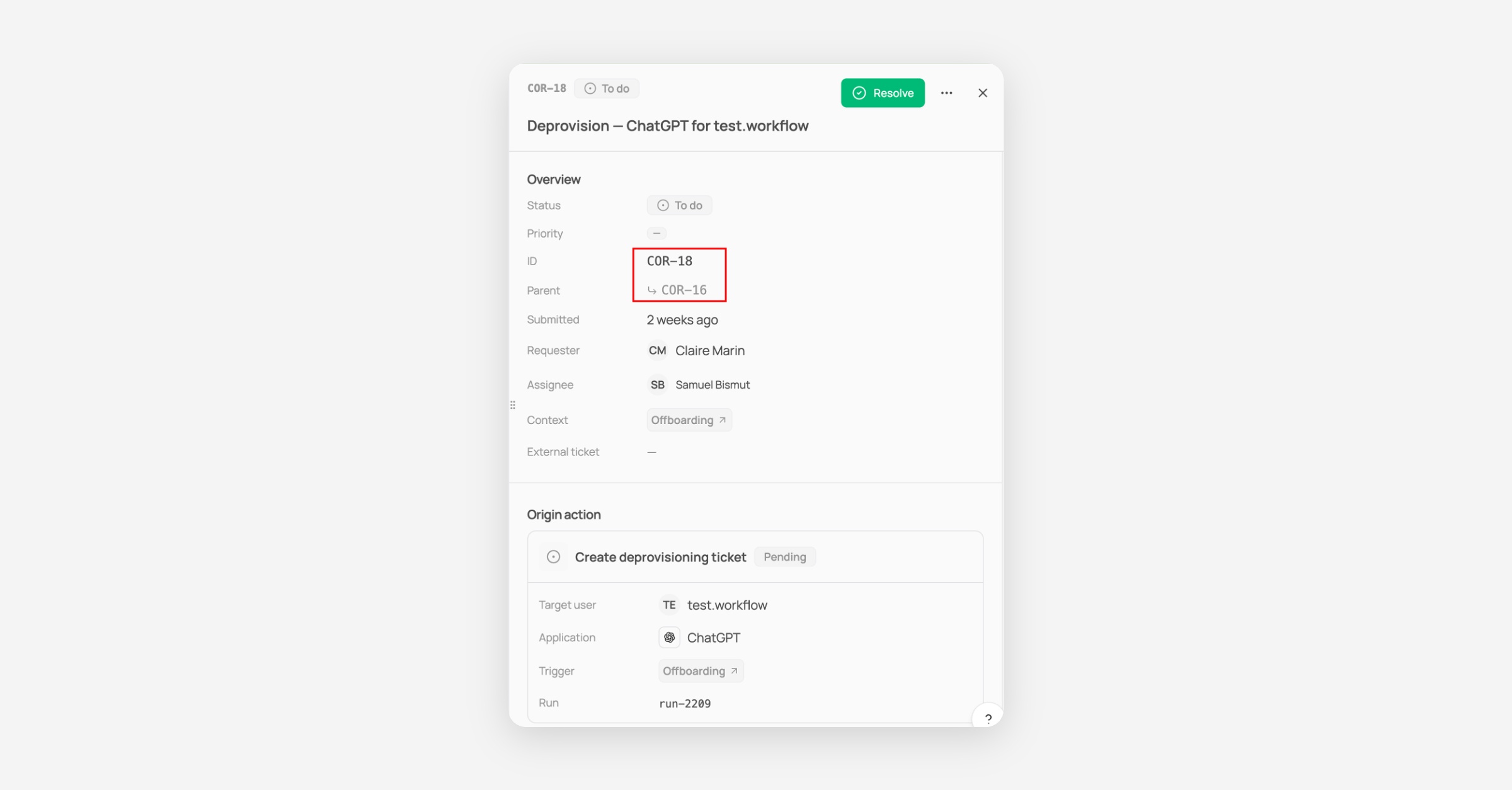
An approved access request automatically generates a linked provisioning ticket to carry out the grant. On the original ticket, this shows up under Sub-tickets; on the provisioning ticket itself, a Parent field links back to the request that triggered it, so you can trace either one to the other.
How it was before:
Previously Tasks were all the actions that had to be performed manually and that Corma could not automate via API or Agent. While Requests were all access requests submitted by employees or their managers to gain access to a tool they need to do their job.
Both lived separately, only tasks could generate Jira or Siit tickets, and our users were confused since ultimately both result in the same thing: an IT team member needs to perform a manual action and validate it in Corma so we could update the record of truth of your accesses and licenses.