
Deploying an MSI via Microsoft Intune
Prerequisites
An administrator account on the Microsoft Intune portal & Entra ID with the
Global Administrator,Application administrator, andIntune administratorrolesA group of devices enrolled in Intune and linked to users in Entra ID, which will be targeted by the deployment
Optional: Access to your antivirus admin panel to whitelist the Corma agent
Step 0 (pre-requisite) : Make sure our main Microsoft Entra integration is already connected in your Corma workspace
Go to Corma > Connectors > Microsoft and make sure this is connected so that our primary Microsoft Entra app is already installed in your tenant. Without this Step 1 below will fail.
You can follow this tutorial on how to connect Microsoft Entra to Corma if more details are needed: Microsoft Entra ID.
Step 1: Configuring permissions in Entra ID
Sign in to the Entra ID portal
Grant consent to the app registration:
Open this URL in a browser and sign in with an administrator account to grant consent
Check "Consent on behalf of your organization" and confirm the request
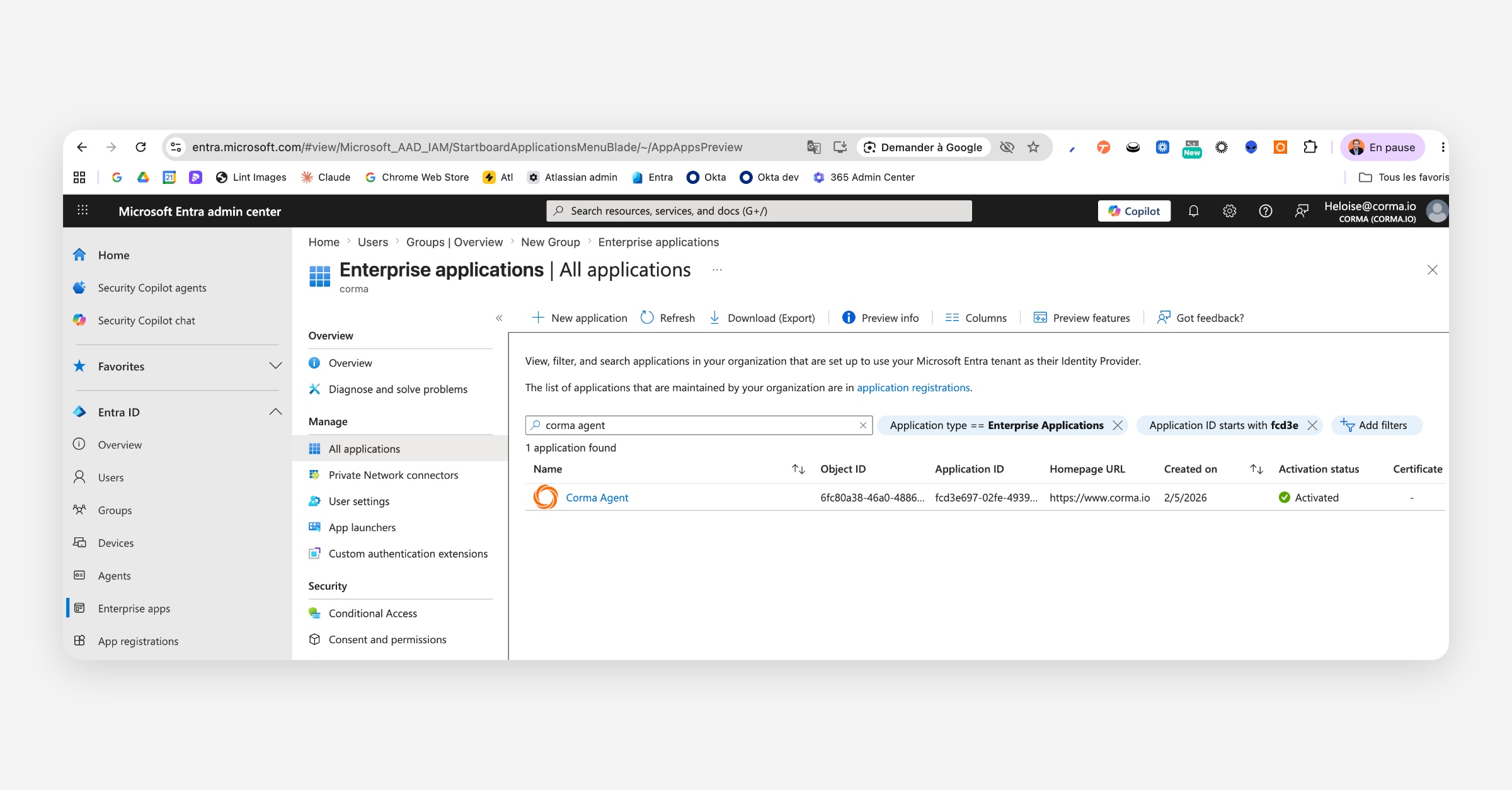
To confirm it has been installed you can go to Entra > Enterprise Apps > Search “Corma Agent”. If the app is present you can proceed to step 2
Step 2: Adding the application in Intune
Sign in to the Microsoft Intune portal.
Navigate to:
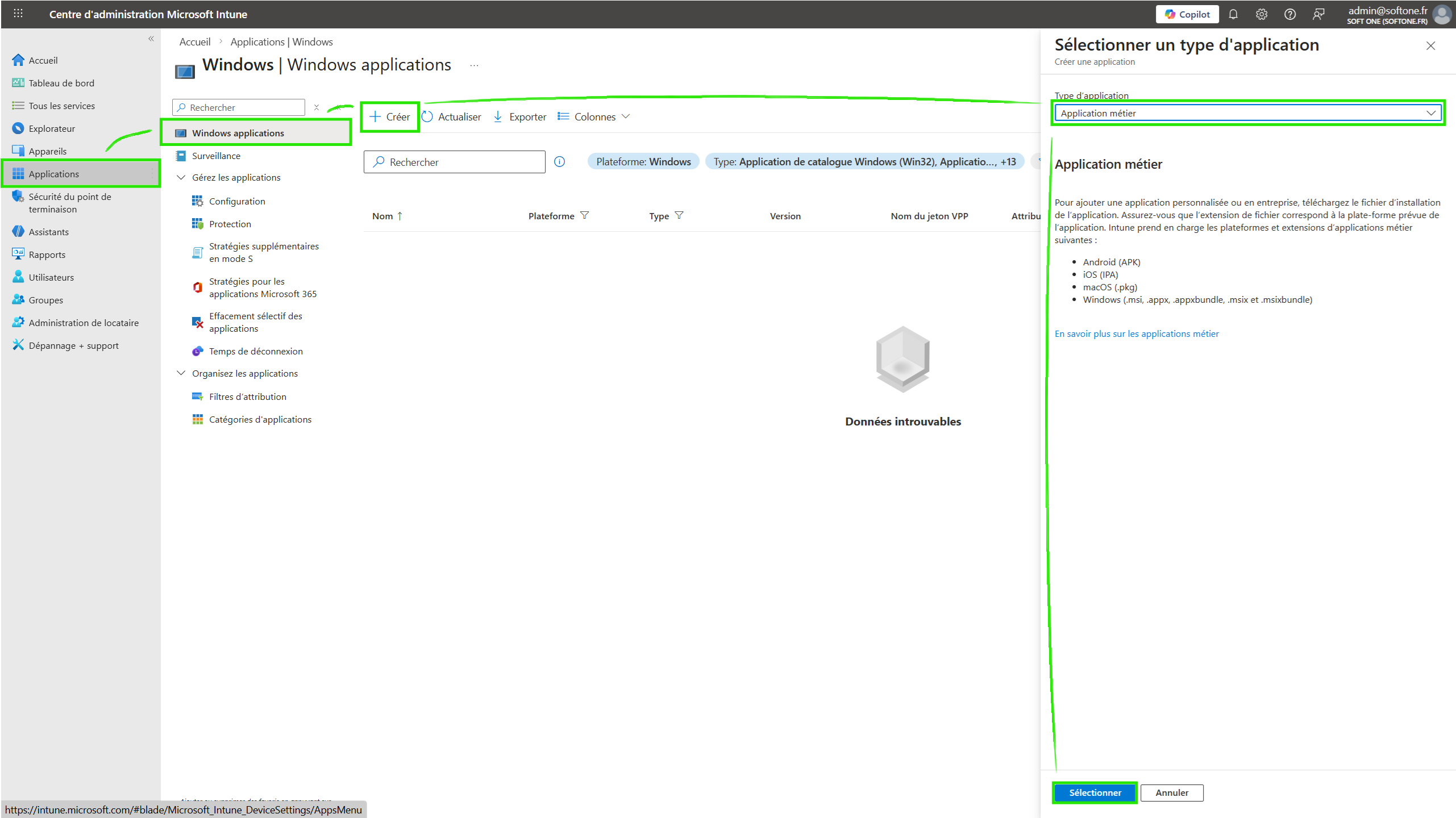
Apps>Windows>AddorCreate.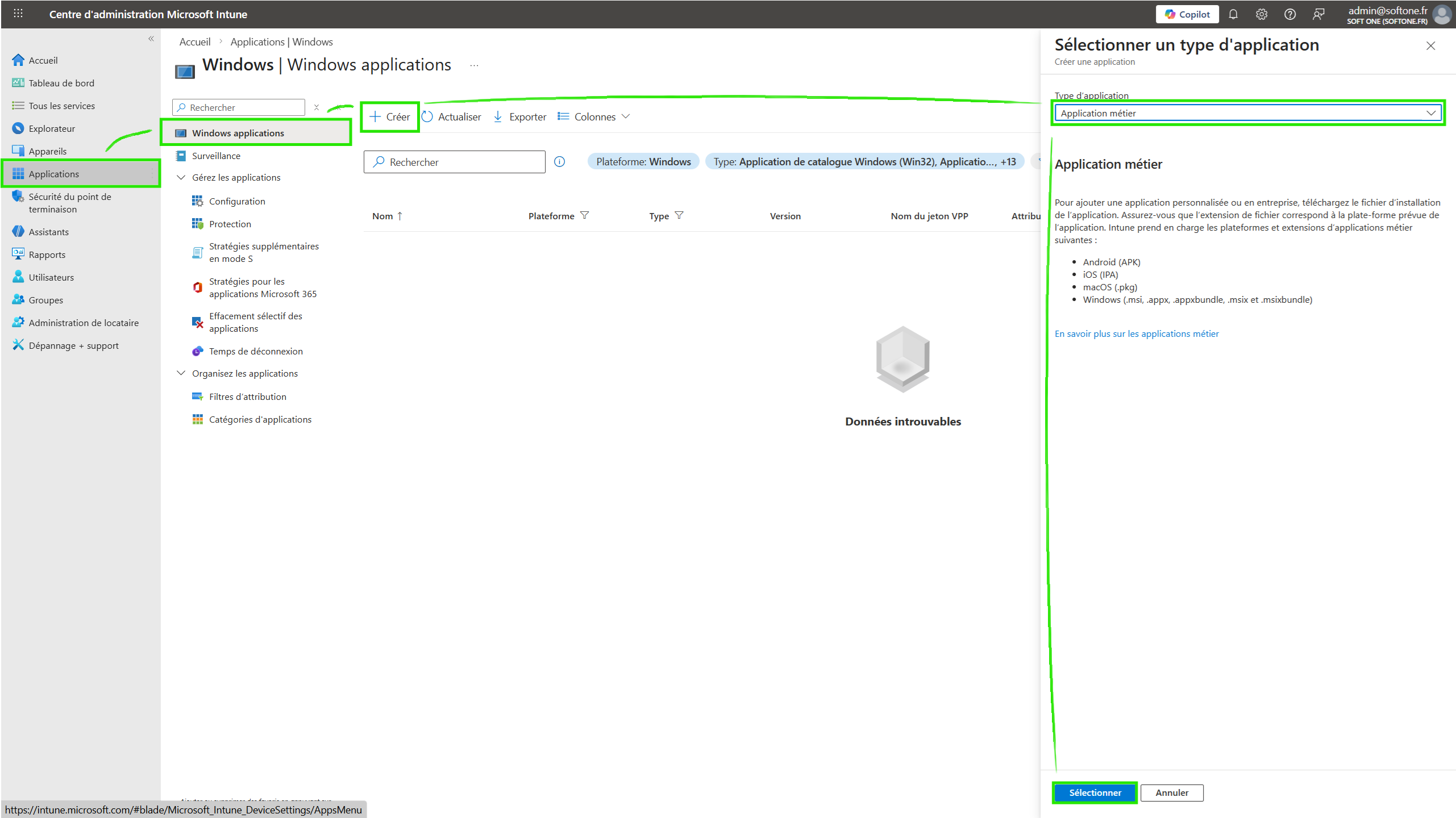
Select the application type:
Line-of-business app.Download the MSI file via this link and select it in Intune.
Fill in the application details:
Application name (e.g., "Corma Agent")
Description (optional)
Publisher (e.g., "Corma")
Install command:
/qn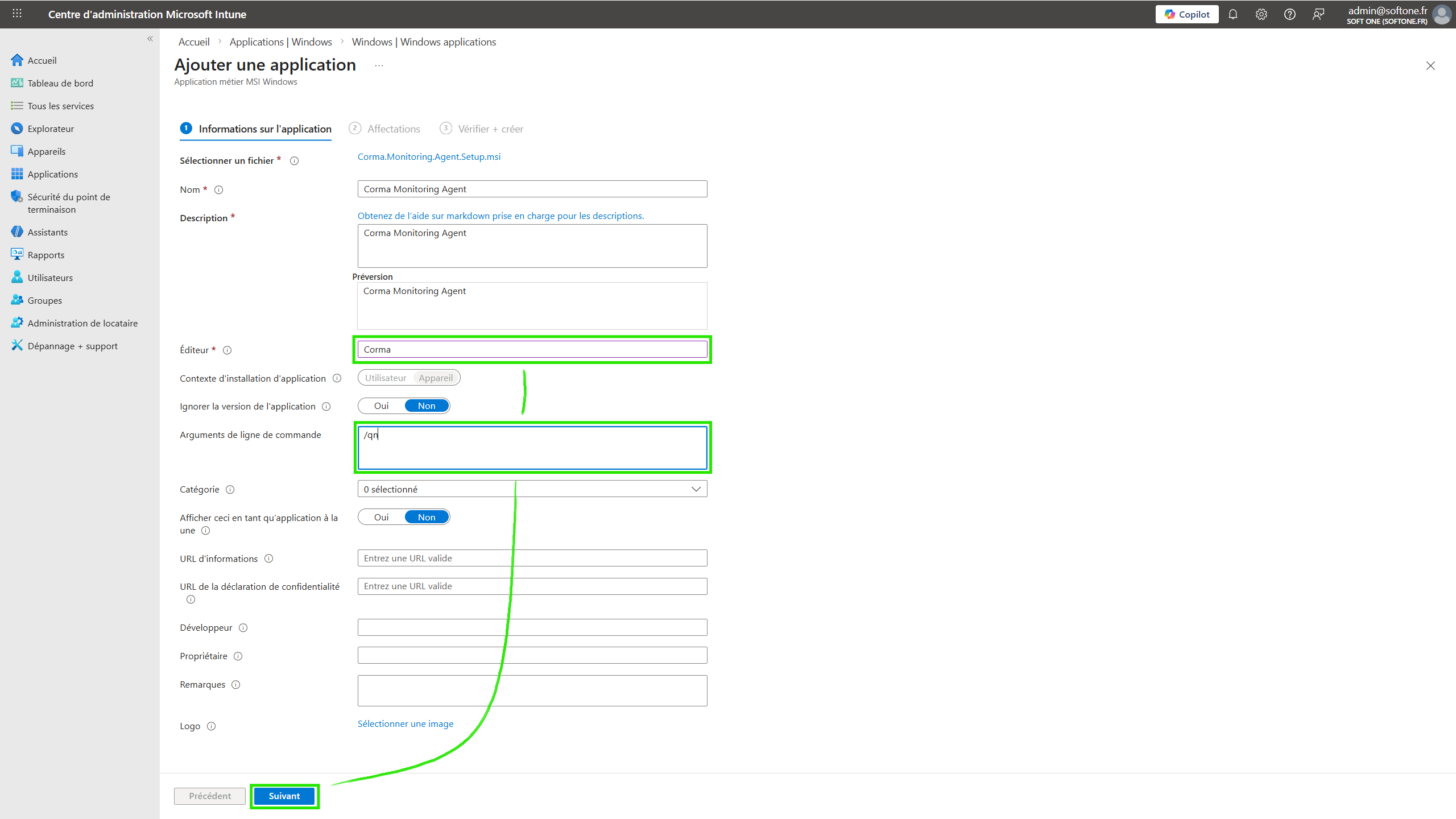
Confirm and save.
(Optional) If you are using an AI-powered antivirus, make sure the application or the folder
Program Files\Corma\Agentis approved/whitelisted.
Step 3: Deploying the application
Navigate to:
Apps>Windows> select the application you just added.Click on
Assignments>Add group.Select the target device or user group.
Choose the assignment type:
Required(automatic installation).Confirm and save.
Managing updates
The MSI handles its own updates. To deploy a new version:
Repeat steps 2 and 3 with the new MSI file.
Intune will automatically replace the previous version if the application name is identical.
Debugging if data does not appear:
You can run the command below in a PowerShell terminal on the device to get an error report of the Corma windows OS agent:
Get-WinEvent -FilterHashtable @{LogName='Application'; ProviderName='Corma Monitoring Agent'} -MaxEvents 20 | Format-List TimeCreated, MessageUsing the OS Agent on Remote Desktop Services (RDS)
The OS Agent works on RDS servers the same way it works on a regular Windows computer. To identify users automatically, the RDS host must be connected to Microsoft Entra ID. Otherwise, the agent cannot tell which user is signed in, and their activity will not appear in Corma.
Supported configurations
The agent can identify users automatically if one of these conditions is true:
The RDS host is Entra joined.
The RDS host is Hybrid Entra joined, and users' Active Directory accounts are synchronized with Entra ID (via Entra Connect).
RDS host configuration | User logon | PRT available | Silent WAM SSO |
|---|---|---|---|
AD DS joined only (most on-premises RDS farms) | AD account | No | No |
Hybrid Entra joined + Entra Connect sync | AD account synced to Entra | Yes | Yes |
Entra joined (Azure Virtual Desktop, Windows 365) | Entra account | Yes | Yes |
Joined to Entra Domain Services (managed AD) | Managed AD account | No | No |
Workgroup or standalone host | Local account | No | No |
AD DS with users not synced to Entra | AD account | No | No |
Check your RDS configuration
Connect to an RDS session as a regular user.
Open a terminal (Command Prompt or PowerShell).
Run the following command:
dsregcmd /statusCheck that the output contains:
AzureAdJoined : YESDomainJoined : YESWorkplaceJoined : YESAzureAdPrt : YES
If any of these values is
NO, the agent will be installed but cannot identify users on this RDS host. Contact your Corma point of contact to review your setup.