
MCP
The Corma API MCP (Model Context Protocol) server provides a standardized interface that allows AI tools and agents (such as Claude) to securely query your Corma workspace data, including users, applications, and assigned licenses.
Requesting Access: To get your organization’s direct MCP URL, submit a request via this access form. The Corma admin team will provide your dedicated endpoint URL (e.g.,
https://direct-mcp.qorma.io).
1. Setting Up Claude.ai
Connecting Corma MCP to Claude.ai involves a two-step process: an Organization Admin configures the connector globally, and Team Collaborators authenticate their individual accounts.
Step 1: Admin Setup (Organization Level)
Role required: Claude Organization Admin
Log in to Claude.ai.
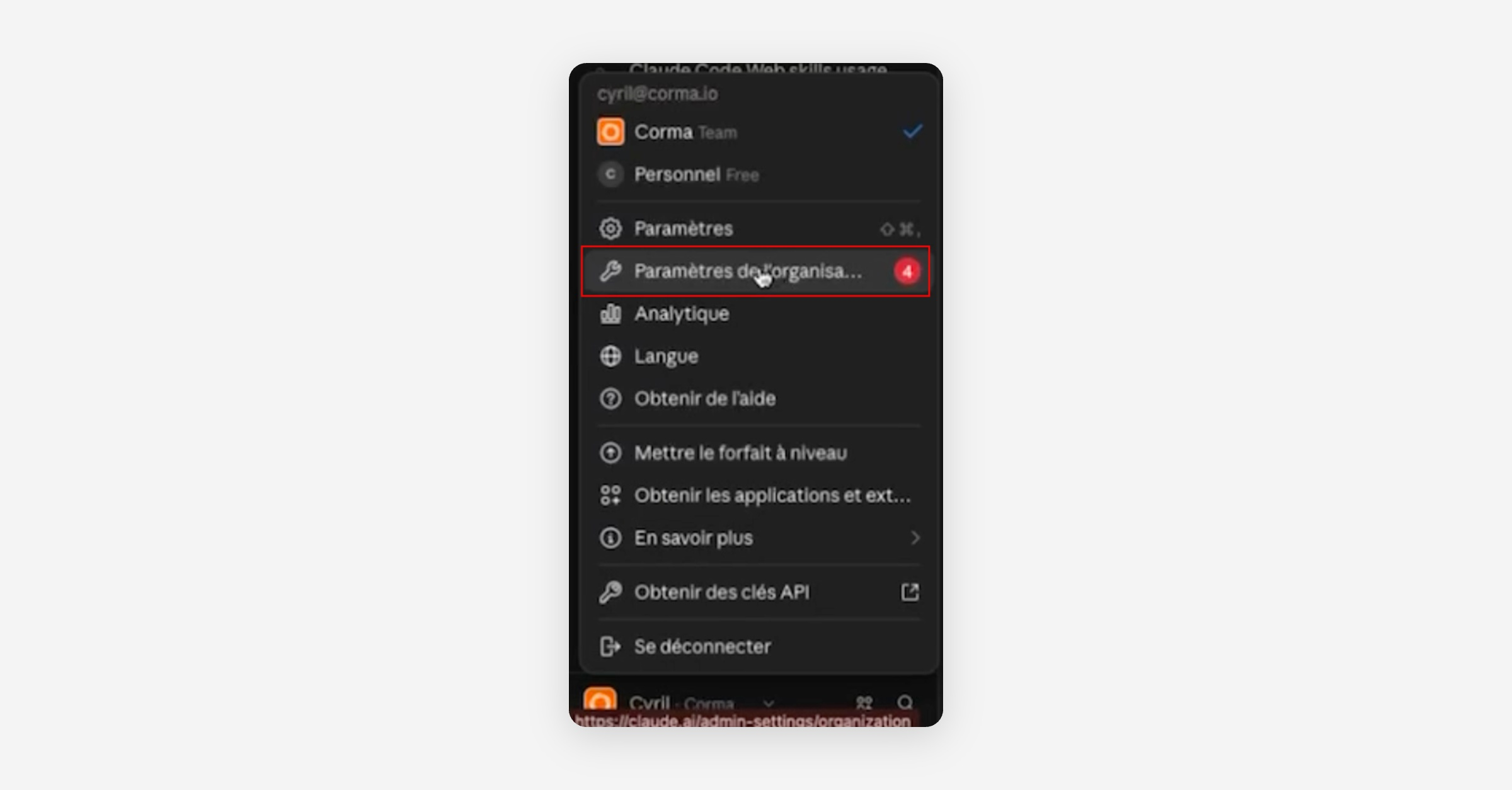
Navigate to Settings → Organization Settings.
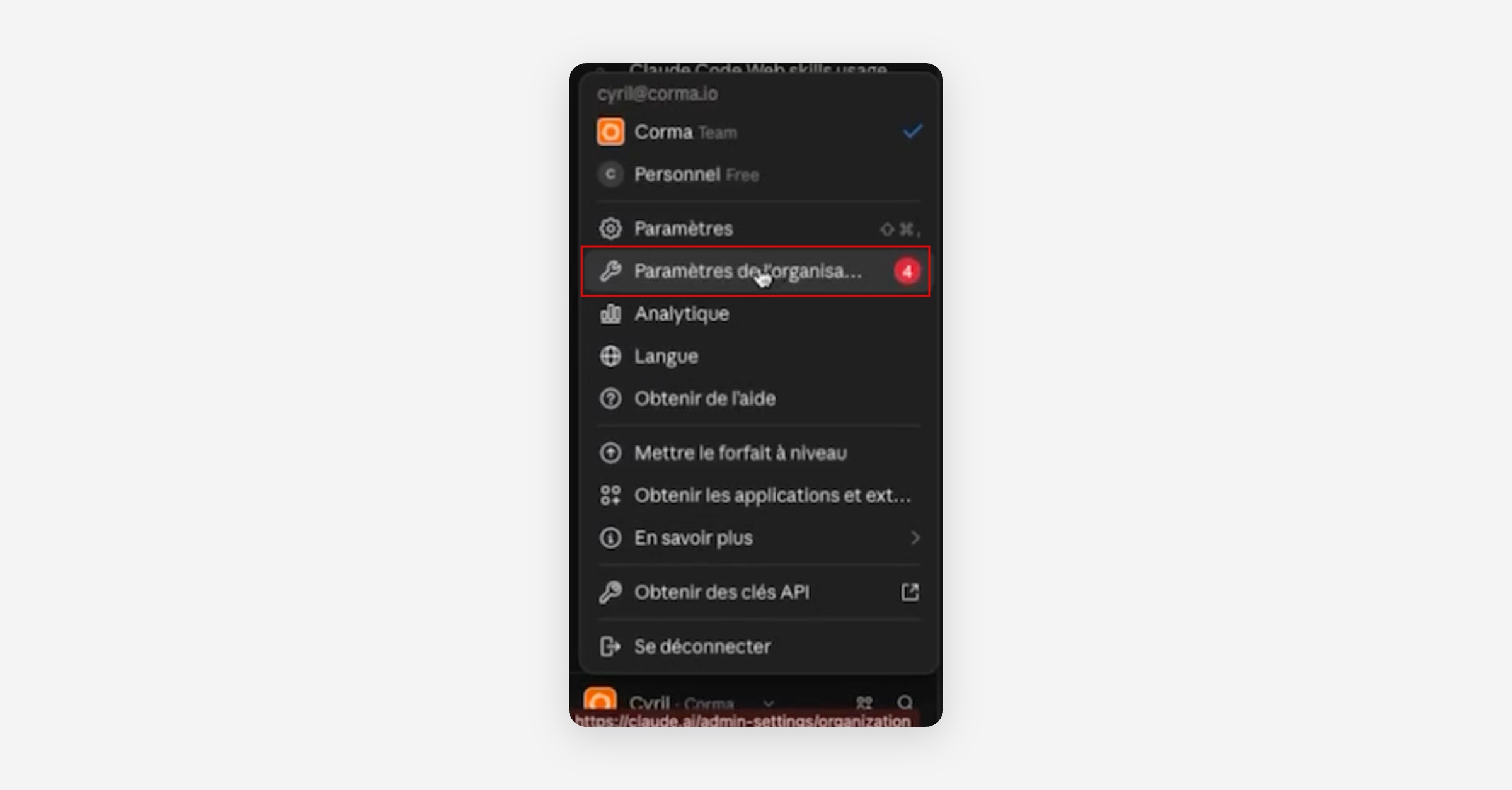
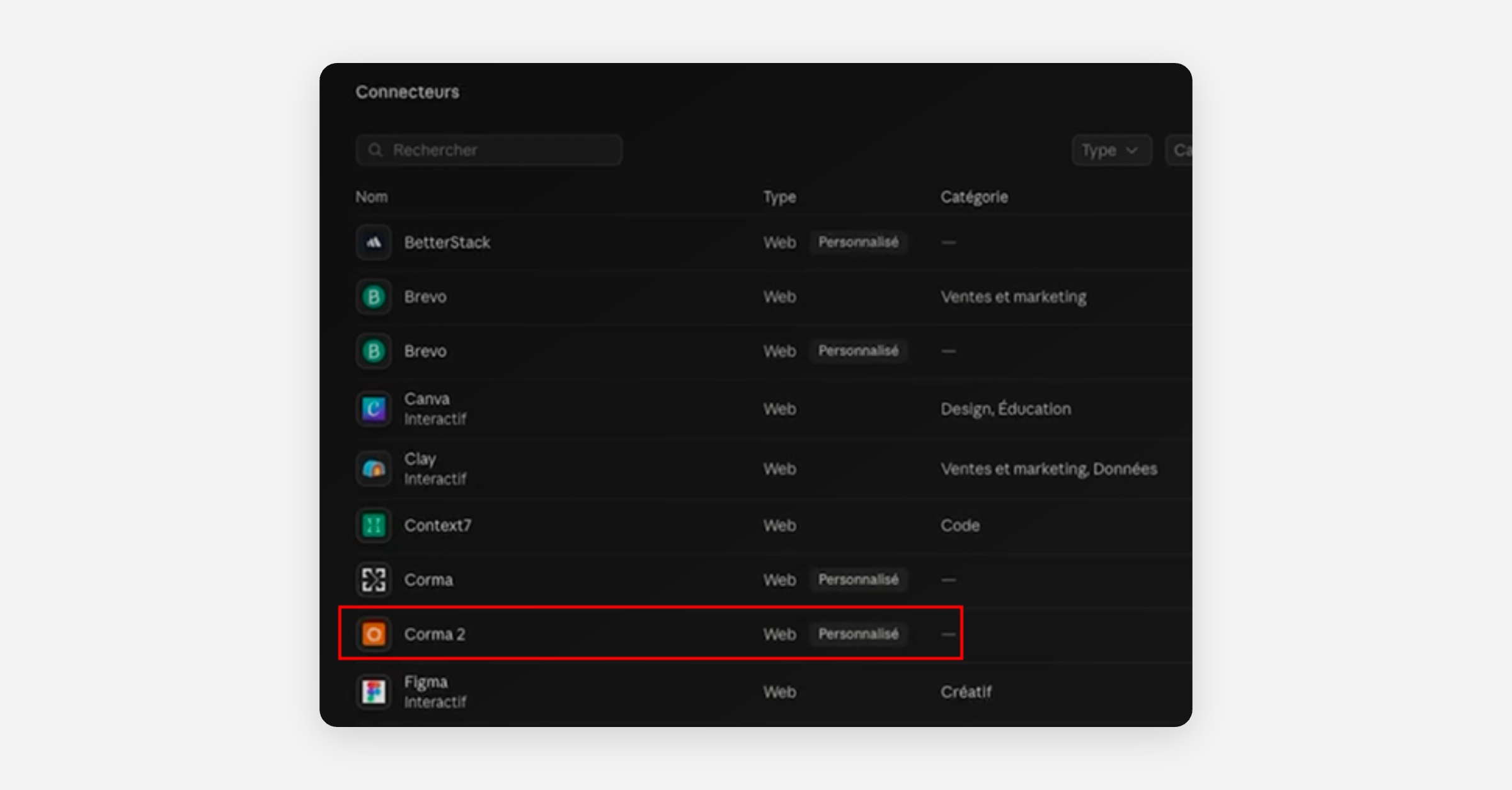
Select Connectors (or MCP).
Click Add Custom Connector and choose HTTP / Web.
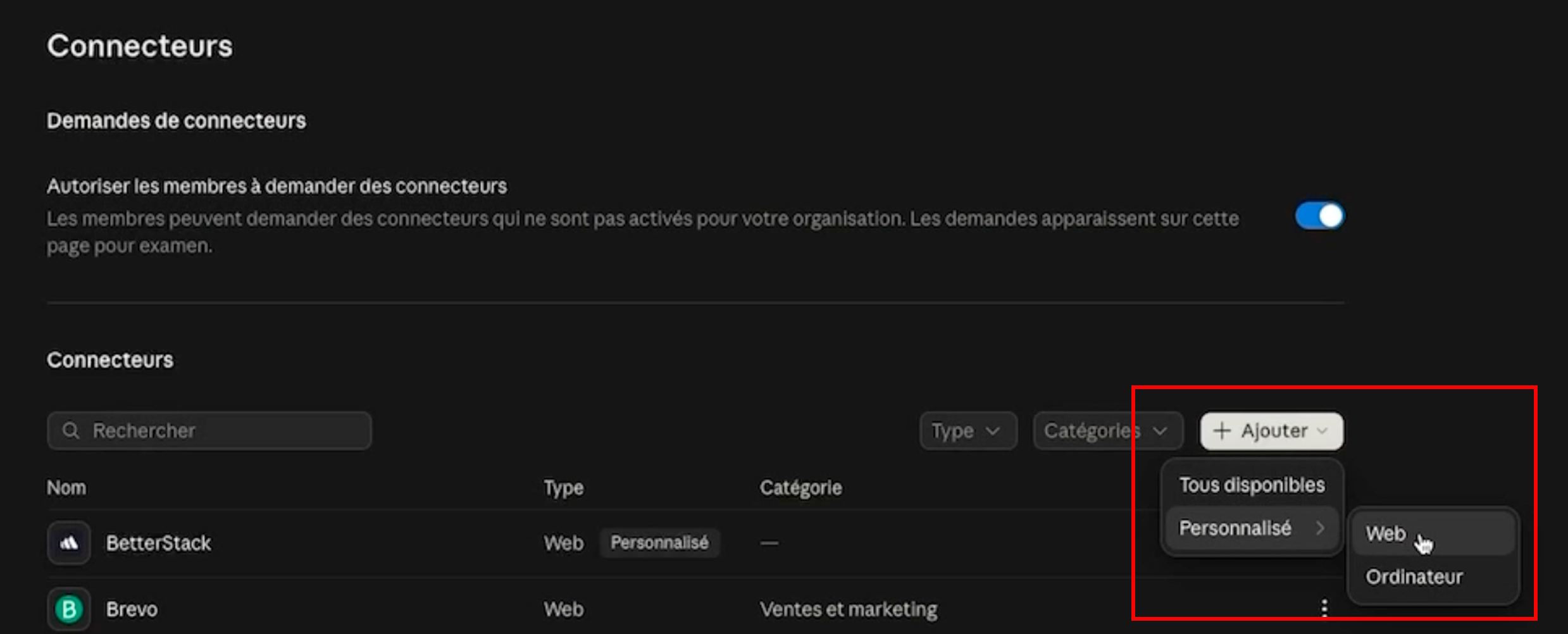
Configure the connector settings:
Name: Corma (or Corma API MCP)
URL: Paste the direct MCP URL provided by Corma (e.g., https://direct-mcp.qorma.io)
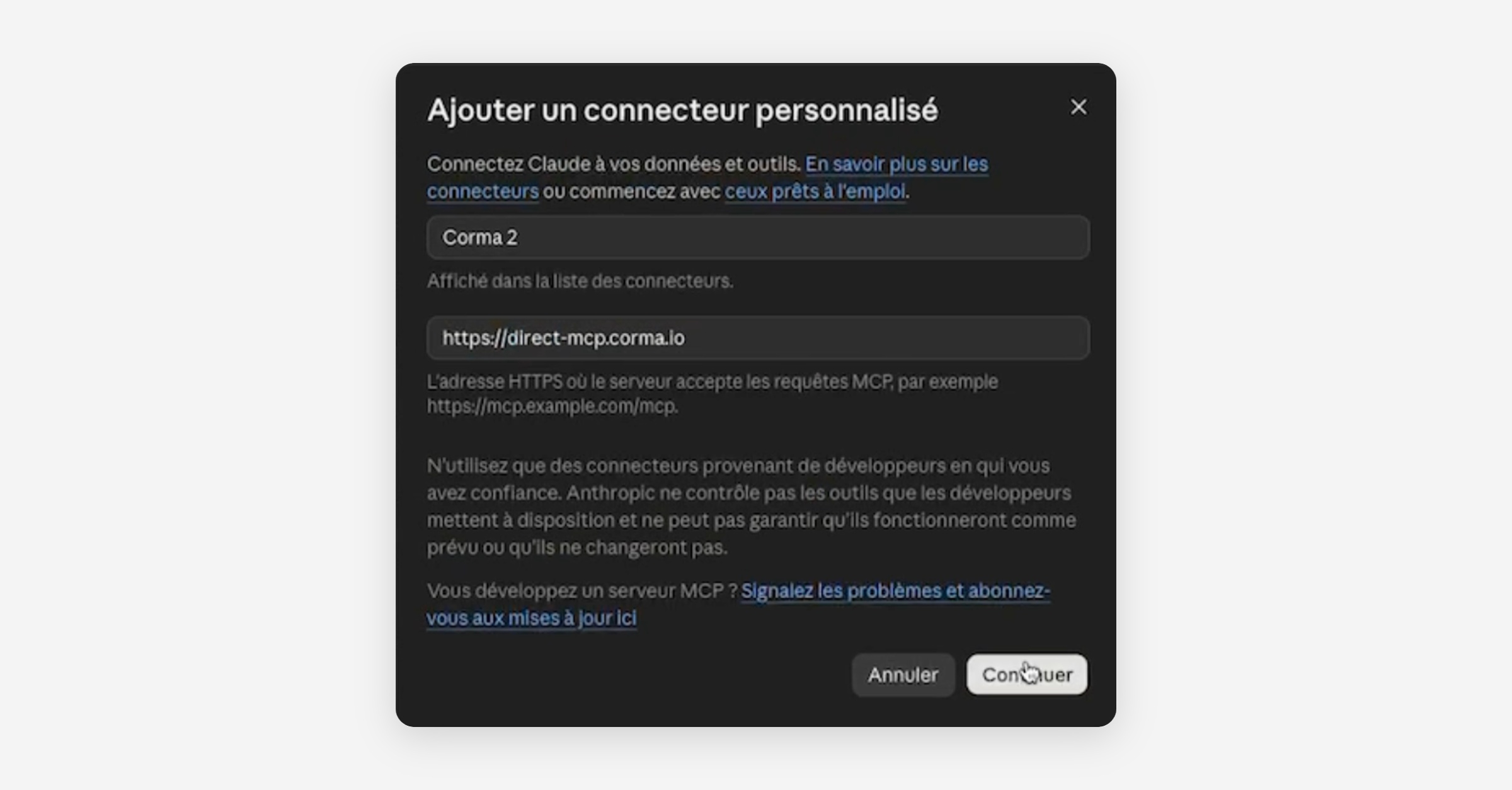
Click Continue. Claude will automatically detect the server settings out of the box:
Authentication: Log in now (
Detected)OAuth Client: Use Claude's published client identity (
Detected)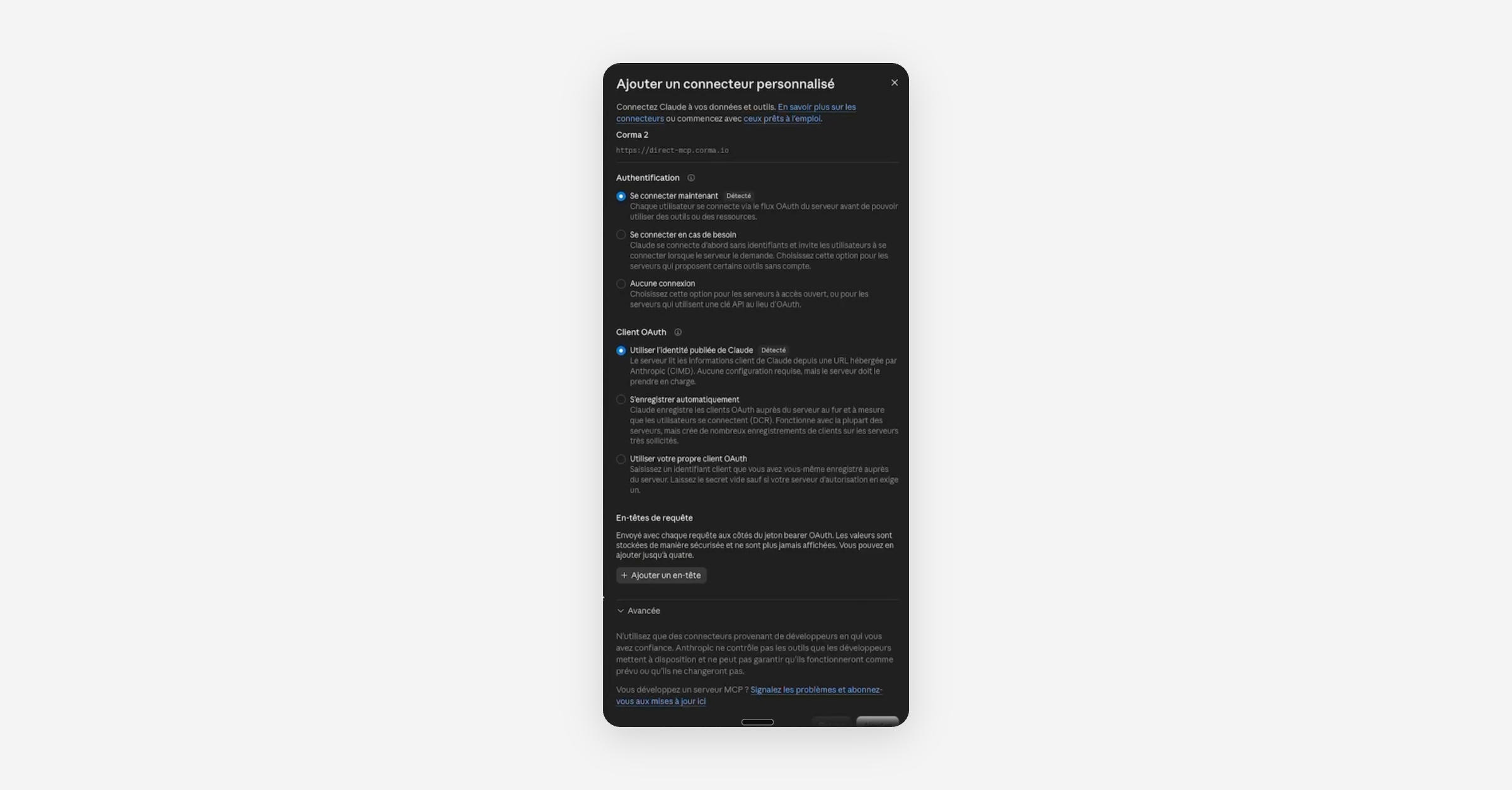
Leave request headers blank and click Add Connector. The connector is now enabled for your organization marketplace.
Step 2: User Authentication (Team Collaborators)
Once the Admin has enabled the connector, individual workspace members must authenticate their personal connection.
Navigate to Settings → Connectors (or MCPs).
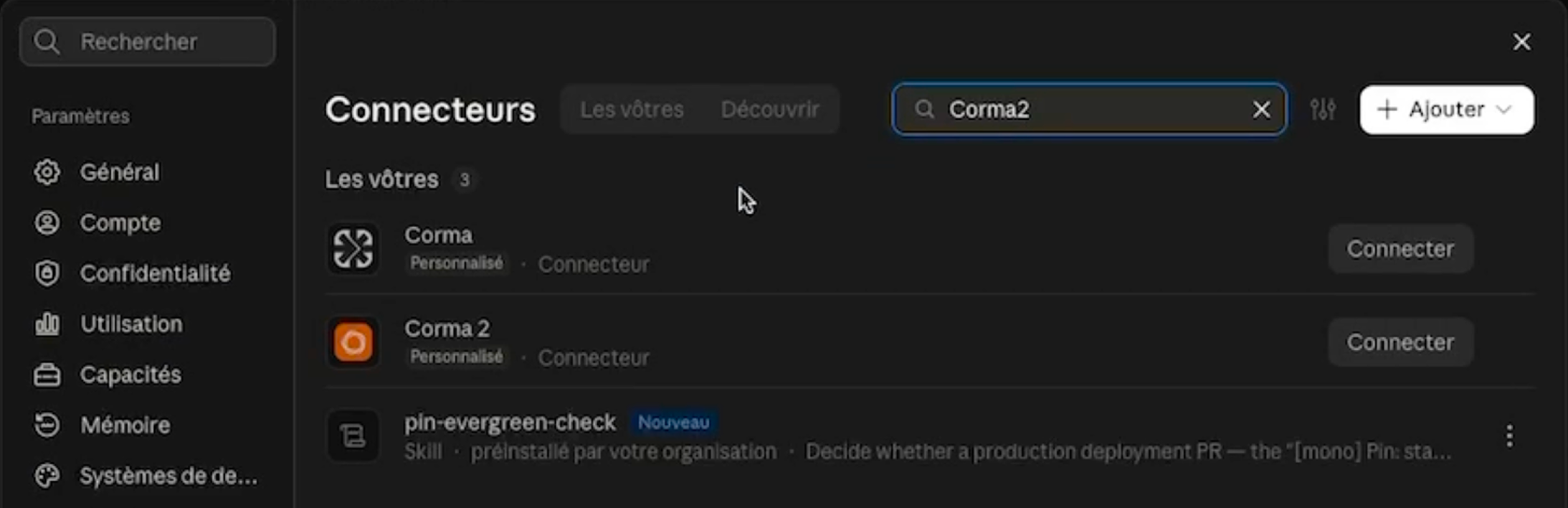
Under the Organization Marketplace, locate the Corma connector and click Connect.
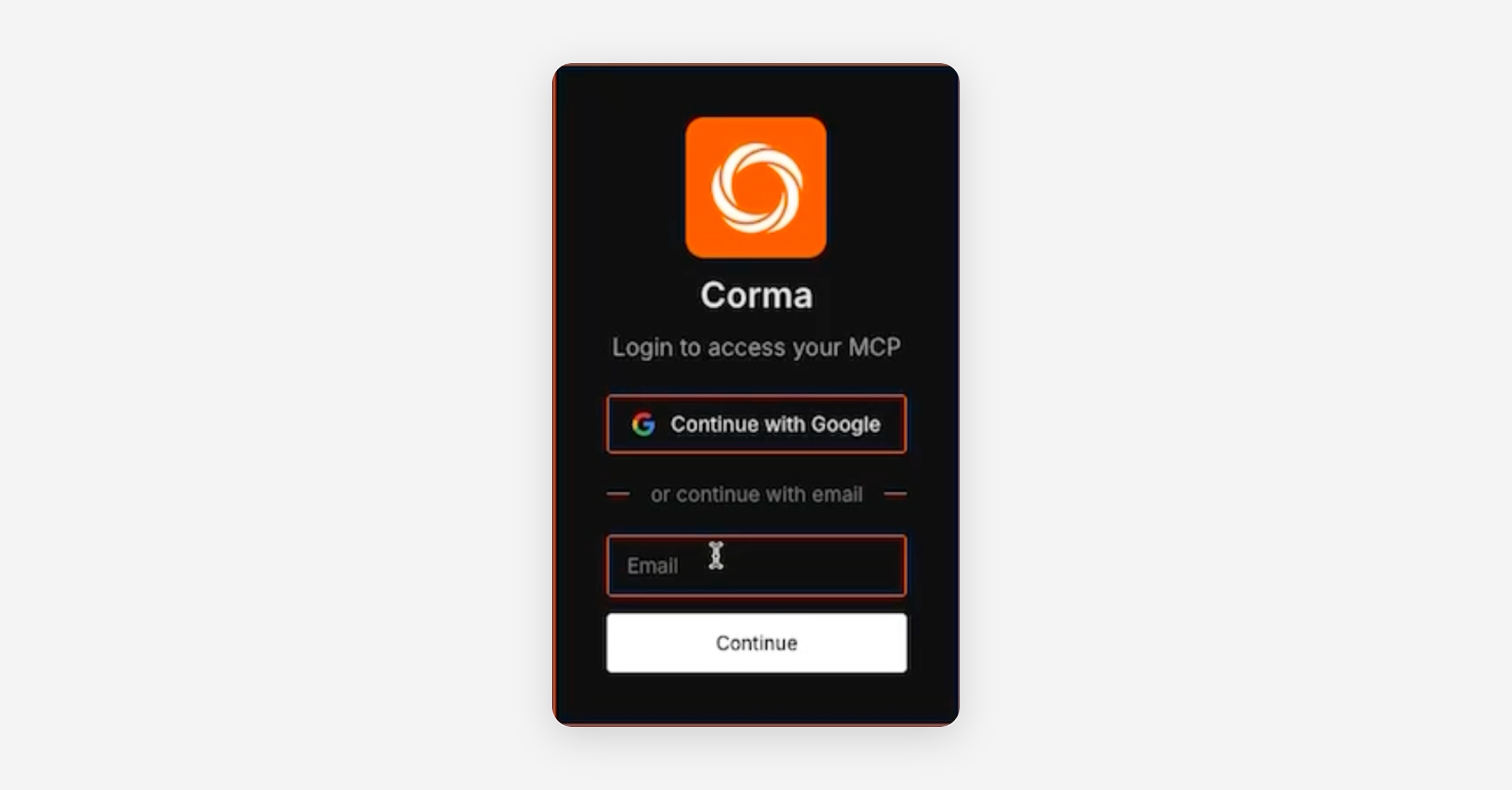
Enter your professional email address (the email address invited to/associated with your Corma workspace) and click Continue.
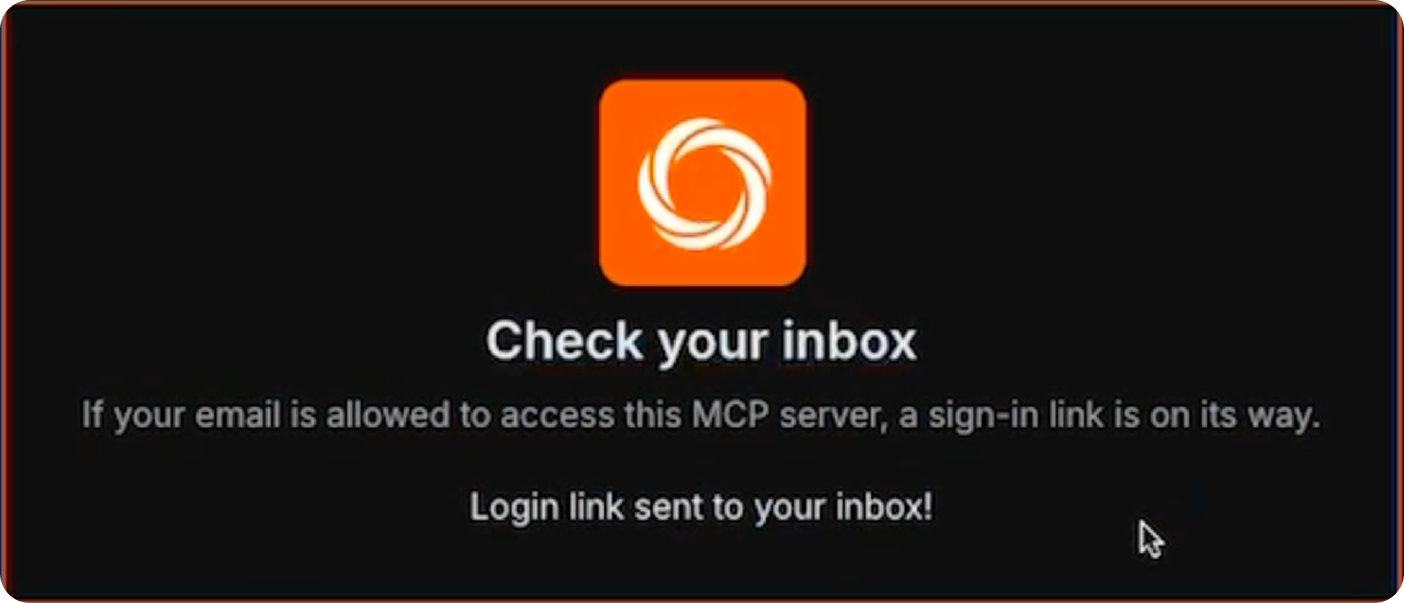
Check your inbox for a login link/OTP email from SuperGateway (our MCP infrastructure provider).
Open the email and click Login / Connect.
On the redirect screen, click authorize Claude to access your Corma workspace scope.
You will be redirected to the Claude connectors page, and the set up is complete!
Step 3: Verifying & Testing the Connection
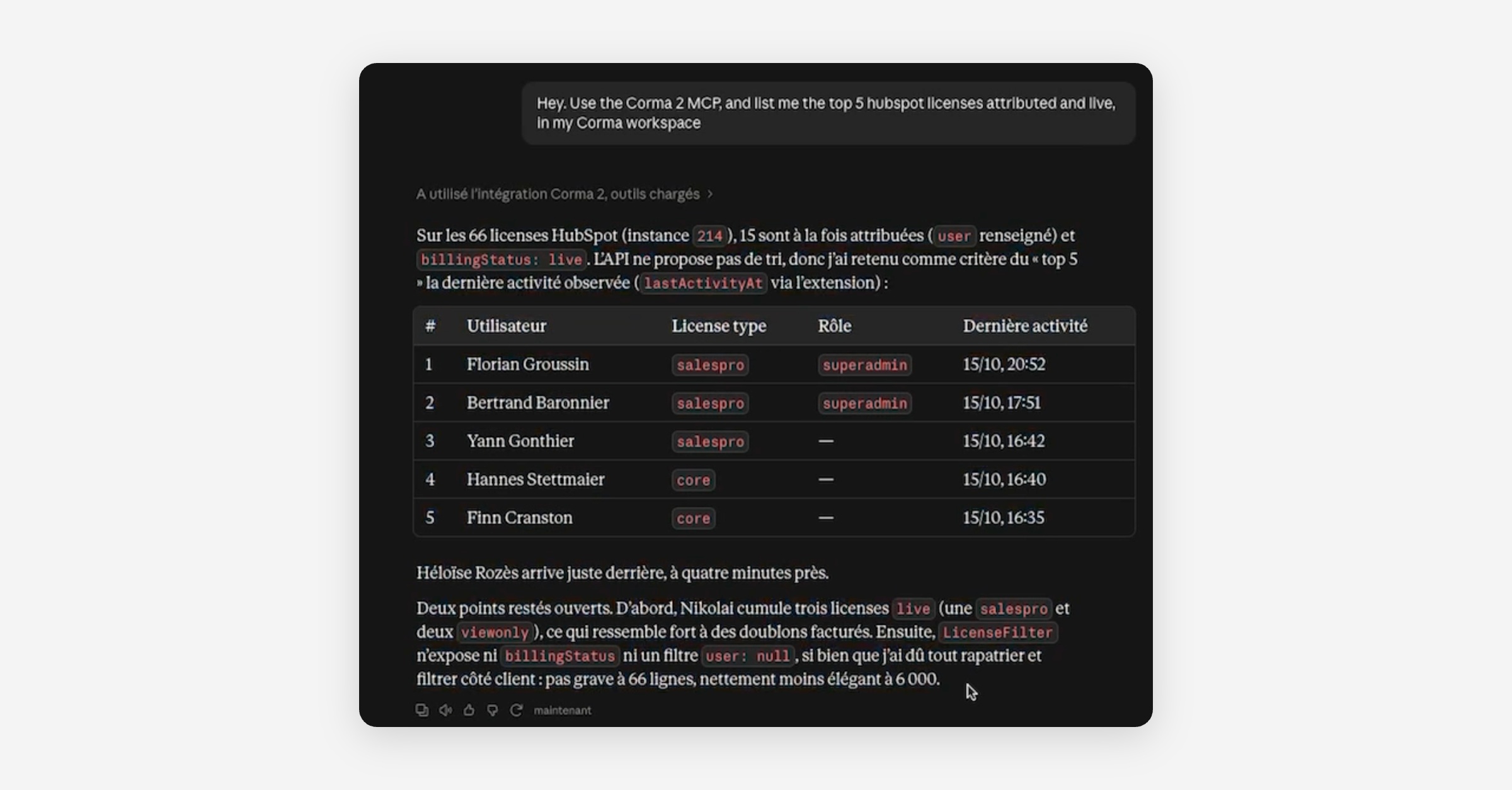
To verify that the MCP connector is active, open a new conversation in Claude and run a natural language query against your workspace:
Use the Corma MCP to list the top 5 active and attributed HubSpot licenses in my workspace.When prompted for permission, click Authorize to allow Claude to query the Corma API operations.
Claude will search the available API specs, read the operation docs, and execute the requests to retrieve your workspace data.
2. Setting Up Developer Clients
If you are using CLI tools or IDEs, configure your local environment using the direct URL provided by the Corma team.
Claude Code (CLI)
Run the following command once to register the MCP server globally:
claude mcp add -s global "corma-api-mcp" "YOUR_CORMA_MCP_URL" --transport httpRestart your Claude Code session after running the command.
Cursor
Add the server definition to your ~/.cursor/mcp.json file:
{
"mcpServers": {
"corma-api-mcp": {
"type": "http",
"url": "YOUR_CORMA_MCP_URL"
}
}
}
VS Code
Add the server definition to your settings.json file:
{
  "mcp.servers": {
    "corma-api-mcp": {
      "type": "http",
      "url": "YOUR_CORMA_MCP_URL"
    }
  }
}
Available MCP Tools
Once connected, your AI agents have access to the following built-in operations:
Tool Name | Description |
| Lists all available Corma API endpoints and schemas |
| Searches relevant API operations using natural language queries |
| Executes authenticated read/write operations against your Corma workspace |