
Payhawk

An admin access is required to connect Payhawk to Corma
On your Corma app go to the integrations page
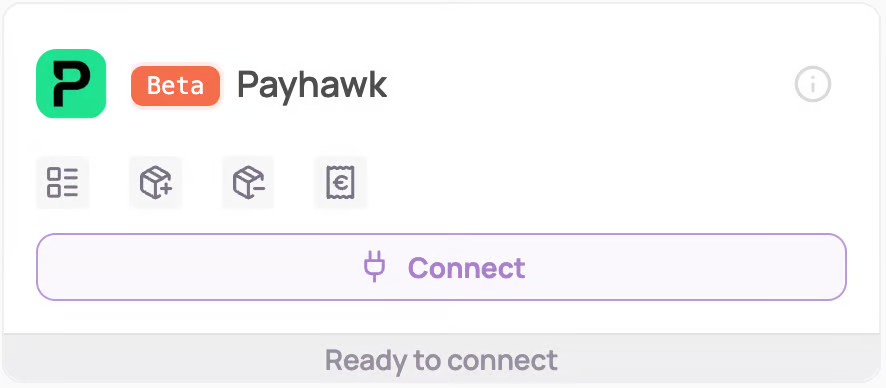
Under "Finance integrations" click on "Connect" for Payhawk
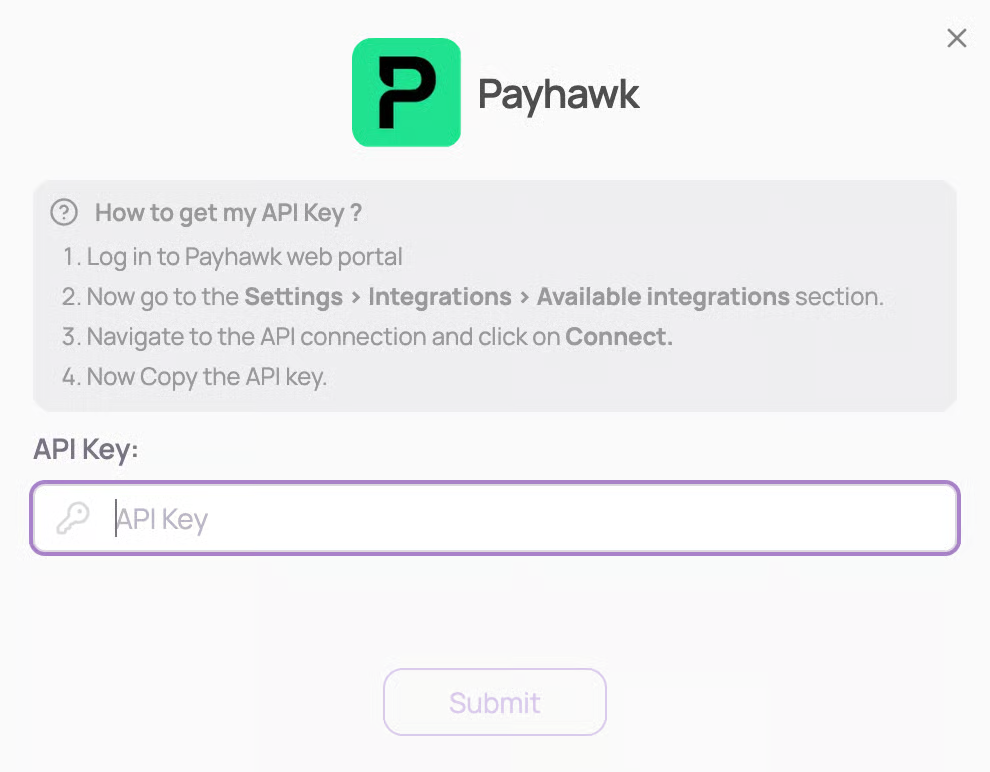
Submit your API Key
Follow these steps to get your API Key:
Log in to Payhawk web portal
Go to the Settings > Integrations > Available integrations section.
Navigate to the API connection and click on Connect.
Copy the API key.
You've successfully connected Payhawk to Corma!
Corma will now import your last year historical data from Payhawk and all new expenses made.
Corma only has access to your spend data via the supplier invoices listed in Payhawk, nothing more.
Was this helpful?