
Voiso - Agent
A service account with admin access is required to connect Voiso to Corma with the Agent
With the Agent connected to Voiso, you can:
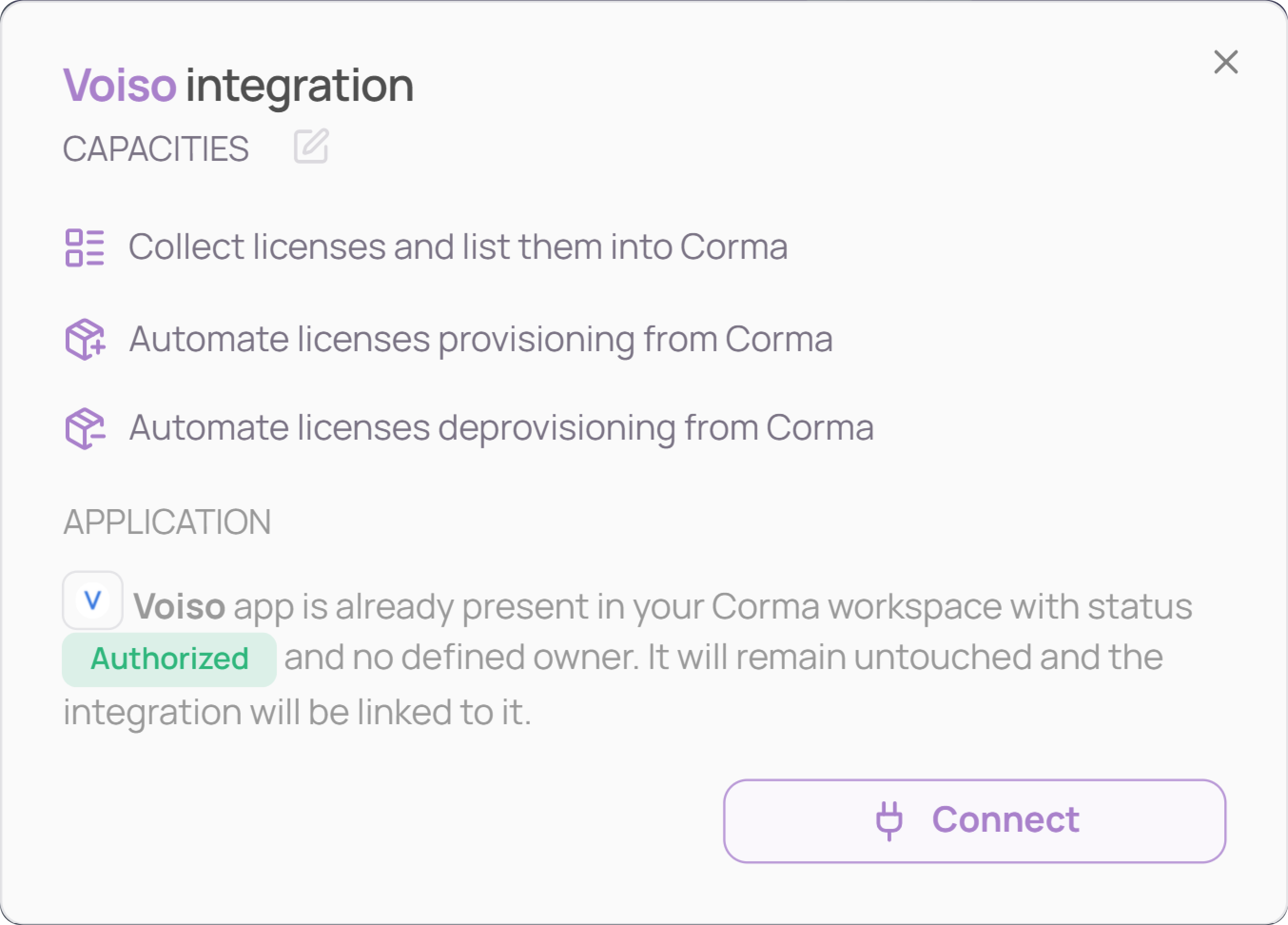
License (de)provisioning: automatically create or delete Voiso accounts from Corma without going manually to your Voiso workspace. The agent now automatically handles these tasks, fully on its own, and without needing any SCIM or any public API either.
Retrieved data: Email, Username
Here’s how to setup your Voiso Agent properly:
On your Corma app go to the connectors page
In "All connectors", search for “Voiso” and find the one with the agent icon. Then click on “Connect”
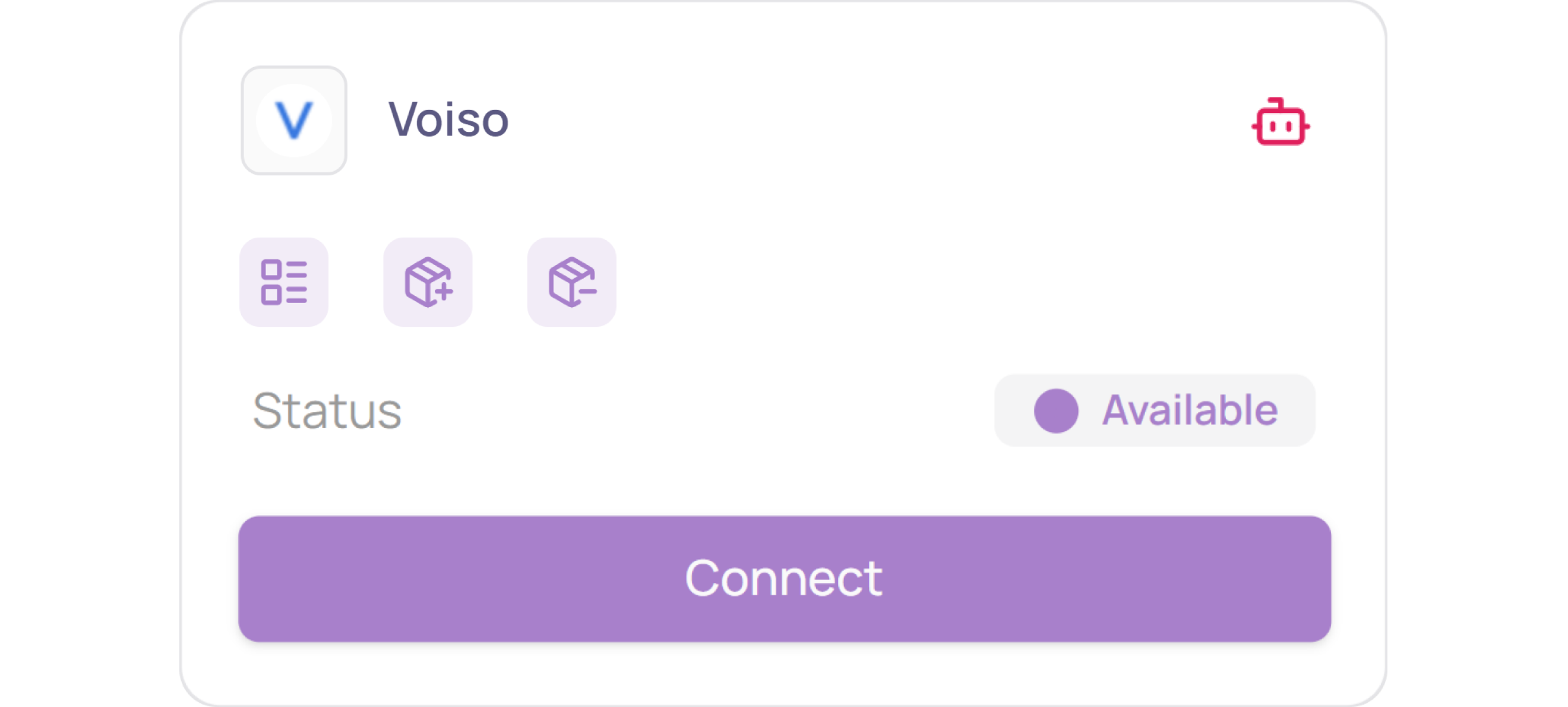
Click on "Connect" again
Select your authentication method
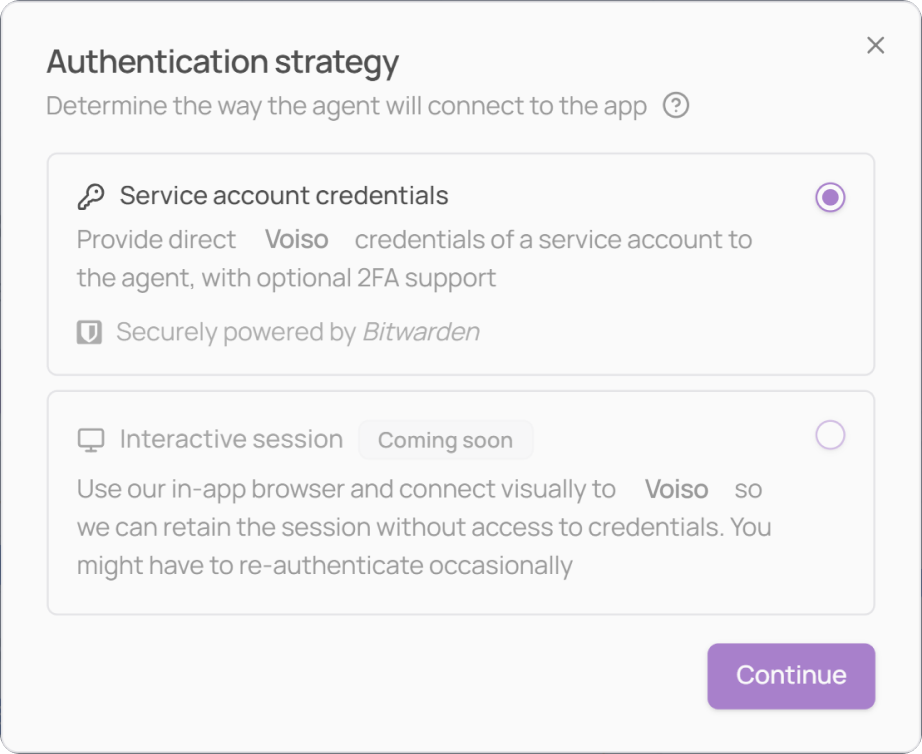
Method 1: provide your credentials for autonomous agent integration
Provide Corma with your Voiso service account credentials directly (that must have admin rights). Corma will handle the login automatically, including TOTP-based 2FA codes.
Method 2: manually connect to let us save your session temporarily
Corma opens an embedded browser where you log in manually, using your Voiso service account credentials (with admin rights). Your session is then saved and the agent acts on your behalf within that session. With this method, no password is ever stored.
Method 1: Service account credentials
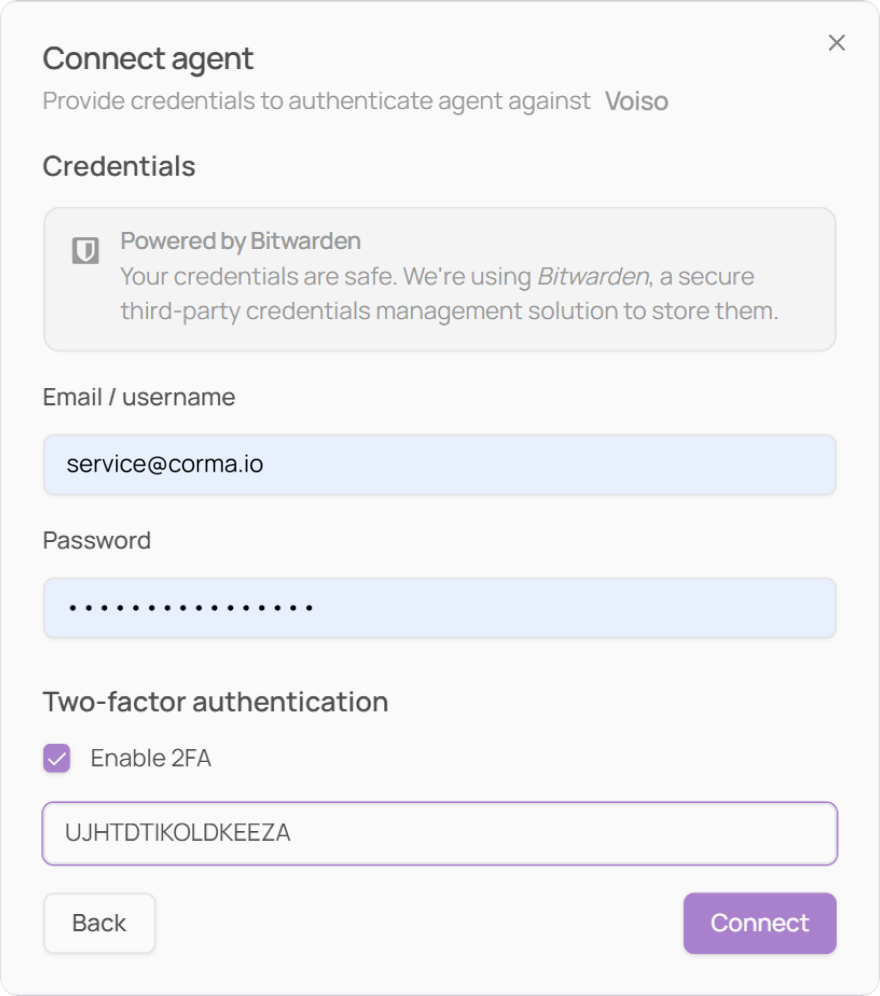
For this method, you need to provide Corma with:
the email address of the service account
the password linked to this email address
Optionally, a TOTP-based authenticator app (Google Authenticator, Authy). You'll then need to provide Corma with your TOTP key for the agent to get access to your one-time generated passwords.
We strongly recommend you to use a dedicated service account for this agent setup, not your personal account credentials.
Enter your Voiso service account credentials in the fields provided (email, password, and TOTP key if applicable) and click on “Connect“
OTP via email or phone are not handled in this method. If the login fails or redirects to a company SSO page, switch to Method 2.
Select which workspace you want the agent to operate on. You can find the name of your Voiso workspace by selecting your profile icon in Voiso, and clicking on Workspace settings. If you have different workspaces, filter on the one you want.
Please indicate the exact workspace name as it appears in the app's interface (not an ID or URL), ensuring the agent operates on the correct workspace and not on a personal or unrelated account.
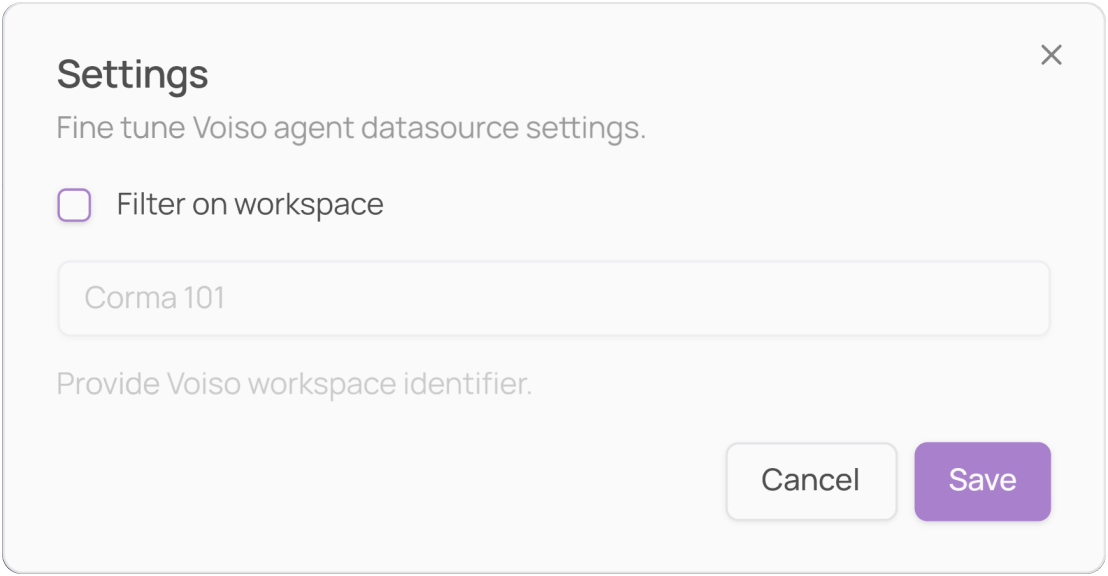
Confirm that the Agent successfully logs in
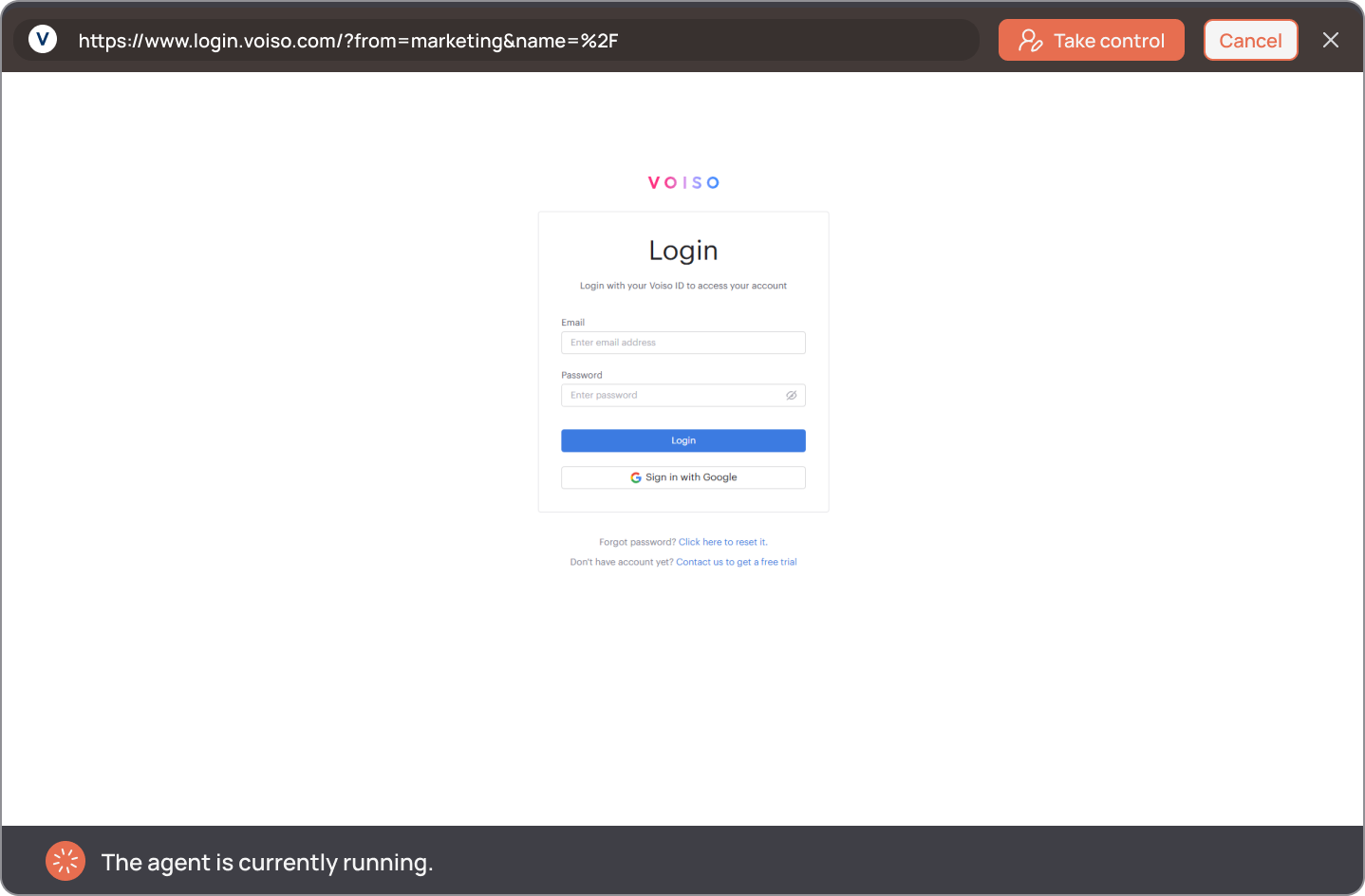
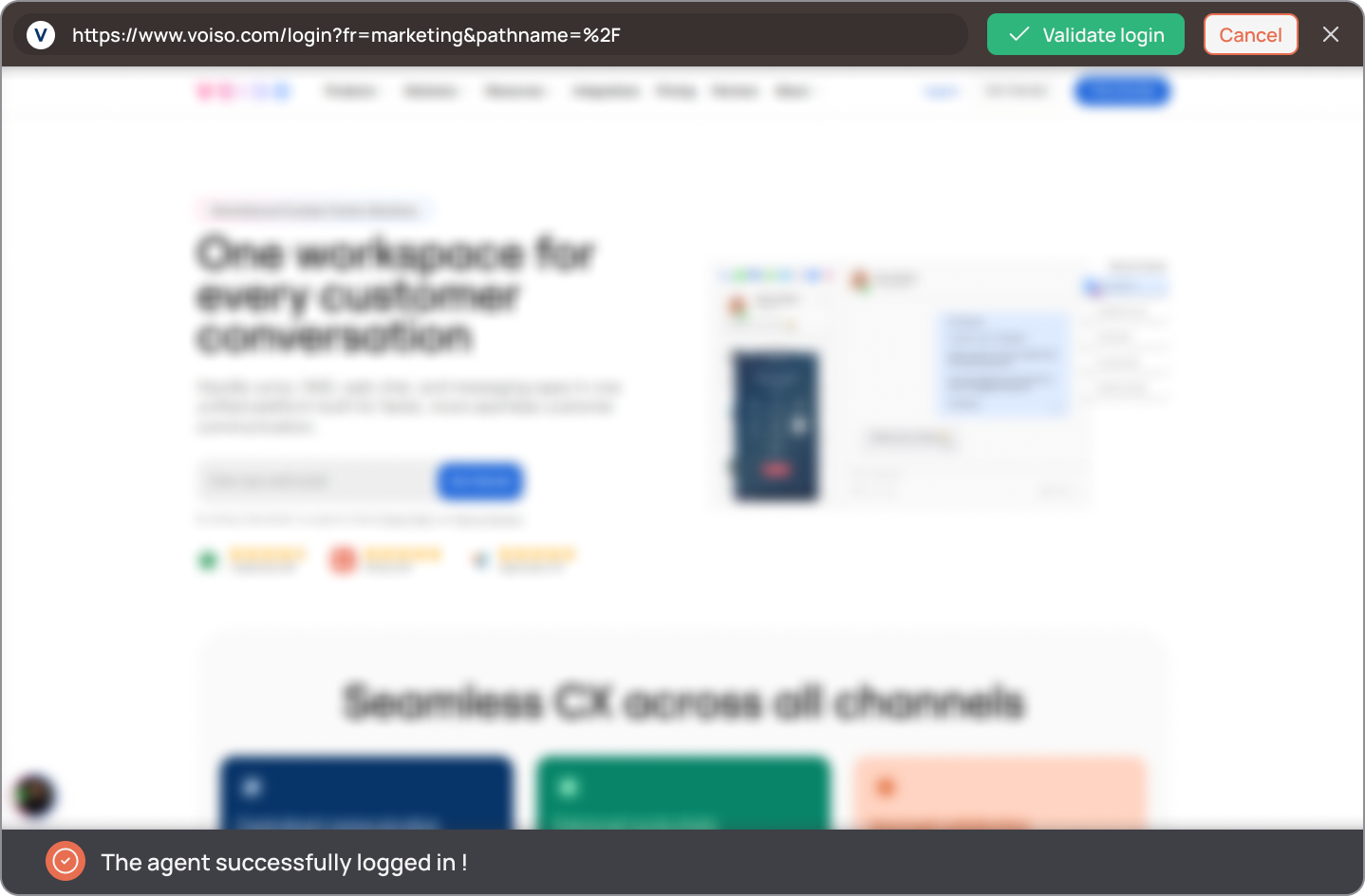
A browser will pop up, with the agent automatically starting to log in to Voiso using the service account credentials. The first agent login takes some time.
You can click on “Take control” at any time to stop the run, and manually interact with the browser. You can then resume at any time, clicking on the same button now showing “Resume”.
You can also click on “Cancel” to stop the agent completely. You’ll be redirected to the “Authentication Strategy” card.
If for some reason the agent can’t log in, you’ll be asked to manually enter your credentials and log in.
Once the agent is successfully logged in, you then need to click on “Validate login”.
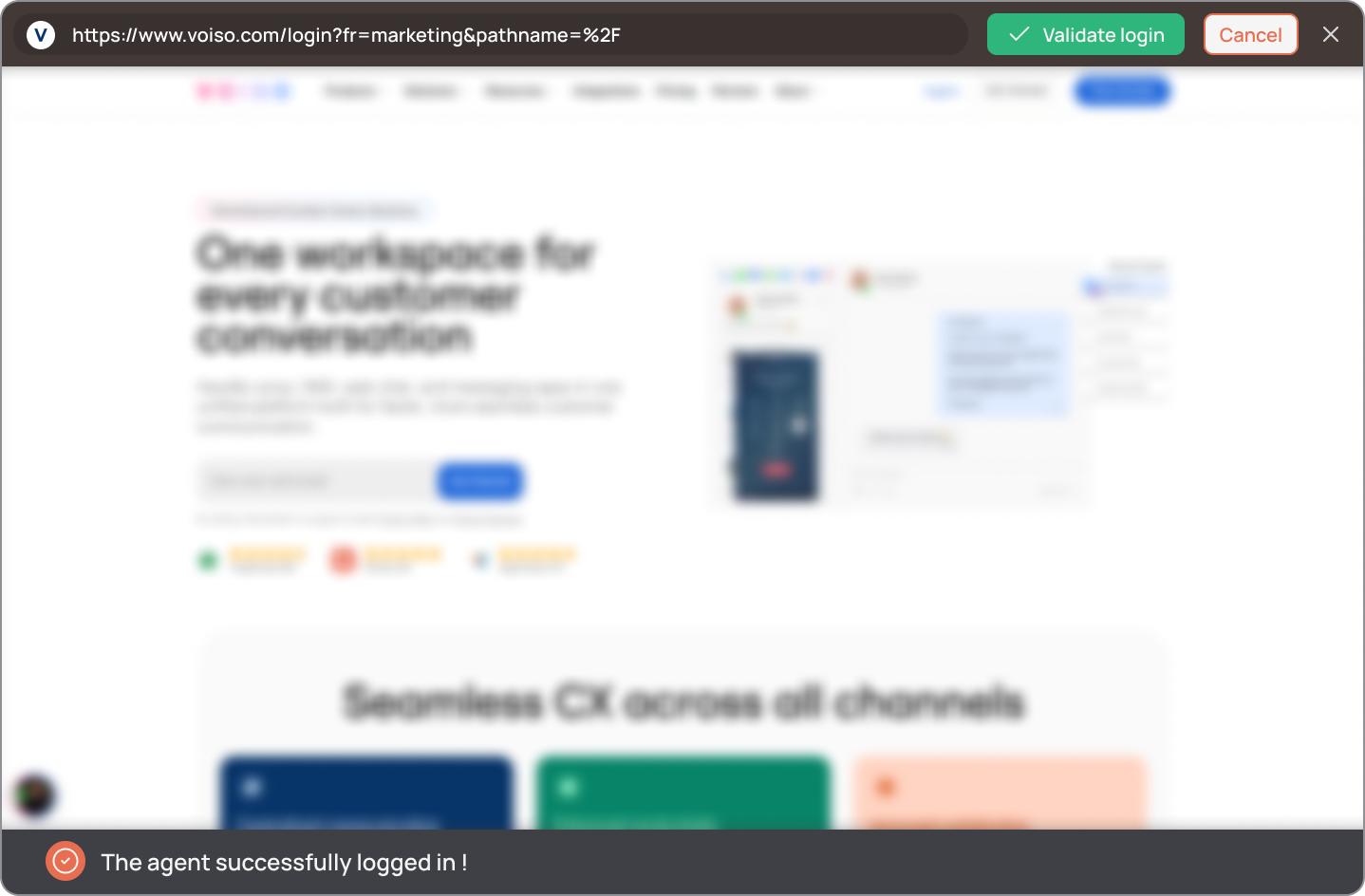
You’ve successfully connected Voiso to Corma!
Method 2: Interactive session
Disclaimer: this method only saves your session. Therefore, if the session expires, Corma will ask you to connect manually again.
For this method, Corma will directly open an embedded browser:
Manually enter your service account email address
if you receive a 2FA code on this email, enter it in the browser
Use the "Continue with email" button whenever possible. Don’t use any SSO connection method (Google, Microsoft...). If an SSO is setup for the service account, you don’t need to deactive it.
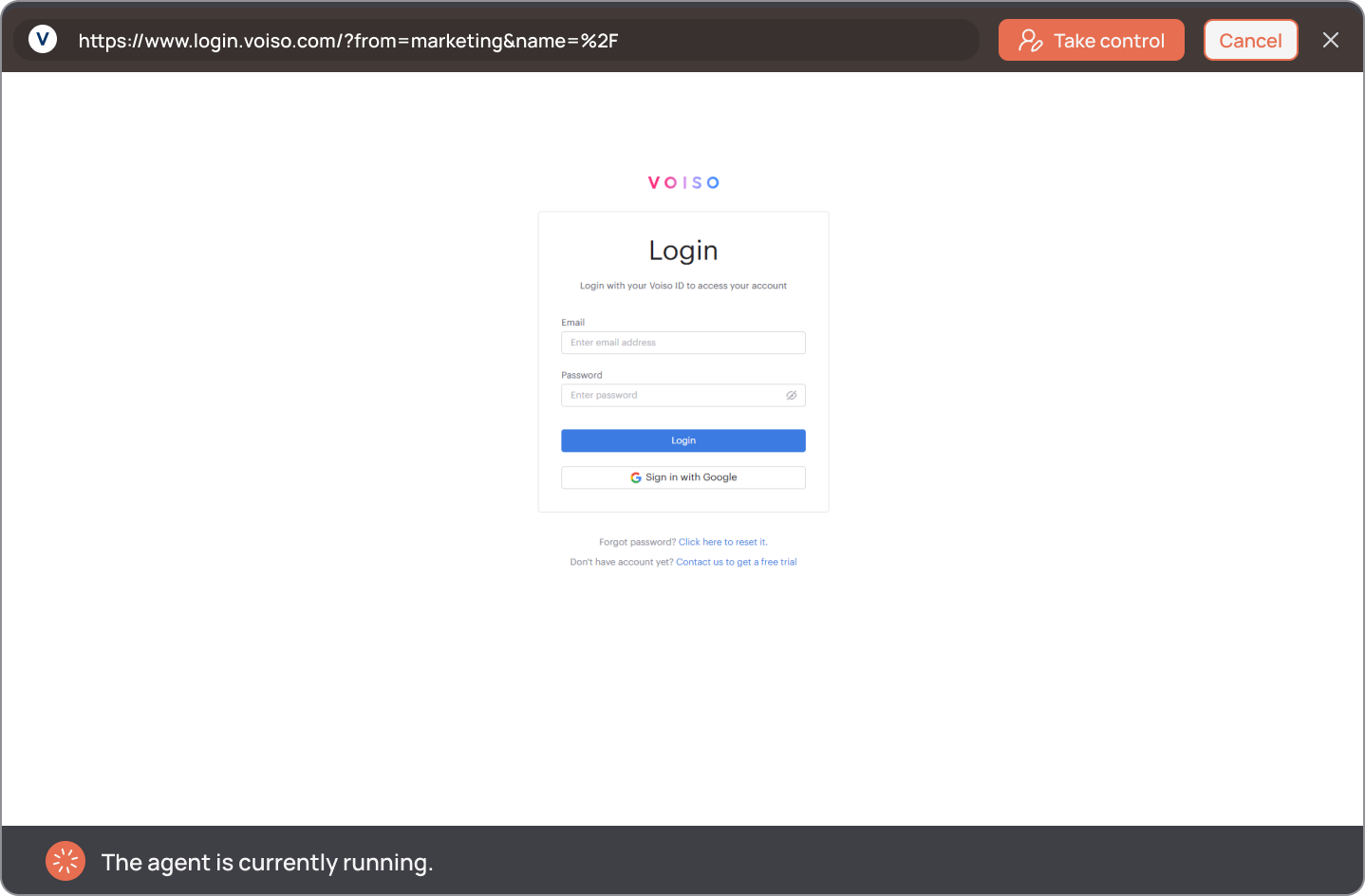
Once you successfully logged in, click on “Validate login”
You’ve successfully connected Voiso to Corma!
Data should be synchronized within the next 24 hours and will be synched every day to your Corma app.