
Slack - Agent
A service account with admin access is required to connect Slack to Corma with the Agent
With the Agent connected to Slack, you can:
License (de)provisioning: automatically create or delete Slack accounts from Corma without going manually to your Slack workspace. The agent now automatically handles these tasks, fully on its own, and without needing any SCIM or any public API either.
Here’s how to setup your Slack Agent properly:
On your Corma app go to the connectors page
In "All connectors", search for “Slack” and find the one with the agent icon. Then click on “Connect”
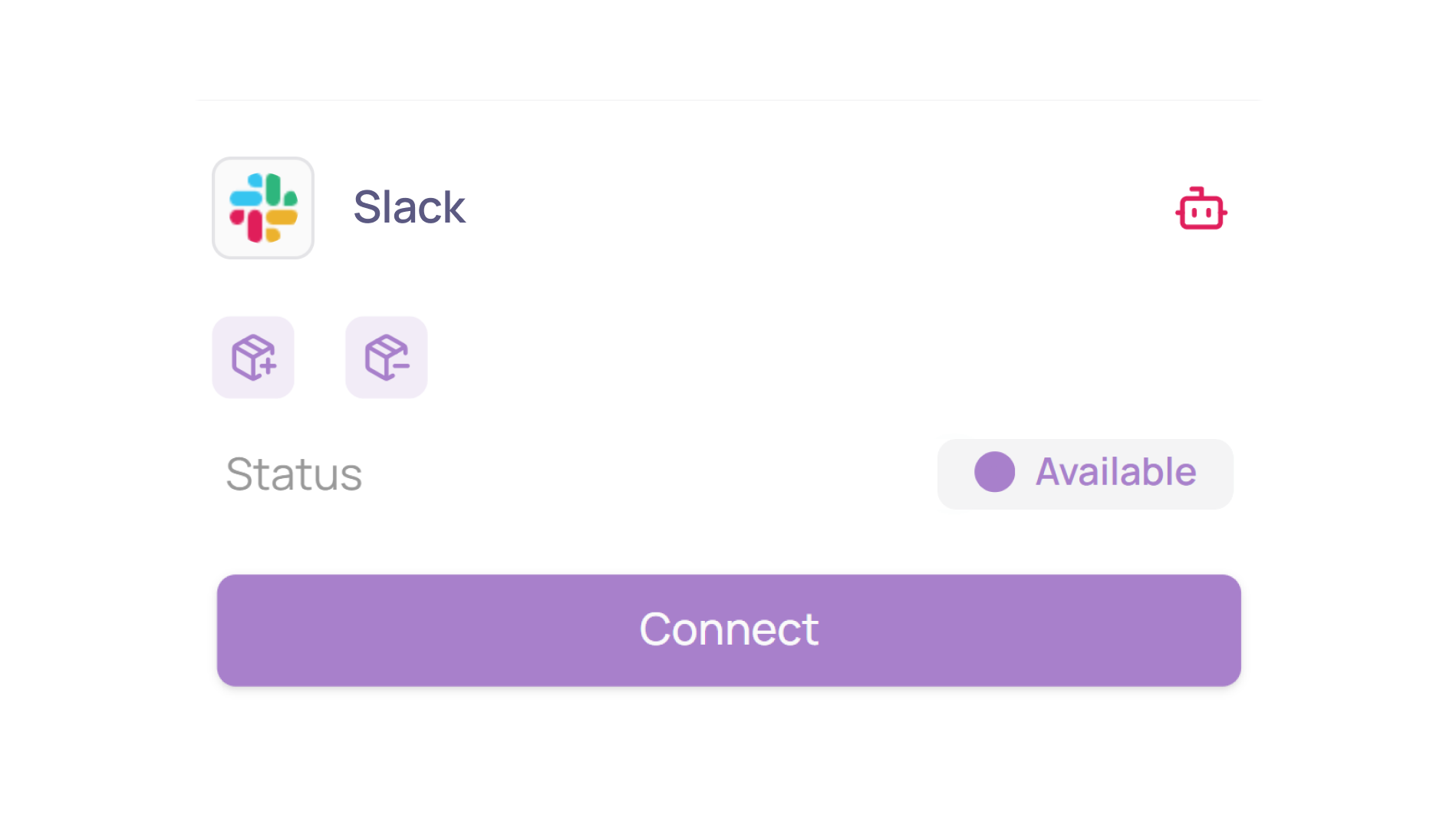
Click on "Connect" again
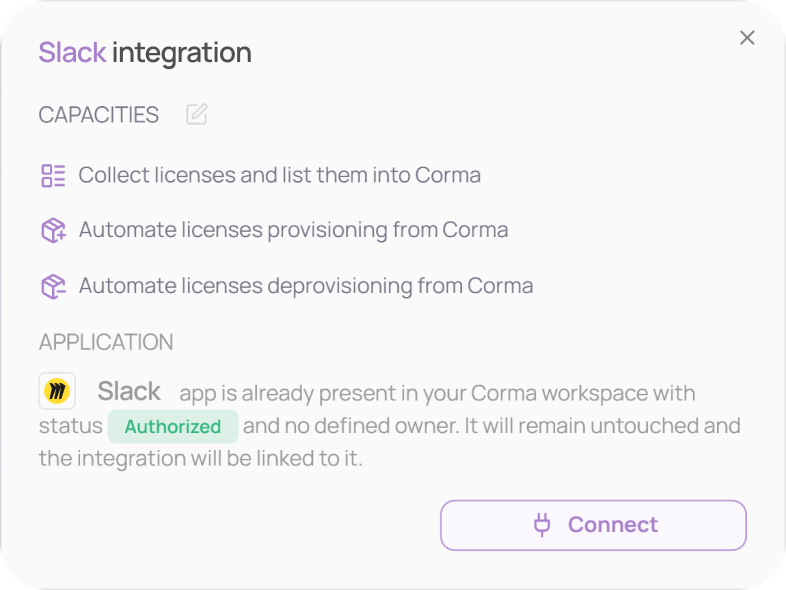
Select your authentication method
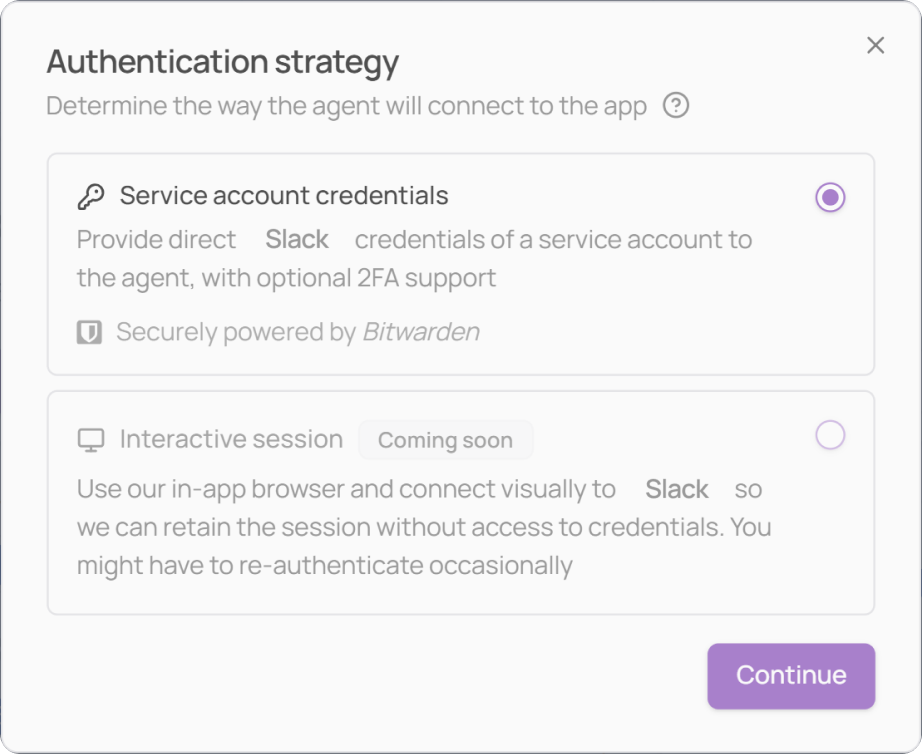
Method 1: provide your credentials for autonomous agent integration
Provide Corma with your Slack service account credentials directly (that must have admin rights). Corma will handle the login automatically, including TOTP-based 2FA codes (e.g., Google Authenticator).
Method 2: manually connect to let us save your session temporarily
Corma opens an embedded browser where you log in manually, using your Slack service account credentials (with admin rights). Your session is then saved and the agent acts on your behalf within that session. With this method, no password is ever stored.
Method 1: Service account credentials
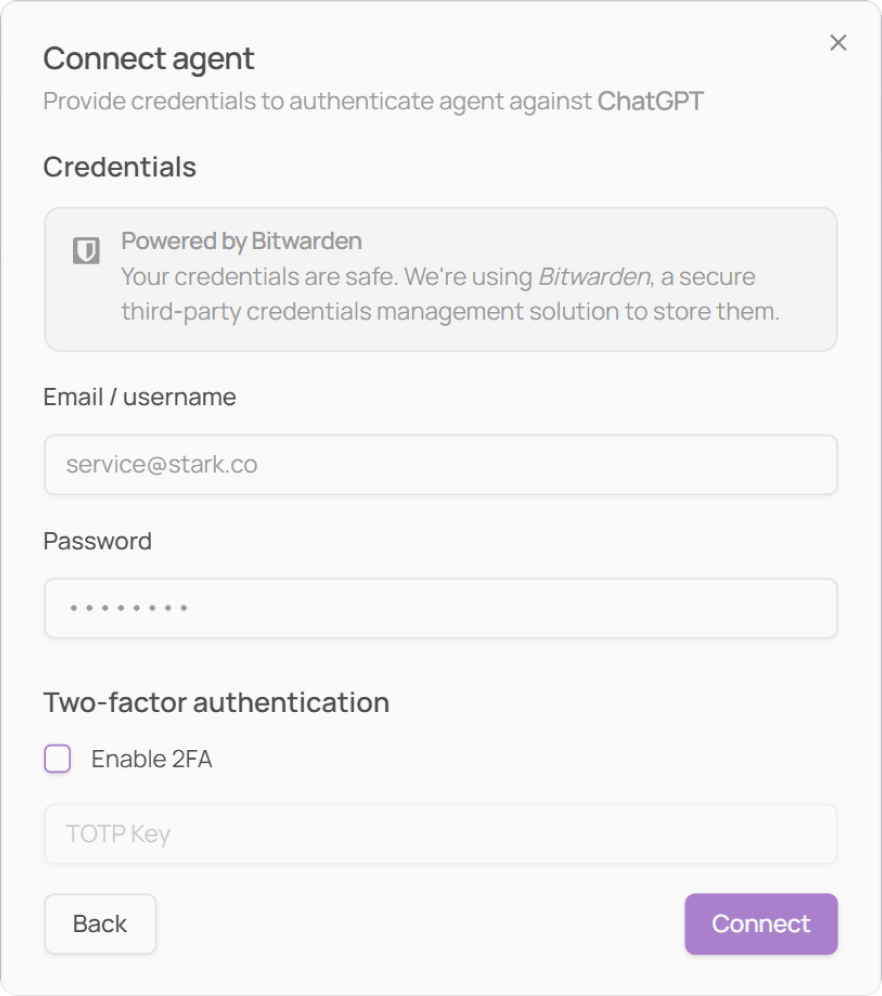
For this method, you need to provide Corma with:
the email address of the service account
the password linked to this email address
Optionally, a TOTP-based authenticator app (Google Authenticator, Authy). You'll then need to provide Corma with your TOTP key for the agent to get access to your one-time generated passwords.
We strongly recommend you to use a dedicated service account for this agent setup, not your personal account credentials.
Enter your Slack service account credentials in the fields provided (email, password, and TOTP key if applicable) and click on “Connect“
OTP via email or phone are not handled in this method. If the login fails or redirects to a company SSO page, switch to Method 2.
Provide Corma with the workspace URL you want the agent to operate on. For that, click on your workspace name in the top left corner of your Slack browser or desktop app. Then you will see the exact URL of your workspace, e.g. company.slack.com. You must then copy the “company” part only of this URL and paste it in Corma. Then, click “Save”.
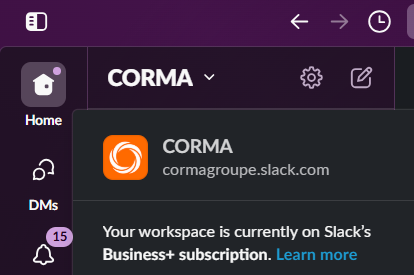
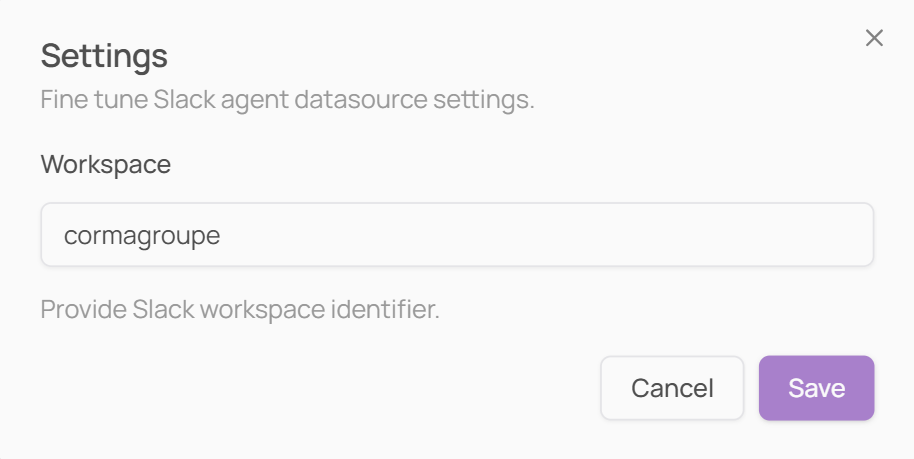
e.g. if your workspace url is “cormagroupe.slack.com”, you must enter “cormagroupe” in the workspace field
Confirm that the Agent successfully logs in
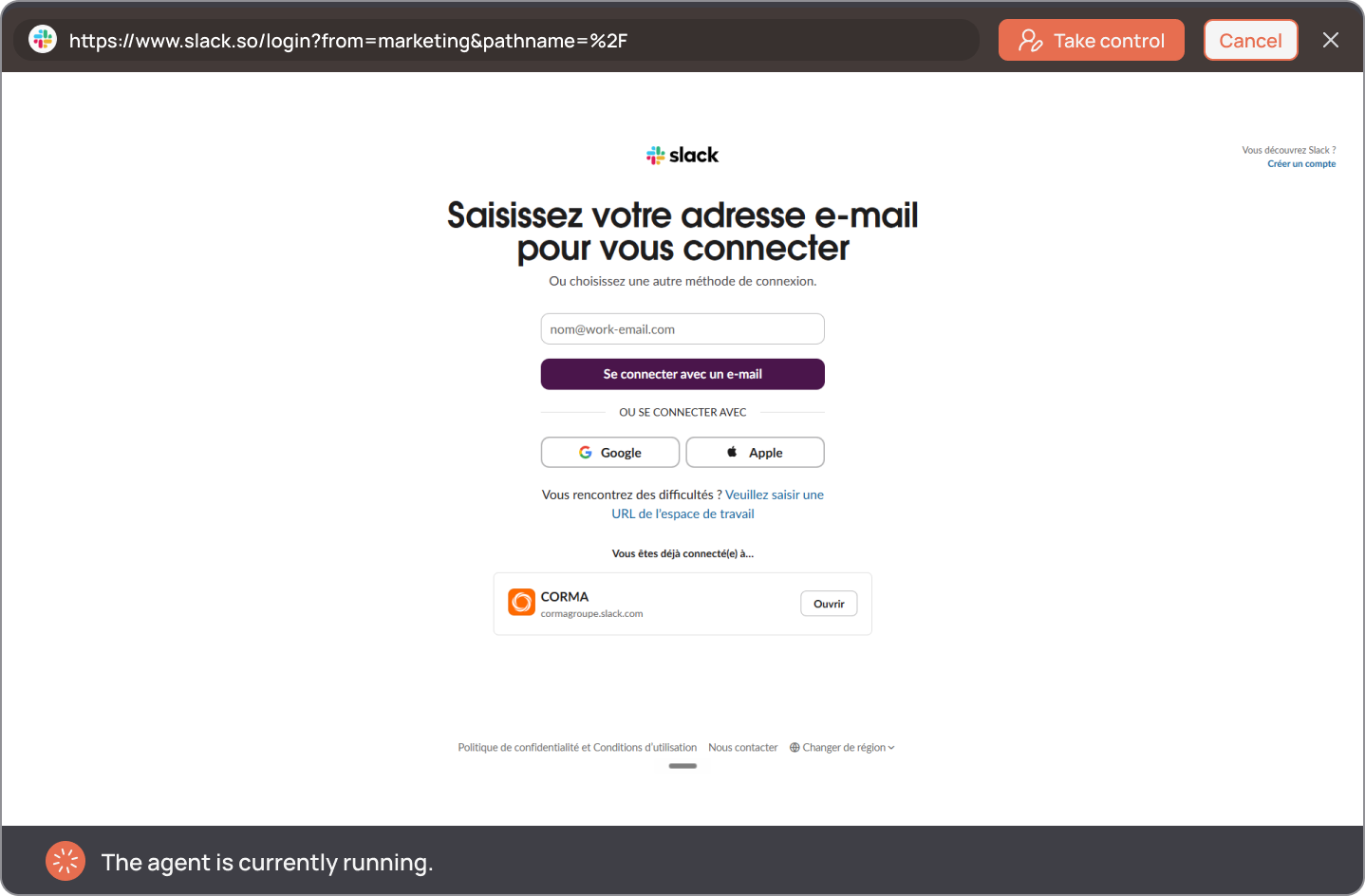
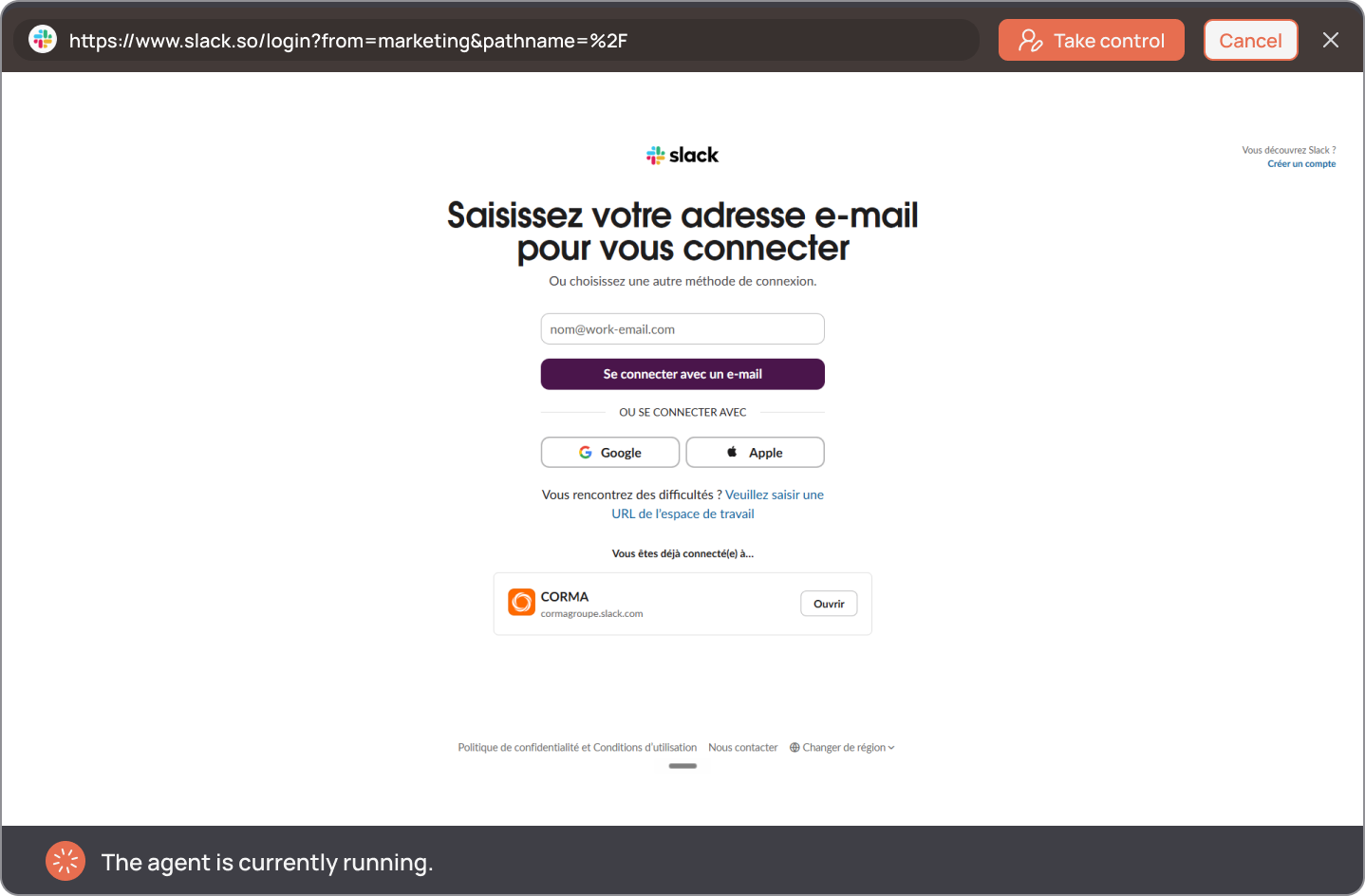
A browser will pop up, with the agent automatically starting to log in to Slack using the service account credentials. The first agent login takes some time.
You can click on “Take control” at any time to stop the run, and manually interact with the browser. You can then resume at any time, clicking on the same button now showing “Resume”.
You can also click on “Cancel” to stop the agent completely. You’ll be redirected to the “Authentication Strategy” card.
If for some reason the agent can’t log in, you’ll be asked to manually enter your credentials and log in.
Once the agent is successfully logged in, you then need to click on “Validate login”.
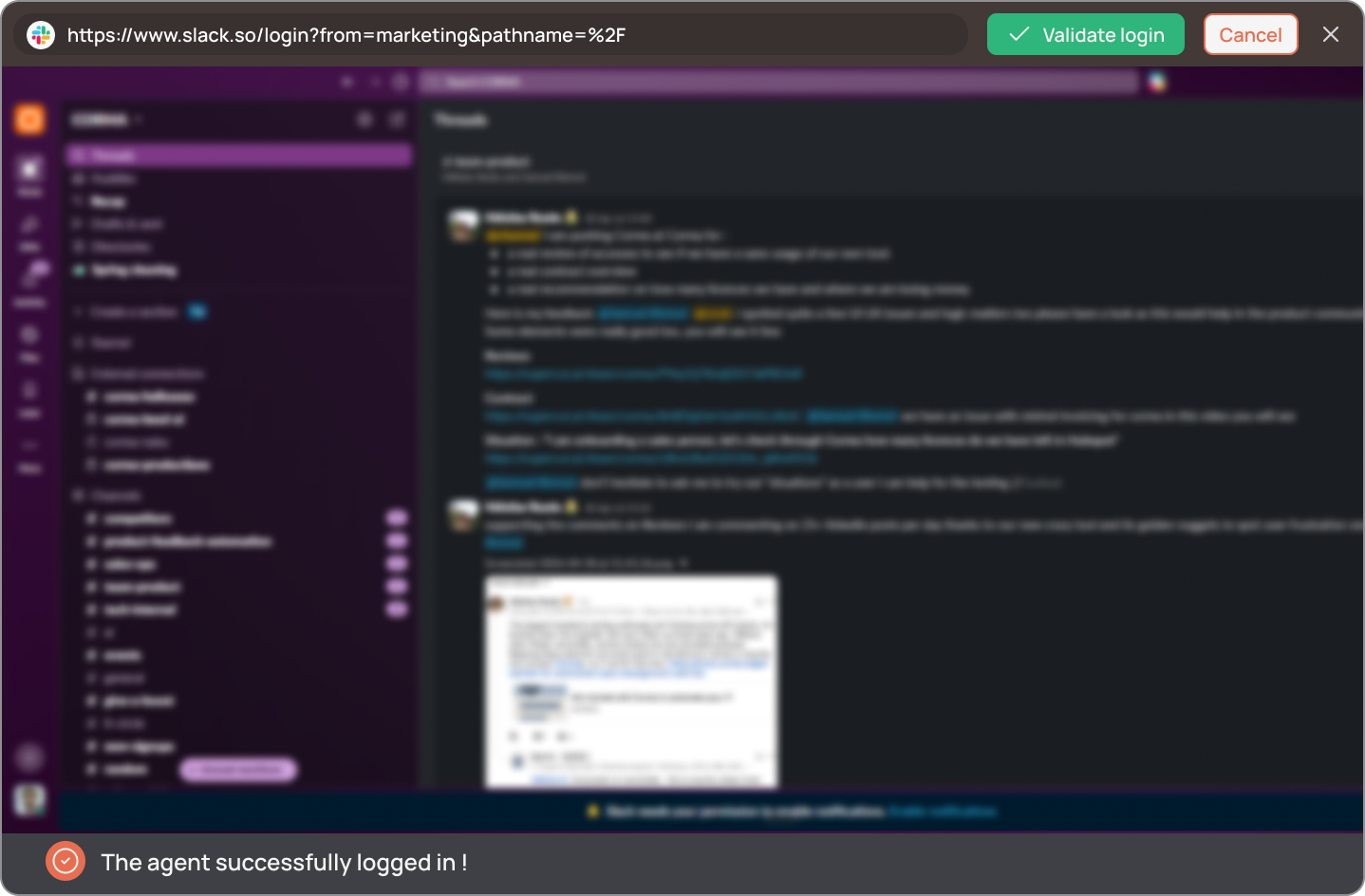
You’ve successfully connected Slack to Corma!
Method 2: Interactive session
Disclaimer: this method only saves your session. Therefore, if the session expires, Corma will ask you to connect manually again.
For this method, Corma will directly open an embedded browser:
Manually enter your service account email address
if you receive a 2FA code on this email, enter it in the browser
Use the "Continue with email" button whenever possible. Don’t use any SSO connection method (Google, Microsoft...). If an SSO is setup for the service account, you don’t need to deactive it.
Once you successfully logged in, click on “Validate login”
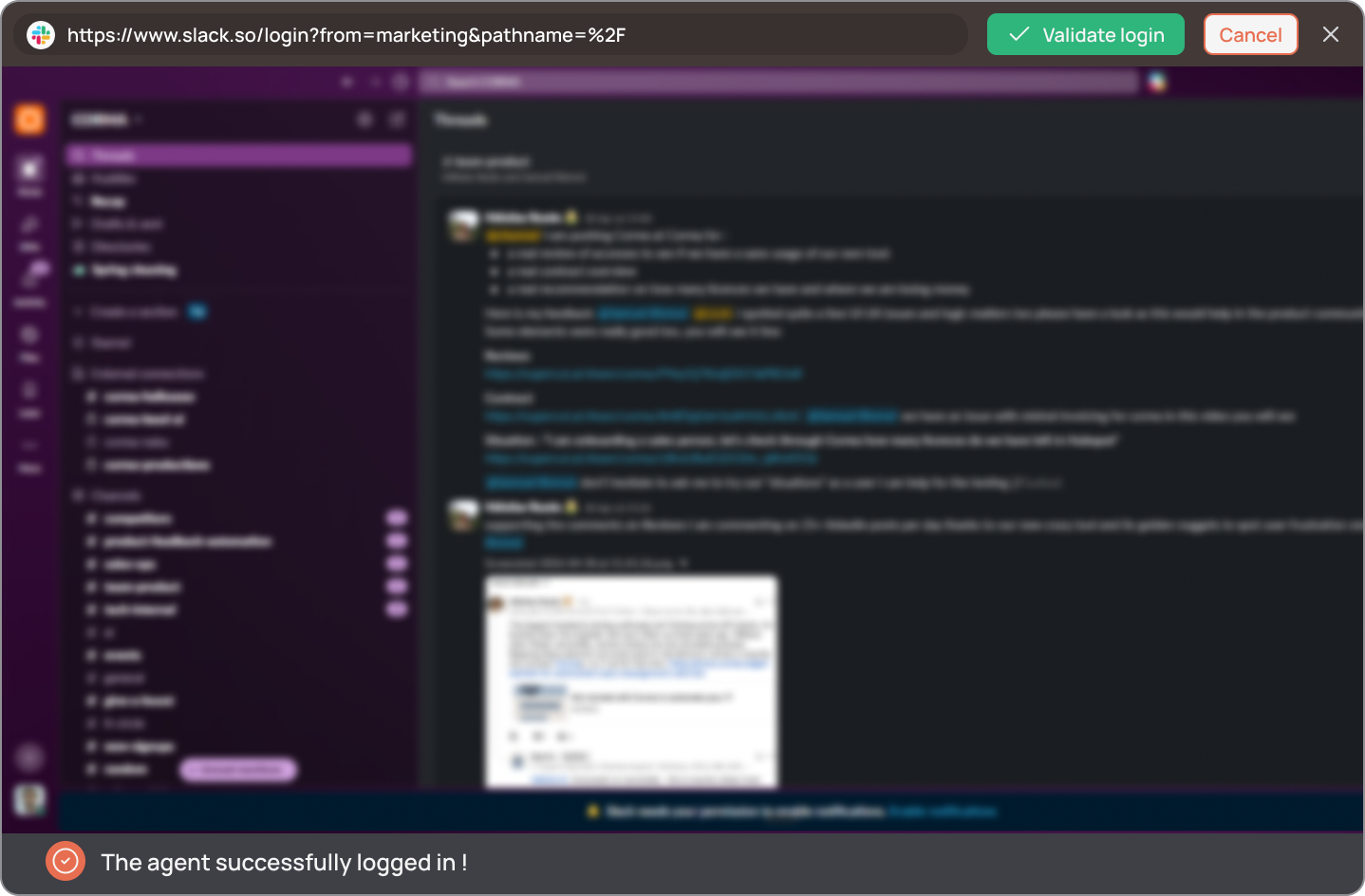
You’ve successfully connected Slack to Corma!
Data should be synchronized within the next 24 hours and will be synched every day to your Corma app.