Corma
Corma
Docs
  • Docs
  • Changelog
  • Feature requests
    • General information about integrations
    • Identity Providers
    • Finance and Accounting
    • Human Resources
    • SaaS tools
      • Adobe
      • Aircall
      • Akuiteo
      • Amplitude
      • Asana
      • Atlassian
      • Autodesk BIM 360
      • AWS
      • Bitwarden
      • Brevo
      • Calendly
      • Canva
      • Claude (Anthropic)
      • Clickup
      • Cloudflare
      • Coda
      • Cursor
      • Dashlane
      • Datadog
      • Deskpro
      • Diabolocom
      • Docusign
      • Dropbox
      • Figma
      • Freshservice, Freshdesk, and Freshcaller
      • Front
      • Github
      • Gitlab
      • Gong
      • Hubspot
      • Intercom
      • Jamf
      • Jumpcloud
      • Lastpass
      • Leexi
      • Linear
      • Make
      • Miro
      • Modjo
      • Monday
      • Notion
      • Odoo
      • OneLogin
      • OpenAI
      • Posthog
      • Quable PIM
      • Quable Portal
      • Ringover
      • Salesforce
      • Slack
      • Snowflake
      • Tableau
      • Udemy
      • Yoobic
      • Yousign
      • Zendesk
      • Zoho CRM
      • Zoom
      • 1Password
    • ITSM tools

Tableau

Tableau

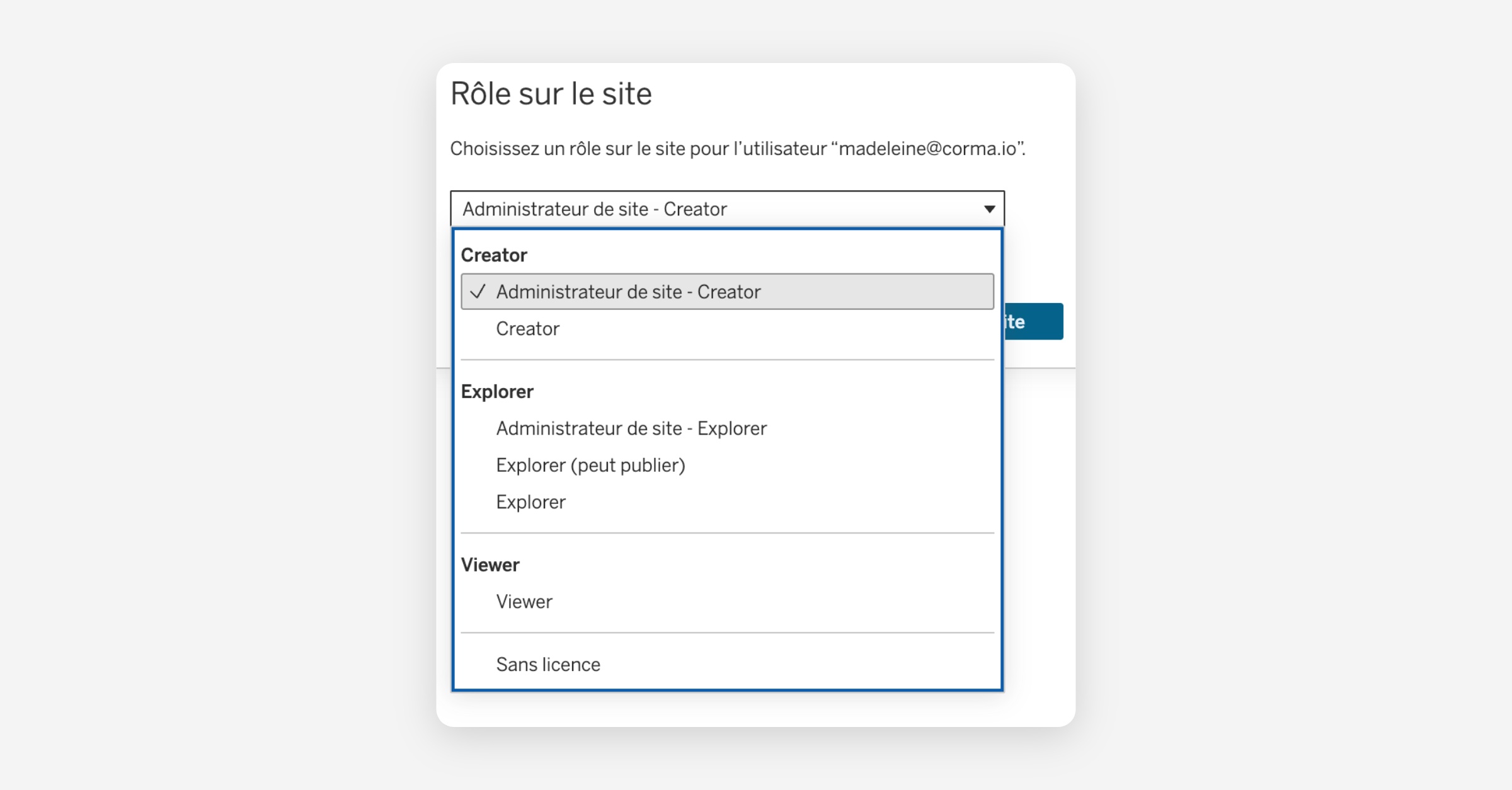
An Admin site - Creator role is required to connect Tableau to Corma
  1. On your Corma app go to the integrations page

    https://app.corma.io/integrations

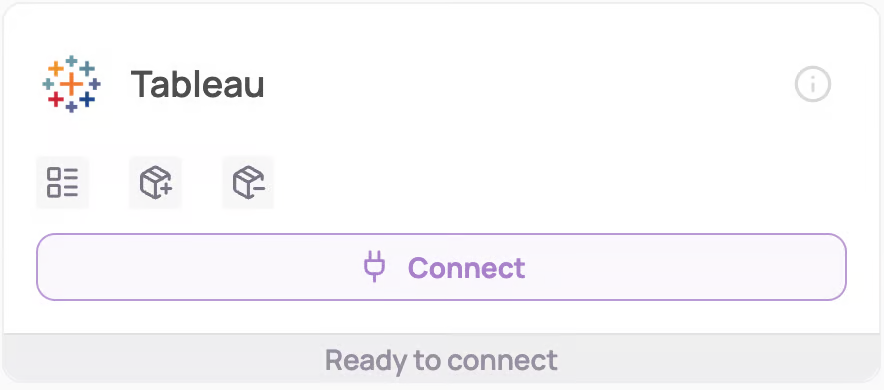
  2. Under "Direct SaaS integrations" click on "Connect" for Tableau
  3. Submit your Tenancy, Site Name, Personal Access Token Name, and Personal Access Token Secret
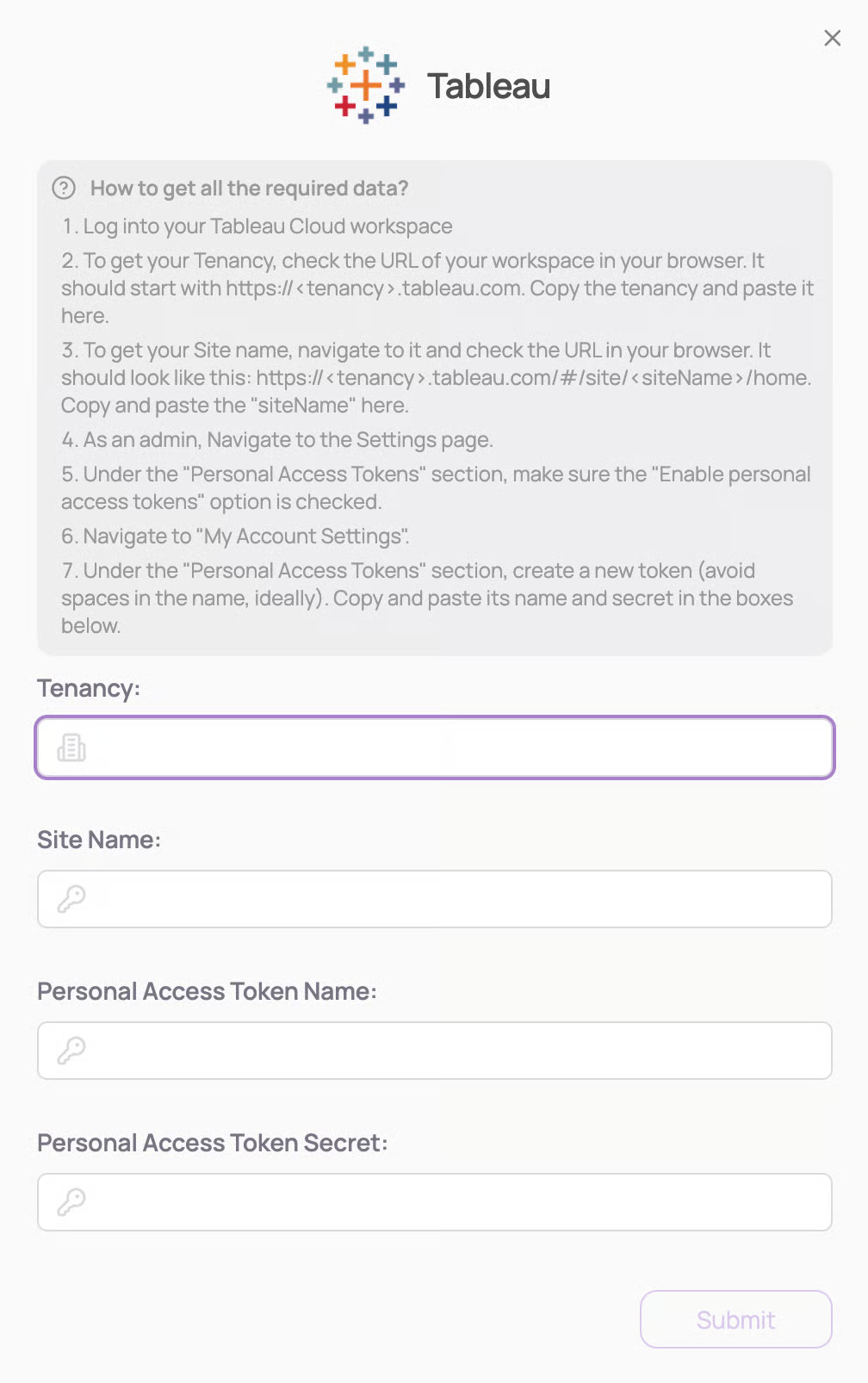
    Follow these instructions to obtain this data:

    1. Log into your Tableau Cloud workspace

    2. To get your Tenancy, check the URL of your workspace in your browser. It should start with https://<tenancy>.tableau.com. Copy the tenancy and paste it here.

    3. To get your Site name, navigate to it and check the URL in your browser. It should look like this: https://<tenancy>.tableau.com/#/site/<siteName>/home. Copy and paste the "siteName" here.

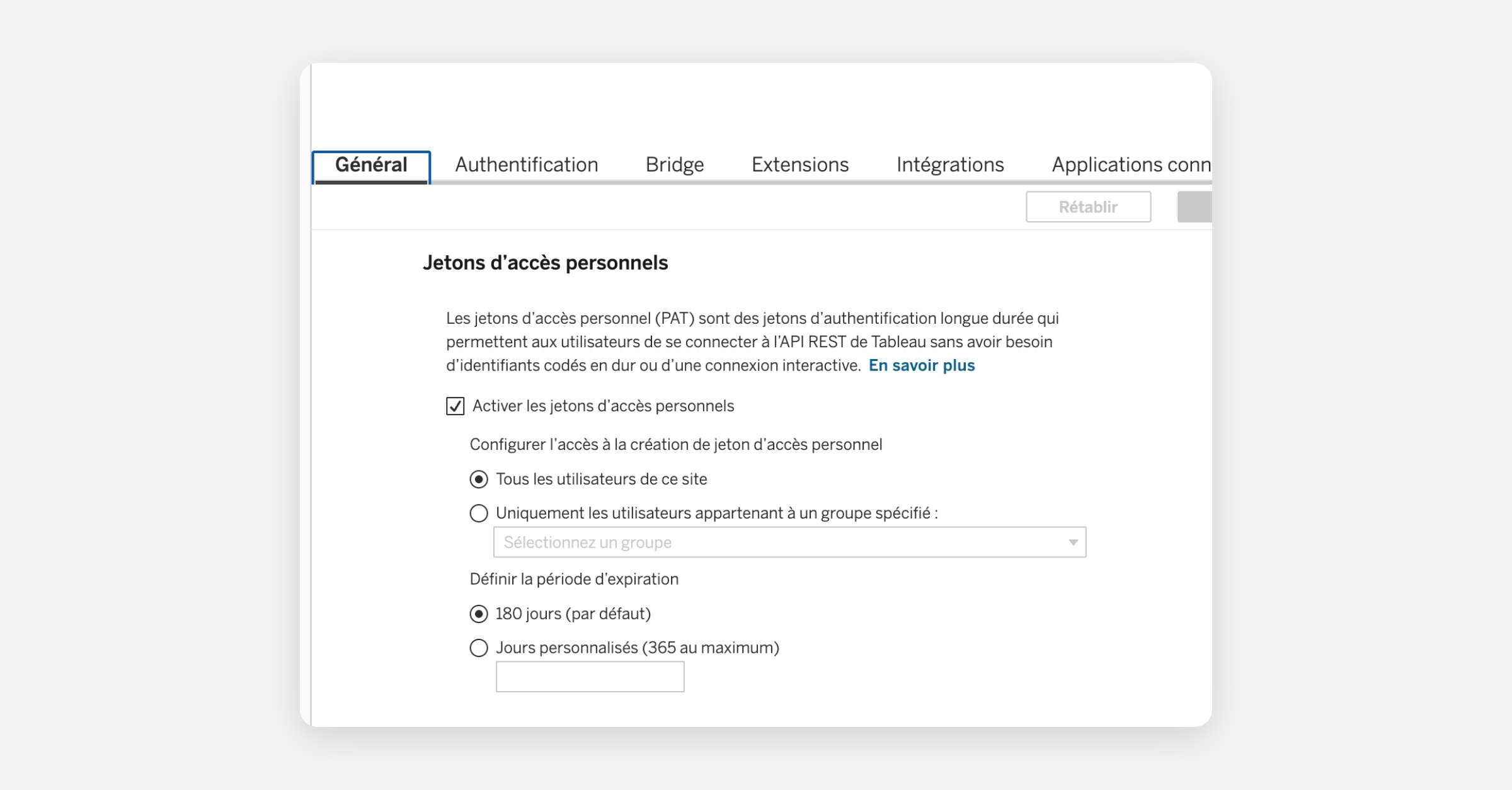
    4. As an admin, Navigate to the Settings page.

    5. Under the "Personal Access Tokens" section, make sure the "Enable personal access tokens" option is checked.
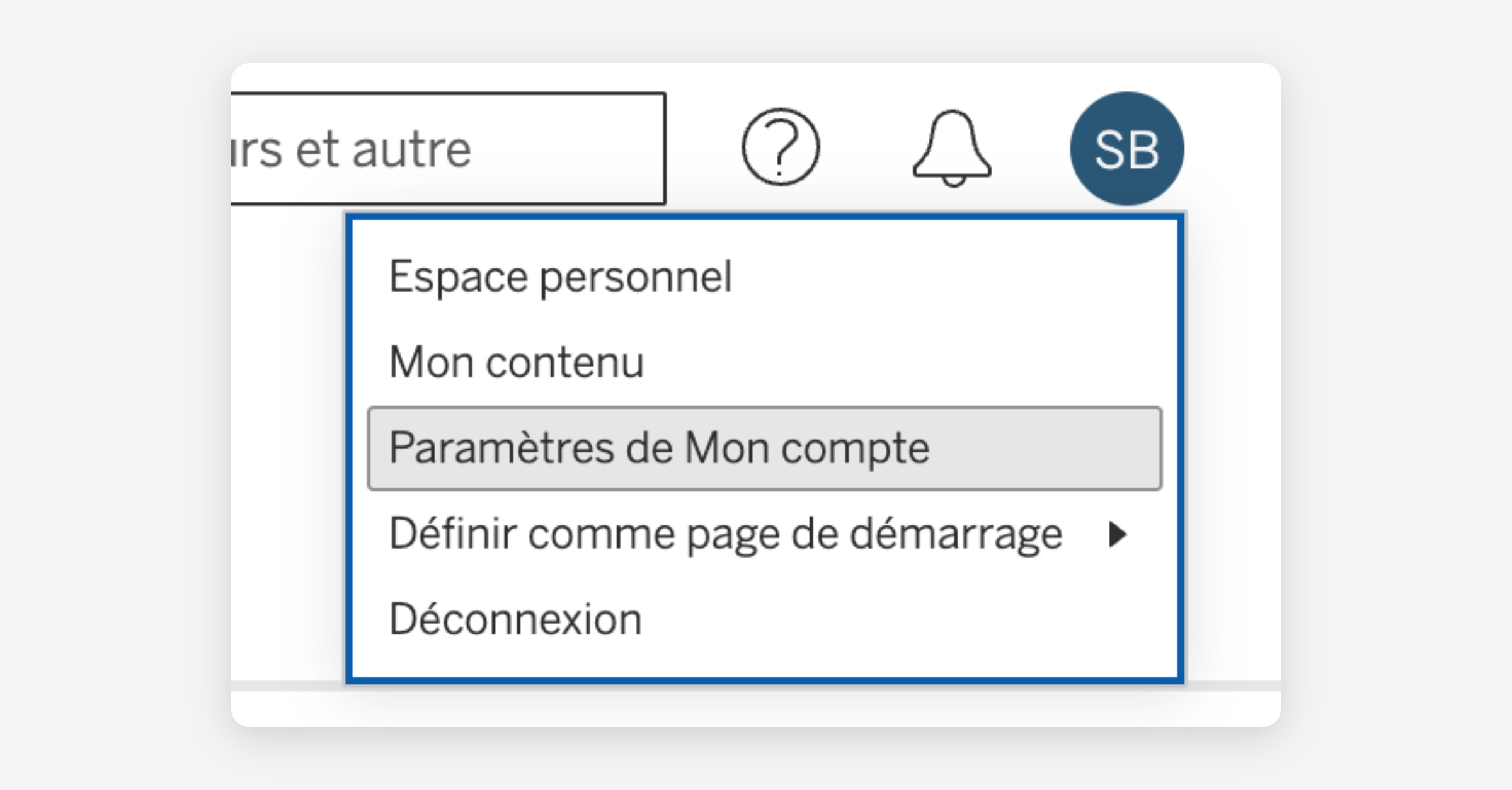
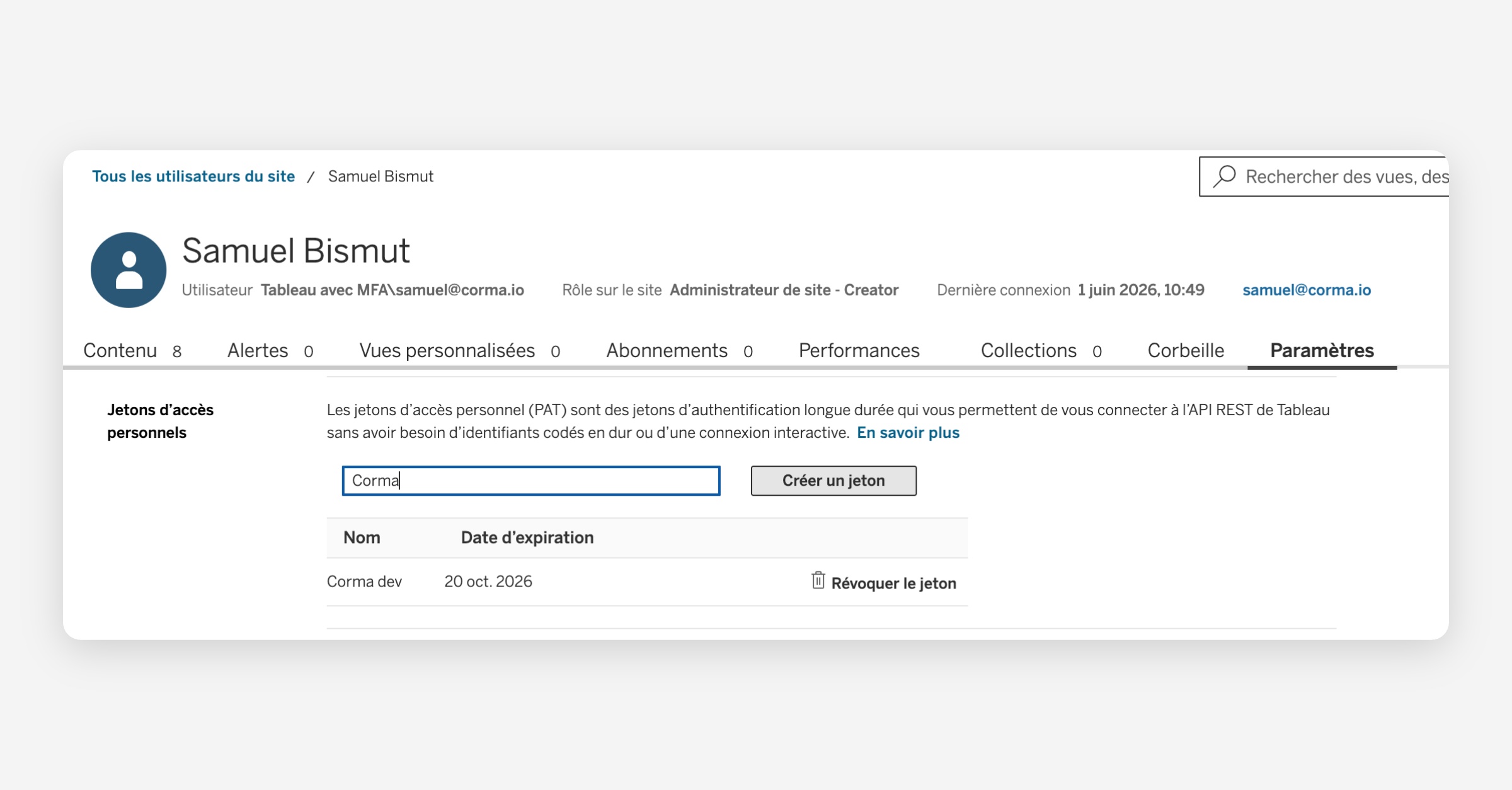
    6. Navigate to "My Account Settings".

    7. Under the "Personal Access Tokens" section, create a new token (avoid spaces in the name, ideally). Copy and paste its name and secret in the boxes below.
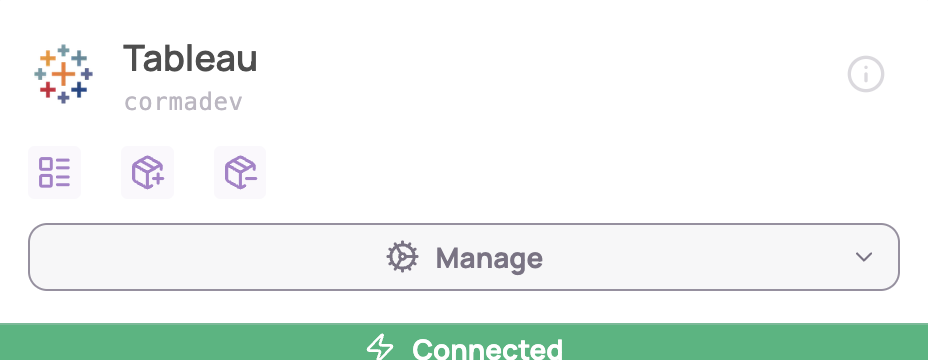
  4. You've successfully connected Tableau to Corma!

    Data should be synchronized within the next 24 hours and will be synched every day to your Corma app.
Was this helpful?