
Corma
Corma
Docs
  • Docs
  • Changelog
  • Feature requests
    • General information about integrations
    • Identity Providers
    • Finance and Accounting
    • Human Resources
    • SaaS tools
      • Adobe
      • Aircall
      • Akuiteo
      • Amplitude
      • Asana
      • Atlassian
      • Autodesk BIM 360
      • AWS
      • Bitwarden
      • Brevo
      • Calendly
      • Canva
      • Claude (Anthropic)
      • Clickup
      • Cloudflare
      • Coda
      • Cursor
      • Dashlane
      • Datadog
      • Deskpro
      • Diabolocom
      • Docusign
      • Dropbox
      • Figma
      • Freshservice, Freshdesk, and Freshcaller
      • Front
      • Github
      • Gitlab
      • Gong
      • Hubspot
      • Intercom
      • Jamf
      • Jumpcloud
      • Lastpass
      • Leexi
      • Linear
      • Make
      • Miro
      • Modjo
      • Monday
      • Notion
      • Odoo
      • OneLogin
      • OpenAI
      • Posthog
      • Quable PIM
      • Quable Portal
      • Ringover
      • Salesforce
      • Slack
      • Snowflake
      • Tableau
      • Udemy
      • Yoobic
      • Yousign
      • Zendesk
      • Zoho CRM
      • Zoom
      • 1Password
    • ITSM tools

Coda

An admin access is required to connect Coda to Corma

  1. On your Corma app go to the Data sources page

    https://app.corma.io/integrations

  2. Under "All Data sources" search for Coda and click on "Connect"
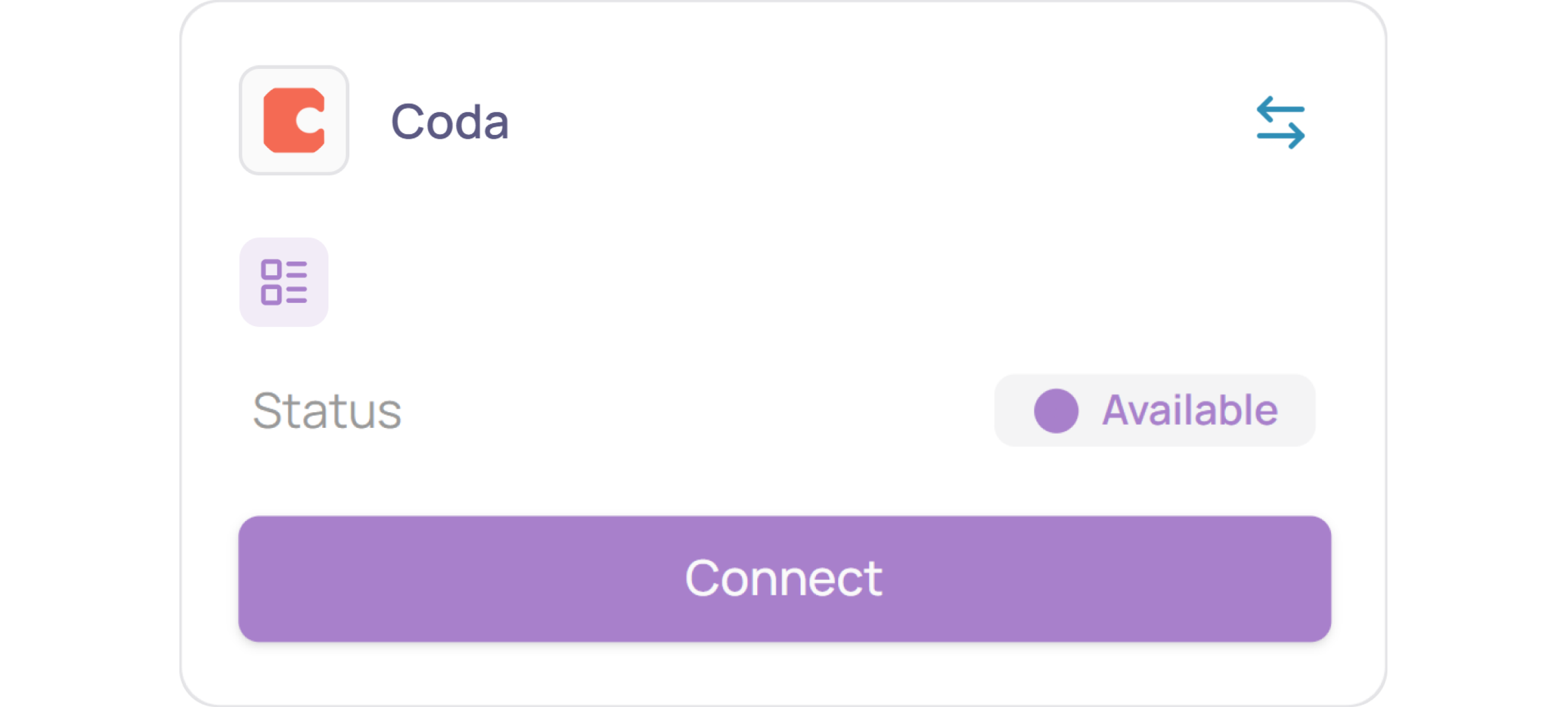
  3. Click on “Connect” again

  4. Create your API key

    1. Log in to your Coda dashboard

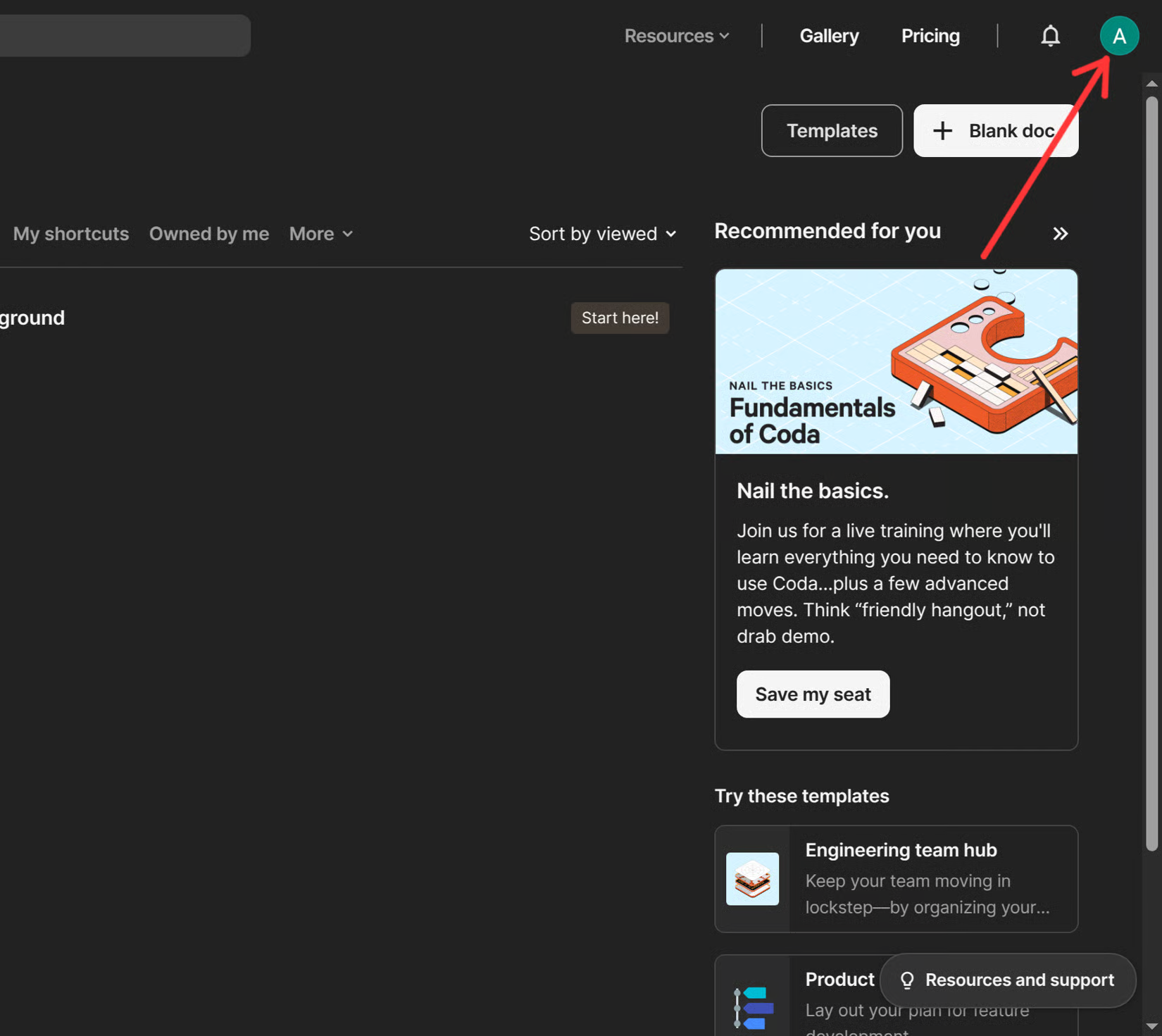
    2. Click on your profile image in the top right corner of the screen
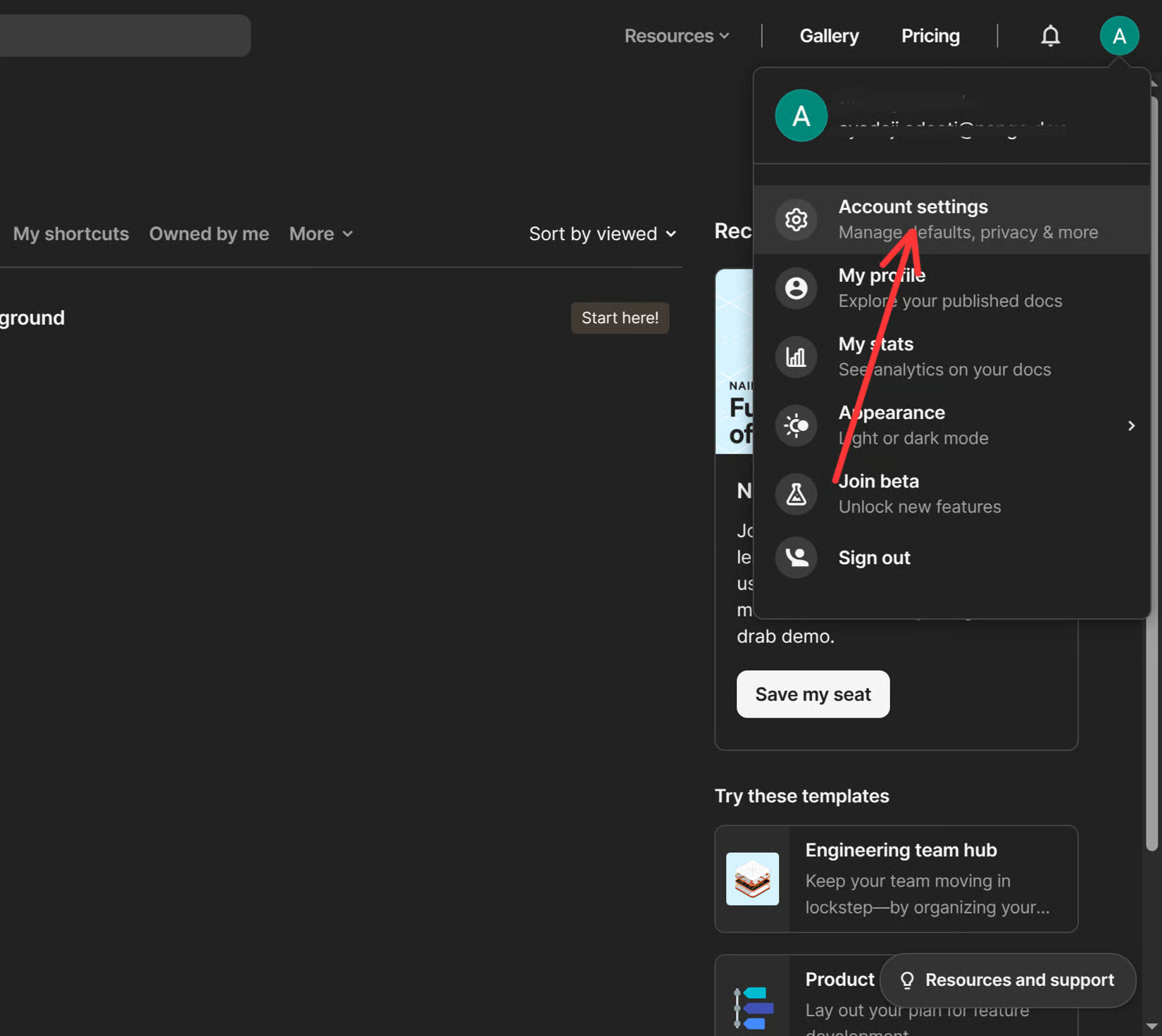
    3. Select Account Settings from the dropdown menu
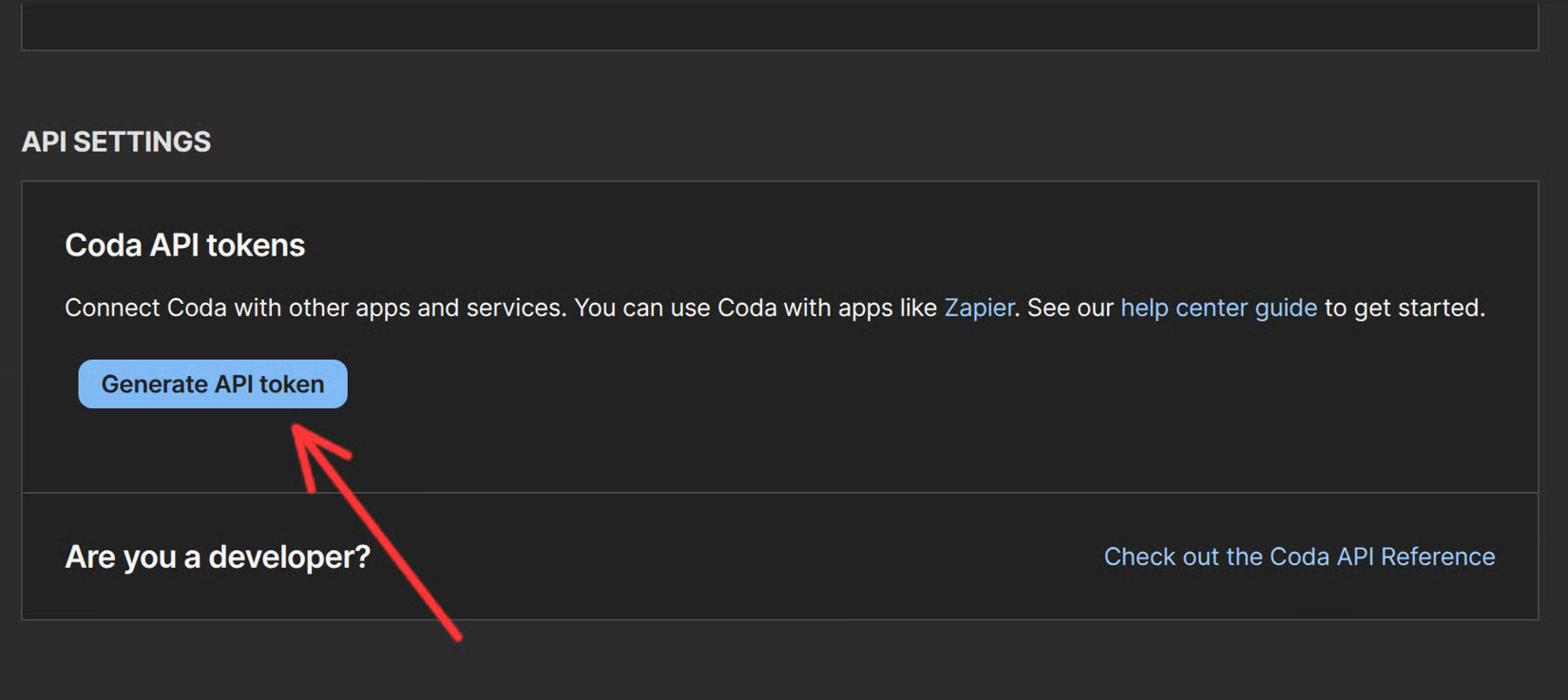
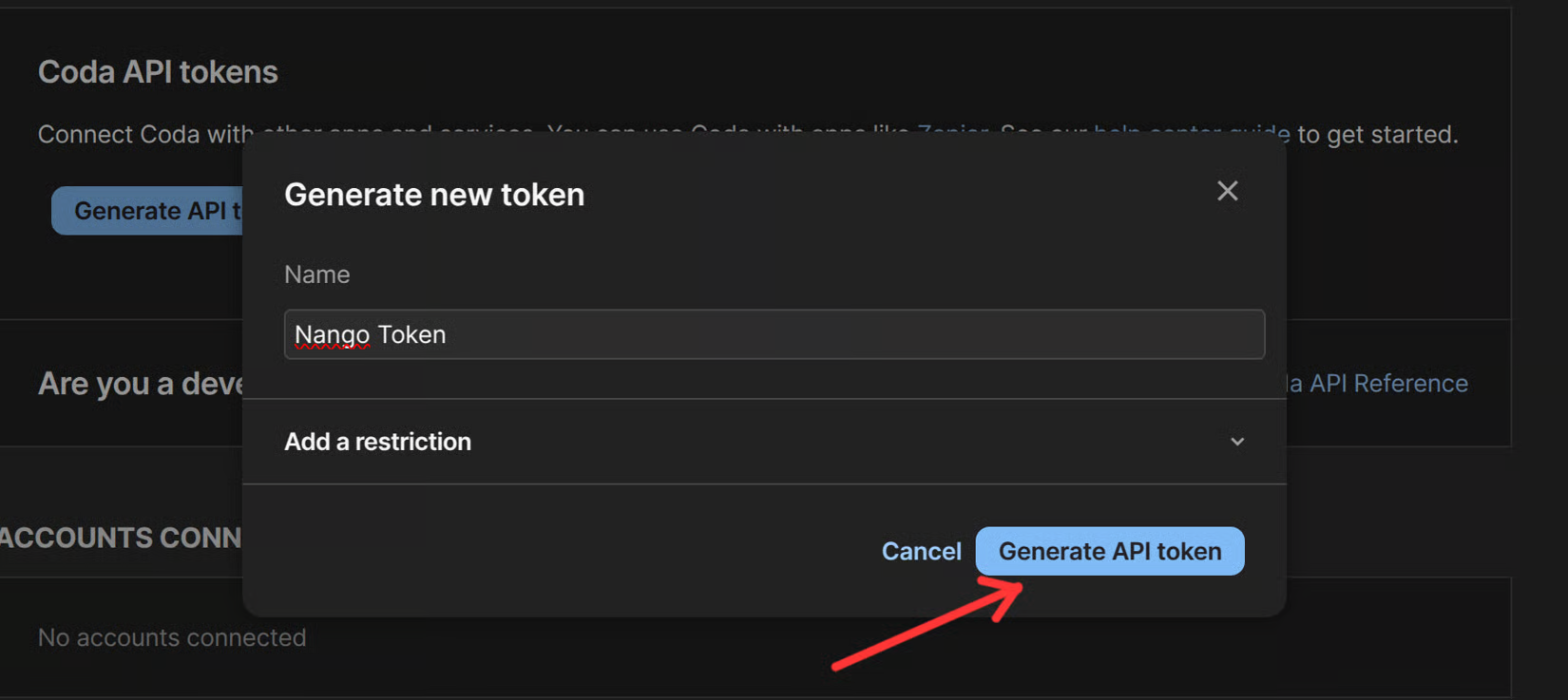
    4. Scroll down to the API Settings section and click on the Generate API Token button
    5. Enter a name for the API Token. You can optionally Add restrictions for the API Token, though for full functionality with Nango, leaving it unrestricted is recommended. Once complete, click Generate API Token to save the token.
    6. Copy the API Token and store it securely. Once you leave the page, you won’t be able to retrieve it again.
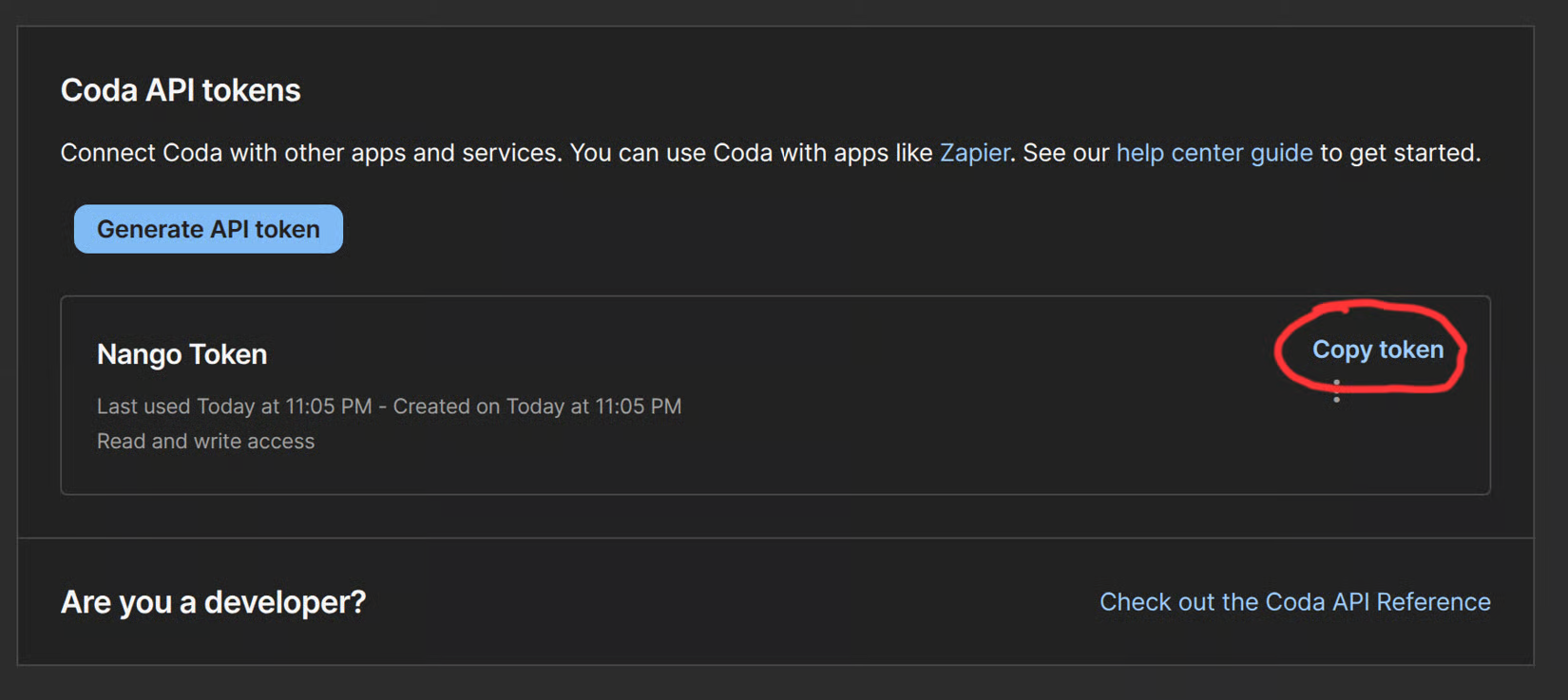
      Note: Ensure you store this key securely, as it will not be visible again after leaving the API key page.

  5. Paste your API key in the Nango window:
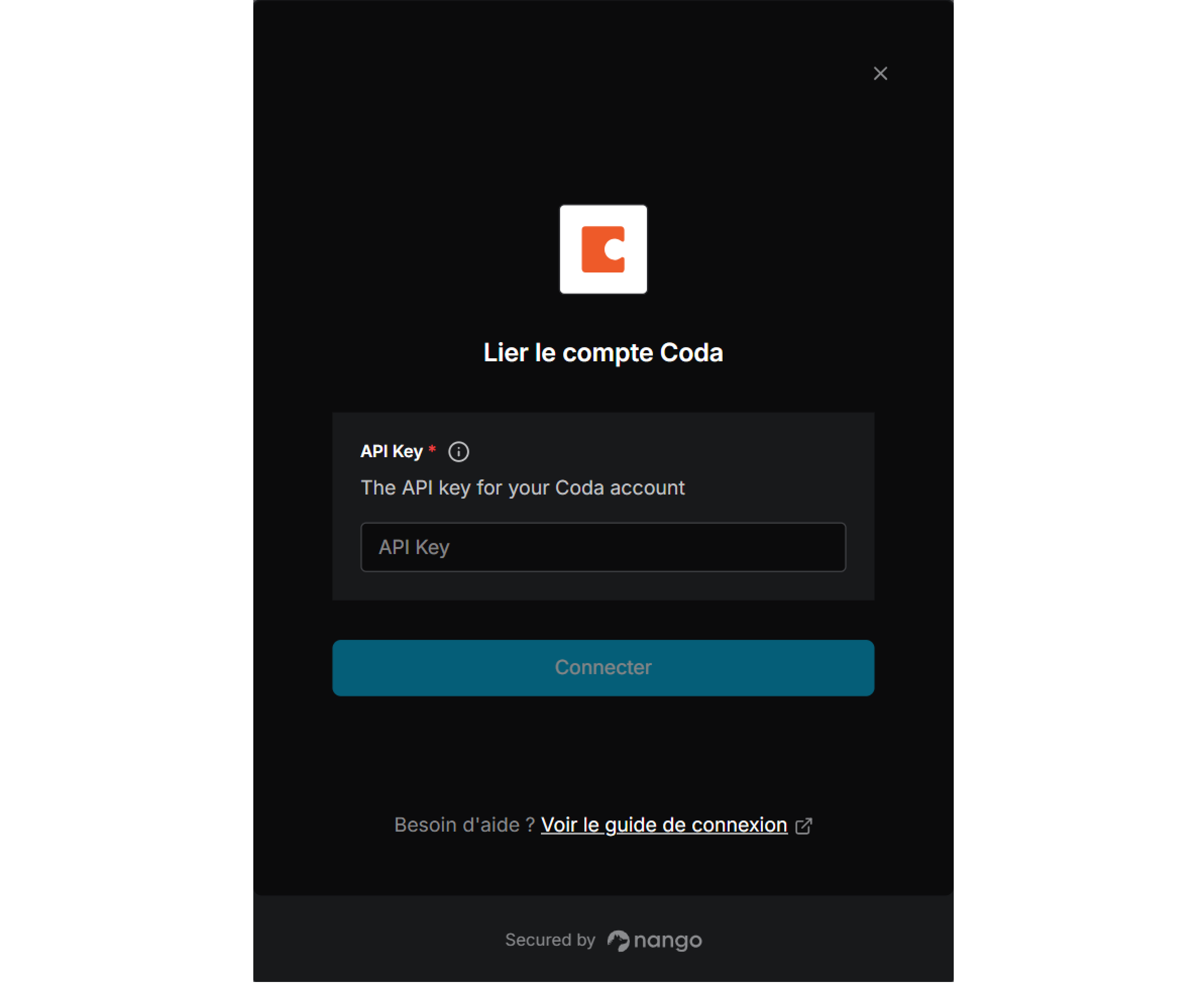
  6. You've successfully connected Coda to Corma!

  7. Data should be synchronized within the next 24 hours and will be synched every day to your Corma app.

Was this helpful?