Corma
Corma
Docs
  • Docs
  • Changelog
  • Feature requests
    • General information about integrations
    • Identity Providers
    • Finance and Accounting
    • Human Resources
    • SaaS tools
      • Adobe
      • Aircall
      • Akuiteo
      • Amplitude
      • Asana
      • Atlassian
      • Autodesk BIM 360
      • AWS
      • Bitwarden
      • Brevo
      • Calendly
      • Canva
      • Claude (Anthropic)
      • Clickup
      • Cloudflare
      • Coda
      • Cursor
      • Dashlane
      • Datadog
      • Deskpro
      • Diabolocom
      • Docusign
      • Dropbox
      • Figma
      • Freshservice, Freshdesk, and Freshcaller
      • Front
      • Github
      • Gitlab
      • Gong
      • Hubspot
      • Intercom
      • Jamf
      • Jumpcloud
      • Lastpass
      • Leexi
      • Linear
      • Make
      • Miro
      • Modjo
      • Monday
      • Notion
      • Odoo
      • OneLogin
      • OpenAI
      • Posthog
      • Quable PIM
      • Quable Portal
      • Ringover
      • Salesforce
      • Slack
      • Snowflake
      • Tableau
      • Udemy
      • Yoobic
      • Yousign
      • Zendesk
      • Zoho CRM
      • Zoom
      • 1Password
    • ITSM tools

Gitlab

An admin access is required to connect Gitlab to Corma

  1. On your Corma app go to the Integrations page

    https://app.corma.io/integrations

  2. Under "Direct SaaS integrations" click on "Connect" for Gitlab
  3. Enter your GitLab Account Base URL

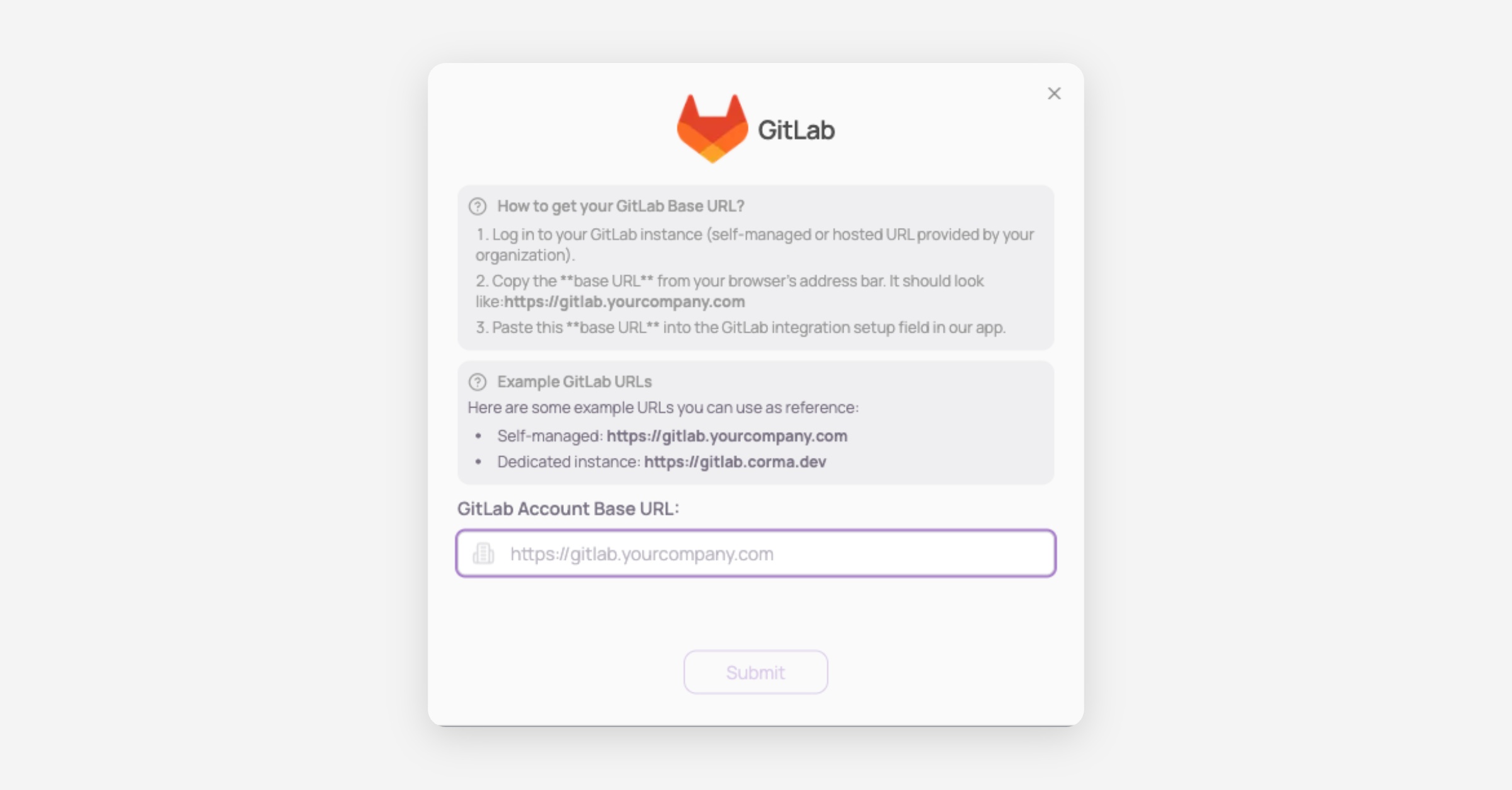
    1. Log in to your GitLab instance (self-managed or hosted URL provided by your organization).

    2. Copy the base URL from your browser's address bar. It should look like:https://gitlab.yourcompany.com

    3. Paste this base URL into the GitLab integration setup field in our app.

  4. You've successfully connected Gitlab to Corma!

    Data should be synchronized within the next 24 hours and will be synched every day to your Corma app.

Was this helpful?