
Atlassian

An admin access is required to connect Atlassian to Corma. Atlassian API tokens expire after 12 months.
On your Corma app go to the integrations page
Under "Direct SaaS integrations" click on "Connect" for Atlassian
Retrieve your Atlassian domain, admin email and generate your Atlassian API token
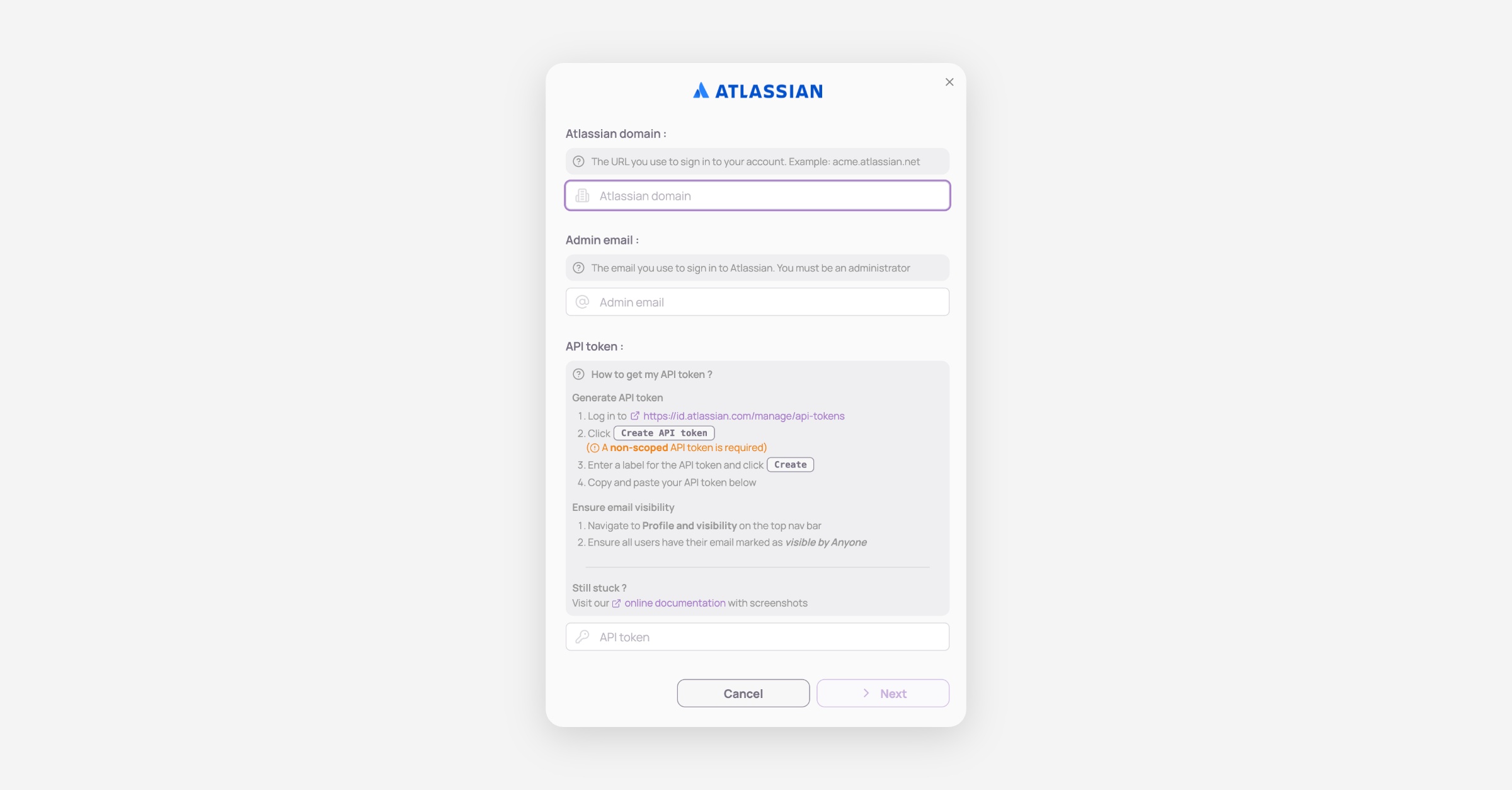
Domain
Your Atlassian domain is the link used to access your Atlassian workspace
Atlassian domain example: corma.atlassian.net
Admin email
Generate your Atlassian API Token
Click Create API token
Enter a label for the API token and click Create
Anyone can create the API token, but it is going to inherit the role/group permissions of that user
Navigate to Profile and visibility on the top nav bar
Ensure all users have their email marked as visible by "Anyone"
Copy and add your API token below
Your Atlassian API token should begin with
ATATT3x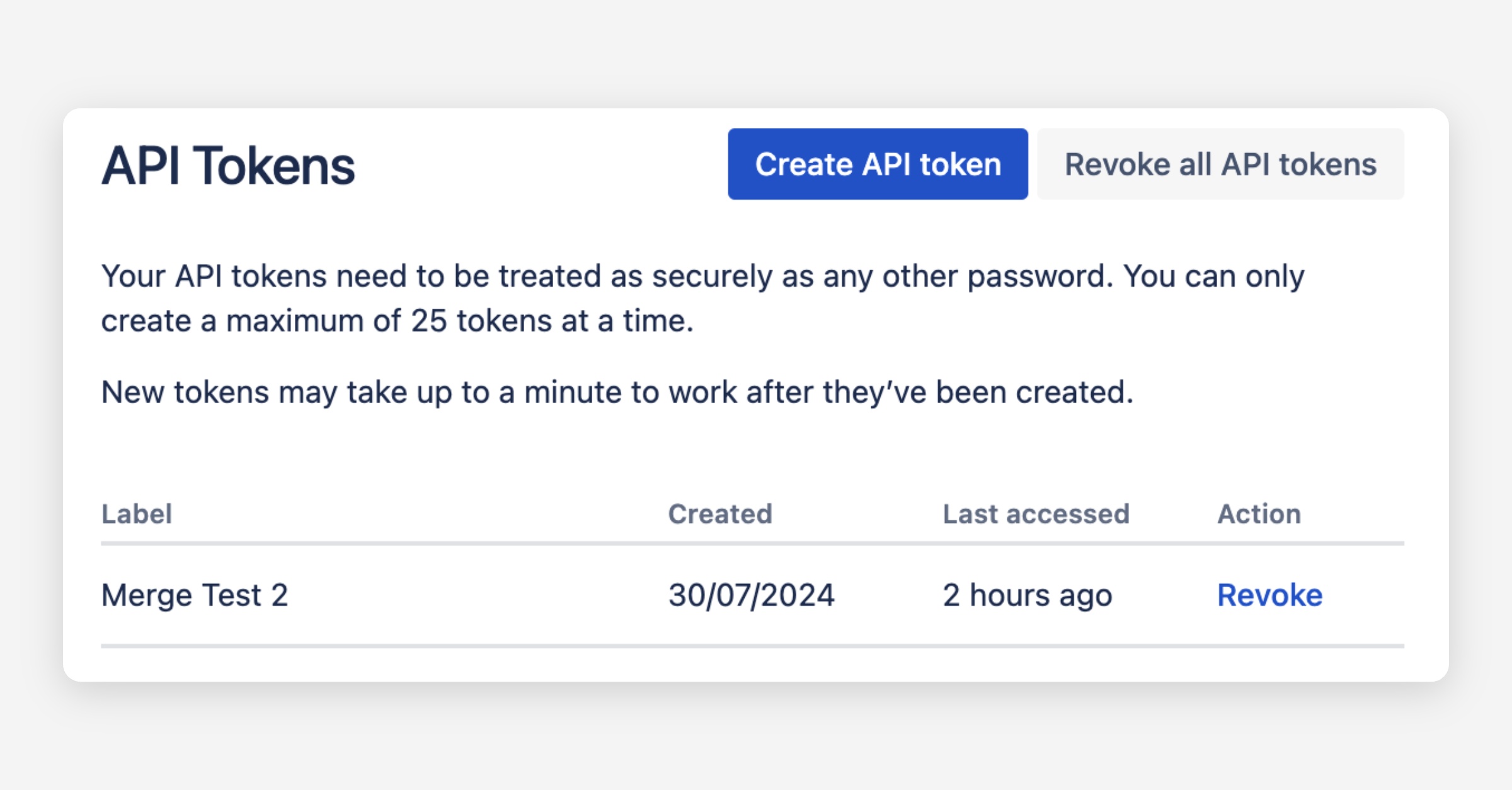
Generate your Atlassian API key
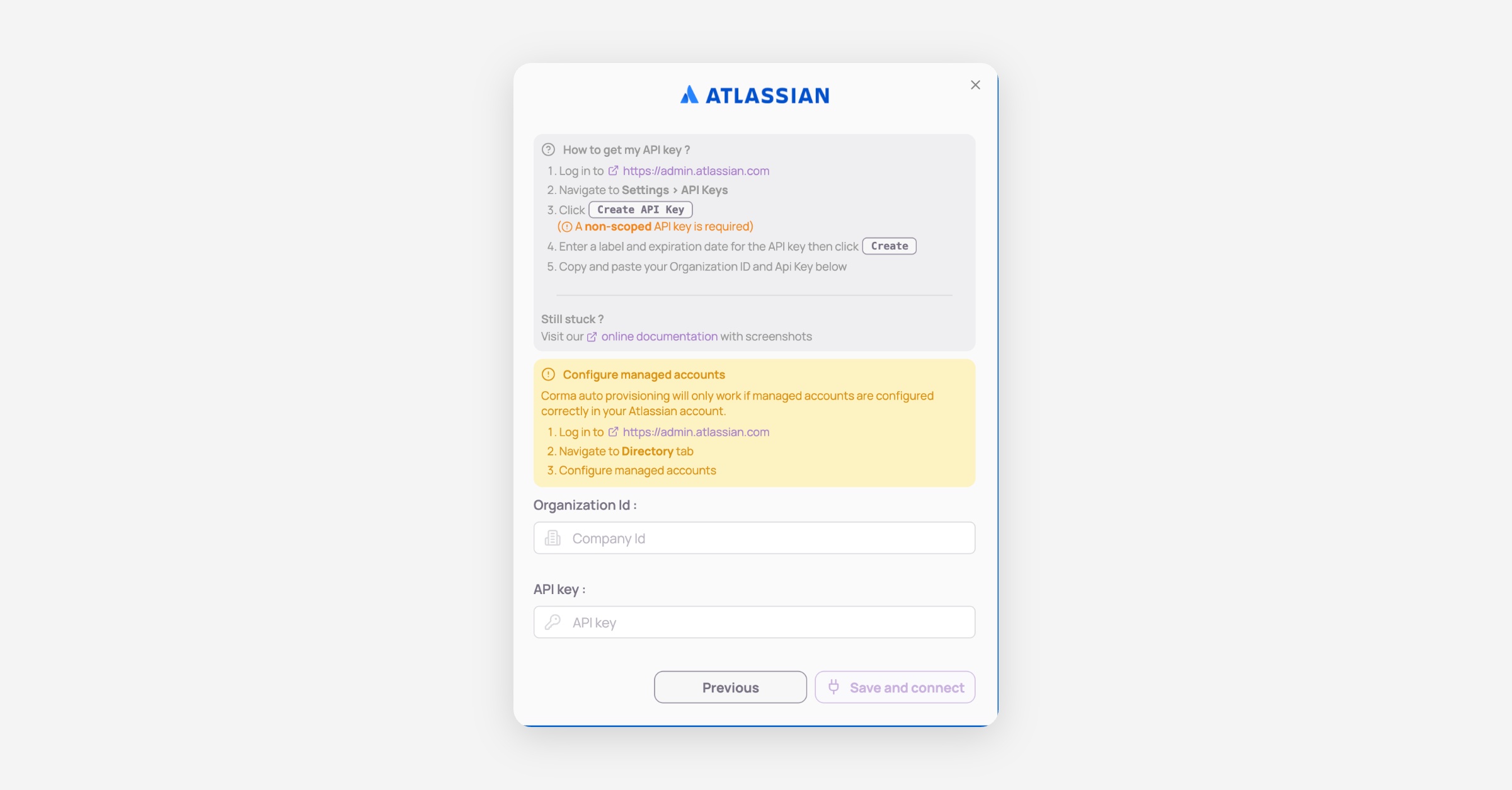
To generate your Atlassian API key you need to follow these steps :
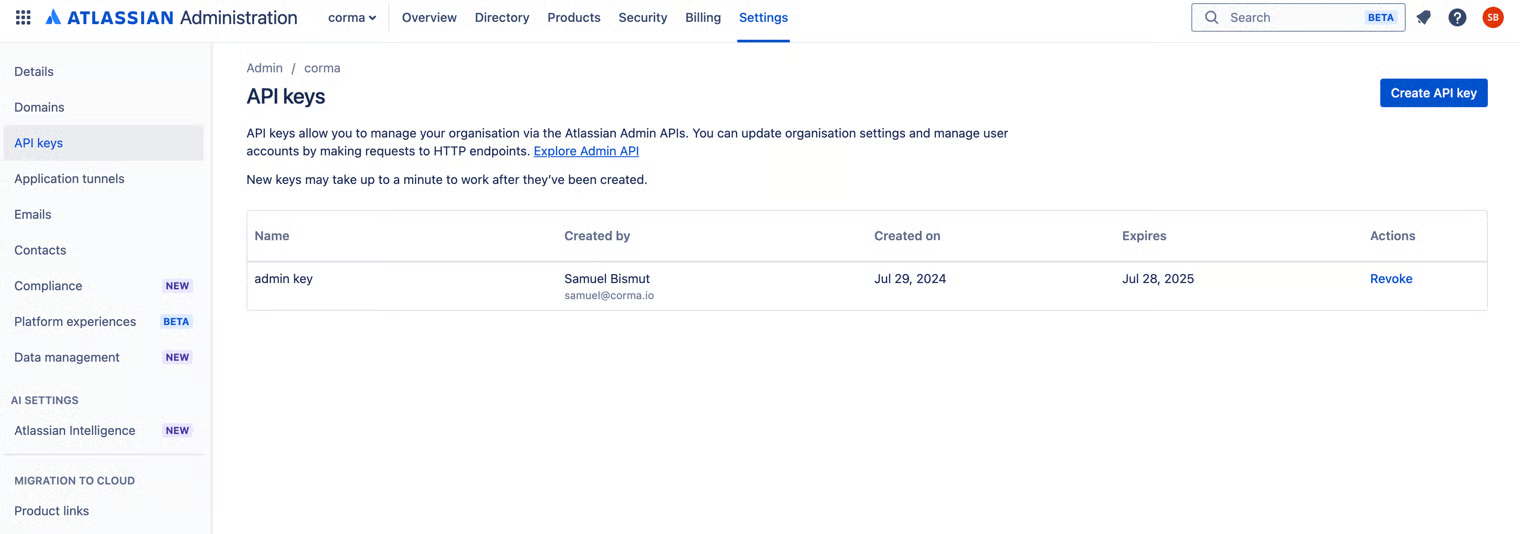
Log in to https://admin.atlassian.com/
Go to Organization Settings > API Keys
Click on "Create API Key"
Enter a label for the API key
Pick the option of creating an API Key without scopes
Click Create
Copy and paste the API Key below
Verify your company domain
To ensure users appear on the Managed Accounts page in Atlassian, your company domain must be verified and users then need to be imported in the managed accounts section. This tutorial will guide you through validating your company domain, enabling Corma to correctly collect Atlassian data. This must be configured with extreme care to prevent the auto provisioning by Atlassian of paid licenses to unwanted users. Corma is not responsible for any misconfiguration on Atlassian's side of your "managed accounts" portal.
Choose if you'd like Corma to synch all requests from Corma to a specific Jira project
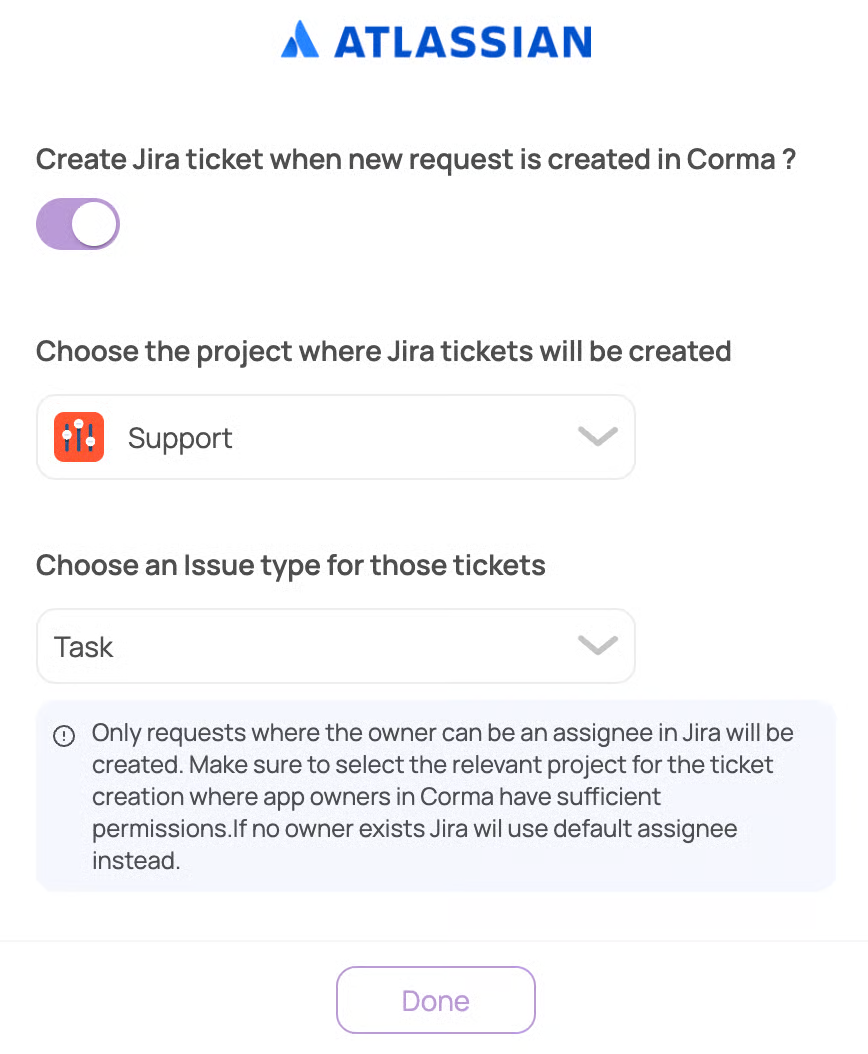
In your JIRA settings make sure that the create issue screen displays the "assignee" as a field otherwise Corma will not be able to make a successful request to JIRA.
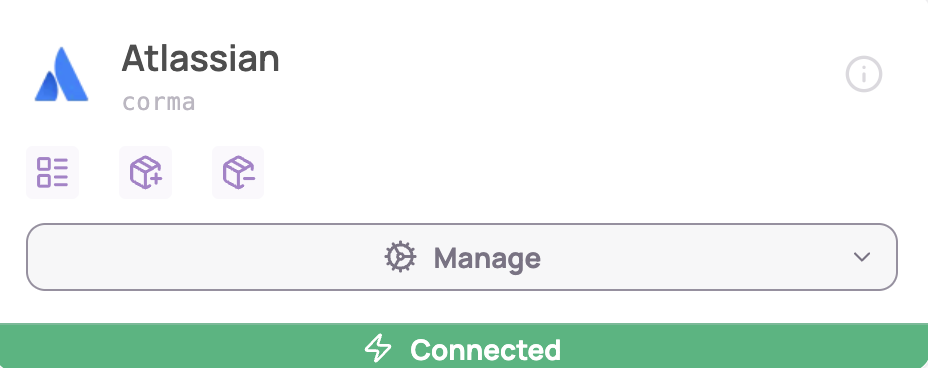
You've successfully connected Atlassian to Corma!
Data should be synchronized within the next 24 hours and will be synched every day to your Corma app.
Was this helpful?