Corma
Corma
Docs
  • Docs
  • Changelog
  • Feature requests
    • General information about integrations
    • Identity Providers
    • Finance and Accounting
    • Human Resources
    • SaaS tools
      • Adobe
      • Aircall
      • Akuiteo
      • Amplitude
      • Asana
      • Atlassian
      • Autodesk BIM 360
      • AWS
      • Bitwarden
      • Brevo
      • Calendly
      • Canva
      • Claude (Anthropic)
      • Clickup
      • Cloudflare
      • Coda
      • Cursor
      • Dashlane
      • Datadog
      • Deskpro
      • Diabolocom
      • Docusign
      • Dropbox
      • Figma
      • Freshservice, Freshdesk, and Freshcaller
      • Front
      • Github
      • Gitlab
      • Gong
      • Hubspot
      • Intercom
      • Jamf
      • Jumpcloud
      • Lastpass
      • Leexi
      • Linear
      • Make
      • Miro
      • Modjo
      • Monday
      • Notion
      • Odoo
      • OneLogin
      • OpenAI
      • Posthog
      • Quable PIM
      • Quable Portal
      • Ringover
      • Salesforce
      • Slack
      • Snowflake
      • Tableau
      • Udemy
      • Yoobic
      • Yousign
      • Zendesk
      • Zoho CRM
      • Zoom
      • 1Password
    • ITSM tools

Bitwarden

An admin owner access is required to connect Bitwarden to Corma

  1. On your Corma app go to the integrations page

    https://app.corma.io/integrations

  2. Under "SaaS integrations" click on "Connect" for Bitwarden
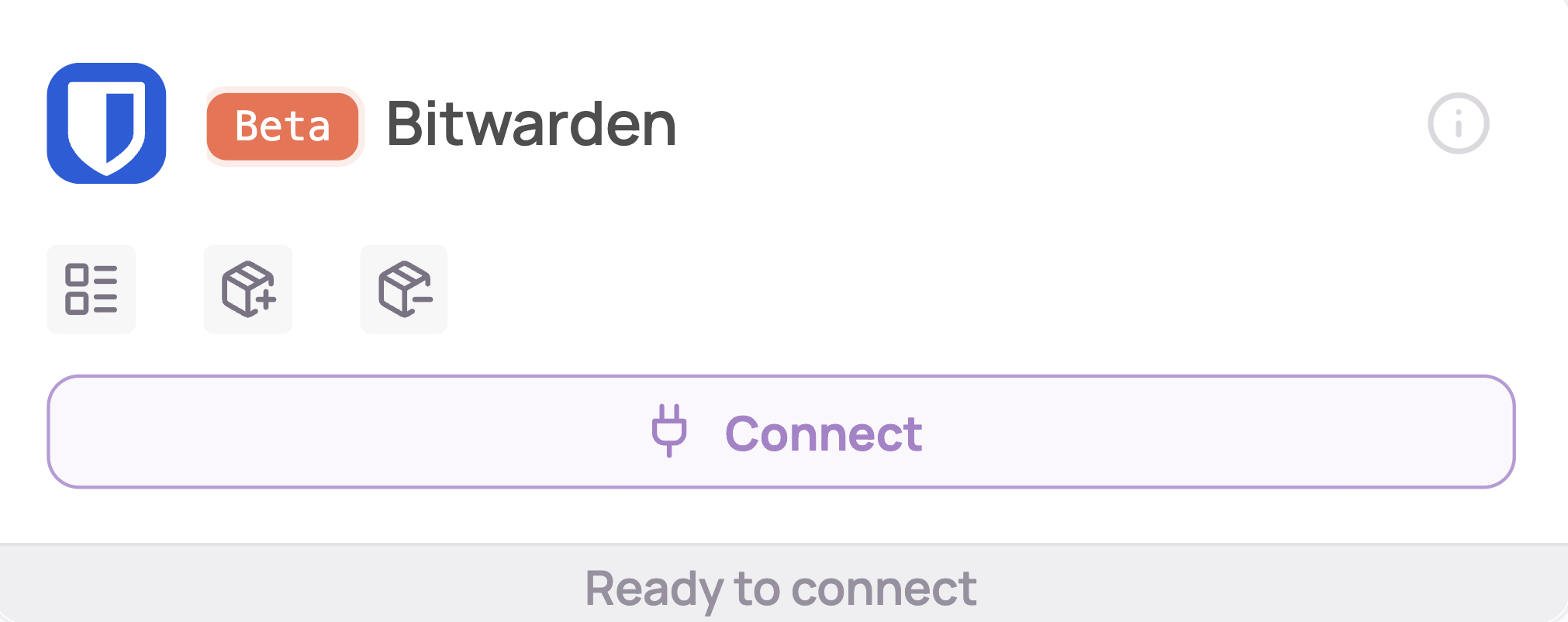
  3. Retrieve your Client ID, Client Secret and Select your Region
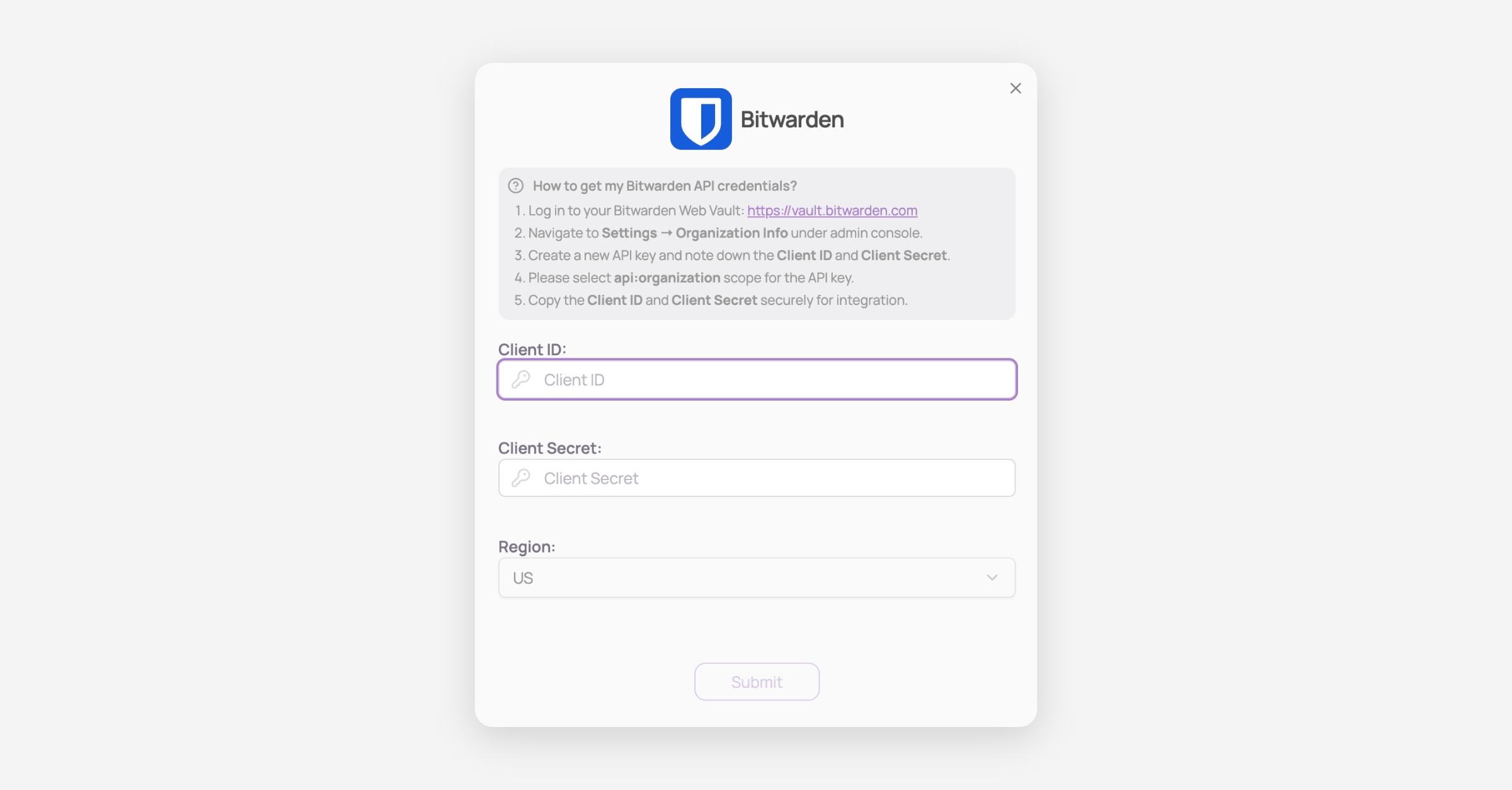
    1. Log in to your Bitwarden Web Vault: https://vault.bitwarden.com

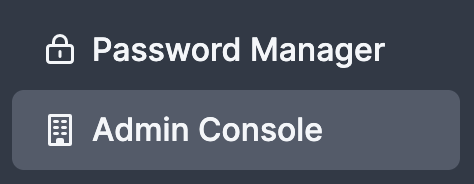
    2. Navigate to the Admin console

    3. Navigate to Settings → Organization Info under admin console
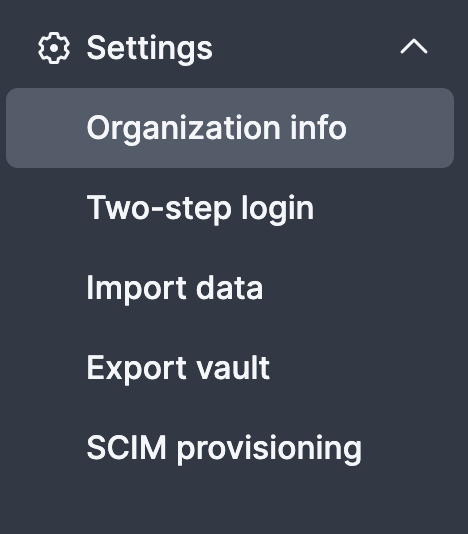
    4. Create a new API key and note down the Client ID and Client Secret.
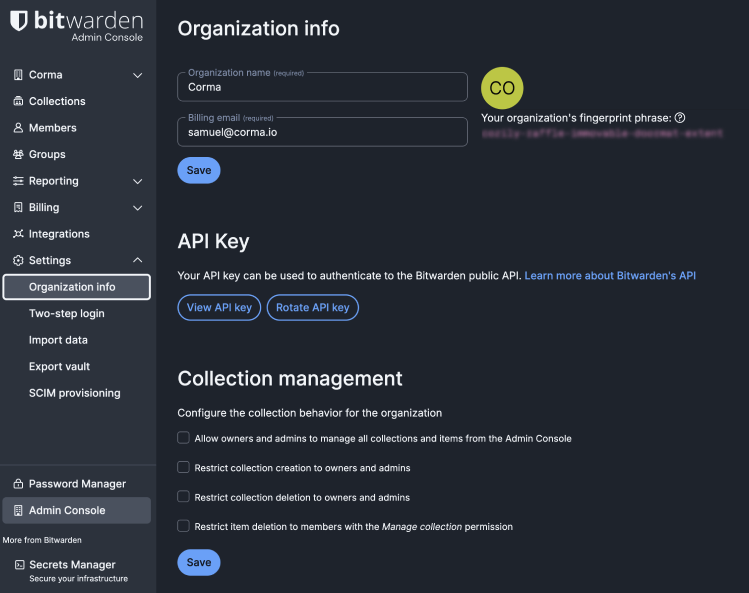
    5. Copy the Client ID and Client Secret securely for integration.

  4. You've successfully connected Bitwarden to Corma!

    Data should be synchronized within the next 24 hours and will be synched every day to your Corma app.
Was this helpful?