
How to configure app requests
The Requests tab controls who can request a given app and how long they get it for. Both settings are configured per application, so you can offer an app to two departments with a one week limit and leave another open to everyone indefinitely.
Access the App Settings for any specific application by clicking the dedicated “Settings” button on the app’s page, then open the “Requests” tab.

Set app visibility
Select which departments can see the app in the Employee App Store and submit requests for it. If no departments are selected, the app is visible to all employees by default.
On the "Requests" tab, open the App visibility selector.
Select the departments that should see this app.
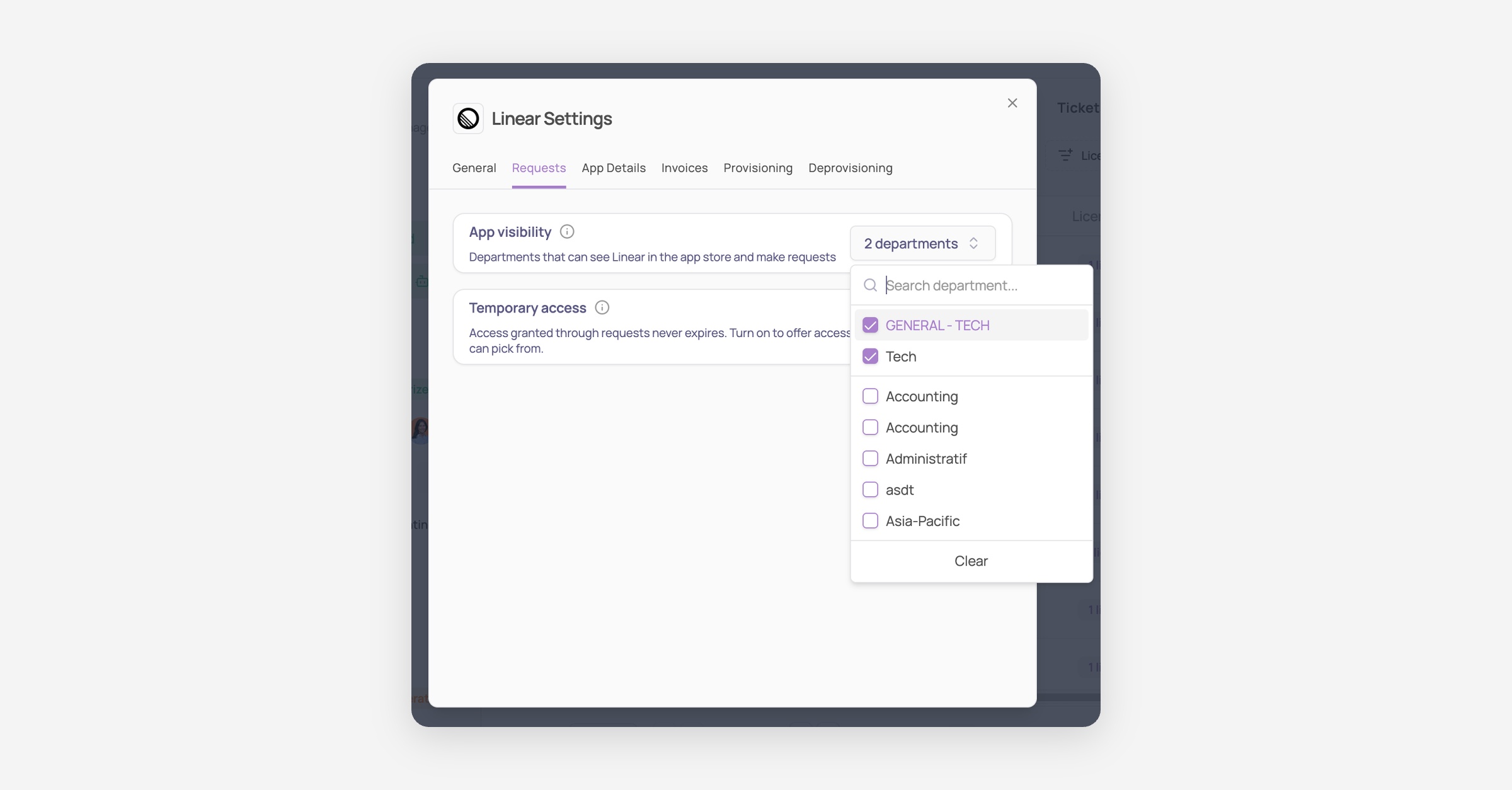
Your selection saves automatically, no extra step needed.
Offer temporary access
By default, access granted through a request never expires. Turn on Temporary access to give employees a set of access lengths to pick from when they request this app, and Corma revokes their access automatically once the duration has passed.
On the "Requests" tab, switch the Temporary access toggle on.
Click "+ Add access length."
Set a number and a unit, then click "Add." Units available are hours, days, weeks, and months.
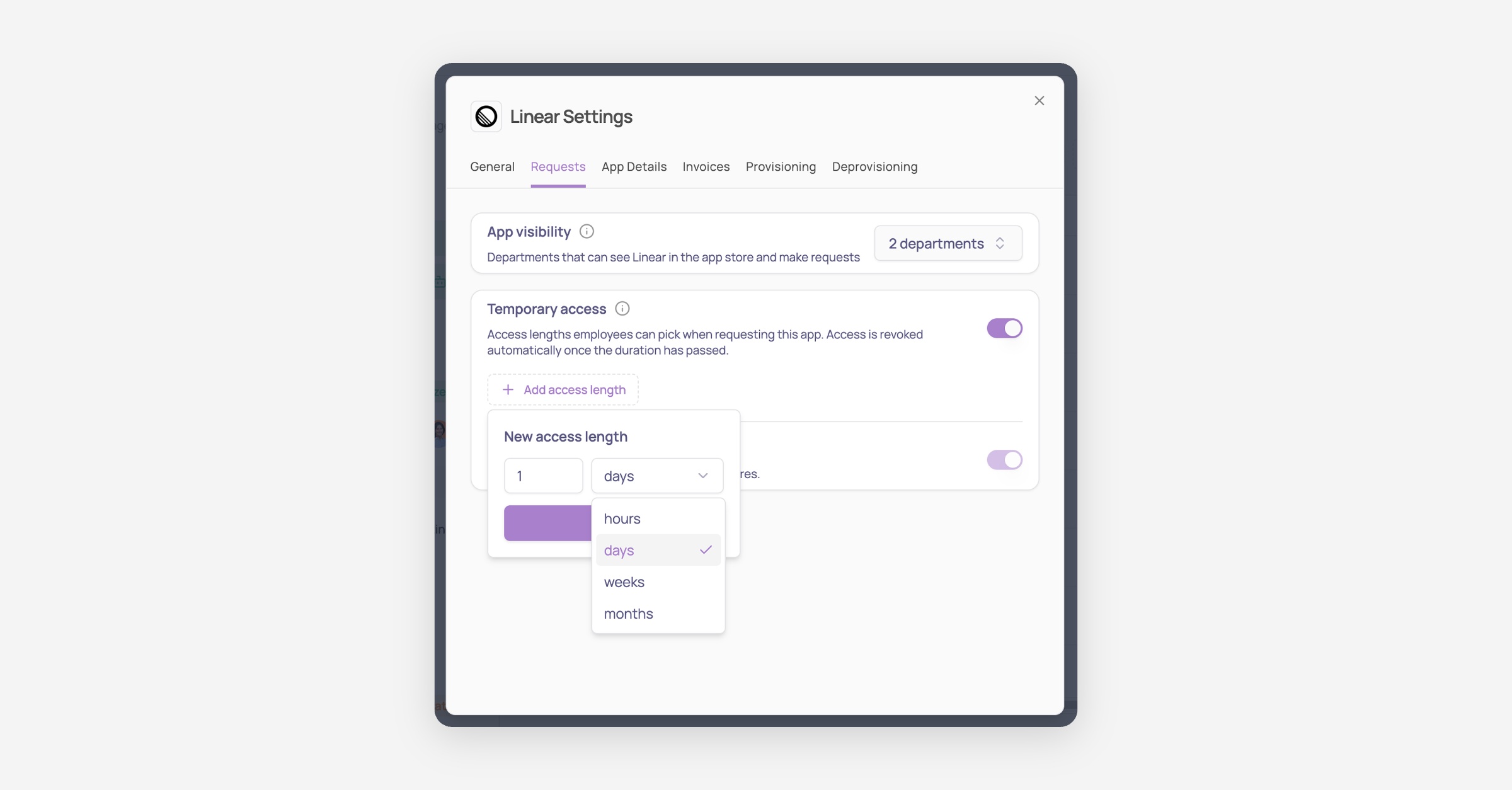
Repeat for each length you want to offer. Employees choose from this list when requesting the app, so a handful of sensible options works better than a long list.
Decide whether to allow indefinite access. Allowing indefinite access requests lets employees ask for access that never expires. Switch it off if every request for this app should be time-bound.
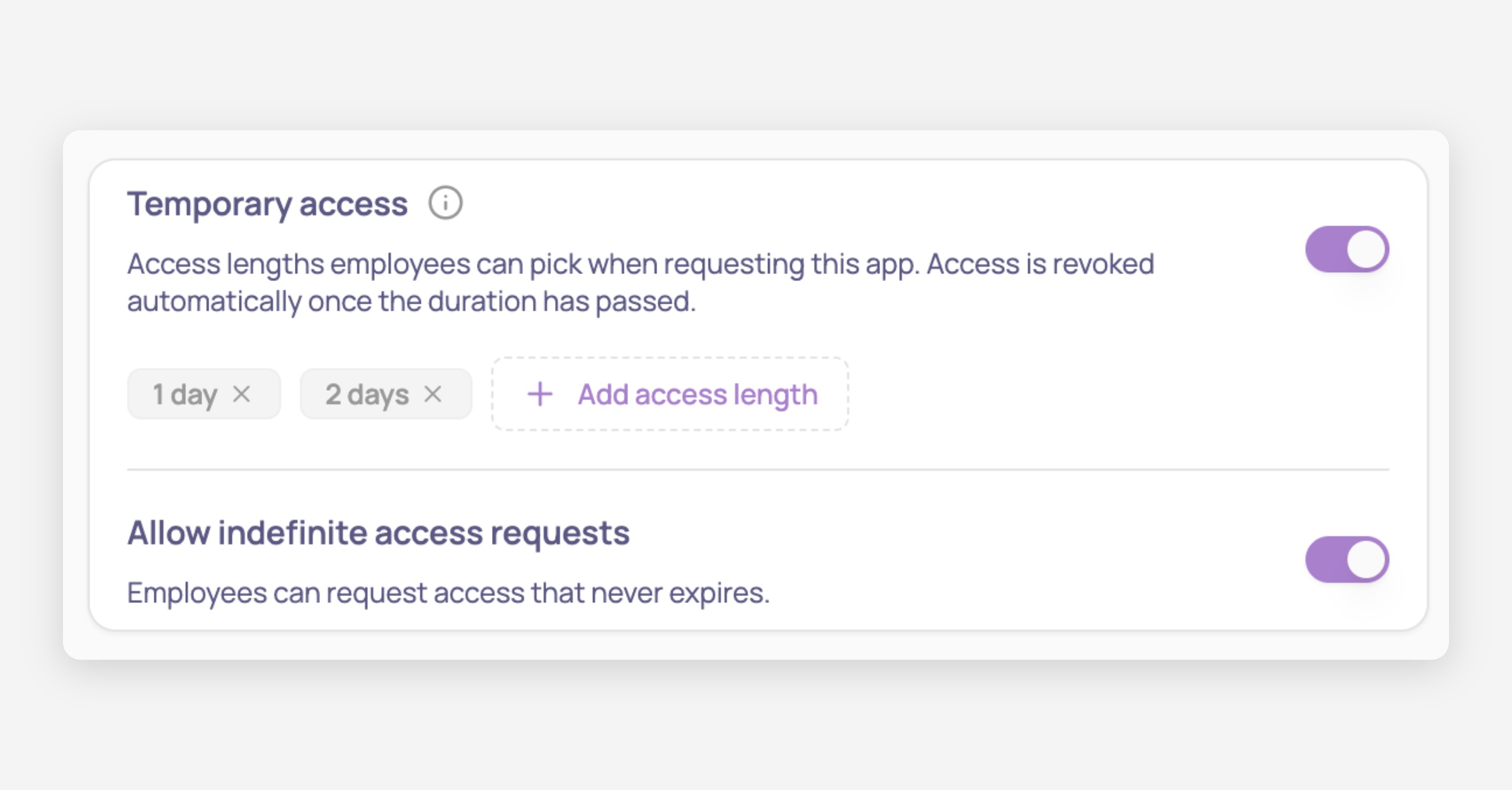
Your changes save automatically, no extra step needed.
Employees pick from these lengths when requesting the app, in both the Employee App Store and the Slack request form. Access is revoked automatically once the duration has passed, and the employee is notified at that point.
What employees see
Your Requests settings shape the request form employees fill in. The Access length dropdown lists exactly the lengths you added, and nothing else, so the options below are the ones you control.
From the Employee App Store, the employee opens the app and clicks "Request access."
In the "Request an access" modal, they pick a License Role and a License Type, then open the Access length dropdown to choose from the lengths you configured.
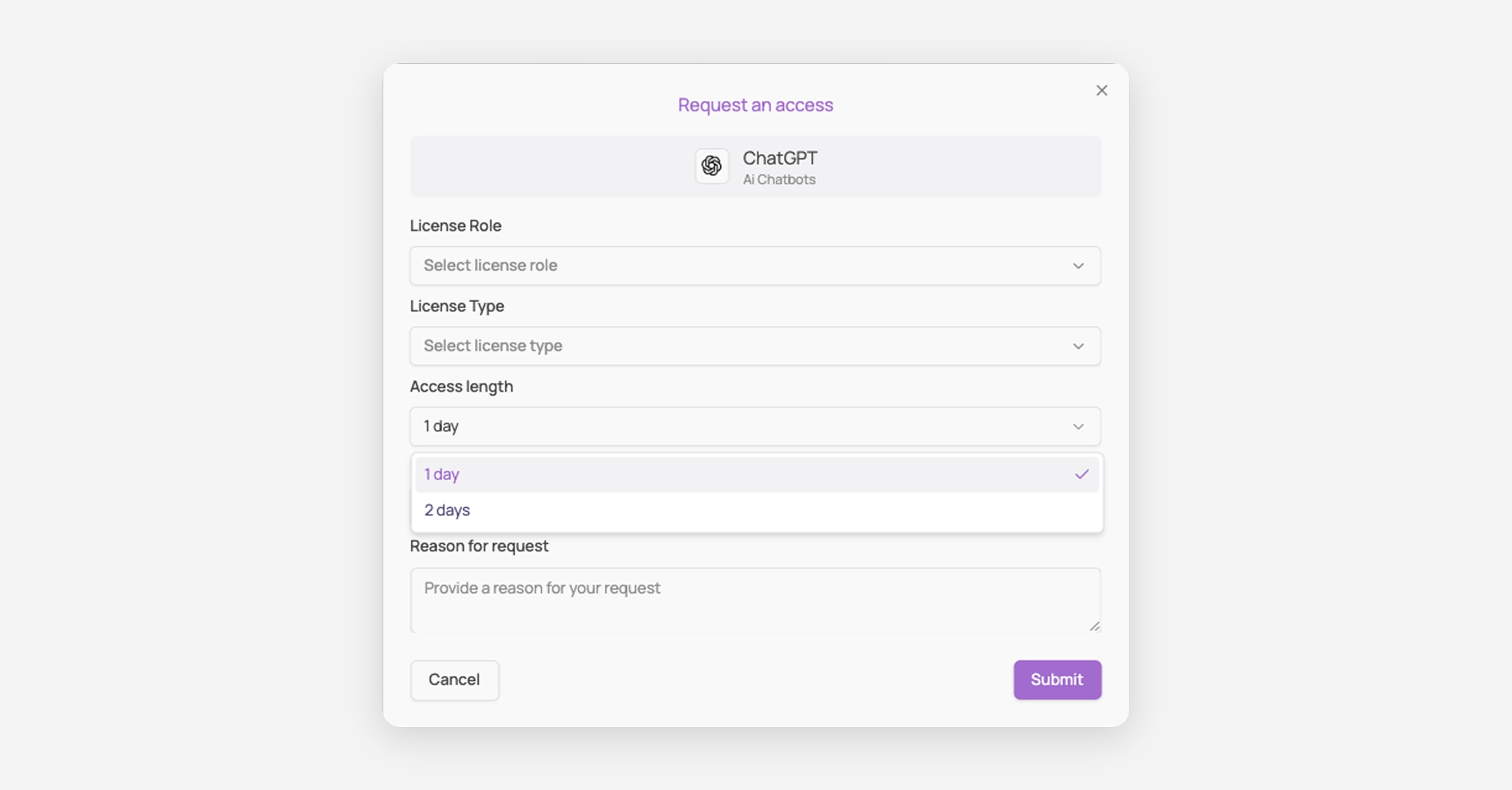
They add a Reason for request and click "Submit."
What you configured | What the employee sees |
|---|---|
App visibility set to specific departments | The app only appears in the App Store for employees in those departments |
Temporary access on, with access lengths added | An Access length dropdown listing only those lengths |
Temporary access off | No Access length dropdown; access never expires |
Allowing indefinite access requests off | No indefinite option in the dropdown, so every request is time-bound |
There is no extension option. When temporary access expires, the employee is notified and can submit a new request for the same app if they still need it.