

Bulk-create users from a CSV file instead of adding them one by one, including both their professional and personal email addresses.
Navigate to the Users module.
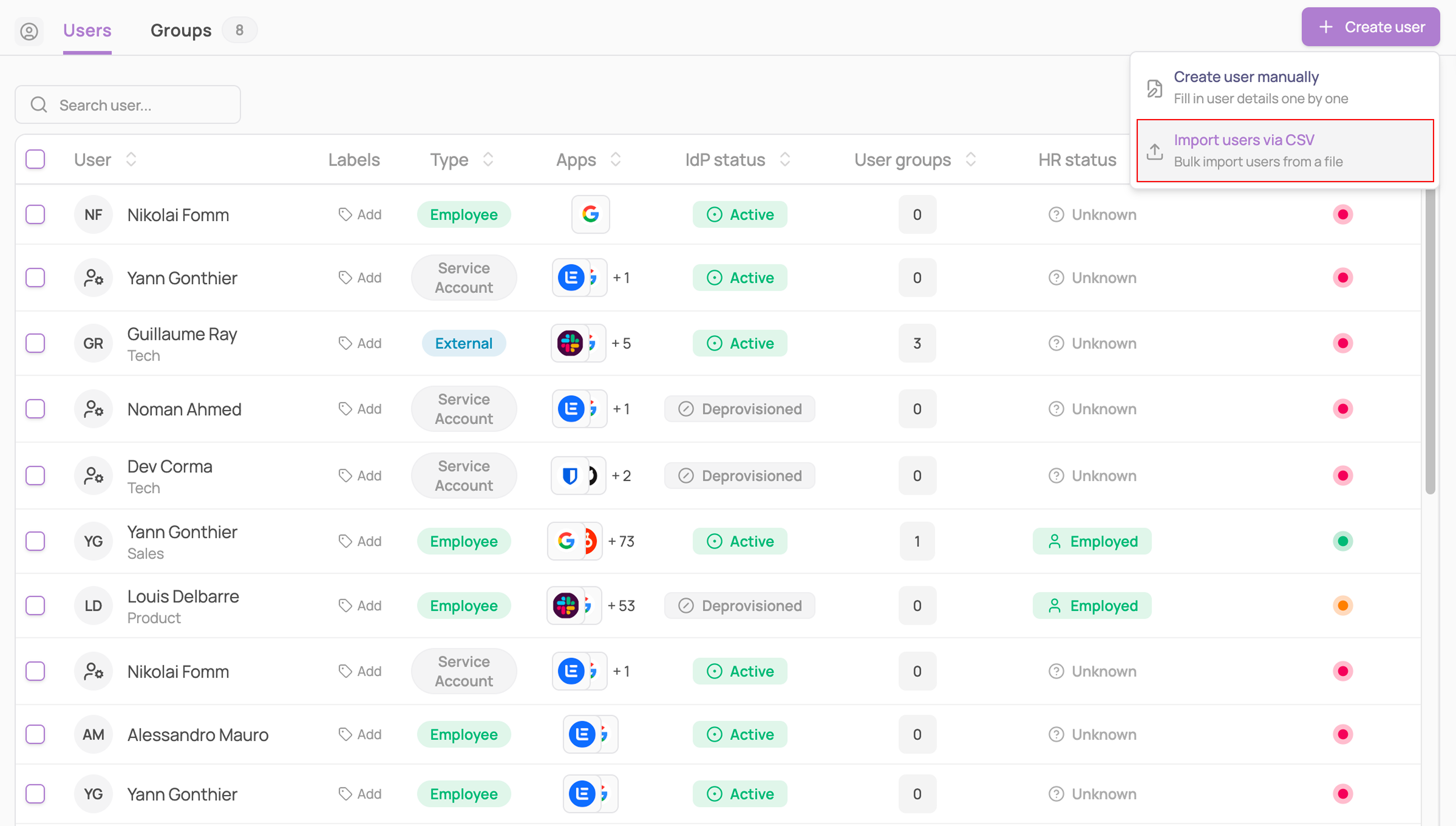
Click "+ Create user" in the top right, then select "Import users via CSV" from the dropdown (alongside "Create user manually").
Click "Download template" to get a CSV pre-formatted with the expected columns.
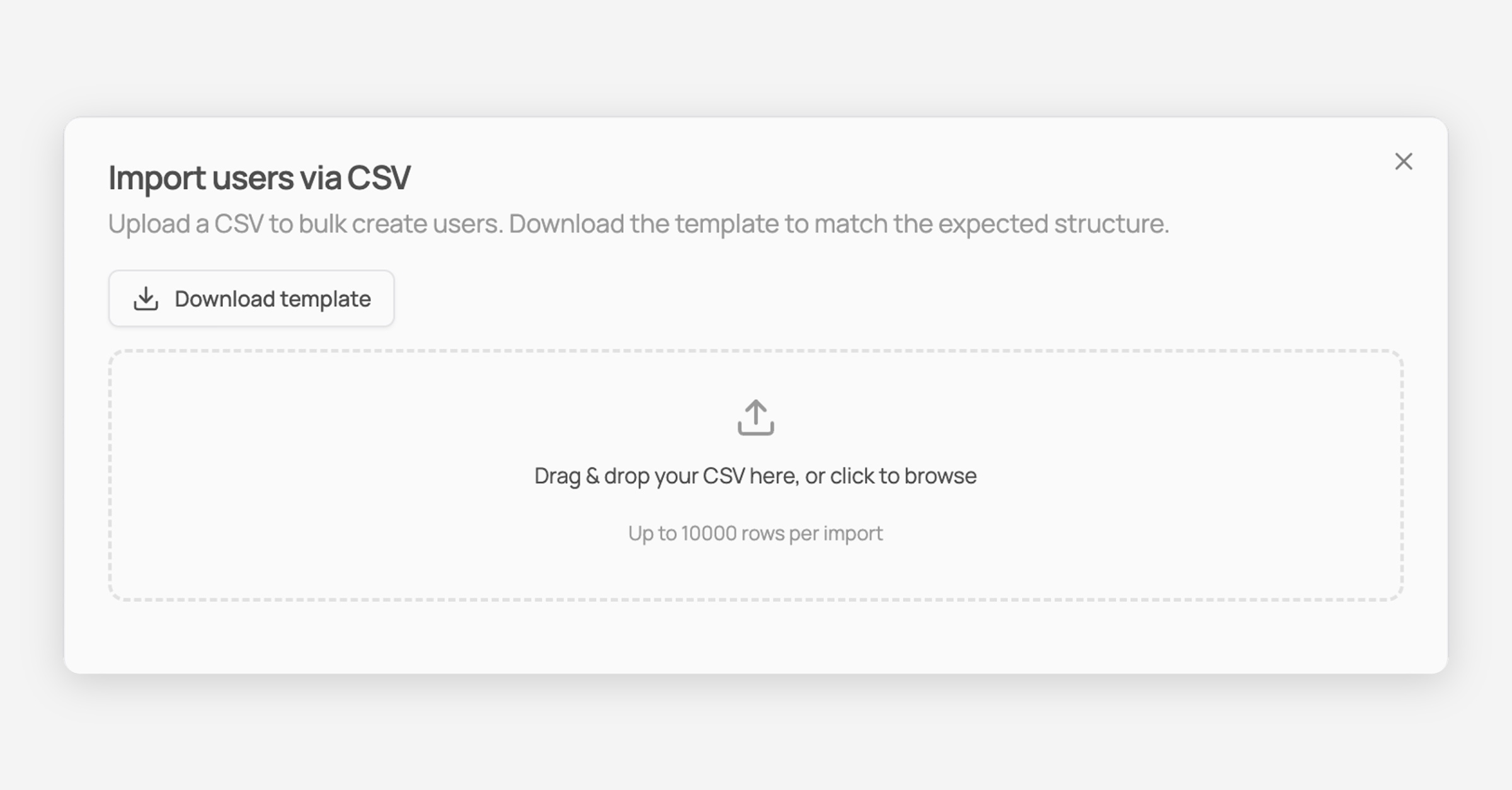
Fill in the template and upload it, drag and drop your CSV into the upload area, or click to browse.

Up to 10,000 rows per import.
Confirm the column mapping. Corma auto-matches your file's columns to its fields; adjust any of them via the dropdowns if needed. Fields marked with a red asterisk are required.
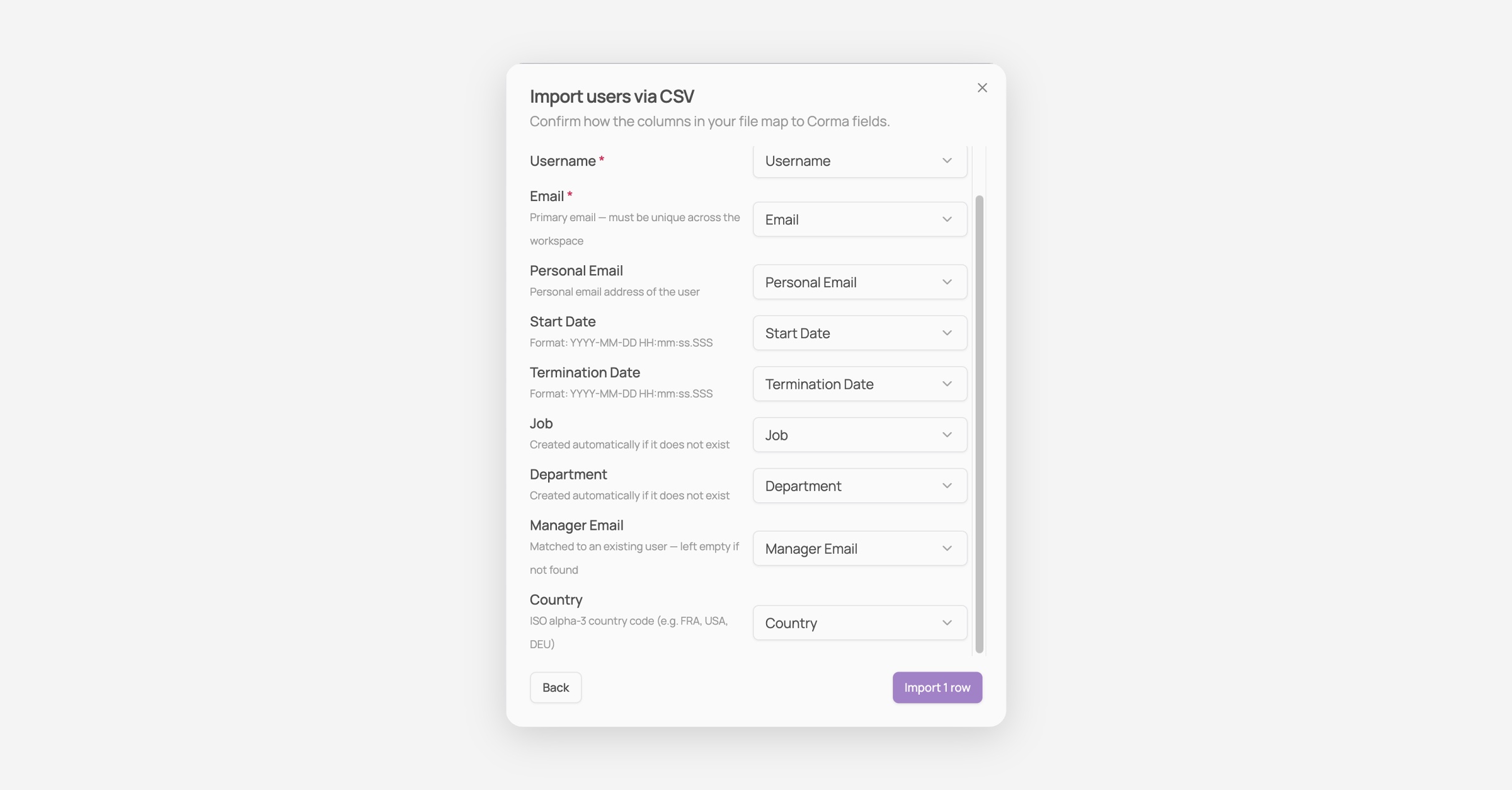
If a row's Email already exists in Corma, the import updates that user with the values in your file instead of creating a new one.
A Manager Email that does not match an existing Corma user is not an error. The row still imports, with the manager field left empty. Import managers before the people who report to them if you want the link to resolve in one pass.
Any optional column can be left blank and filled in later from the user's page, or left to sync from your HR tool.
Click "Import X rows."