
How to create a user group
Corma lets you build user groups three ways: manually (add members by hand), dynamically (members added automatically based on rules), or synced directly from your identity provider.
Creating a group
Navigate to the Users module, then click on the Groups tab on the top right.
Click "+ Create Group". This opens a choice between two options:
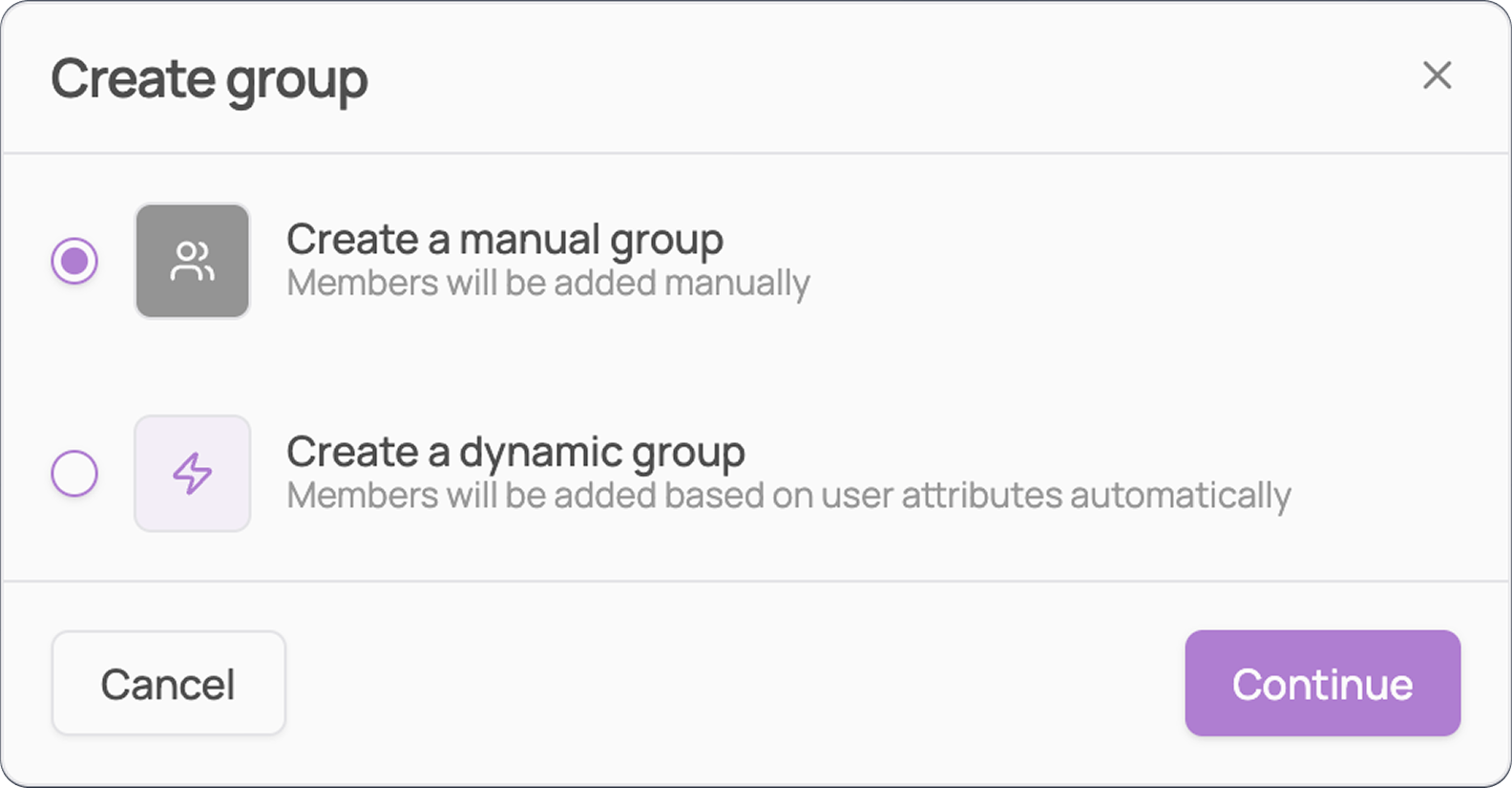
Create a manual group: you'll add members by hand afterward.
Create a dynamic group: members are added automatically based on rules you define.
Manual groups
Select "Create a manual group", then click Continue.
Name your group, then click Create group. This opens the group's page.
Click "+ Add user", check the box next to each person you want to add, then click Validate.
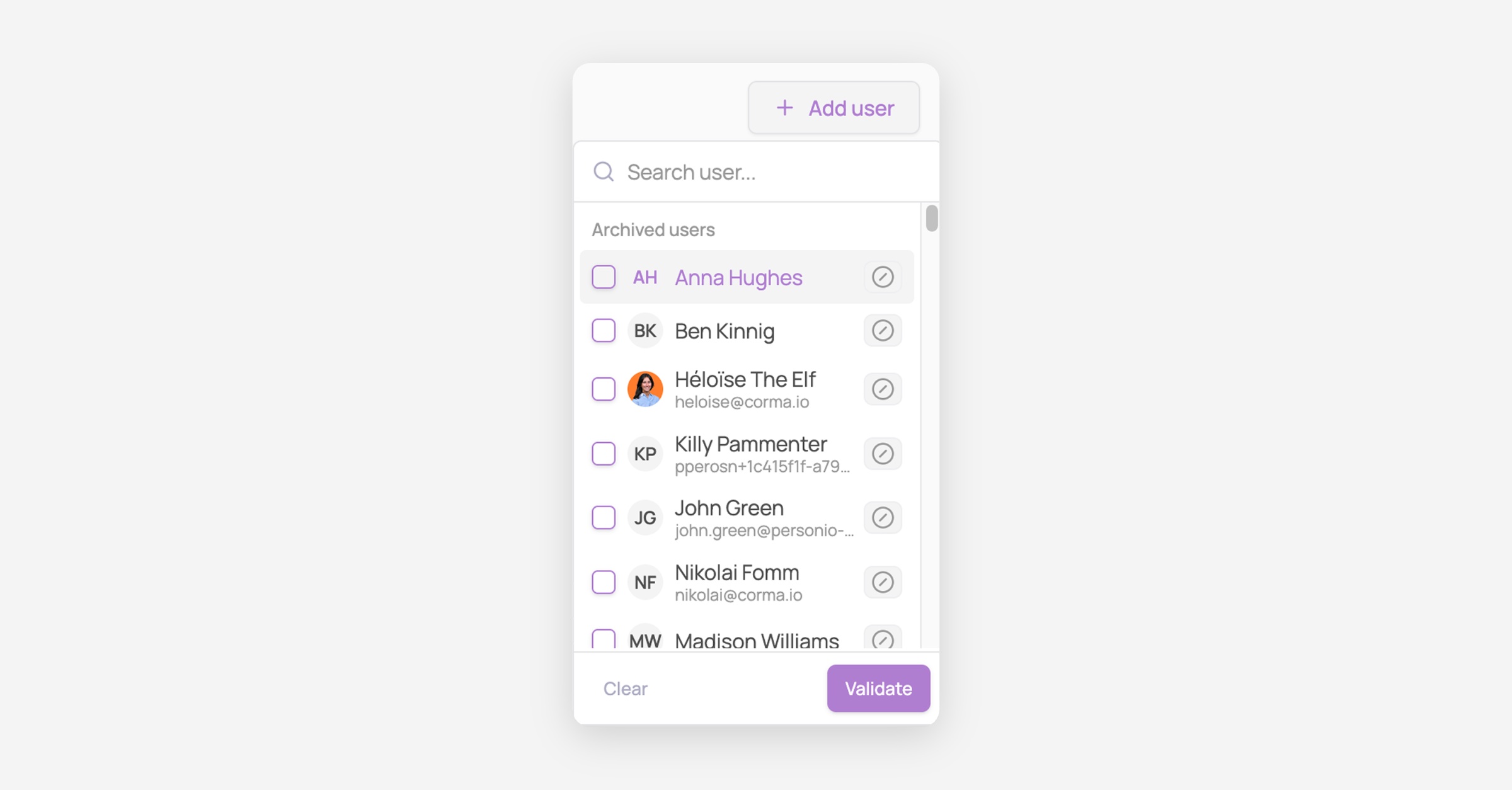
The selected users are added to the group, and now count toward its Members total.
Dynamic groups
Select "Create a dynamic group", then click Continue.
Name your group.
Click "+ Add a rule" to define who belongs in the group. Each rule follows the pattern "Employees where [attribute] [Contains / Does not contain] [value]".
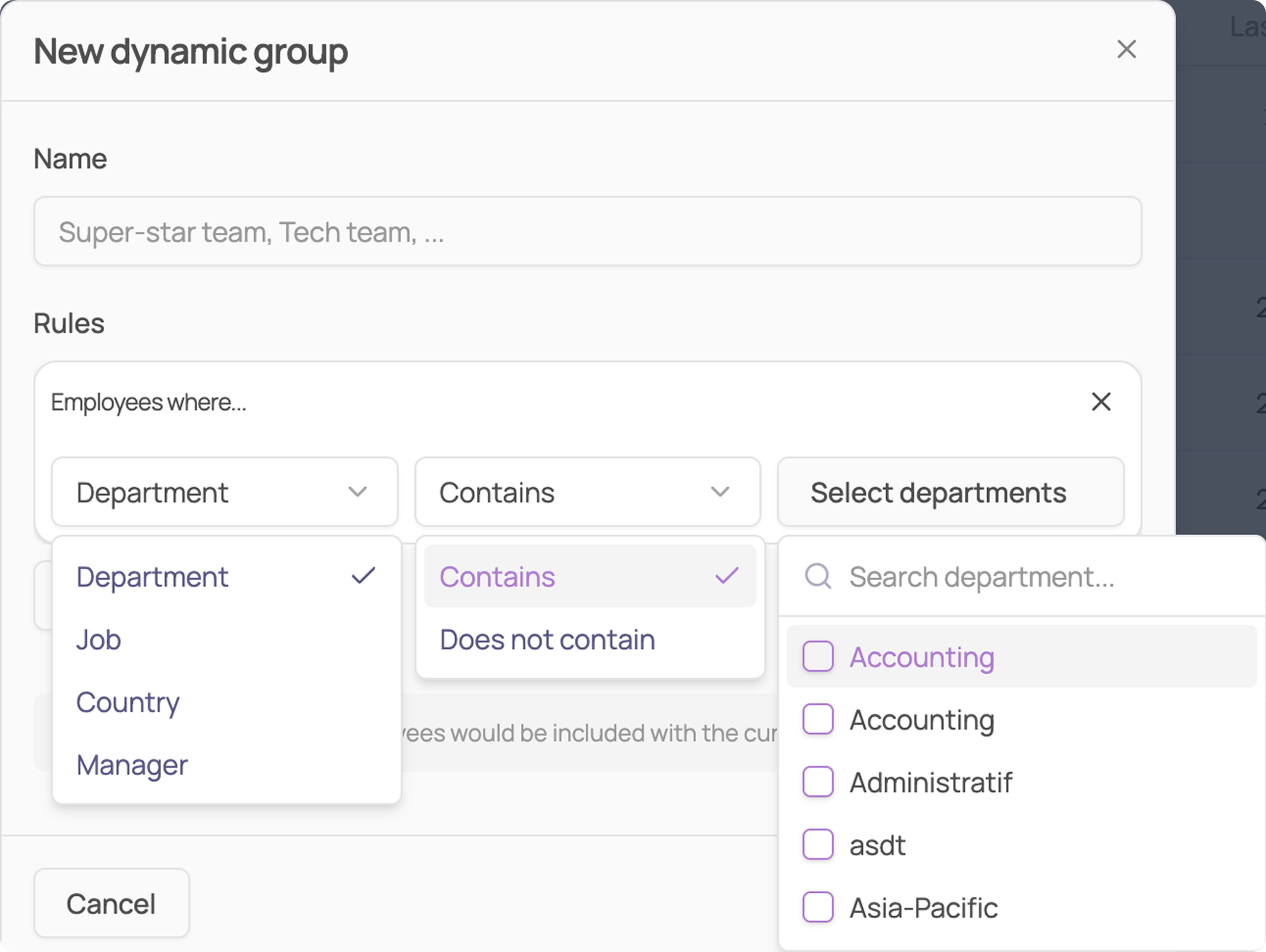
Available attributes: Department, Job, Country, and Manager.
Add more rules if needed. Choose whether they combine with "and" (an employee must match every rule) or "or" (matching any one rule is enough). As you build your rules, Corma shows a live count of how many employees currently match, so you can check your logic before saving.
Click "Create group".
Syncing groups from your identity provider
Click "Sync IdP groups" at the top of the Groups tab.
Choose your identity provider (Google Workspace or Microsoft).
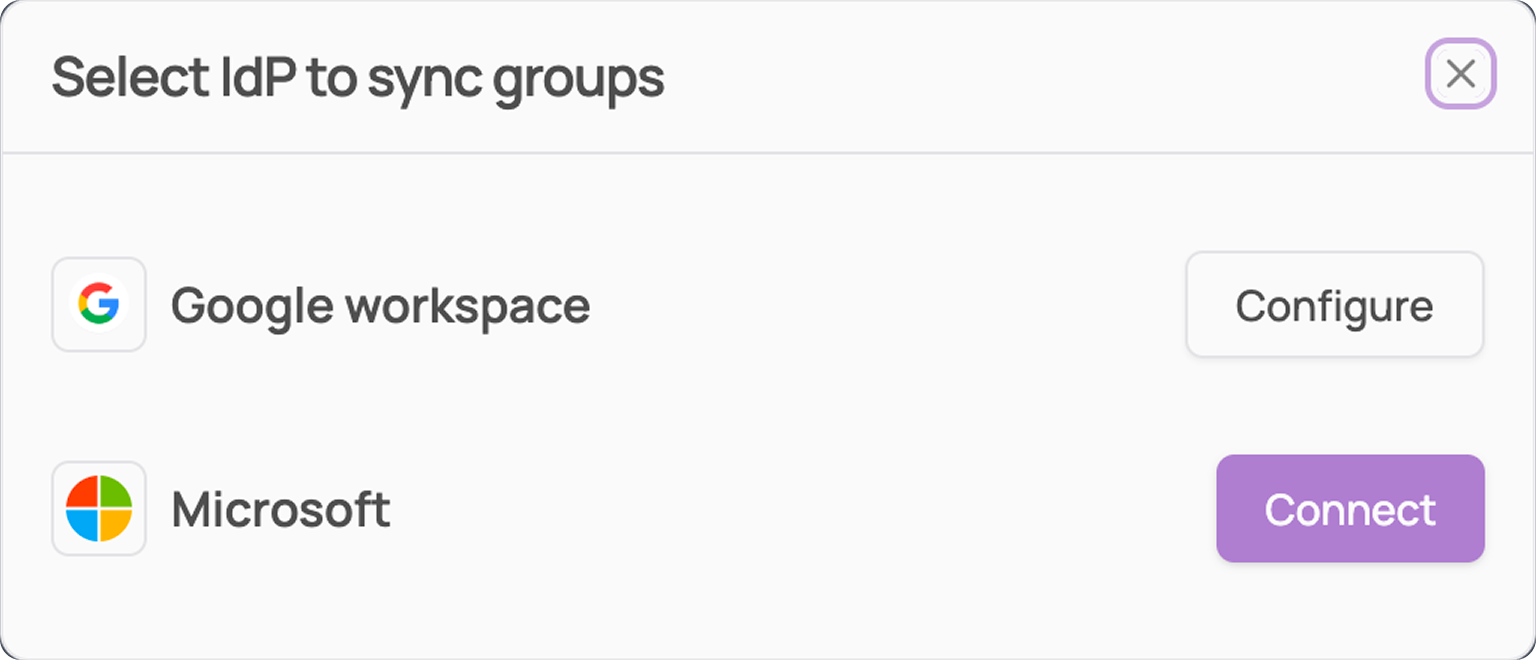
Search for the group(s) you want to import.
Click "Confirm" to sync them directly into Corma.
The synced group appears in your Groups list, tagged as an IdP group.