

Connect your identity provider to Corma from Settings → Security → SAML. The setup is a two-way exchange: you give your provider two values from Corma, then you give Corma the metadata your provider returns. If you use Okta, Google Workspace, Microsoft Entra ID, Keycloak or OneLogin, follow that provider's own guide instead, which names every field exactly.
You need a Corma workspace admin account and an administrator account on your identity provider.
Register Corma in your identity provider
In Corma, open Settings → Security → SAML and turn on Enable SAML SSO.
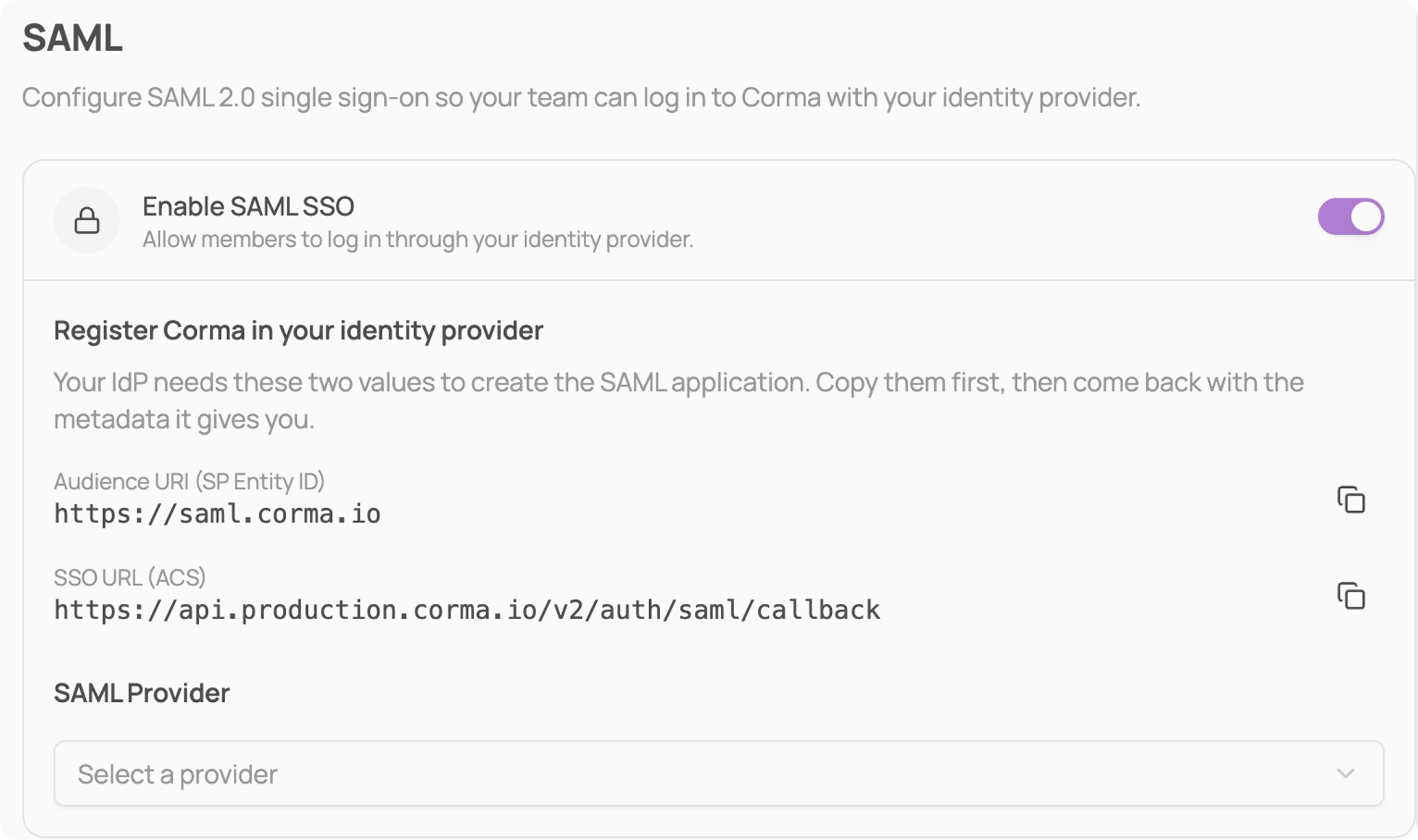
Copy the two values Corma shows using the copy button beside each, and paste them into the SAML application you create in your identity provider.
Send the user's email address as an attribute named
email. Corma rejects the sign-in without it. AddfirstNameandlastNametoo, so members show up with their real names.
Your identity provider will ask for the two values under its own names:
Corma | What your provider calls it |
|---|---|
Audience URI (SP Entity ID) | Entity ID, Audience, Audience Restriction, or Identifier |
SSO URL (ACS) | ACS URL, Single sign-on URL, Reply URL, or Assertion Consumer Service URL |
Connect it back to Corma
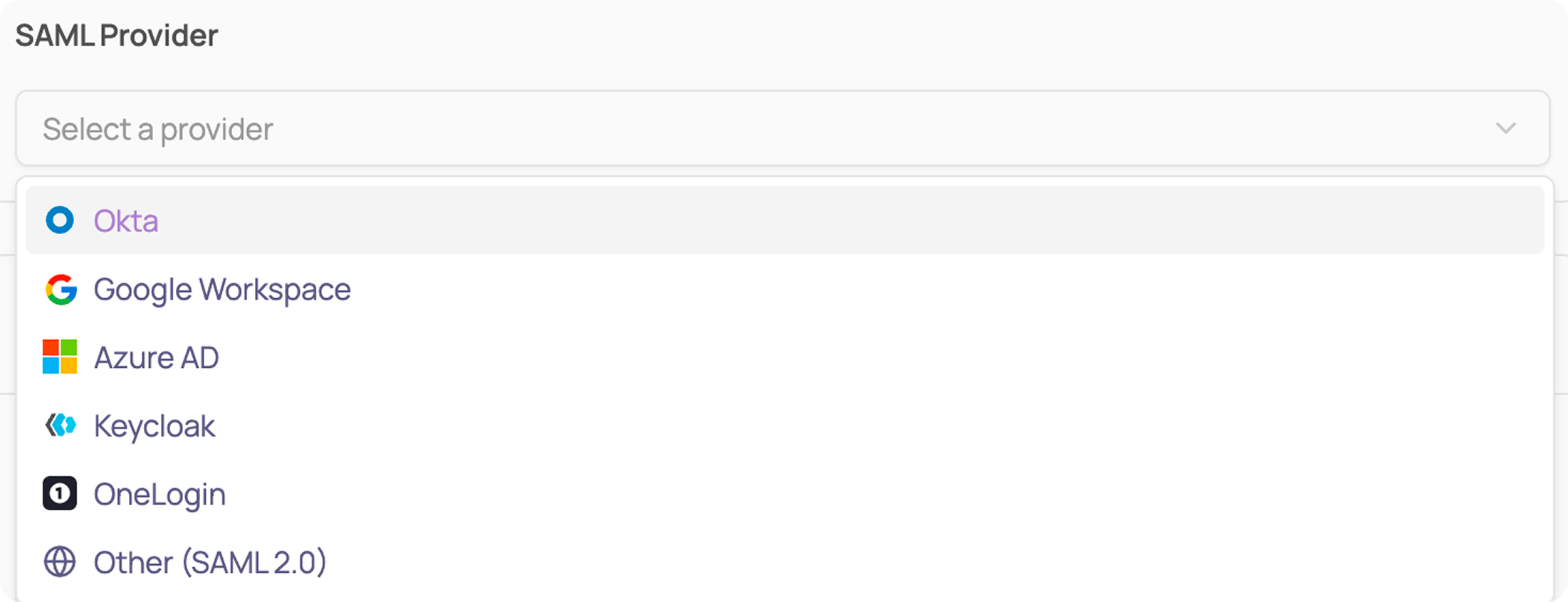
Select your provider from the SAML Provider dropdown, or Other (SAML 2.0) if yours is not listed.
Give Corma the metadata your provider produced. Paste the address into Metadata URL, or drop the file into Or upload the metadata XML file. Either one on its own is enough.
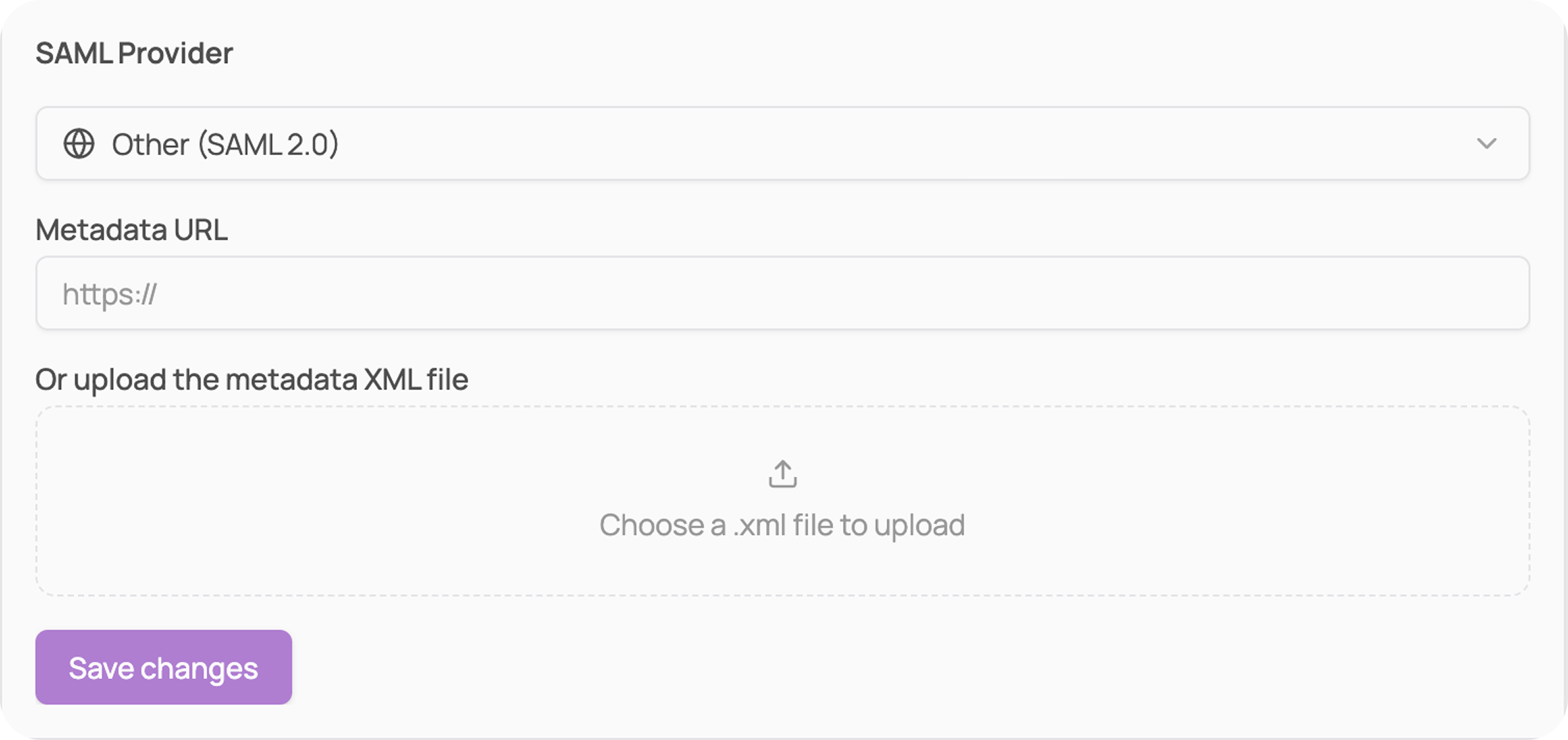
Click "Save changes". The card then shows your connection, with the Audience URI and SSO URL you registered.
Test before you tell anyone. In a private browsing window, go to the Corma sign-in page, click Sign in with SAML SSO, and check you are redirected to your provider and back into Corma.
A metadata URL has to be reachable from Corma's servers. If your identity provider is only available on an internal network, download the descriptor XML and upload it as a file instead.
Enforcing SAML
Once the connection is verified, Enforce SAML for all members blocks password, Google and Microsoft sign-in for the workspace and steers everyone to your identity provider.
Enforcement requires an active SAML connection, and deleting the connection resets it, so a workspace can never lock itself out. Sign in through SAML yourself before turning it on.
Who can sign in
Anyone your identity provider authenticates joins the workspace automatically on first sign-in, as an employee. There is no invitation step and no seat to pre-provision. Control who reaches Corma by assigning the application in your identity provider rather than in Corma.
Members can sign in from the Corma sign-in page (Sign in with SAML SSO) or by clicking the Corma tile in their identity provider's dashboard.