

Microsoft Entra ID, formerly Azure AD, needs a non-gallery enterprise application for Corma. Start from How to setup SAML SSO, which covers the Corma side, then come back here. You need Cloud Application Administrator or Global Administrator rights.
Already see a "Corma" app in Entra ID? If you connected Microsoft Entra ID to Corma as an integration, a Corma app was added to your tenant at that point. That app comes from Corma's Microsoft tenant, so Entra does not let you configure SAML on it. This is expected. Create a second application with the steps below and keep both: the first one runs the Entra ID integration, the second one handles SAML SSO.
Create the enterprise application
In Corma, navigate to Settings → Security and turn on "Enable SAML SSO". Leave the tab open, you will copy the Audience URI (SP Entity ID) and the SSO URL (ACS) from it.
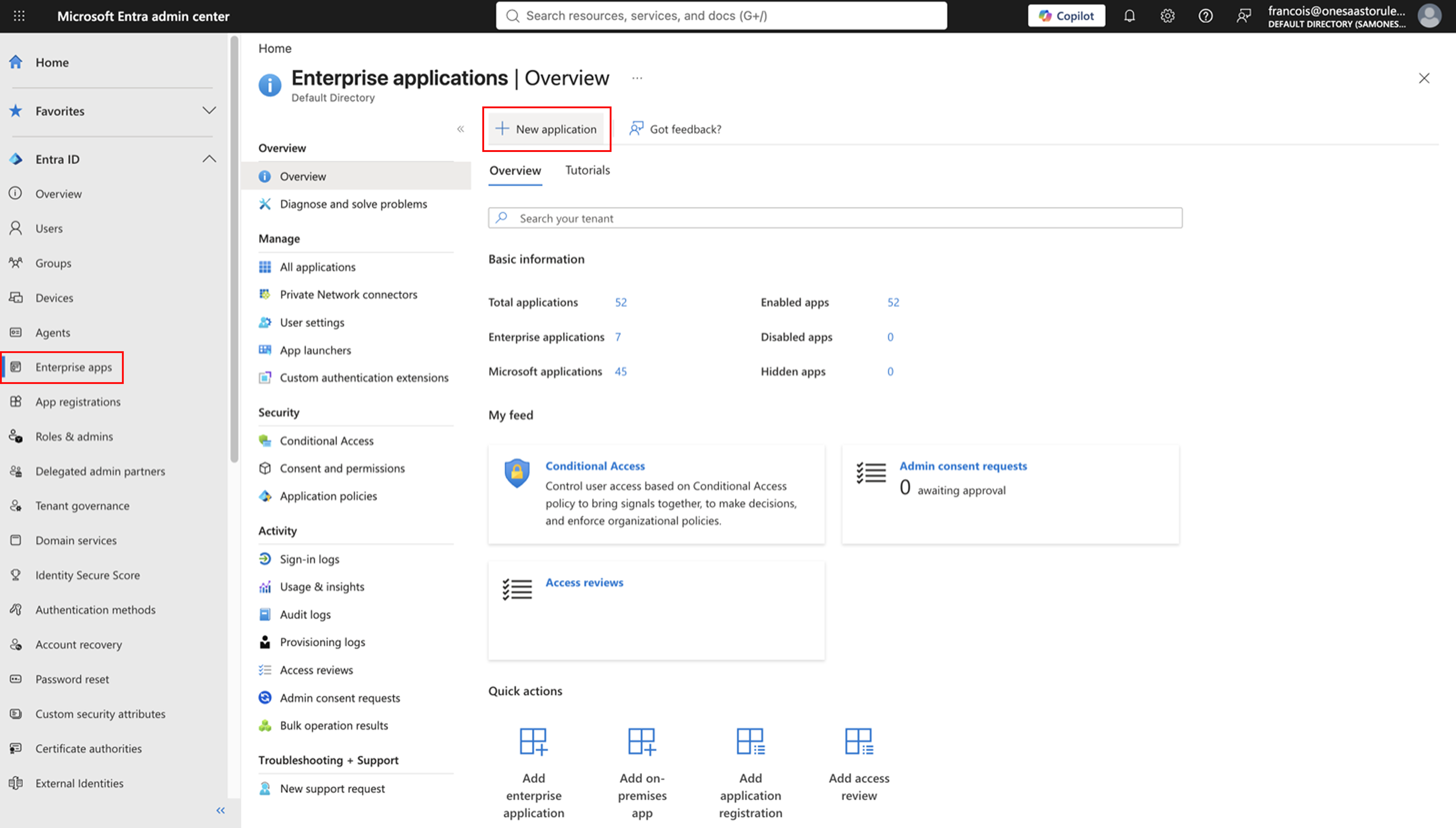
In the Microsoft Entra admin center, go to Entra ID → Enterprise apps → All applications, click "New application".
Go to "Create your own application" and name it "Corma SAML SSO".
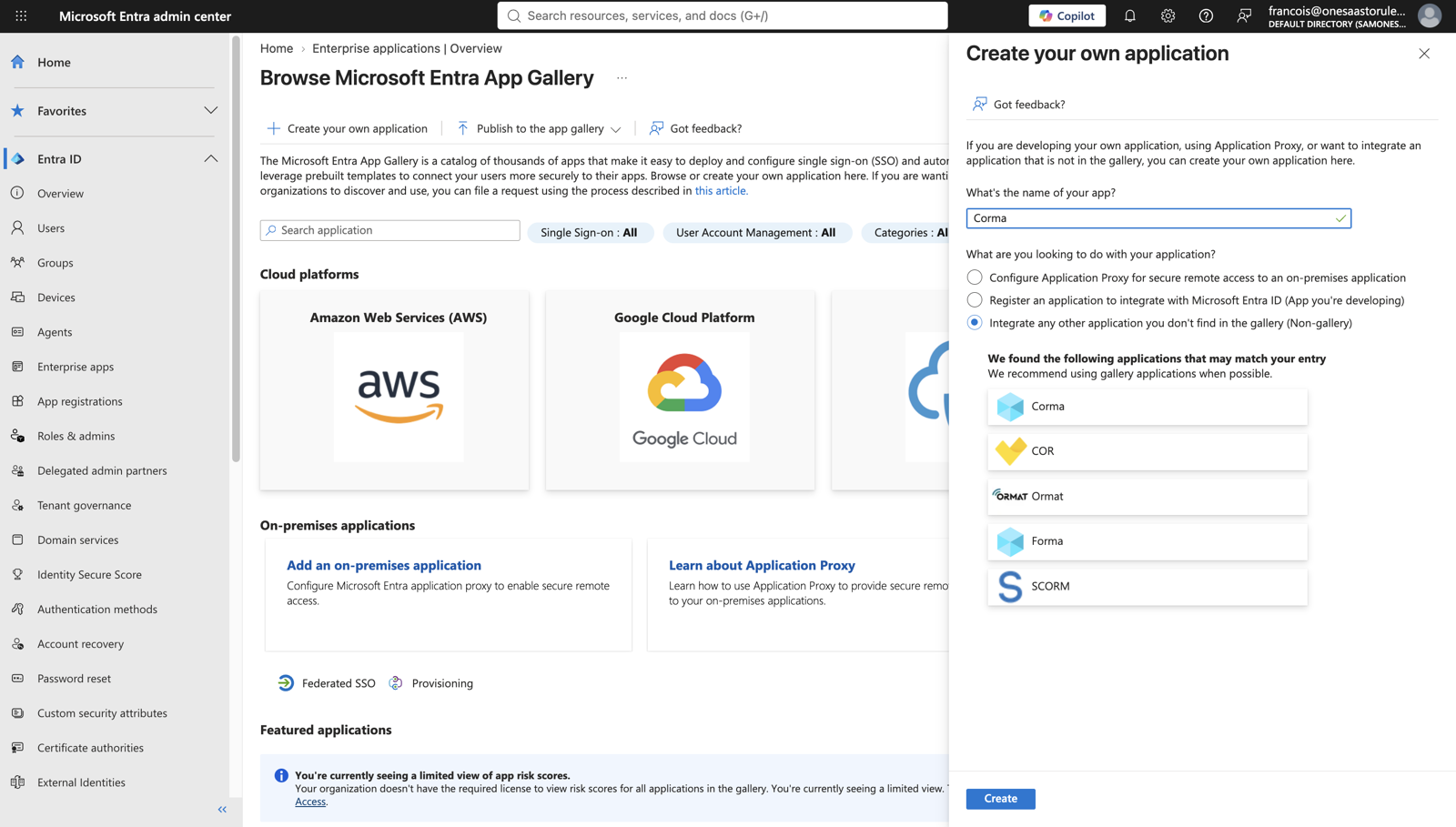
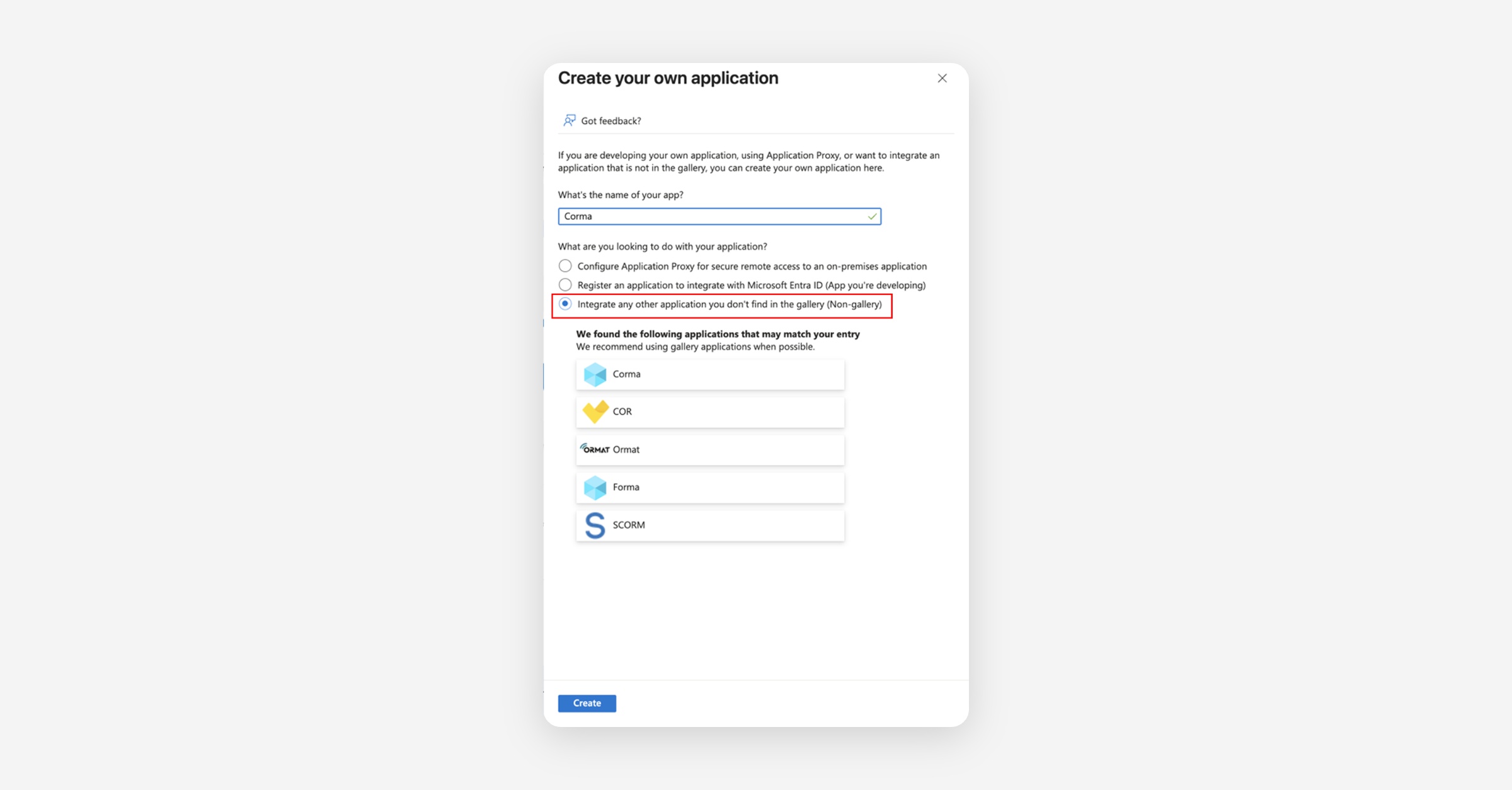
Select Integrate any other application you don't find in the gallery (Non-gallery), and click "Create".
Under “Manage”, open "Single sign-on".
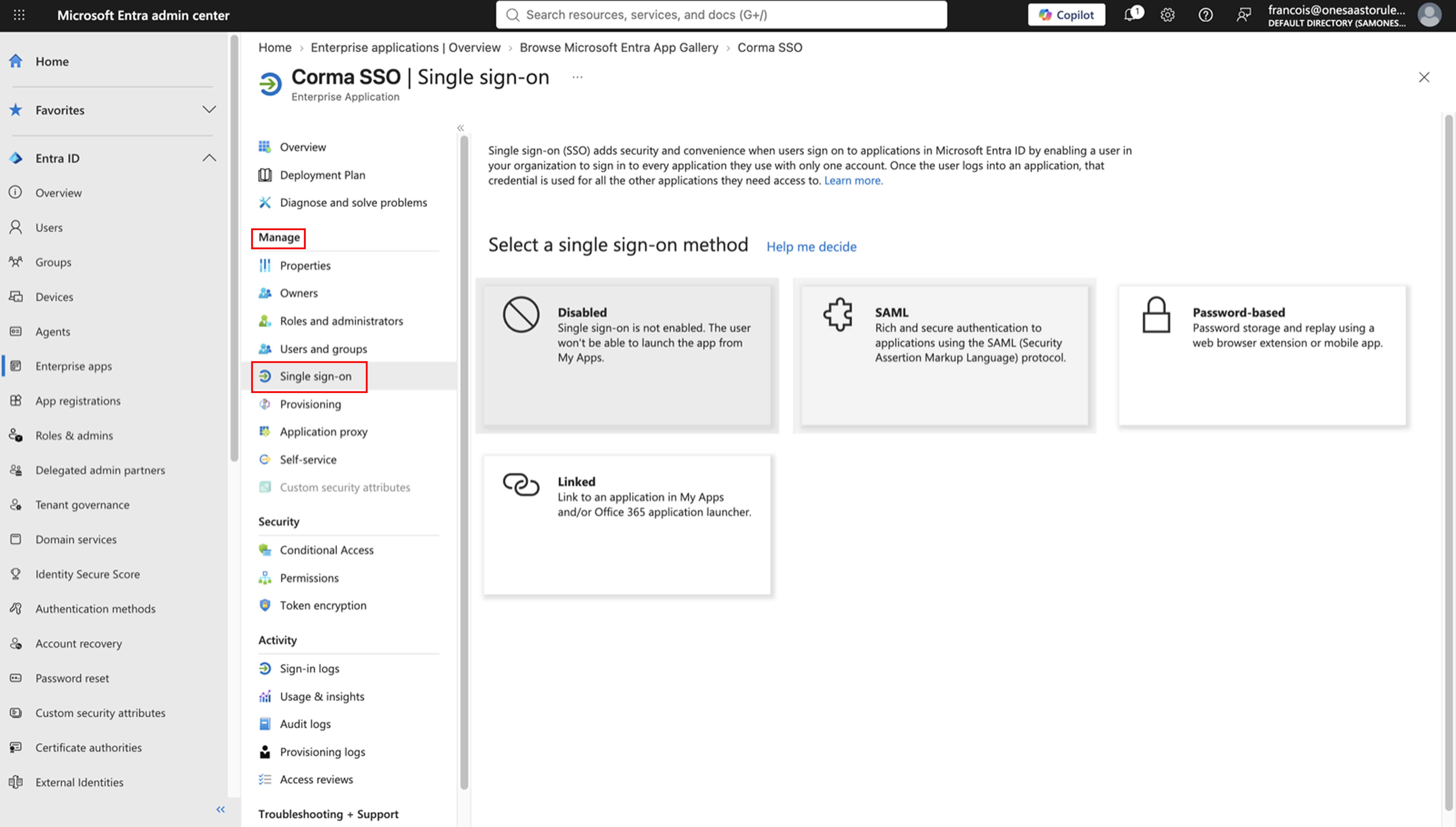
Choose "SAML", and Edit "Basic SAML Configuration", fill it in with the values from your Corma Security page, then click "Save".
Entra ID field
Paste from Corma
Identifier (Entity ID)
Audience URI (SP Entity ID)
Reply URL (Assertion Consumer Service URL)
SSO URL (ACS)
Sign on URL
Leave empty
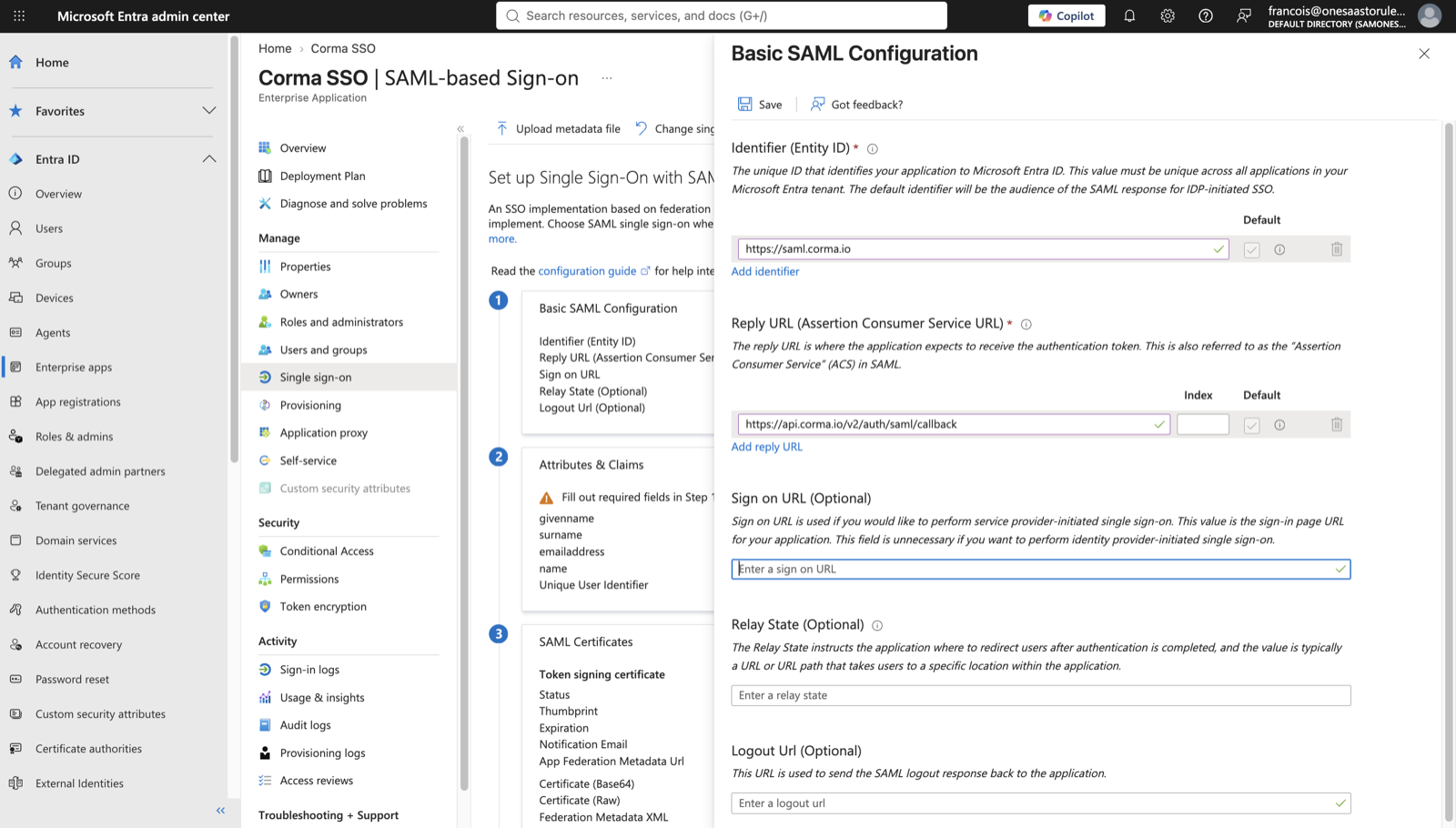
Leave Sign on URL empty. With it empty, the Corma tile in My Apps signs users in directly. With a value, the tile only opens the Corma sign-in page.
Check "Attributes & Claims". The Unique User Identifier (Name ID) should be
user.mailoruser.userprincipalname, whichever matches the email address your employees have in Corma. Nothing else needs changing.
Assign users and connect
Open "Users and groups" and add the people or groups who should reach Corma.
Anyone not assigned here cannot sign in, even with SAML configured correctly on both sides.
Copy the App Federation Metadata Url from the SAML Certificates section, or download the Federation Metadata XML file.
Back in Corma, select "Azure AD" from the SAML Provider dropdown. Paste the App Federation Metadata Url into Metadata URL, or drop the XML file into the upload area, then click "Save changes".
Test in a private browsing window using "Sign in with SAML SSO", before you enforce SAML.
Want only one Corma tile for your employees? Open the first Corma app (the one added by the integration), go to Properties, set "Visible to users?" to No, and click "Save". The app keeps working, it just no longer shows in your employees' My Apps list.
If Corma returns you to the login page rather than signing you in, the Name ID claim is the first thing to check. SAML SSO troubleshooting covers the rest, and Microsoft documents the pane in Enable single sign-on for an enterprise application.