

Configure SAML single sign-on between Keycloak and Corma. Start from How to setup SAML SSO, which covers the Corma side, then come back here. You need admin access to a Keycloak realm and a Corma workspace admin account.
Keycloak saves each form separately. Click Save at the bottom of a form before you leave it.
Step 1: Create the SAML client
In the Keycloak admin console, select your realm and open Clients → Create client.
On General settings, set Client type to SAML and Client ID to the Audience URI (SP Entity ID) shown in Corma under Settings → Security → SAML, which is
https://saml.corma.io. Give it the name Corma and click Next.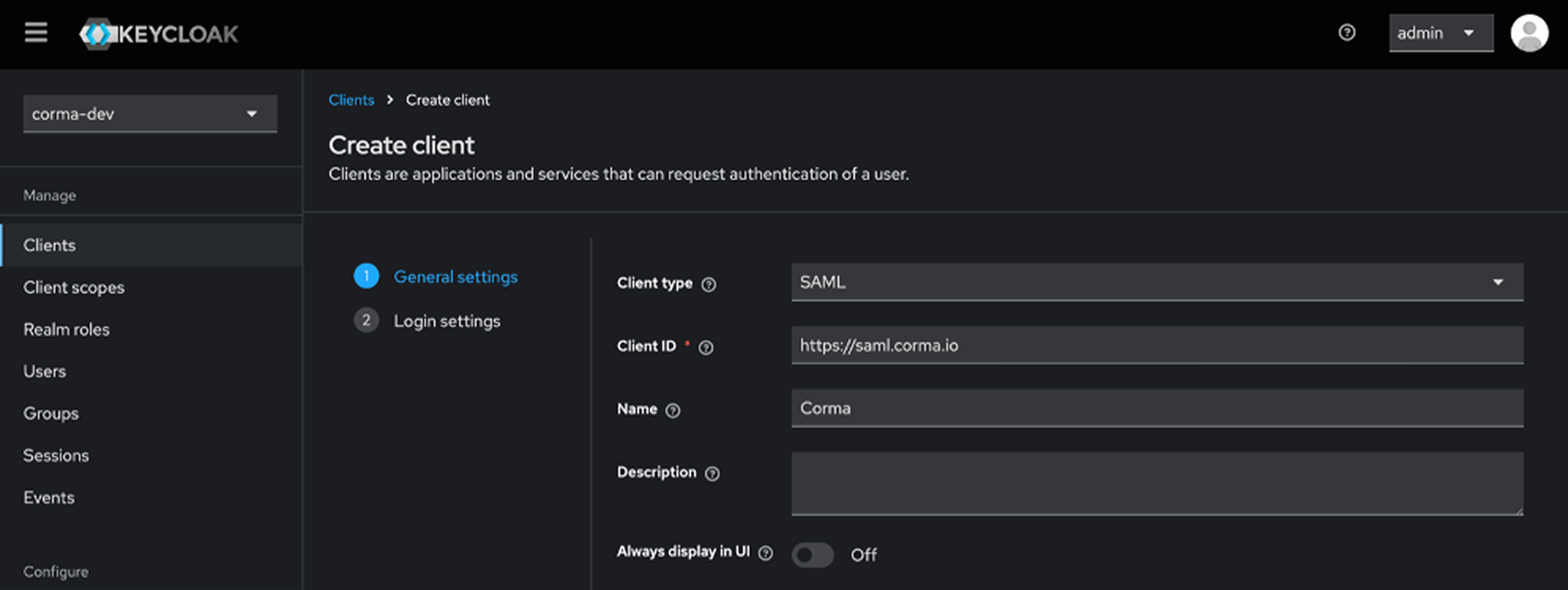
On Login settings, set Valid redirect URIs to the SSO URL (ACS) value,
https://api.corma.io/v2/auth/saml/callback. Leave the other fields empty and click Save.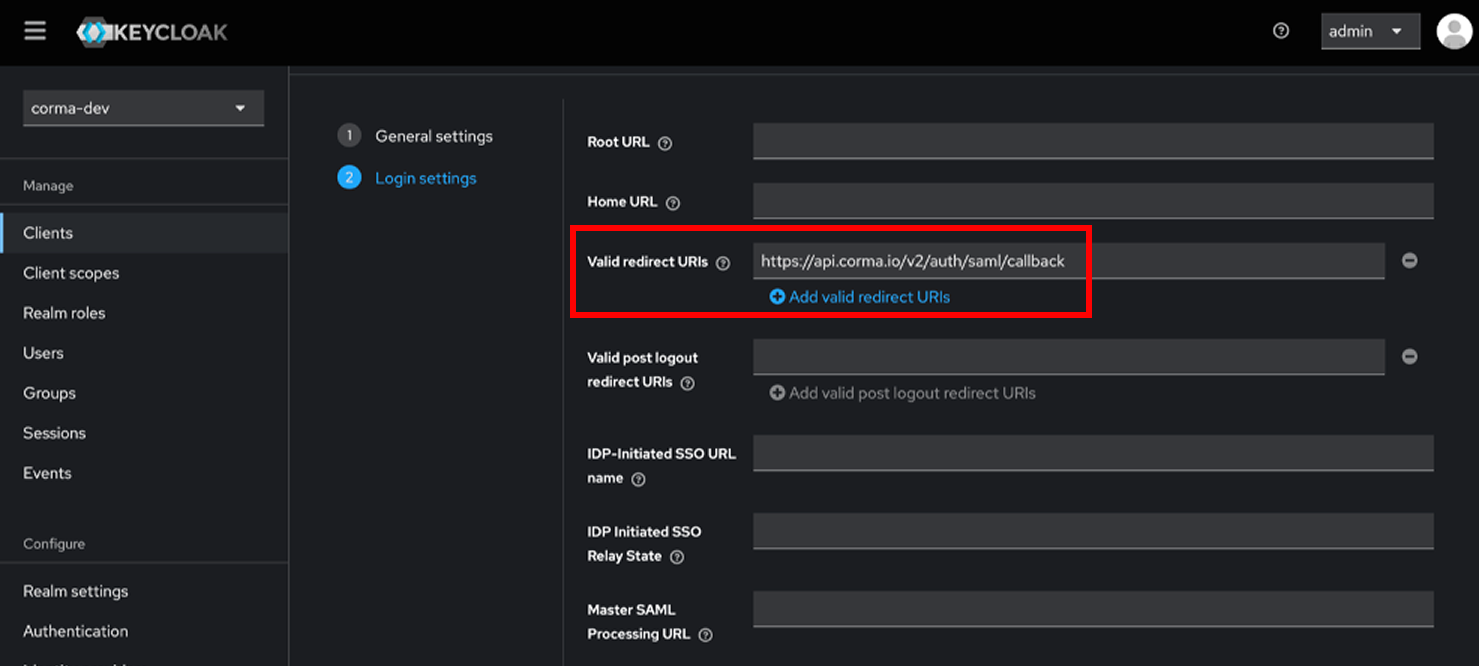
Step 2: Set the client settings
Keycloak opens the new client on its Settings tab.
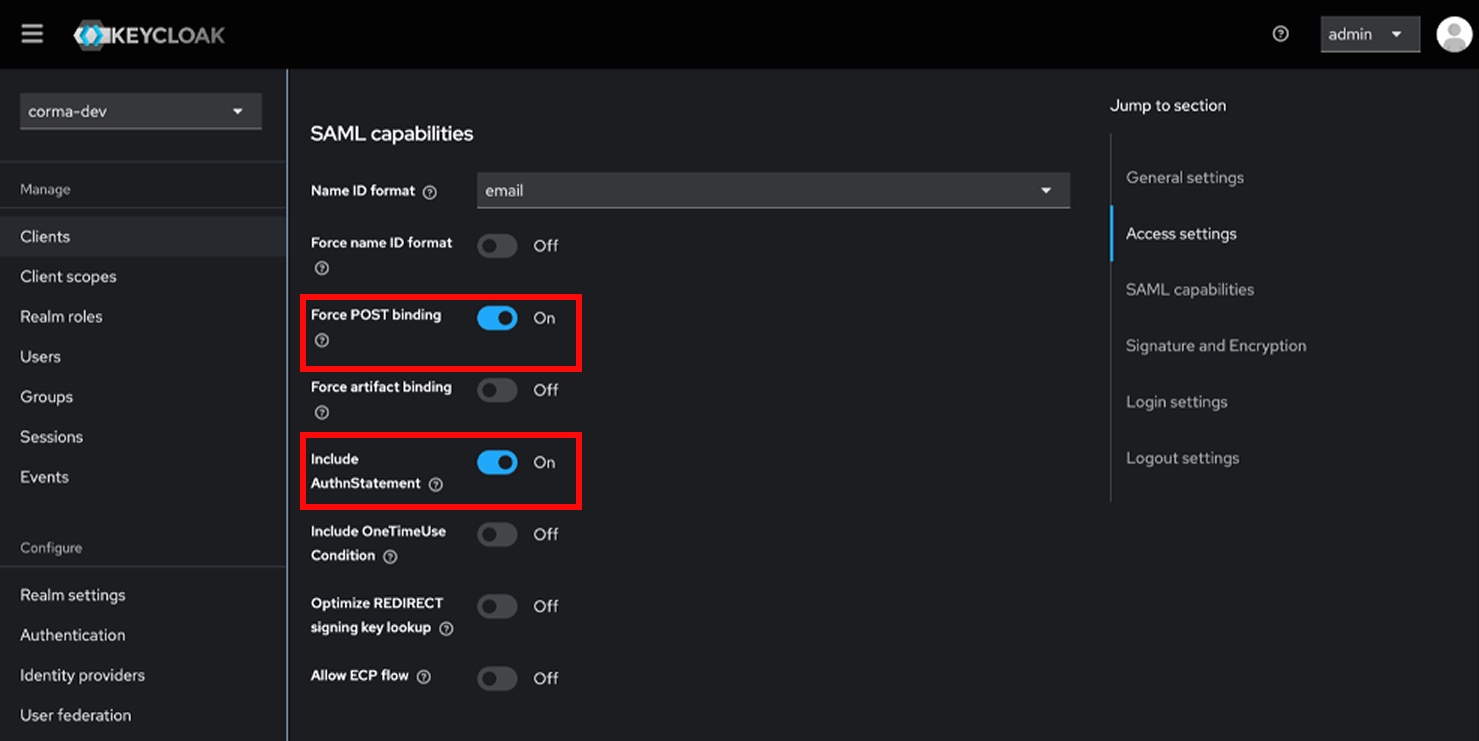
Under SAML capabilities, set Name ID format to email. Keep Force POST binding and Include AuthnStatement on.
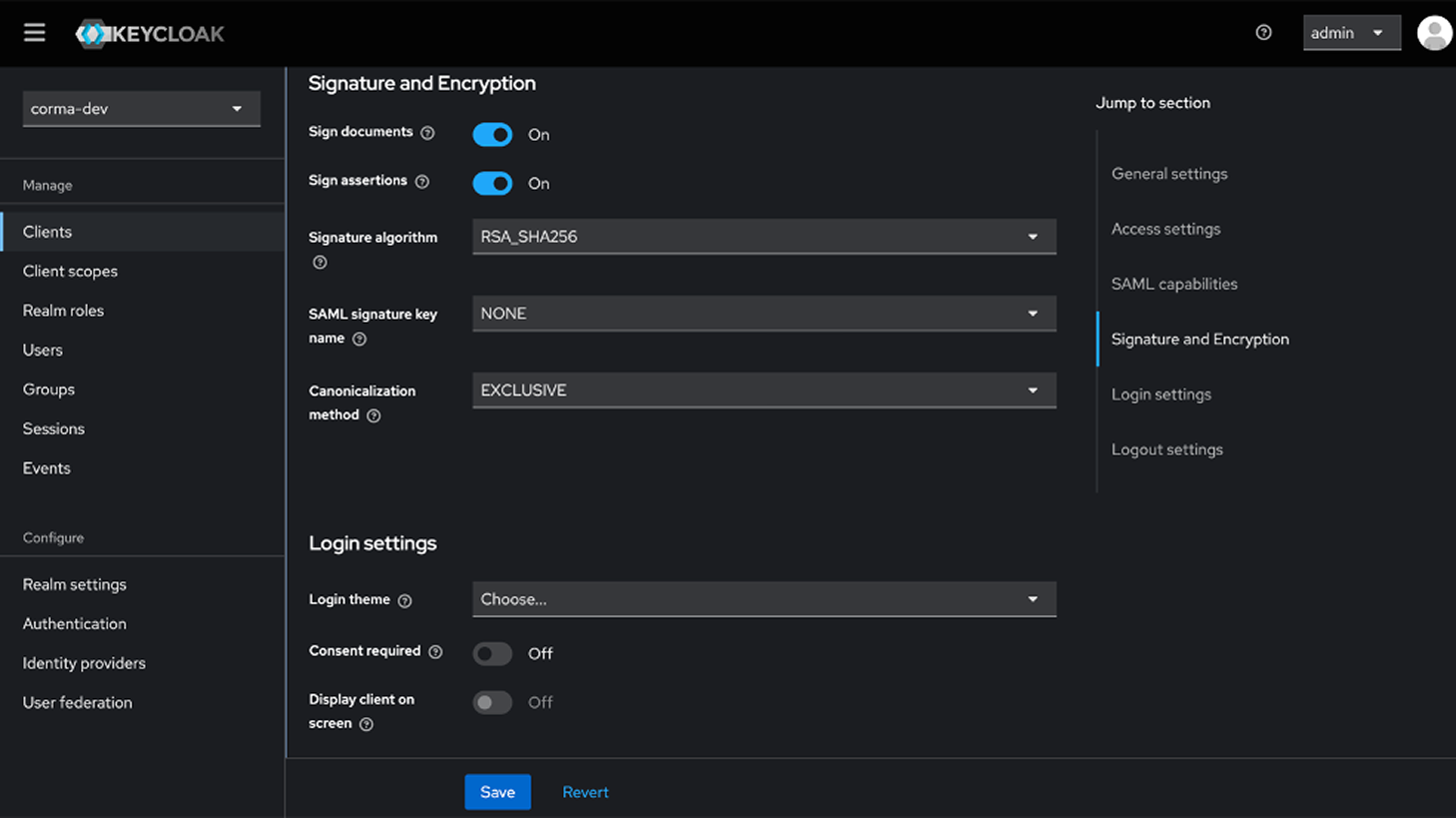
Under Signature and Encryption, keep Sign documents and Sign assertions on, with Signature algorithm RSA_SHA256, then click Save.
Step 3: Map the user attributes
Corma reads the user's email and name from SAML attributes, so add one mapper per attribute in the client's dedicated scope.
Open the client's Client scopes tab and click the dedicated scope,
https://saml.corma.io-dedicated.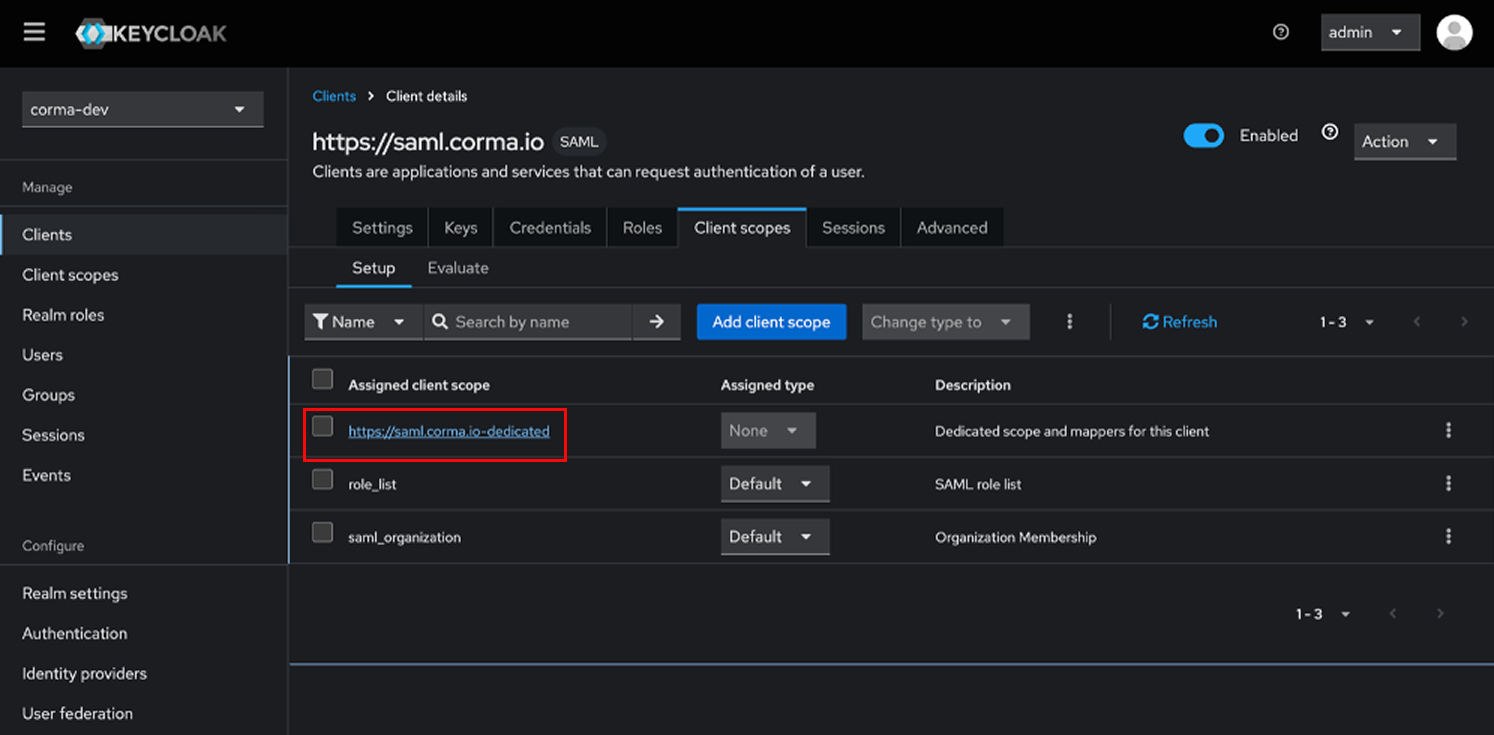
Click Configure a new mapper, or Add mapper → By configuration, and choose User Property.
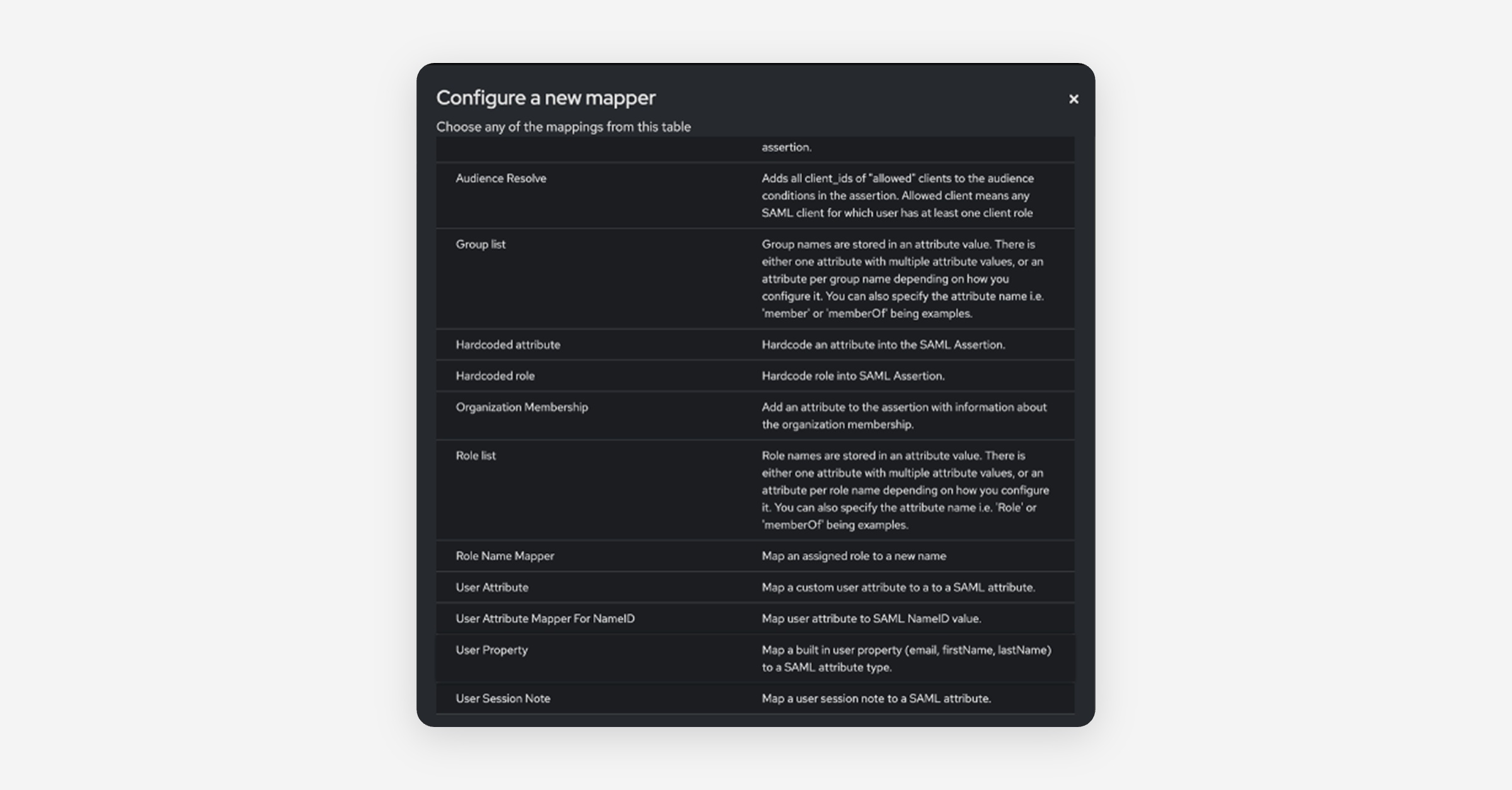
Fill the mapper and click Save, then repeat for all three attributes.
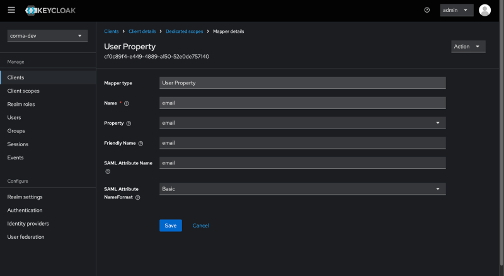
Name | Property | SAML Attribute Name | SAML Attribute NameFormat |
|---|---|---|---|
Basic | |||
firstName | firstName | firstName | Basic |
lastName | lastName | lastName | Basic |
Without the email attribute, Corma rejects the sign-in with Unauthorized SAML connection.
Step 4: Copy the realm's SAML metadata URL
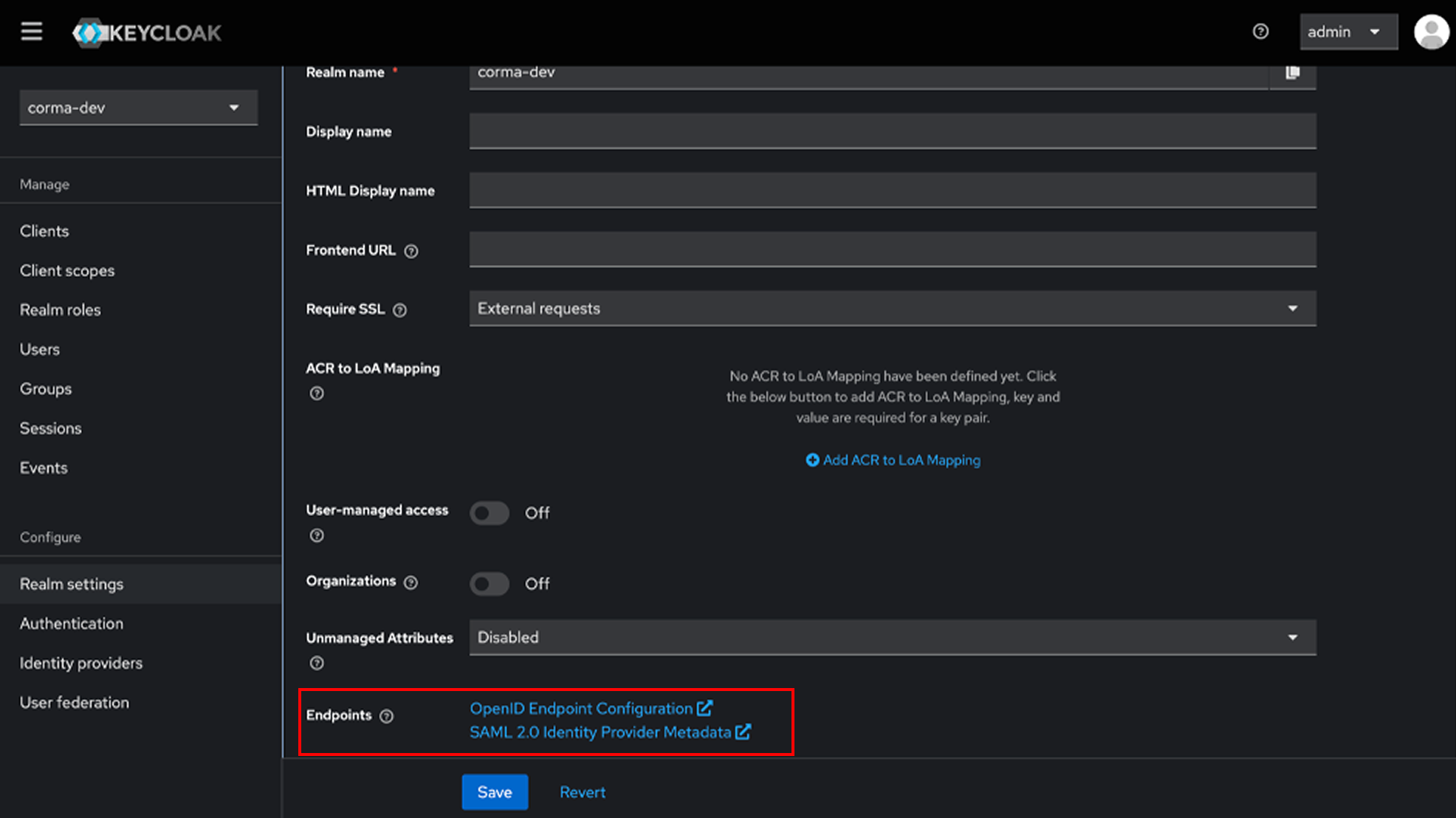
Open Realm settings → General and scroll to Endpoints. The SAML 2.0 Identity Provider Metadata link is the metadata URL Corma needs, so copy its address. It has the form https://your-keycloak-host/realms/your-realm/protocol/saml/descriptor.
Step 5: Connect Keycloak in Corma
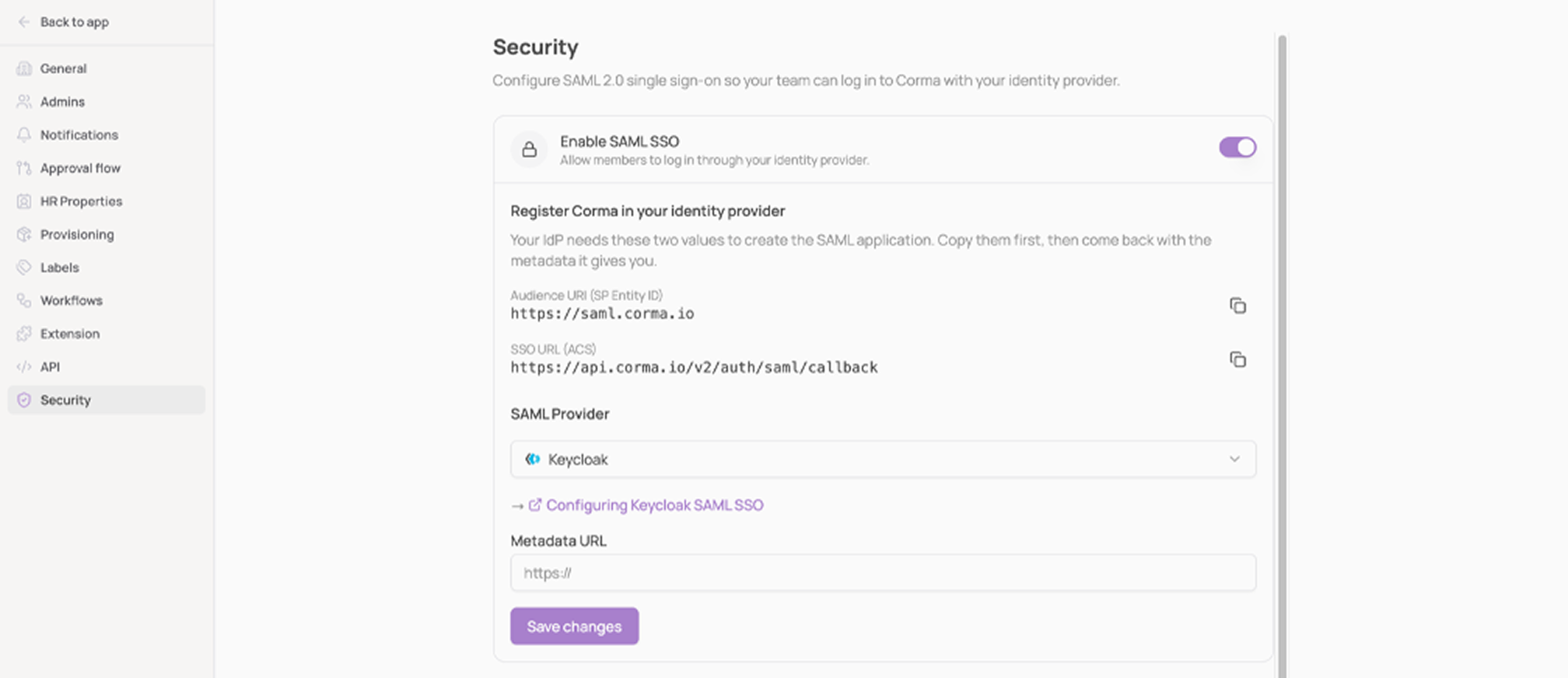
In Corma, open Settings → Security → SAML and turn on Enable SAML SSO.
Select Keycloak as the SAML provider.
Paste the metadata URL from step 4 and click Save changes.
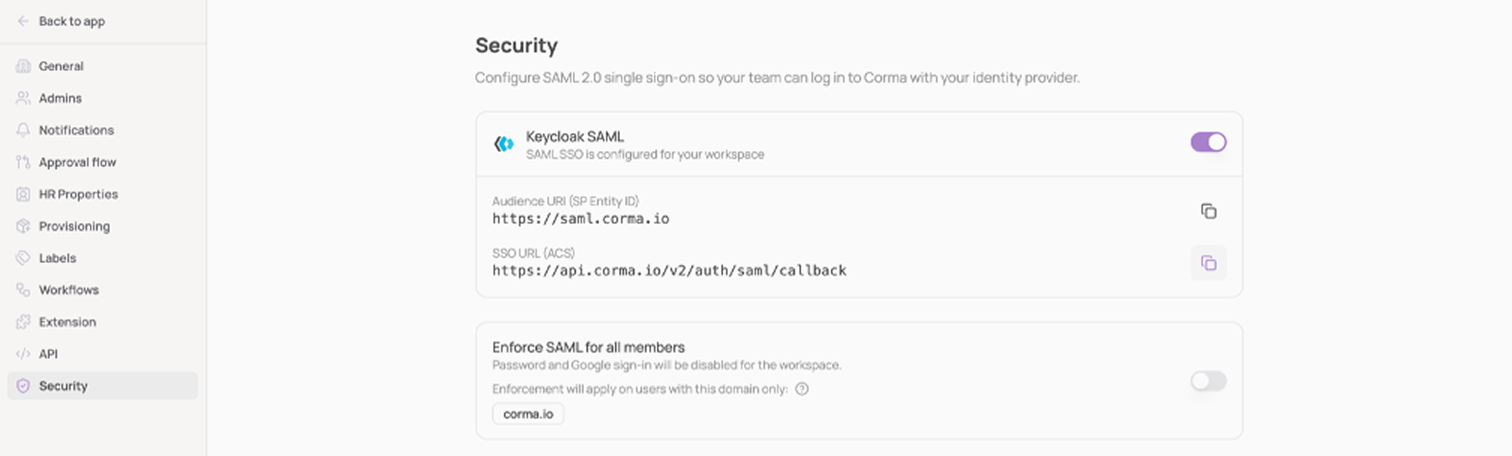
Once saved, the card shows Keycloak SAML, SAML SSO is configured for your workspace, with the Audience URI and SSO URL you registered in Keycloak.
Step 6: Users
Any user of the realm can sign in from the Corma sign-in page with Sign in with SAML SSO, as long as their Keycloak Email is on your workspace domain. Unknown users join your workspace automatically on first sign-in.
To restrict access to a subset of users, use a Keycloak authentication flow or a client policy on this client.
Launch Corma from Keycloak
Your team can also open Corma directly from Keycloak. Set this up on the Corma client in the Keycloak admin console.
On the Settings tab, set IDP-Initiated SSO URL name to any short name, for example
corma, and click Save. Keycloak then gives you a launch URL of the form:https://your-keycloak-host/realms/your-realm/protocol/saml/clients/corma.On the Advanced tab, set Assertion Consumer Service POST Binding URL to the SSO URL (ACS) shown in Corma under Settings → Security,
https://api.corma.io/v2/auth/saml/callback, and click Save.Without the Assertion Consumer Service POST Binding URL, Keycloak refuses the launch.
To show Corma in the Keycloak account console, go back to the Settings tab, set Home URL to the launch URL from step 1 and turn Always display in UI on, then click Save.
Notes
The metadata URL must be reachable from Corma's servers. For an internal Keycloak, download the descriptor XML from that URL and upload it as an XML metadata file instead.