
How to create a Shadow IT policy
Shadow IT policies define what an employee sees in their browser when they open an application that is not approved, either a warning they can dismiss or a full-page block. An example can be a policy on unapproved file sharing tools, warning anyone who opens Dropbox or WeTransfer and pointing them to Google Drive instead.
Create a Shadow IT policy
Navigate to Security, then open the "Shadow IT policies" tab.
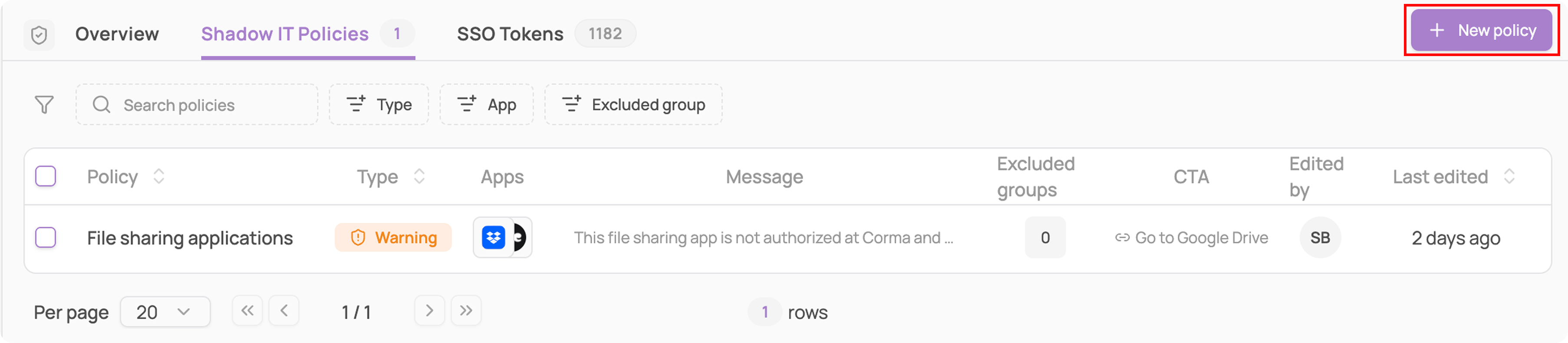
Click "+ New policy", then name it after the behaviour you want to enforce.
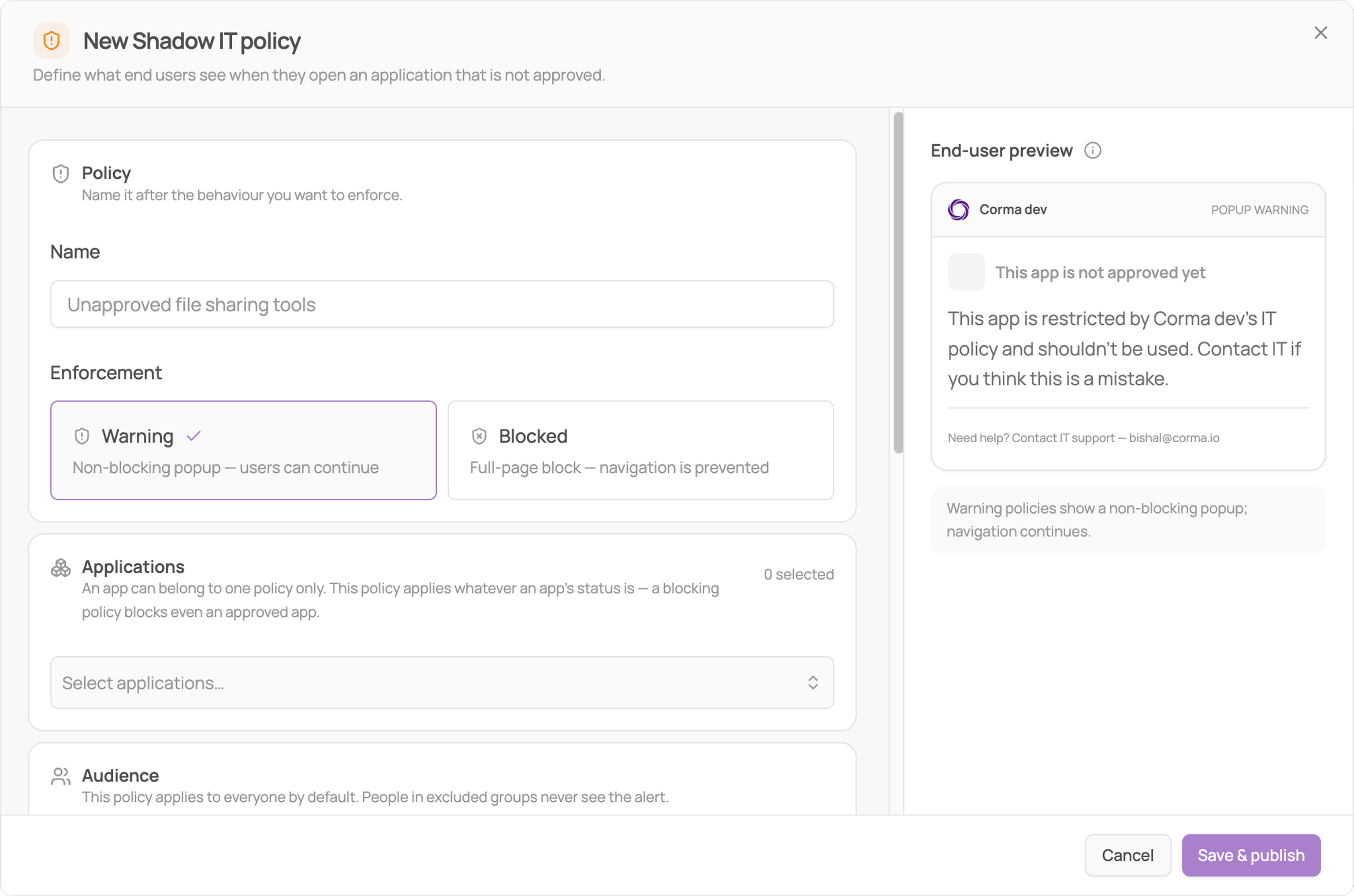
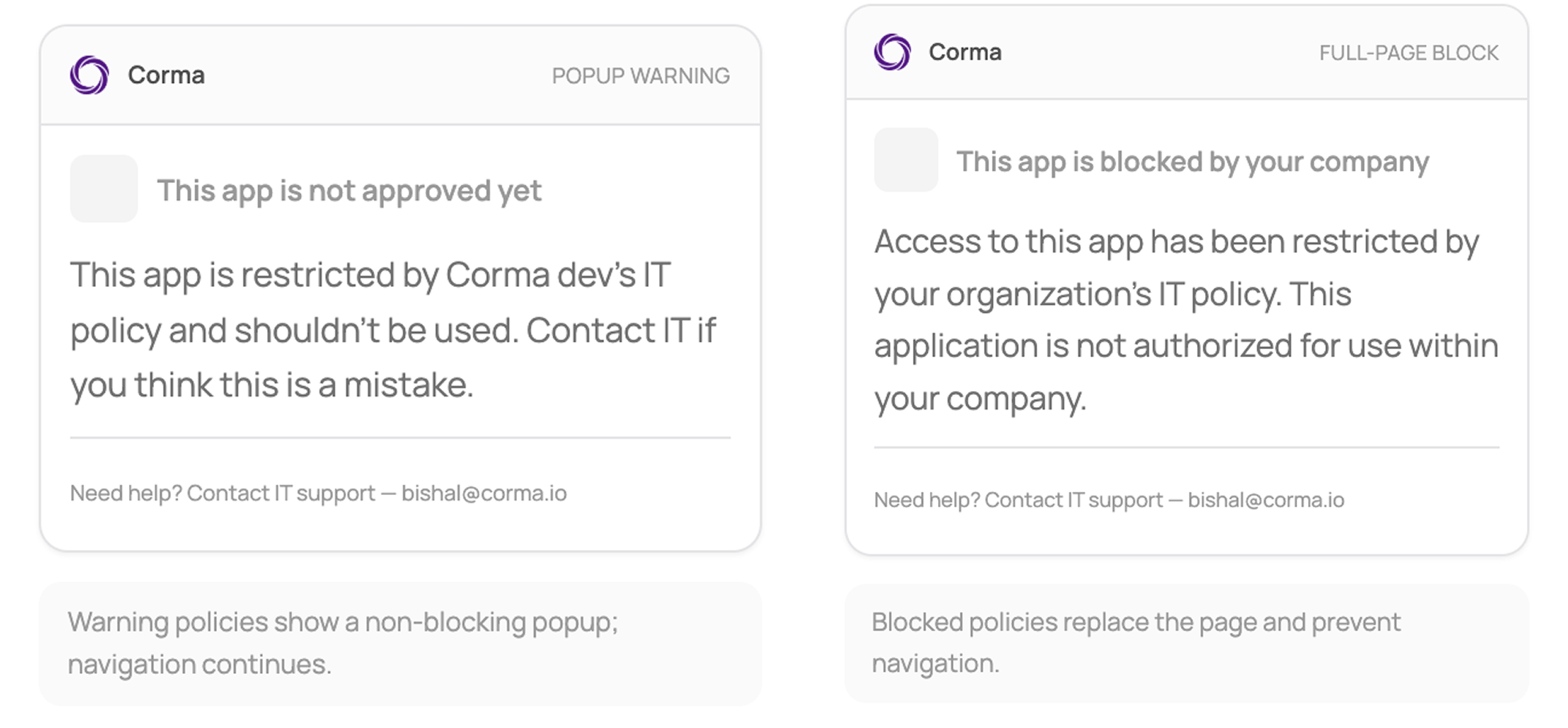
Choose the enforcement type, which sets both how firmly the employee is stopped and how the message is delivered.
Warning: a non-blocking popup, the employee can continue to the app.
Blocked: a full-page block, navigation is prevented.
Add applications. Click "Select applications" and pick one or more. Each entry shows the app's current status, and apps already covered by another policy are greyed out with that policy's name beside them.
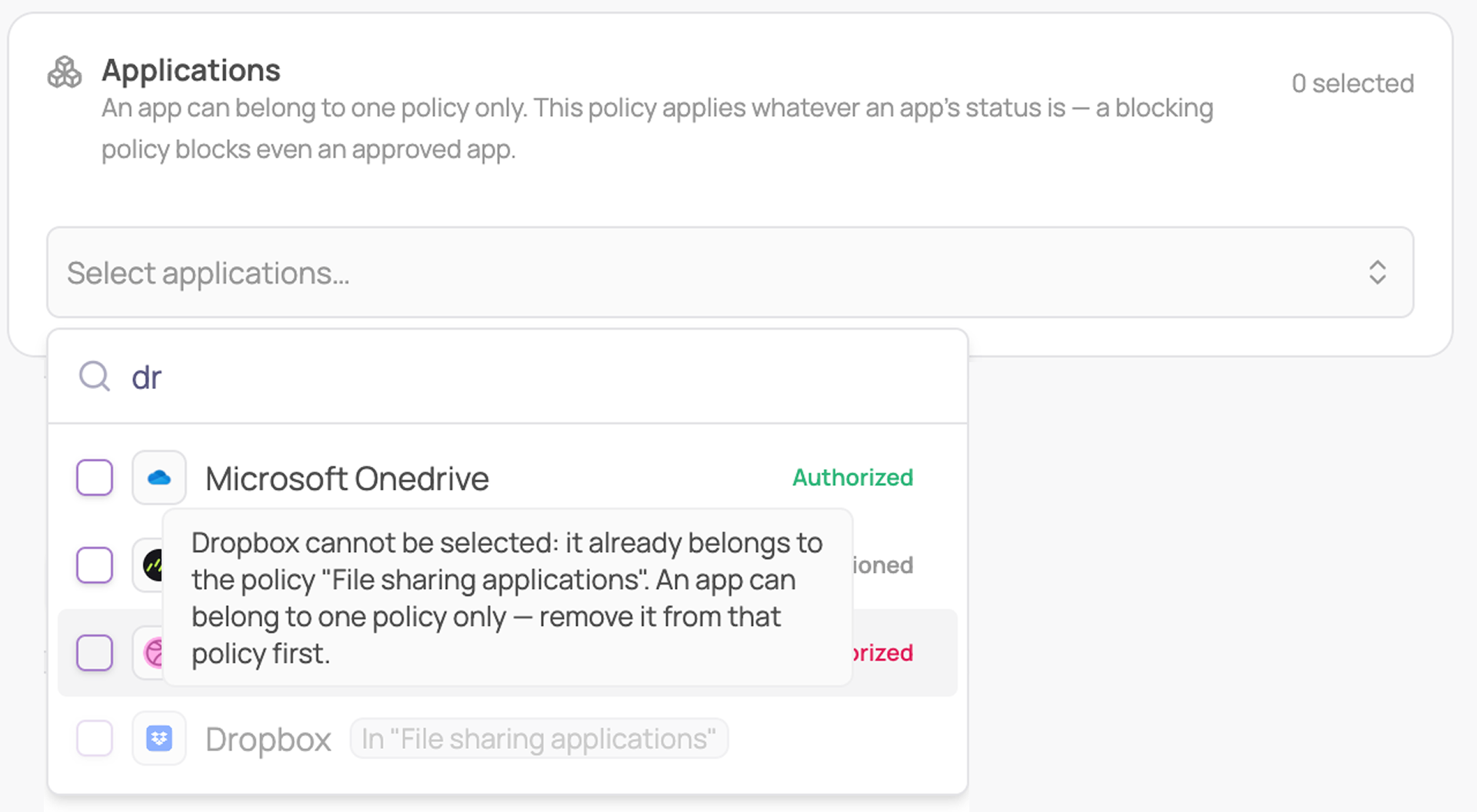
An app can belong to one policy only, so to move an app, remove it from its current policy first. A policy also applies whatever the app's status is: a blocking policy blocks an Authorized app, and nothing warns you when you save.
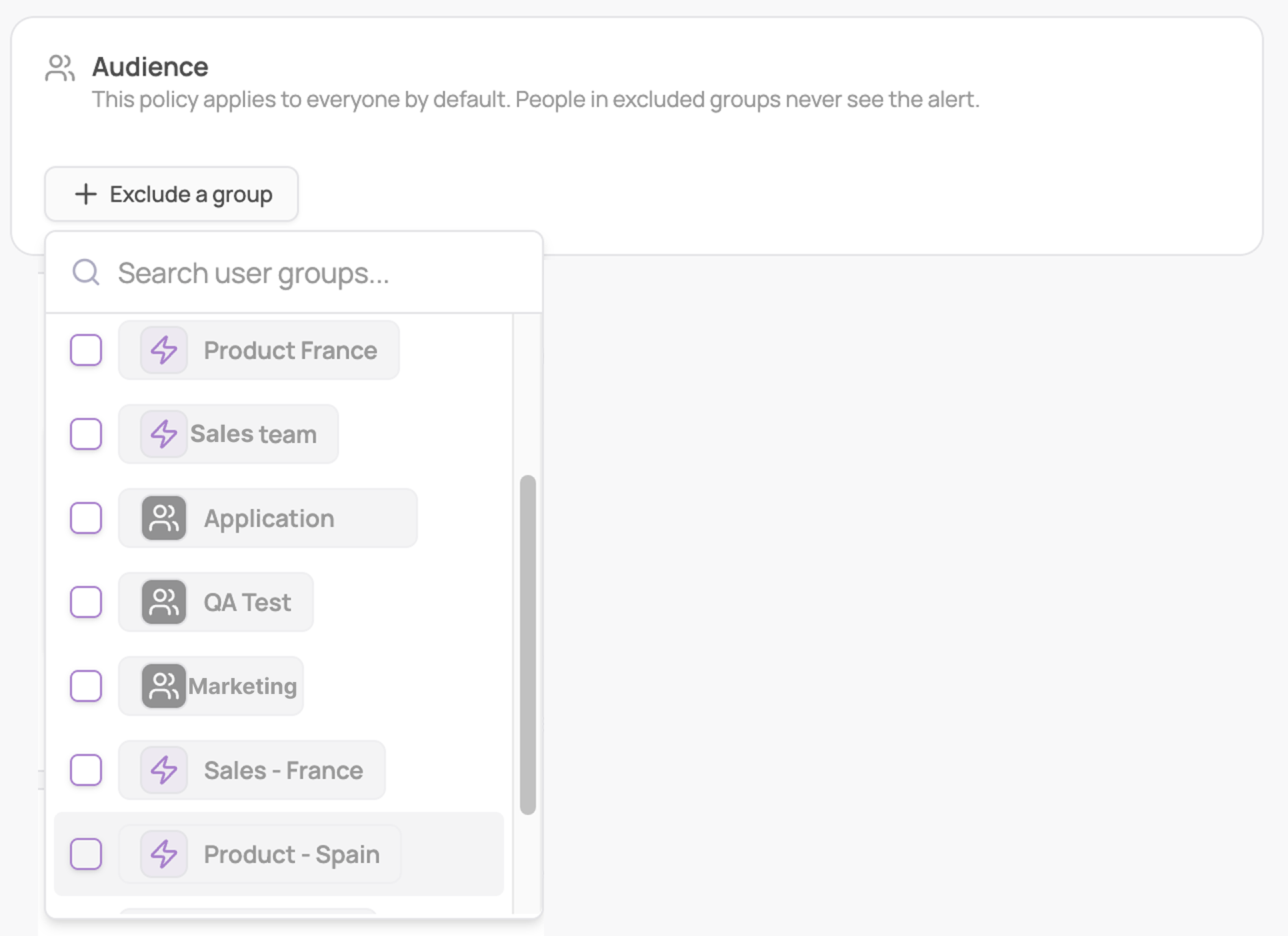
Exclude a group (optional). Click "Exclude a group" to exempt teams with a legitimate reason to use the app.
Write the message, shown under the fixed system title. Up to 500 characters, and starting a line with
-creates a bullet.Left empty, the default message is saved with the policy, so employees never see a blank alert.
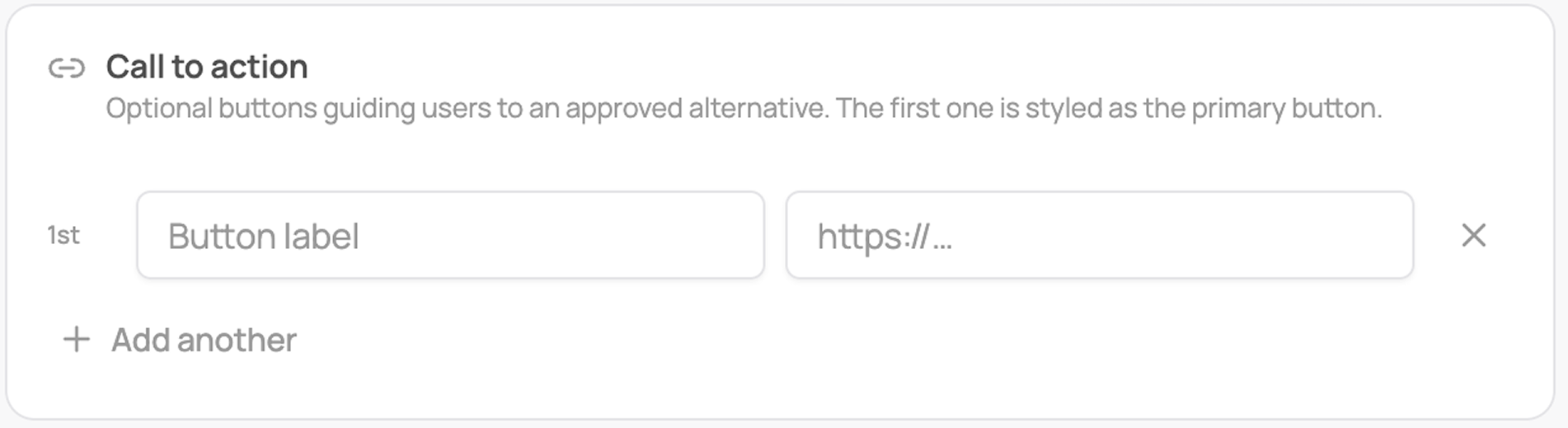
Add a call to action (optional). Buttons guiding users to an approved alternative. You can add several, and the first is styled as the primary button.
Check the end-user preview, then click "Save & publish".
The preview on the right shows exactly what the employee will see, including the enforcement label, the system title, your message, and any buttons. Start with a Warning policy on one or two apps and tighten once you see how people react.