
How to create your first workflow
You need admin access and at least one connected integration (the action library pulls from your connected apps).
Create a workflow
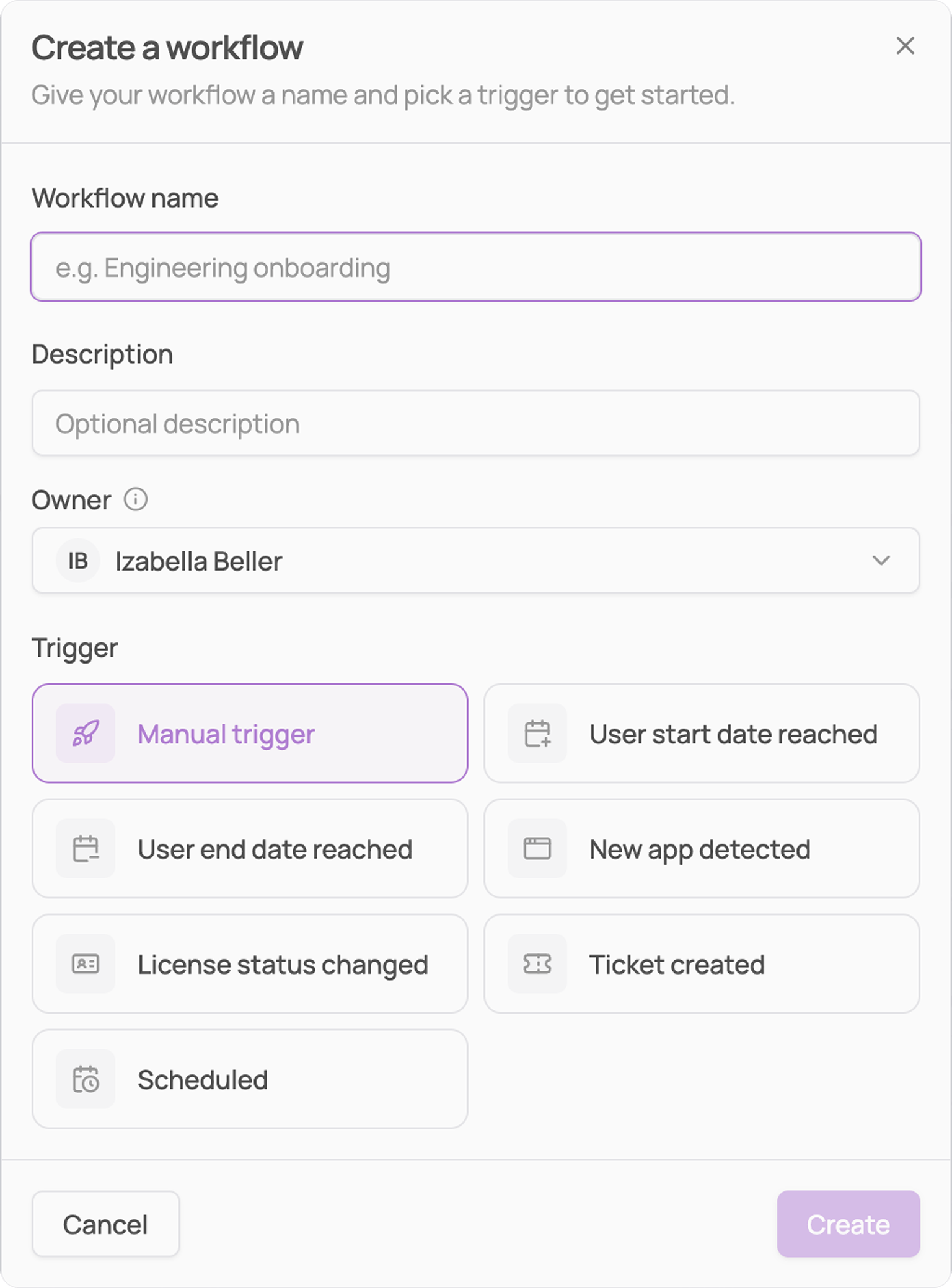
Go to Workflows in the sidebar, click Create workflow, and give it a clear name (e.g. "Offboarding: revoke all access").

Choose a trigger
Click the Trigger block and select a trigger:
Manual trigger: you launch the workflow yourself, on demand
User start date reached: fires automatically when a user's start date arrives
User end date reached: fires automatically when a user's end date arrives
New app detected: fires when Corma detects a new app in your workspace
License status changed: fires when a license's status changes
Ticket created: fires when a new ticket is created
Scheduled: runs on a recurring schedule you define
The two date-based triggers fire at 00:00 in your company timezone unless you change it. To launch at a specific time, e.g. offboarding at the end of the last working day, set the day offset and time of day under Administration → General settings → Workflows → Trigger timing.
Add actions
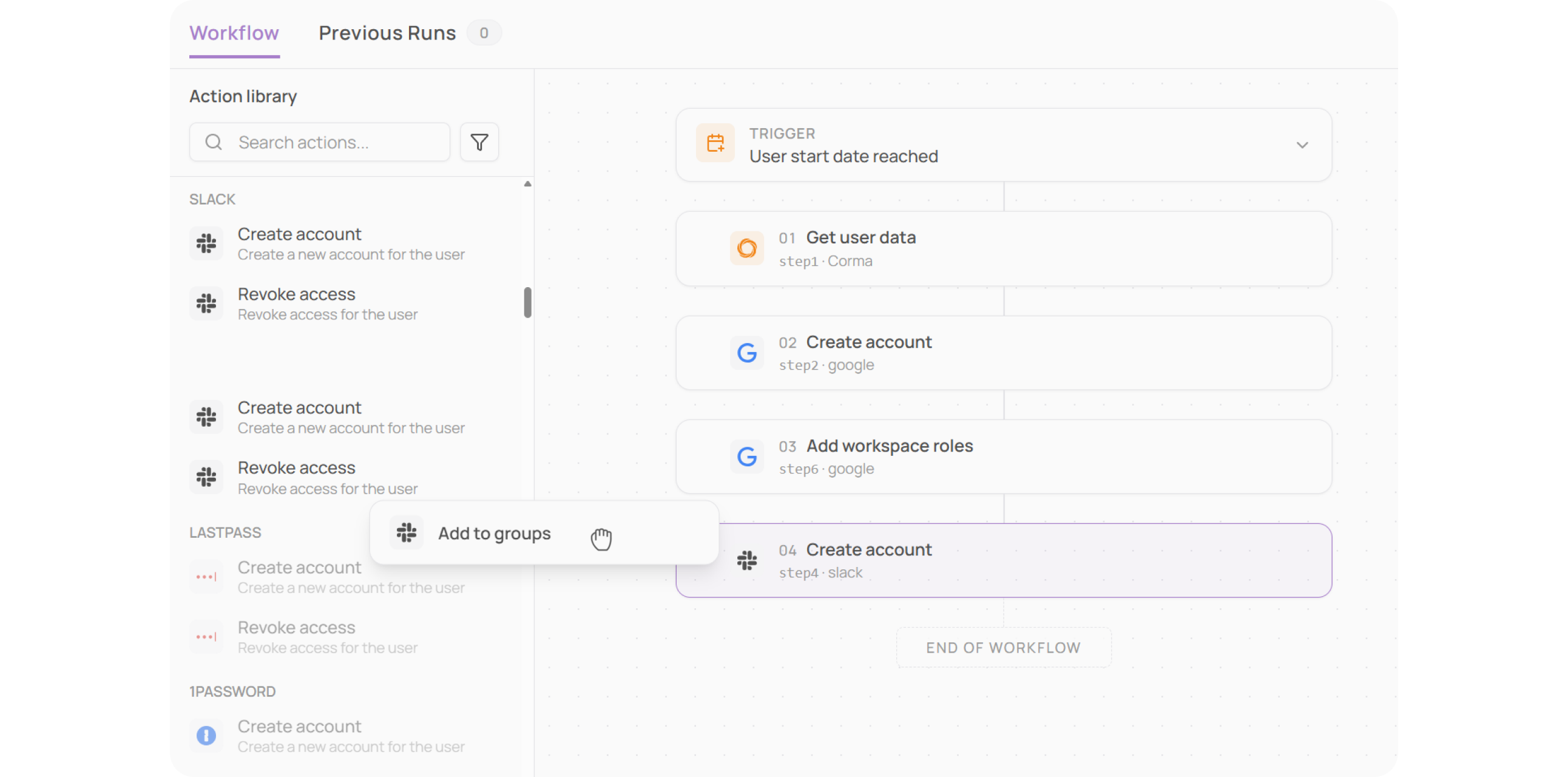
Browse the Action library on the left.
Actions are grouped by app and tagged API or Agent. Drag them onto the canvas, they run top to bottom in sequence.
Configure each step
Click a step to open its configuration panel.
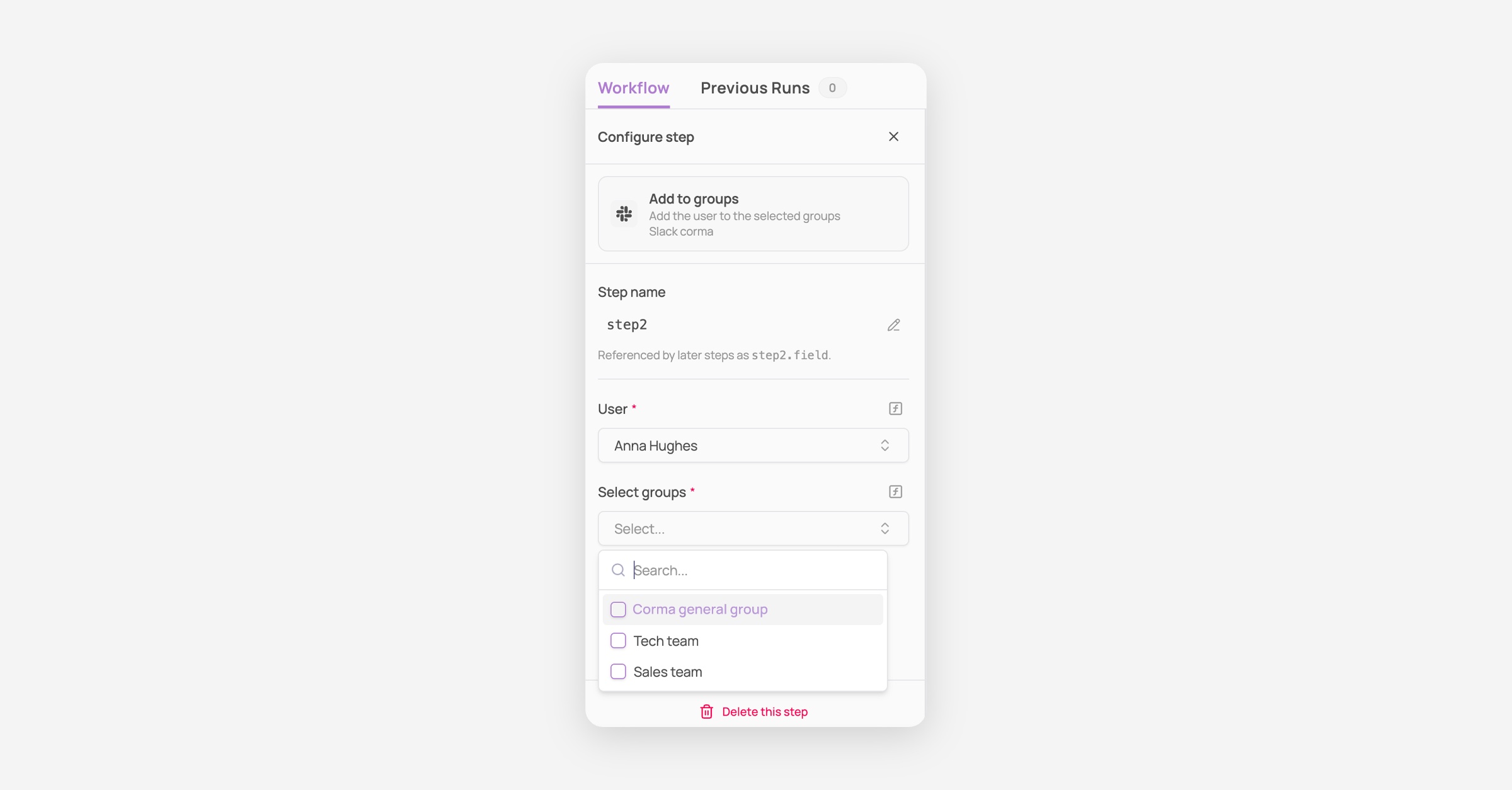
Set the target app, parameters (e.g. which Slack channel, which groups), and dynamic variables (employee name, email) that get filled automatically at runtime. Each step has a name that later steps can reference (e.g. step2.google).
Activate
Toggle Active in the top-right, then Save. Event-based triggers will now fire automatically. For manual triggers, click Launch to run on demand.

Monitor
Switch to Previous Runs to see every past execution: status, step-by-step detail, and the actual values used.
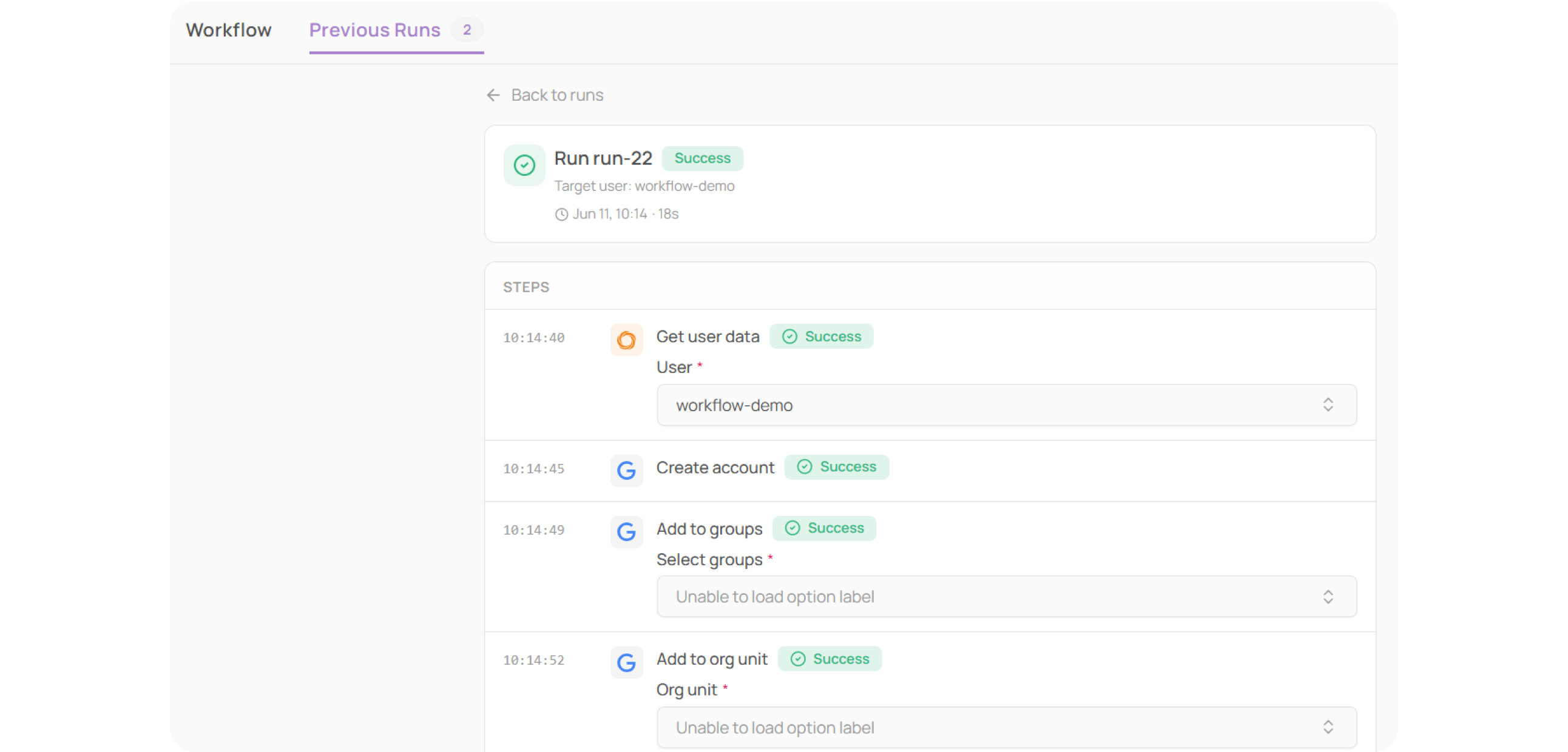
Tips: Start with one trigger and one or two actions. Add complexity once it works. Use the search bar in the action library to find actions fast. Always check Previous Runs after your first execution.