
How to import licenses via CSV
Bulk-import licenses for a specific app instead of adding them one by one.
Go to the app's page and open the Licenses tab.
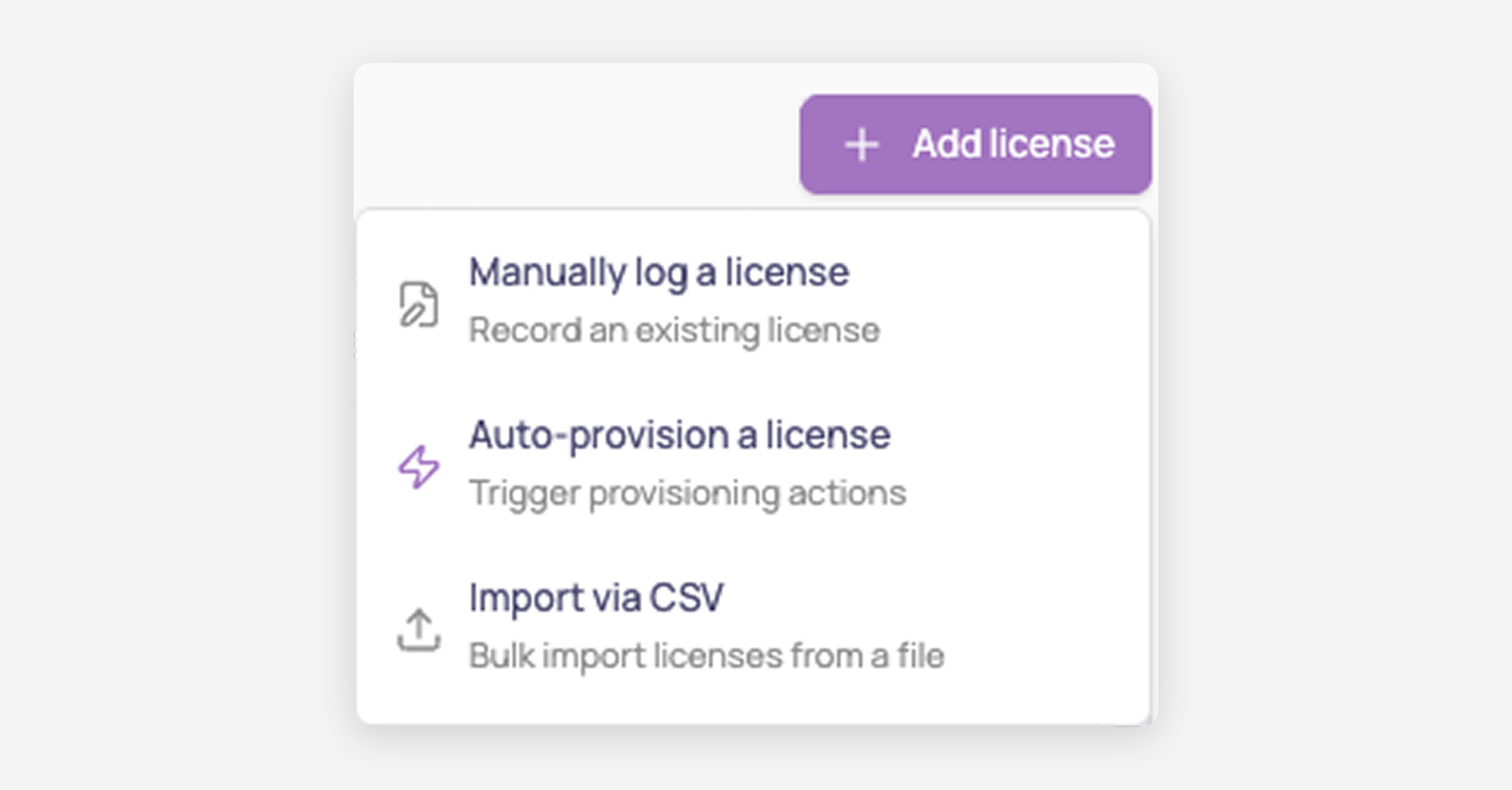
Click "+ Add license" and select Import via CSV from the three options (alongside "Manually log a license" and "Auto-provision a license").
Click "Download template" to get a CSV pre-formatted with the expected columns.
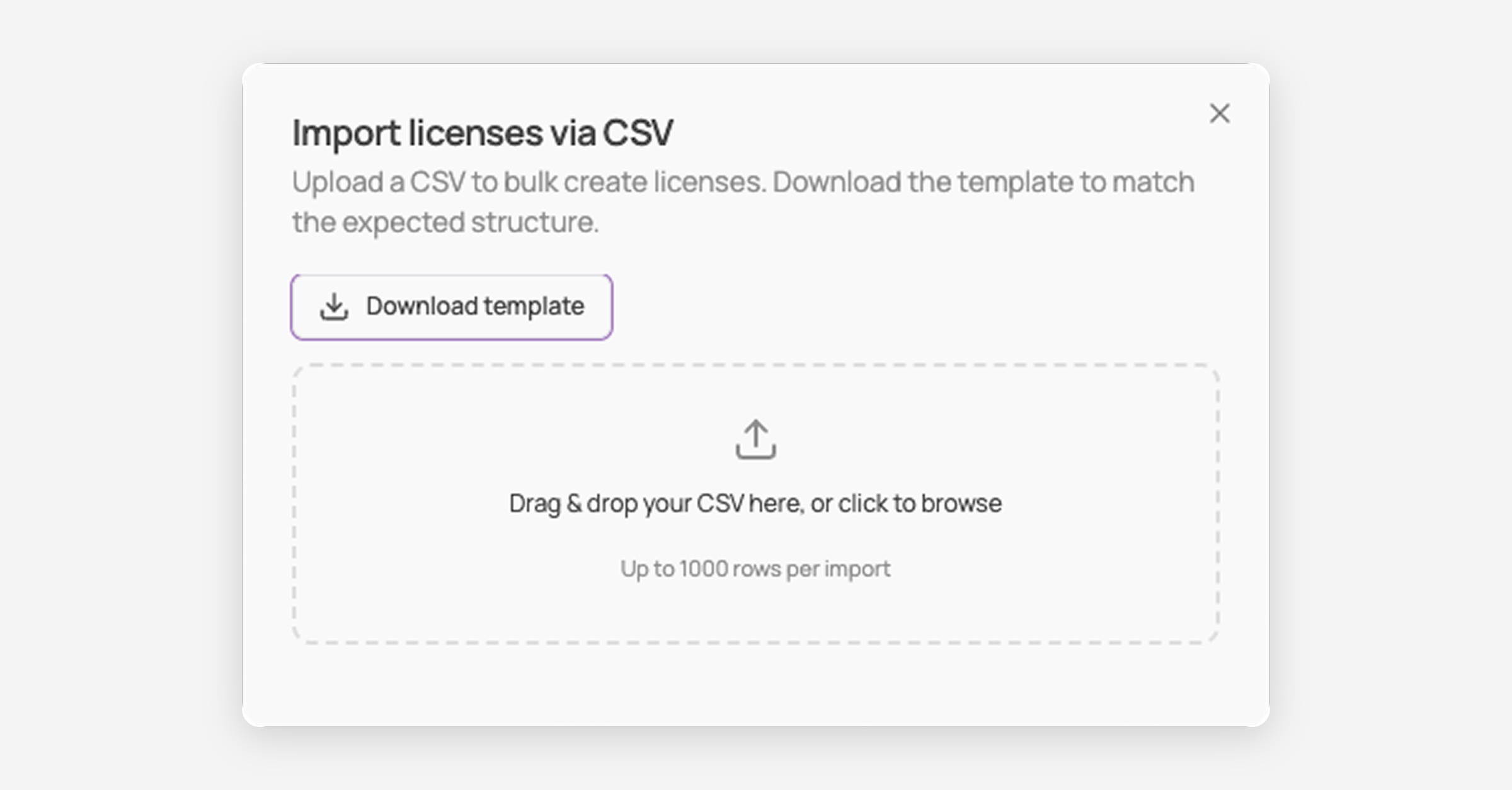
Fill in the template and upload it: drag & drop, or click to browse.
Up to 1,000 rows per import.
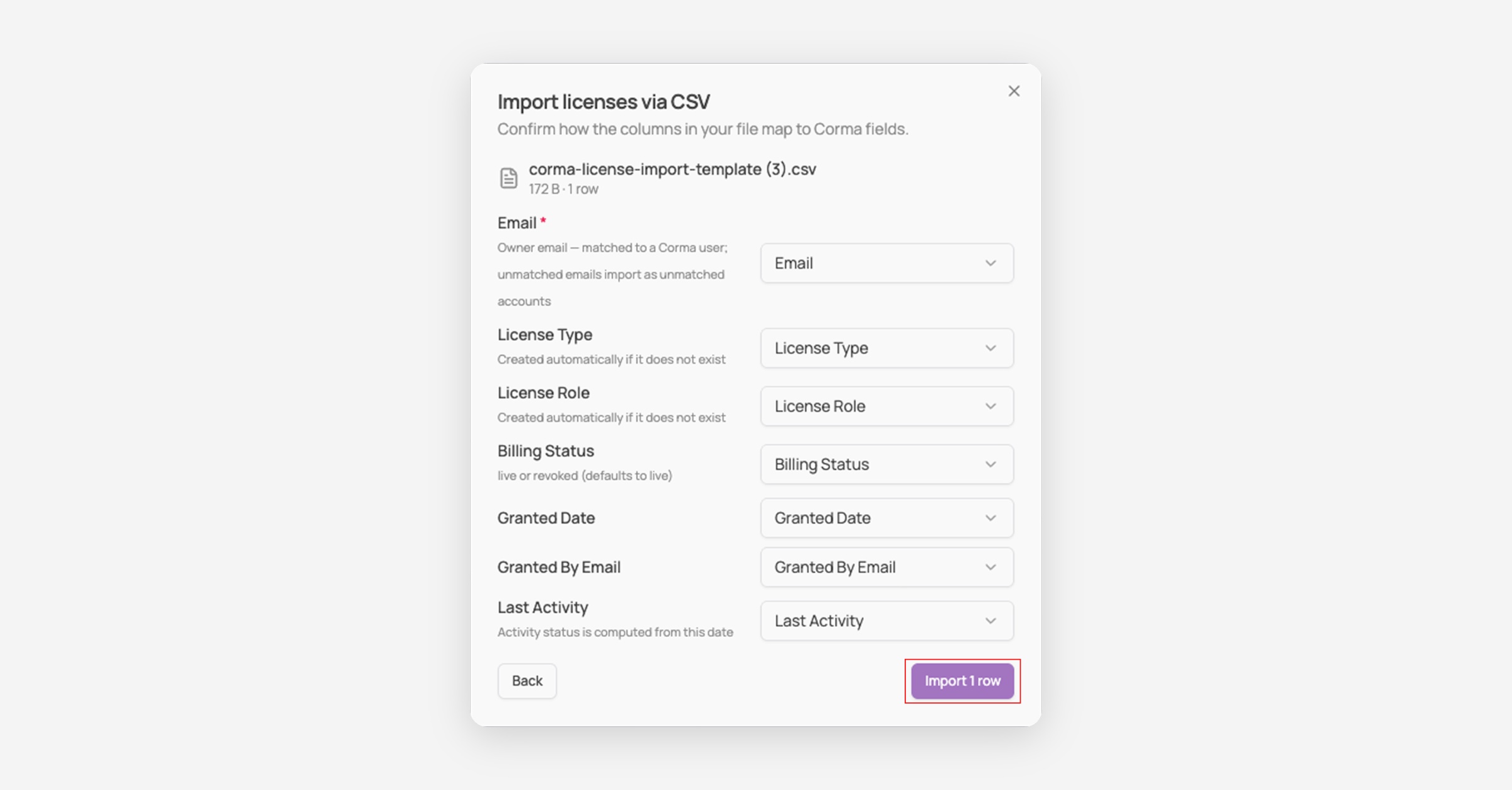
Confirm the column mapping. Corma auto-matches your file's columns to its fields; adjust any of them via the dropdowns if needed.
Click "Import X rows."
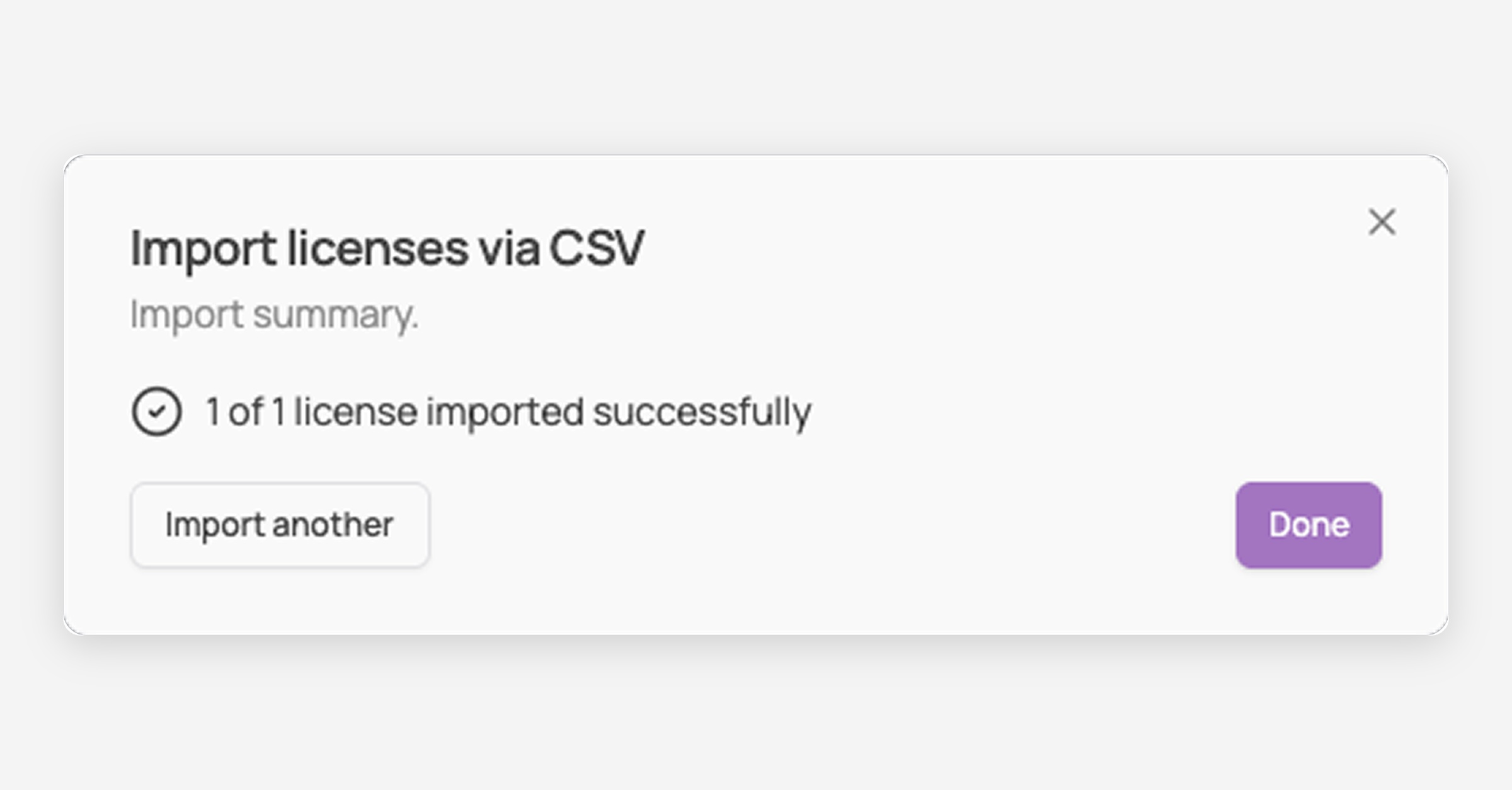
Finally, you'll get a summary confirming how many licenses were imported successfully.
Template columns
Required. Matched against existing Corma users. If no match is found, the license still imports as an "Unmatched account."
License Type
Optional: created automatically if it doesn't already exist for this app.
License Role
Optional: created automatically if it doesn't already exist.
Billing Status
Optional: live or revoked. Defaults to live if left blank.
Granted Date
Optional.
Granted By Email
Optional.
Last Activity
Optional. Drives the Active/Inactive status shown in the license list.
Good to know
Importing a license for a user who already has one on that app creates a second, separate license rather than updating the existing one.