
About unmatched accounts
What Is an Unmatched Account?
An unmatched account is a license detected by Corma from a connected SaaS integration (e.g. Google Workspace, Slack, ChatGPT, GitHub) that could not be automatically linked to a known user in your company directory.
In practice, this means Corma has retrieved the account data from the app (including username, email, role, and other identity signals) but cannot determine which employee it belongs to.
Why Does This Happen?
Corma automatically matches detected licenses to the right user, typically by cross-referencing the email address from the SaaS app with the different emails found for that user in your IdP and/or HR tool.
Unmatched accounts only surface when the identity data from the app is incomplete or inconsistent with your directory, which is inherent to how SaaS tools and identity systems work across organizations. It is not possible to fully automate matching in these edge cases without risking incorrect attributions.
Matching is not always automatic. Common reasons an account ends up unmatched include:
Different email formats: the user's email in the SaaS tool differs from their directory emails
Shared licenses: accounts not tied to a specific individual but to a mailing group for instance
Partial data: some accounts only have a username with no associated email, making automatic matching impossible
Former employees: users who left the company but still have active licenses in connected apps
Outsiders: Accounts that have been shared to users not in your IdP or HR tool, very often linked to a personal email address.
Where to Find Unmatched Accounts
Unmatched accounts are visible in the Licenses section of Corma. They are clearly labeled as "Unmatched account" in the User column, showing the raw identity information pulled directly from the source app.
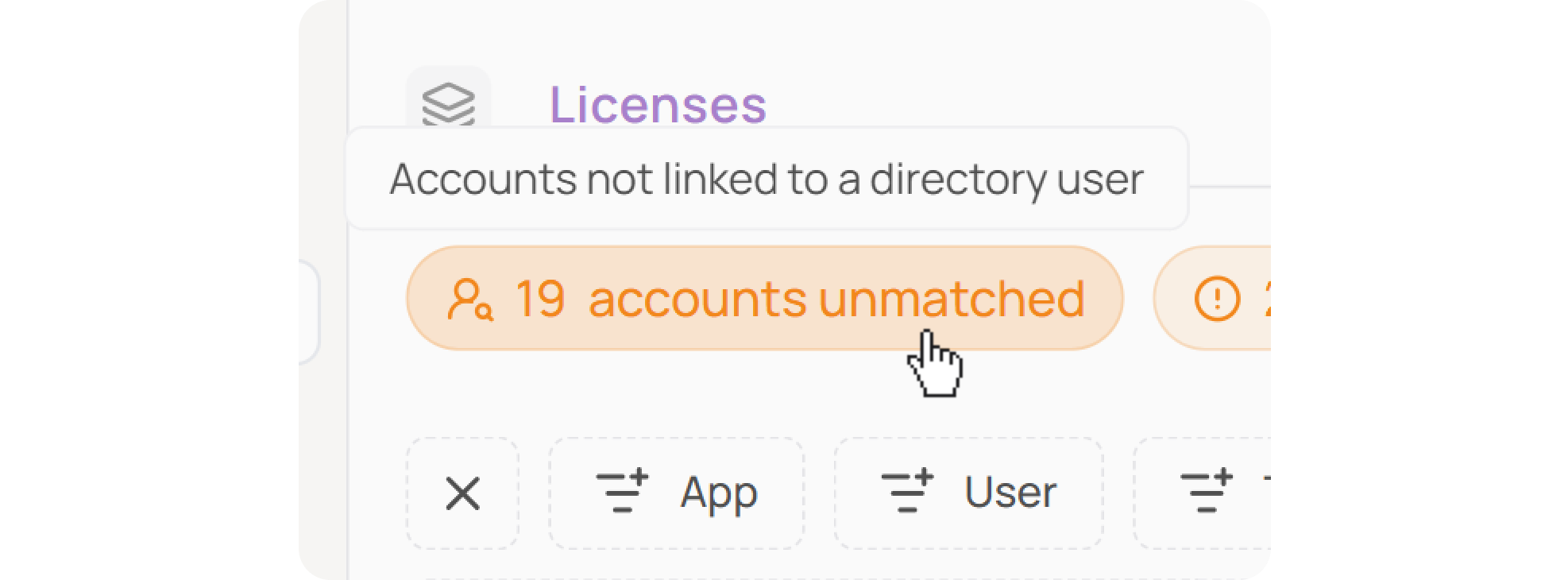
At the top of the Licenses page, a counter shows the total number of unmatched accounts in your workspace, so you can quickly assess how many require attention.
How to Resolve an Unmatched Account
Corma surfaces matching suggestions for each unmatched account based on identity signals like name and email similarity. To manually assign an unmatched license to a user:
Go to Licenses in the left sidebar
Click on "X accounts unmatched" in the top left corner to filter the view on unmatched accounts only
Click on any user name (“User” column) to open the Assign license dialog
Search for the correct user by name or email (active users appear first, followed by archived users)
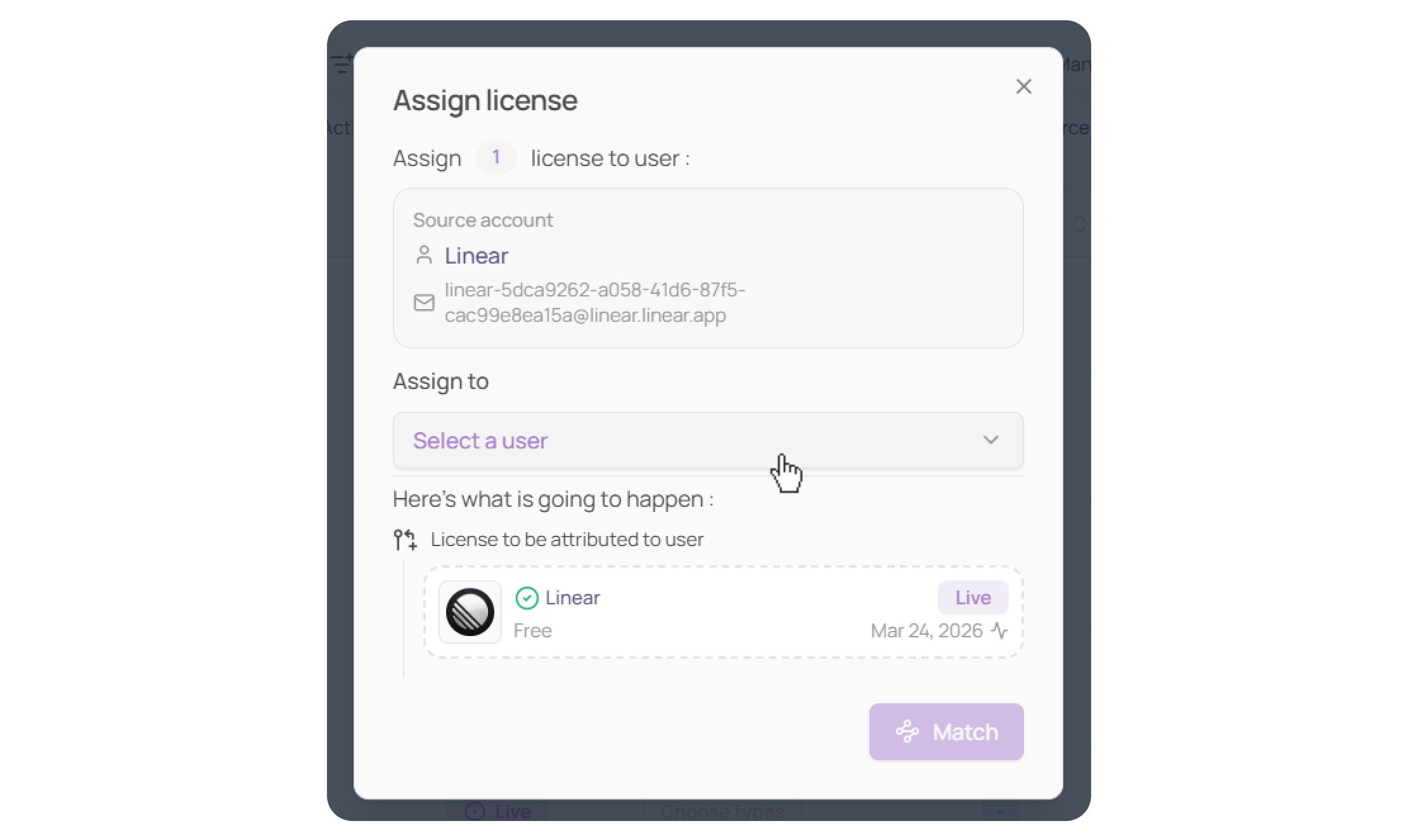
Select the user and click "Match"
Once matched, the license is attributed to that user and will no longer appear as unmatched.
Why It Matters
Unmatched accounts represent a blind spot in your SaaS visibility. Without resolving them:
License costs may go untracked or unattributed
Access reviews cannot cover all active licenses
Offboarding may miss licenses held under different email addresses
Your license count and cost reporting will be incomplete
Keeping unmatched accounts resolved ensures Corma provides an accurate, complete picture of your SaaS stack and access landscape.
Tips
Regularly check the unmatched accounts counter at the top of the Licenses page
Prioritize matching accounts from critical or expensive apps first
For service accounts or shared licenses that don't belong to any individual, you can leave them unmatched or create a dedicated placeholder user
Was this helpful?