How to import invoices into Corma
How to import invoices into Corma
Once a contract exists, keep it up to date by adding invoices as they come in, either in bulk across all your apps, or one at a time for a specific app.
From the Invoices page
Navigate to Contracts → Invoices
Click "Import invoices" in the top right and choose to import PDF files.
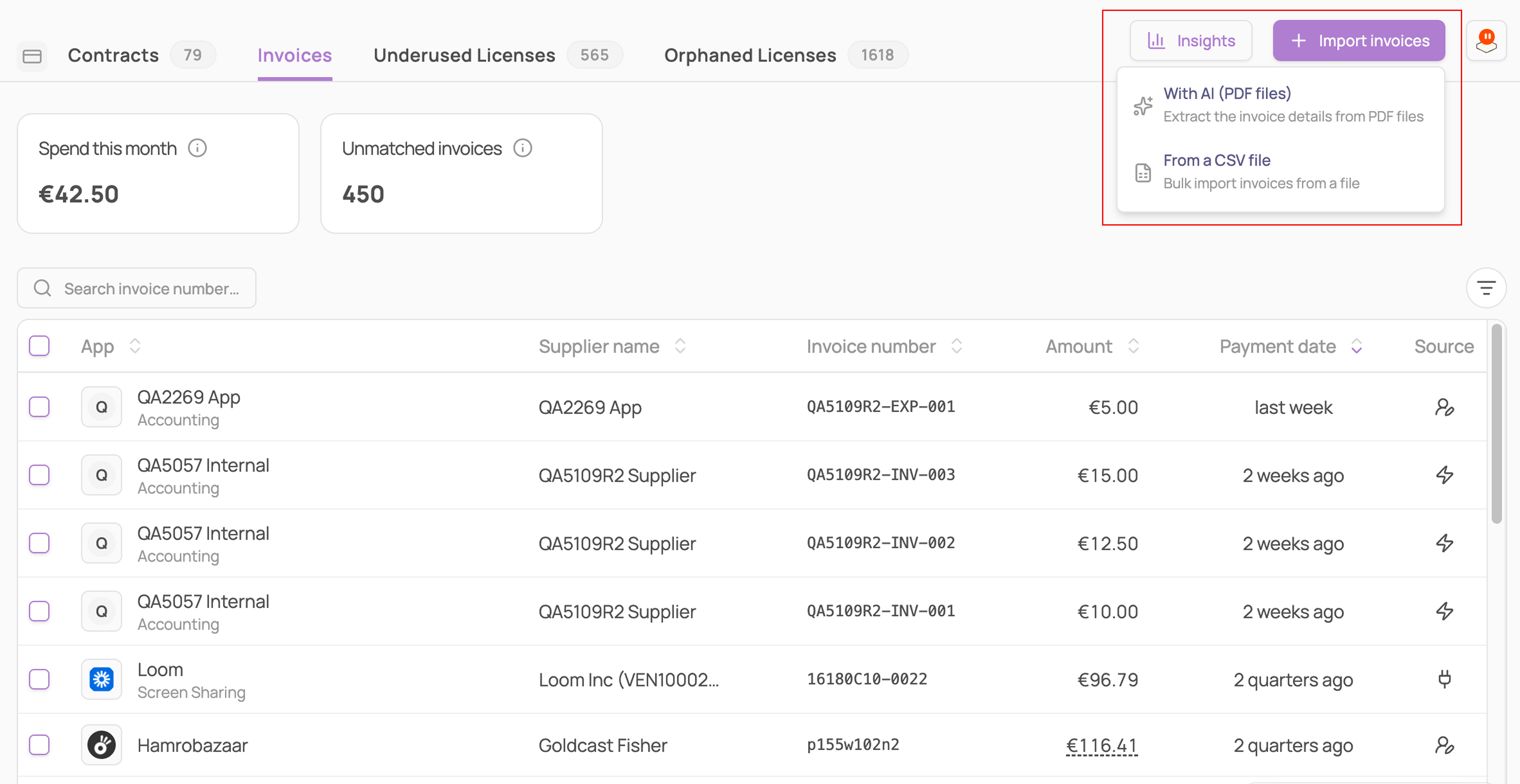
Upload your invoice file(s)
From a CSV file
Navigate to Contracts → Invoices
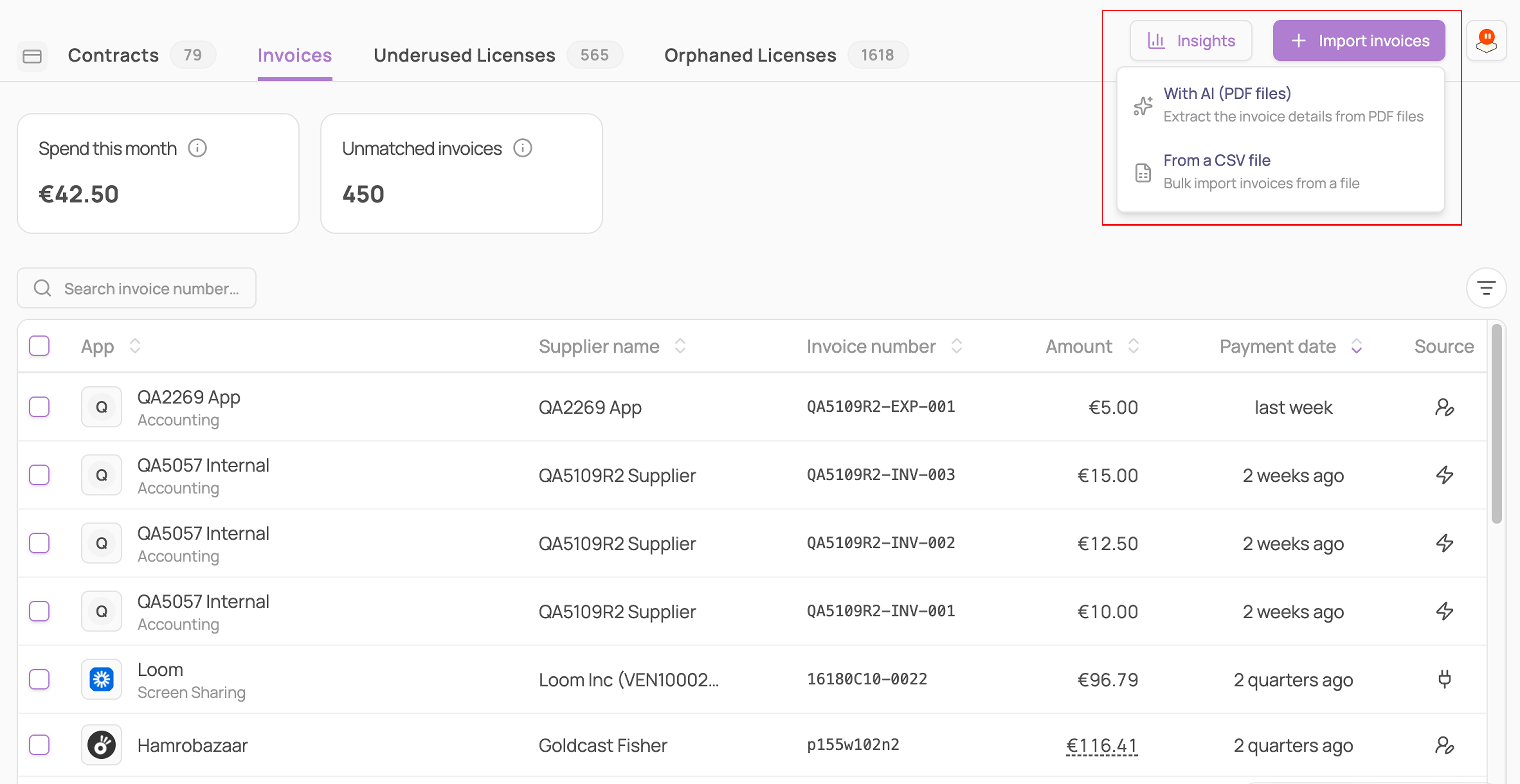
Click "Import invoices" in the top right, then choose "From a CSV file"
Start from the template or upload your own file
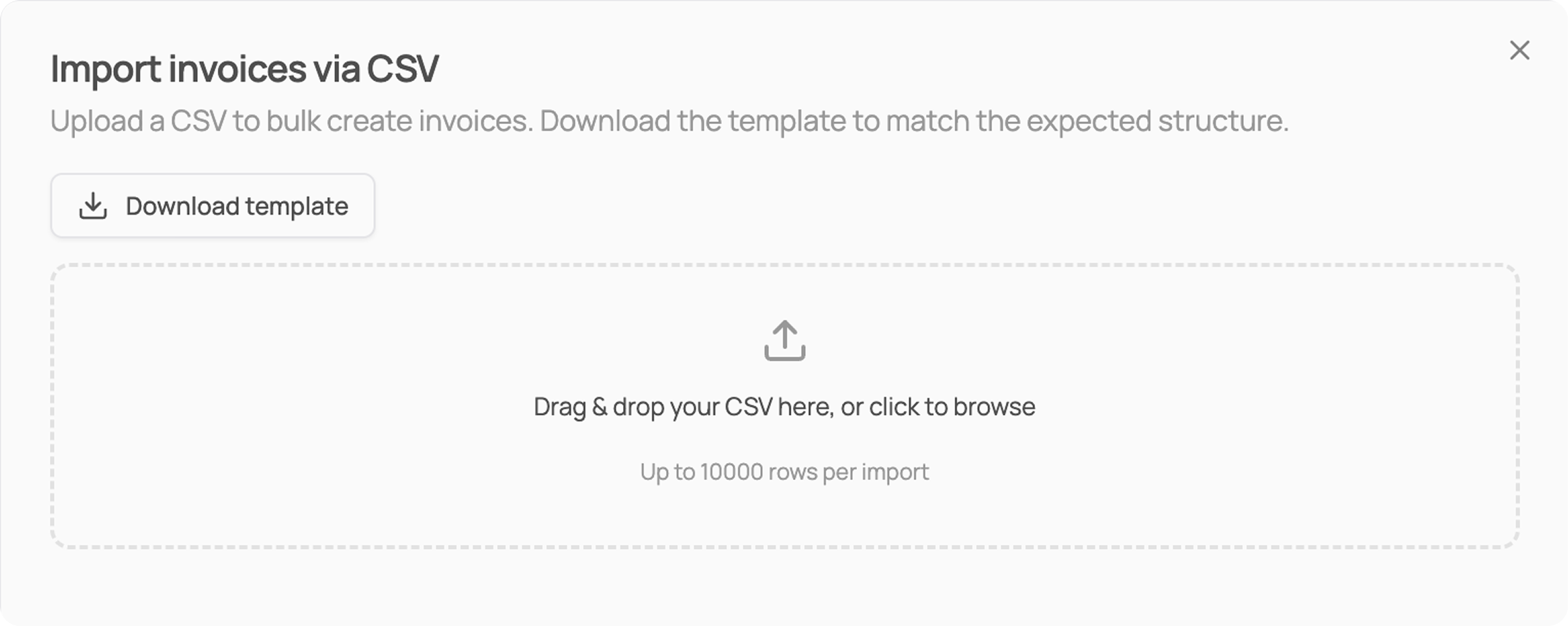
Map your columns to Corma's fields, then pick your date and amount formats
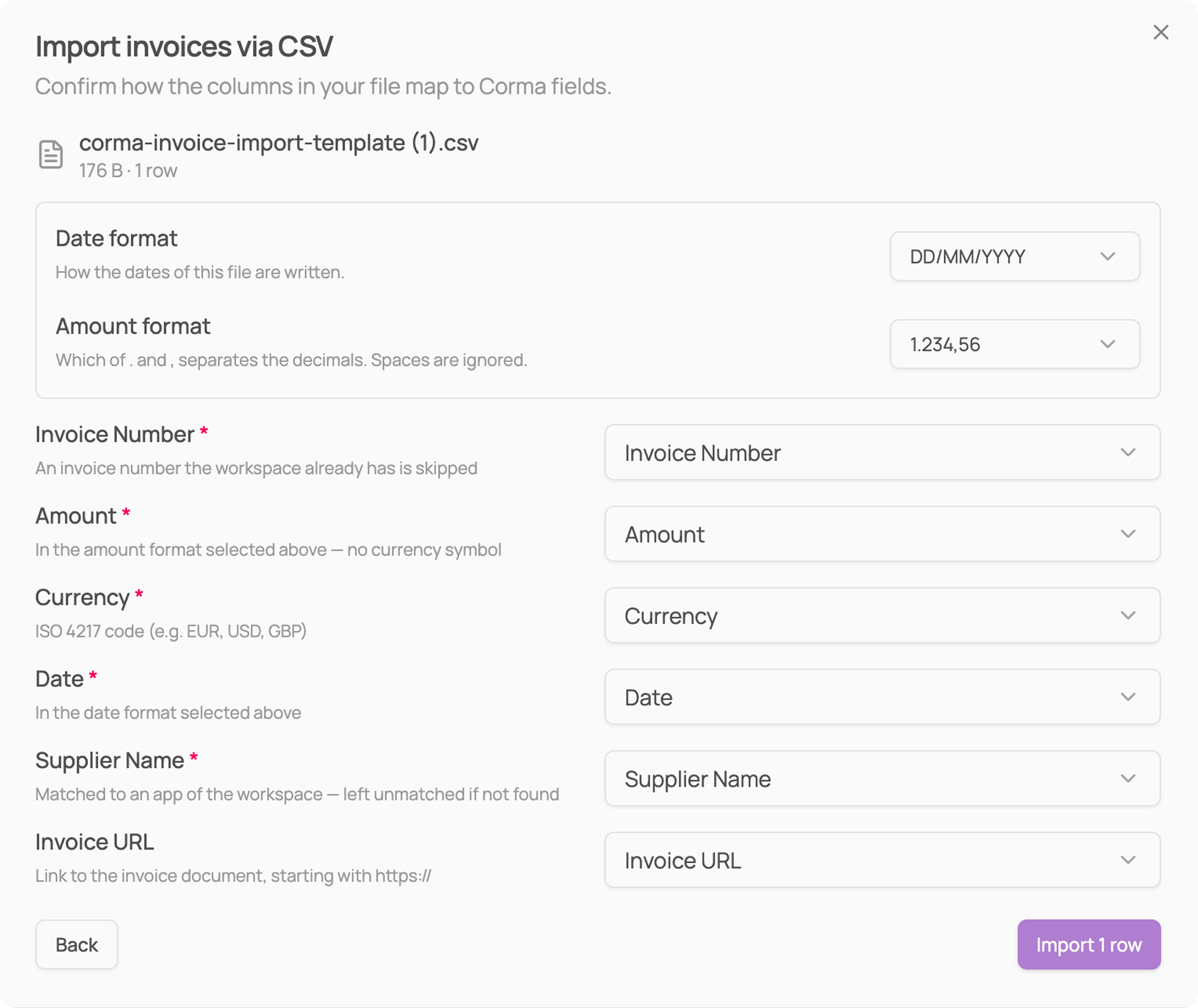
Run the import. Each invoice is matched to an app from its supplier name. Invoices Corma could not match wait under Unmatched invoices for you to attribute to an app.
Invoice numbers already in your workspace, or repeated in the file, are skipped, so importing the same file twice is safe. CSV import is available on every plan.
From a specific app's page
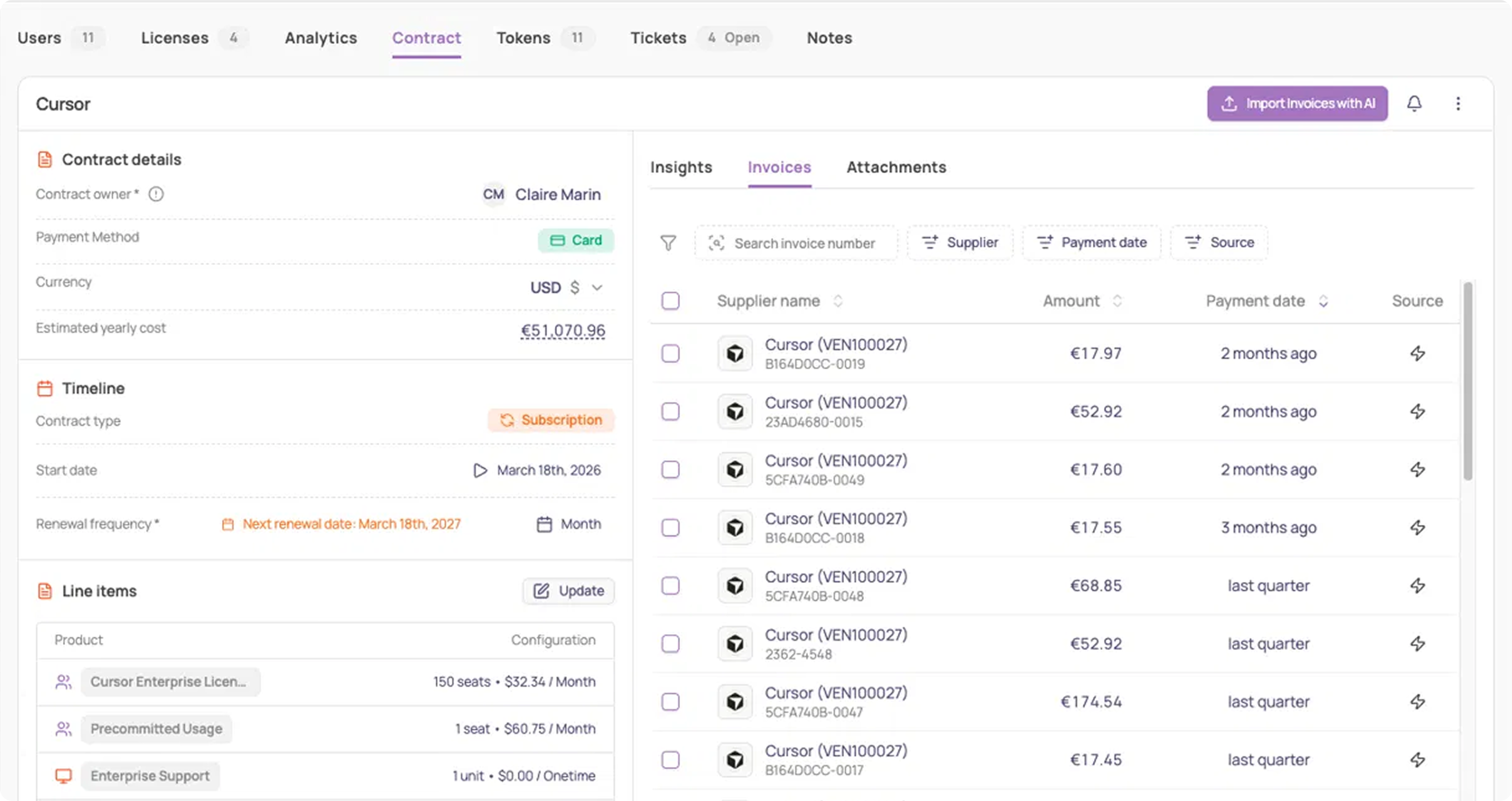
Go to the app's page → Contract tab. You can add an invoice from here regardless of which sub-tab (Insights, Invoices, or Attachments) you're on, since the buttons stay in the header.
Click ⋯ → "Add invoice" to enter one manually (supplier, amount + currency, date paid, invoice number), or click "Import Invoices with AI" to upload a file for just that app
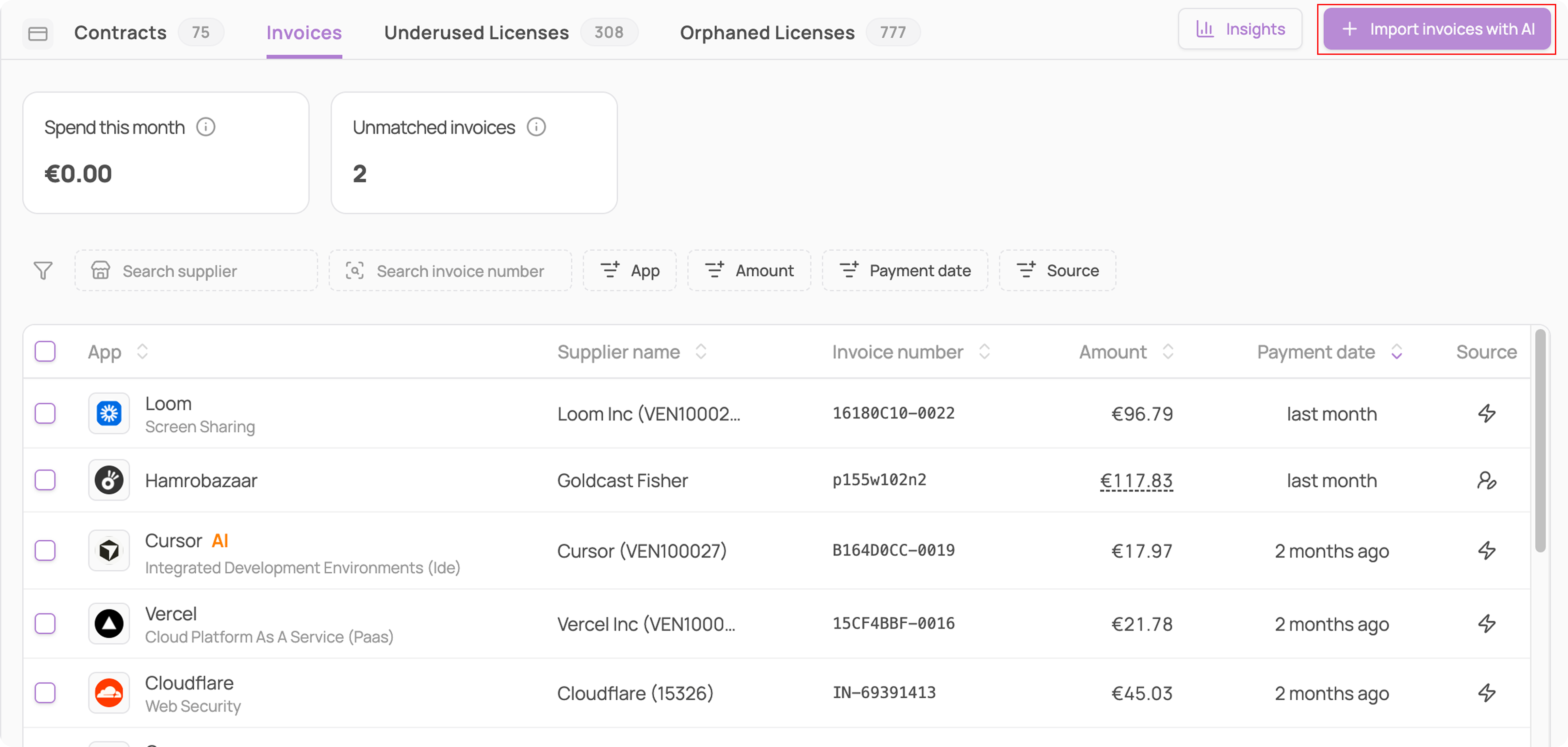
To manage invoices you've already added, go to the Invoices sub-tab. Each row shows the supplier, amount, payment date, and source of your invoice.