
Docs / Concepts
Employee mode
Access your Employee Portal experience
Overview
The Corma Employee Portal empowers you to independently browse available applications, submit access requests, propose new apps, and rate the tools you use. This guide will help you navigate the portal’s key features:
Company App Store
My Apps
Requests
My Tasks
Reviews
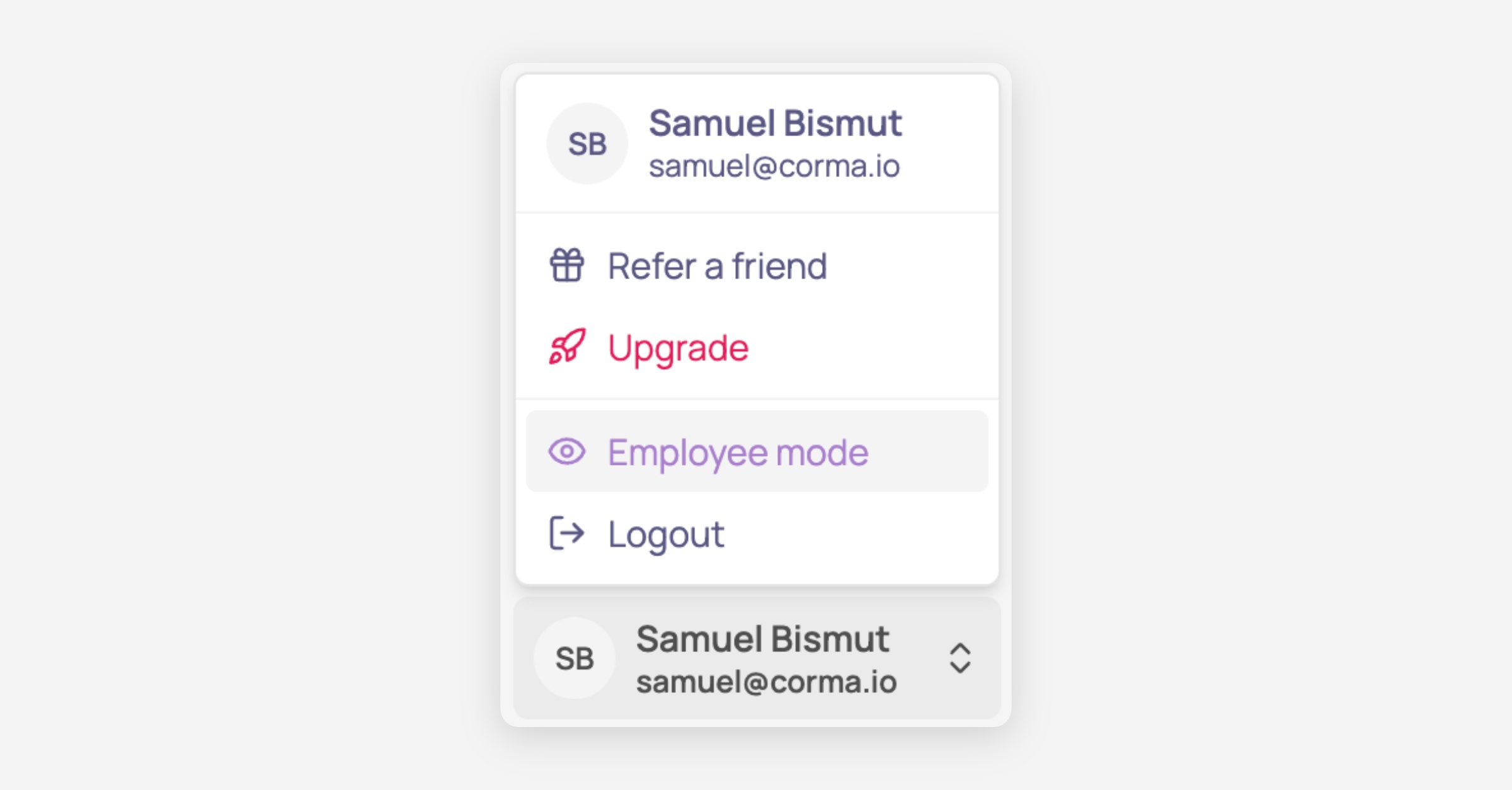
Access the Employee mode by clicking on your name and navigate to Employee mode in the sidebar
Company App Store
The Company App Store is the landing page in the Employee Portal. It provides a clear overview of applications you already have access to and those available for request.
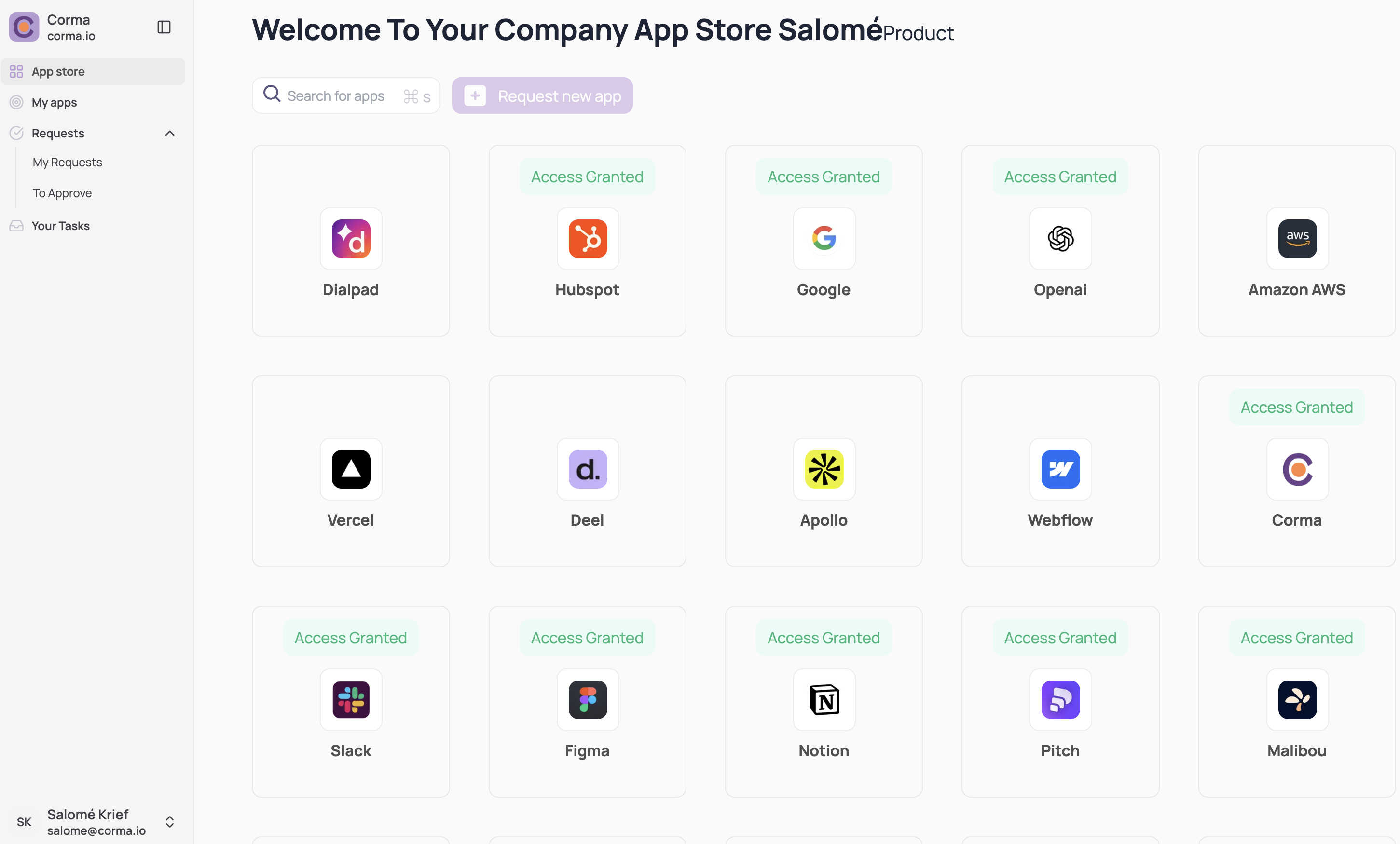
App requests
Employees can also request the adoption of a new app for enterprise use by clicking the Request a new app button. This action prompts the employee to fill in the following details:
License Type
License role
Date Needed
Reasons for request
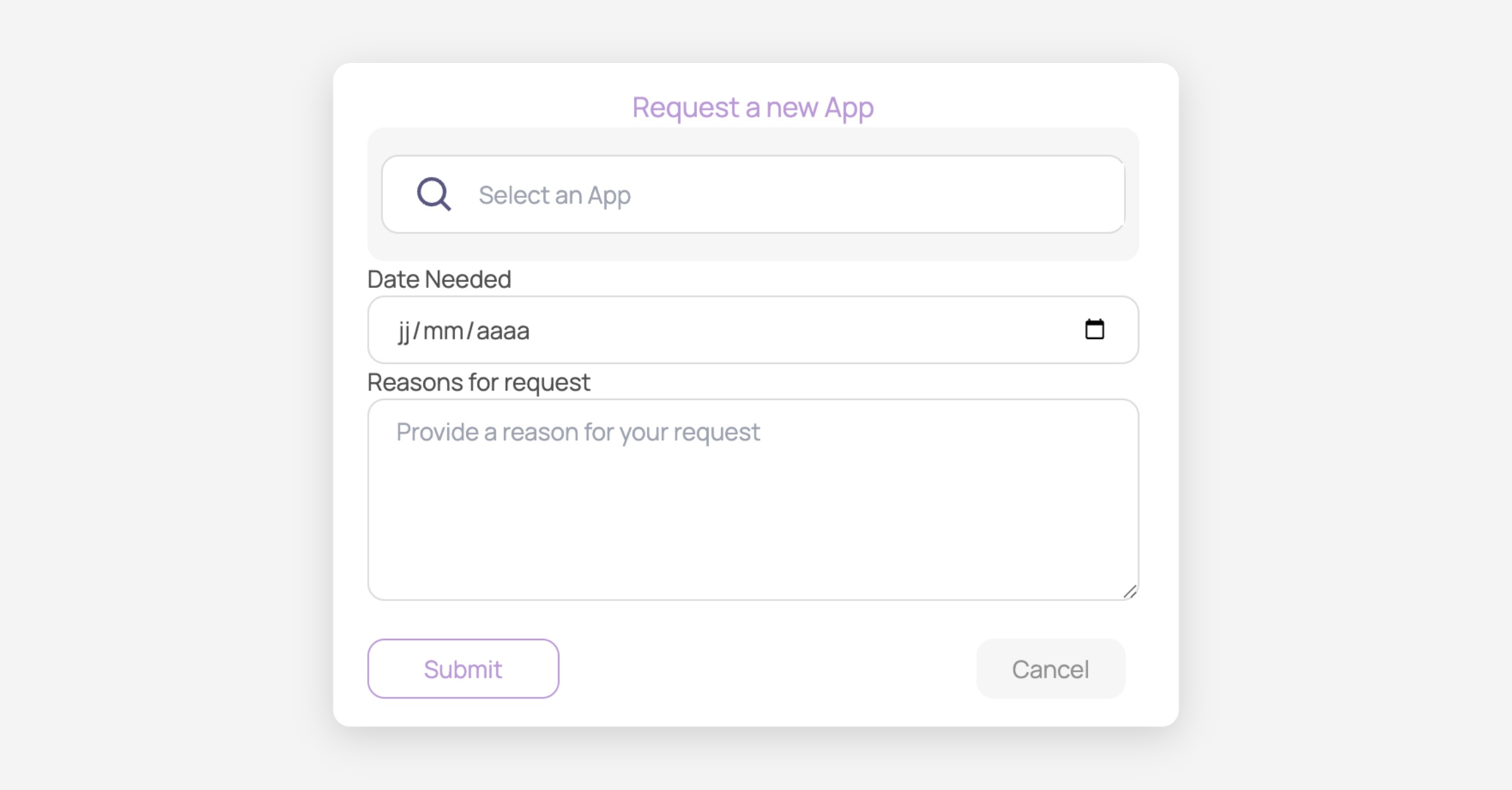
My apps
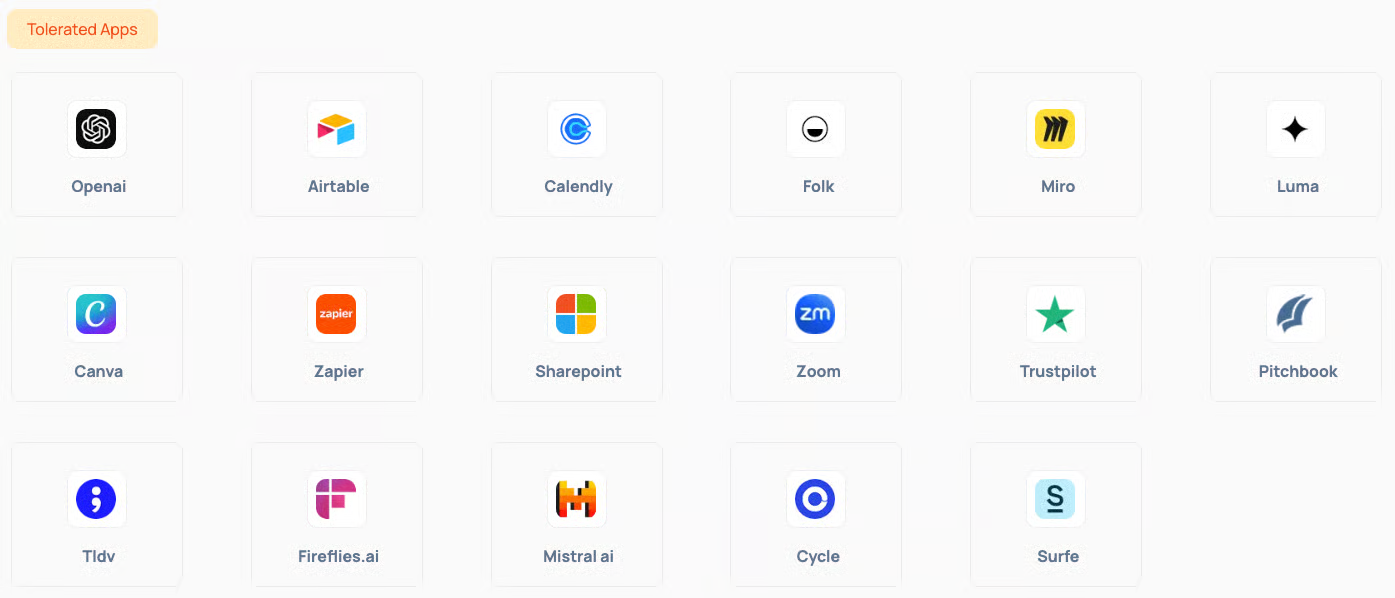
The My Apps section displays a comprehensive list of all applications detected in use across your company. Each application is categorized as:
Authorized: Approved for use
Tolerated: Permitted but not officially endorsed
Unauthorized: Not approved for use
You can click on any application to submit an Access Removal Request if you no longer need access to an app.
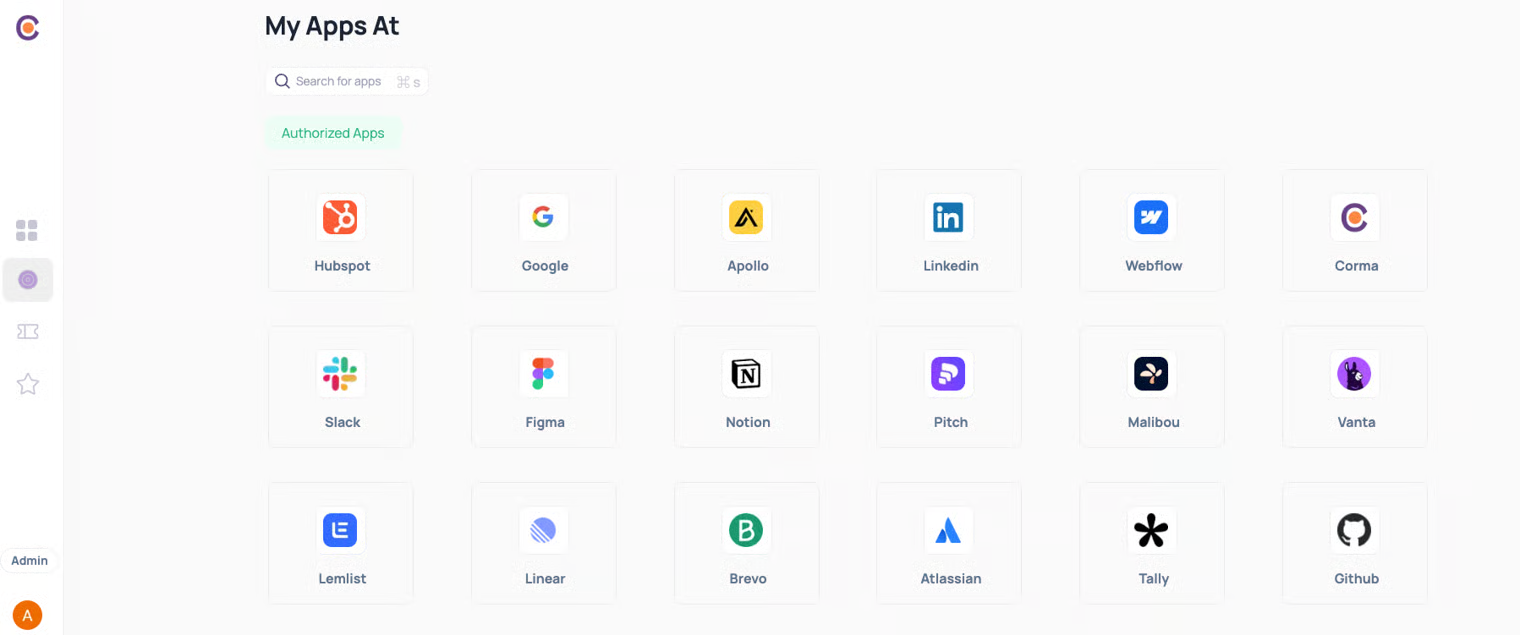

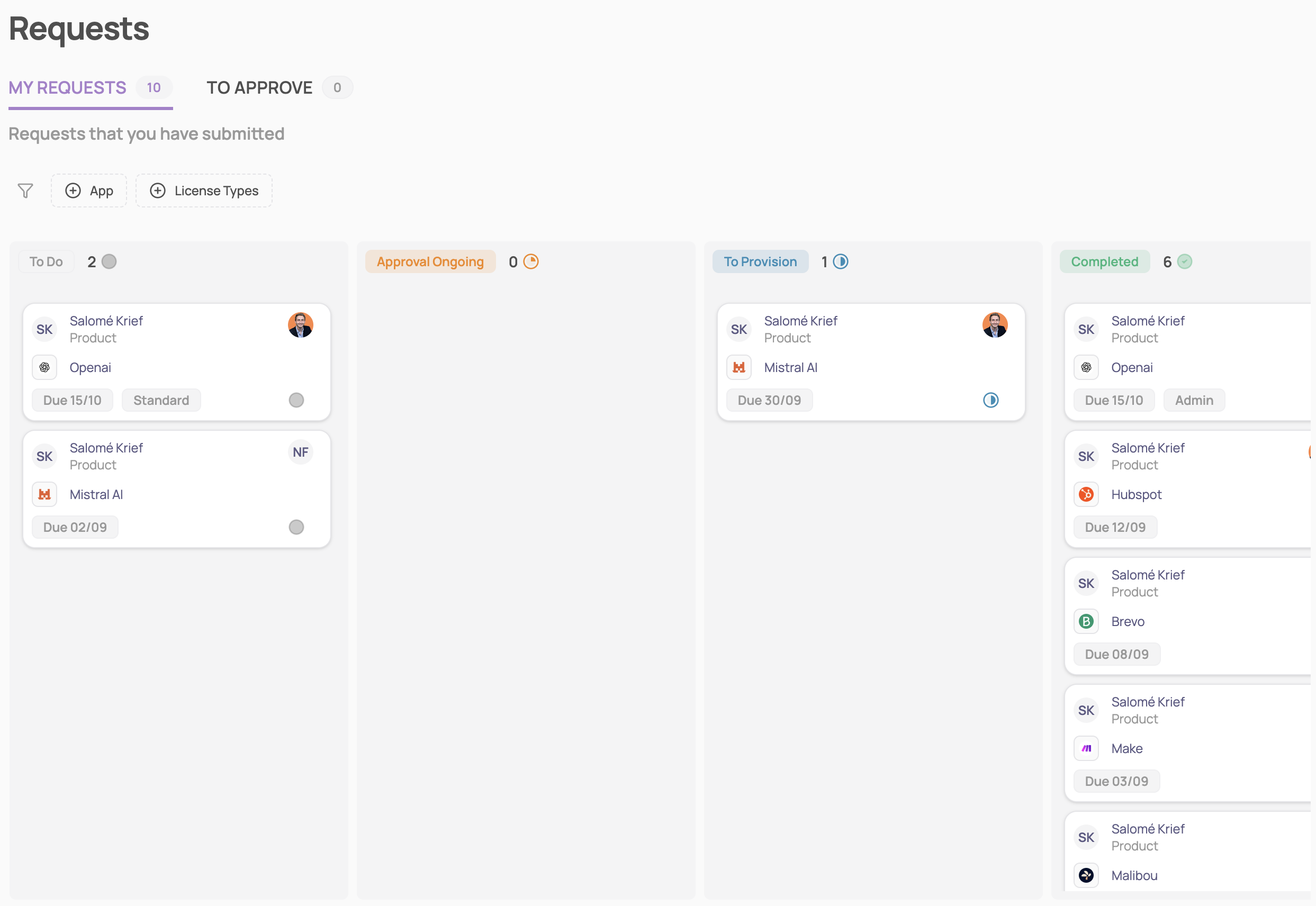
App requests dashboard
The Requests module consolidates all your submitted requests and those awaiting your approval. It provides detailed information, including:
Type of Request
Type of License
Status
Approver
Submitted On date
This centralized dashboard allows you to track the progress of your requests efficiently.
My tasks
The My Tasks module helps you track tasks assigned specifically to you. You can:
View all tasks requiring your attention in one place.
Confirm or deny tasks attributed to you.
Reviews
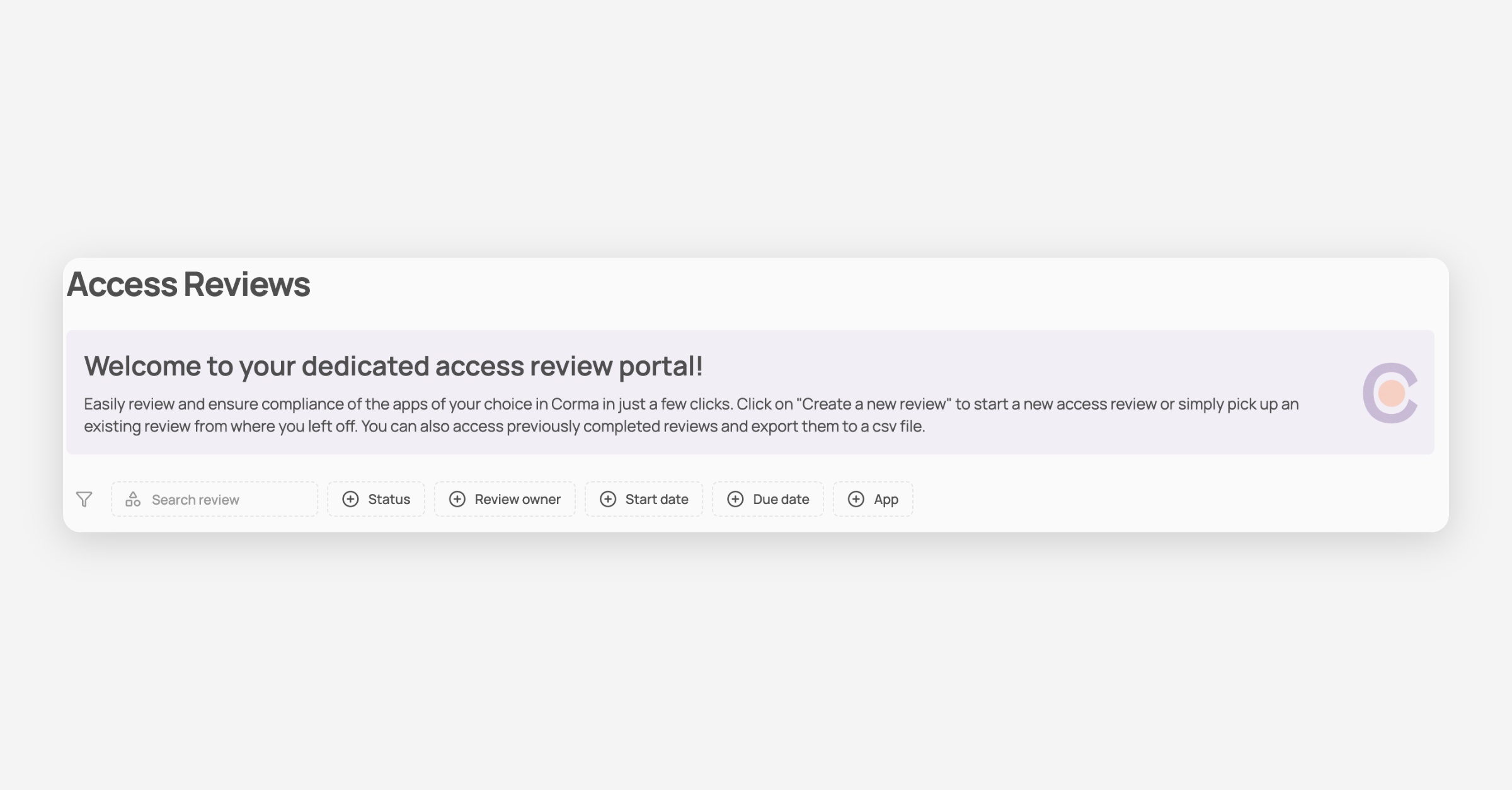
The Reviews module allows you to view access reviews attributed to you.
For more details, refer to the Access reviews module
🎯 Use cases
Was this helpful?