
Microsoft Entra ID

An Application Administrator role is required to connect Microsoft to Corma
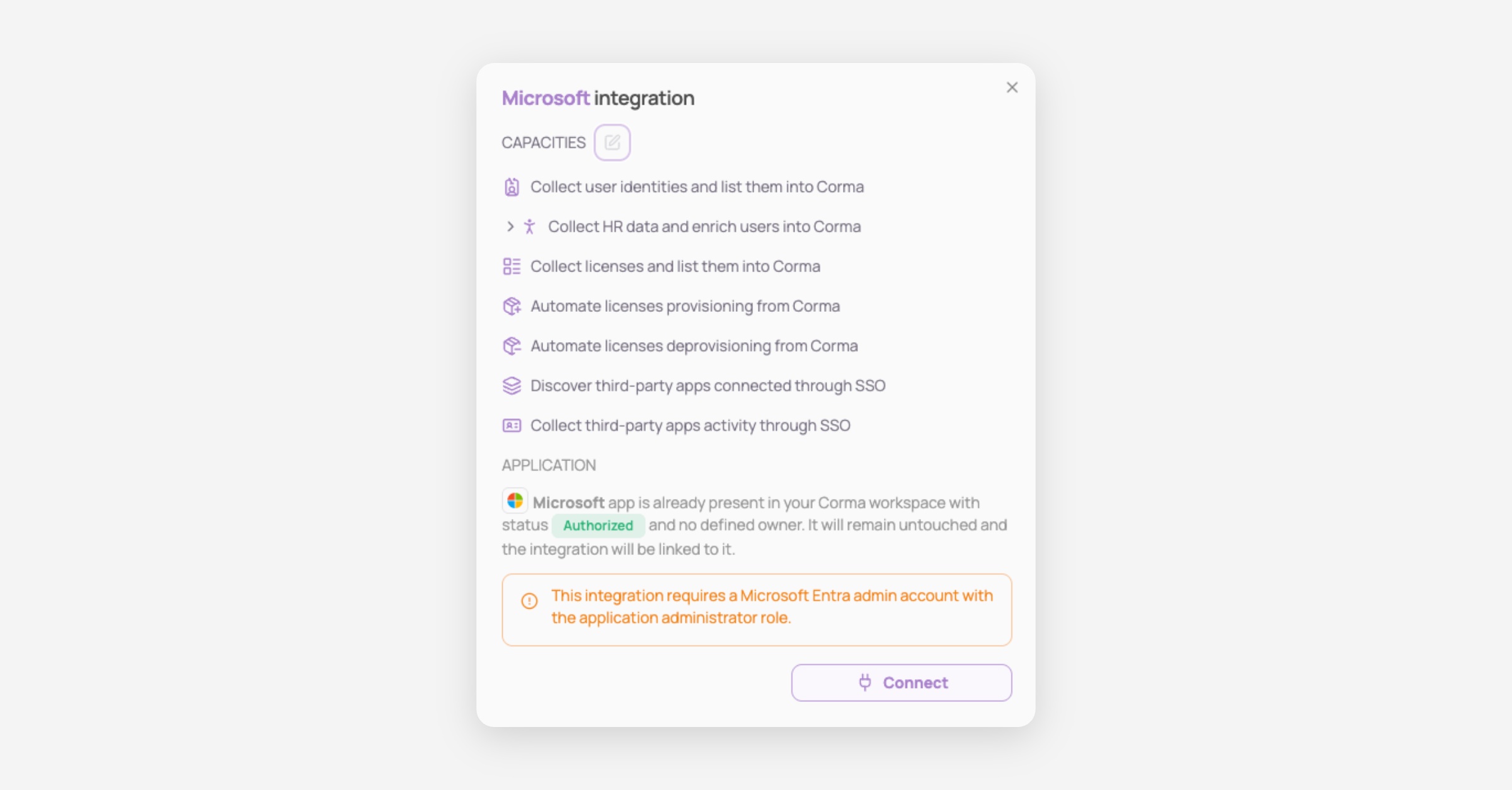
On your Corma app go to the integrations page
Under "Identity providers" click on "Connect" for Microsoft Entra ID (⚠️ this account must have admin access to Entra ID)
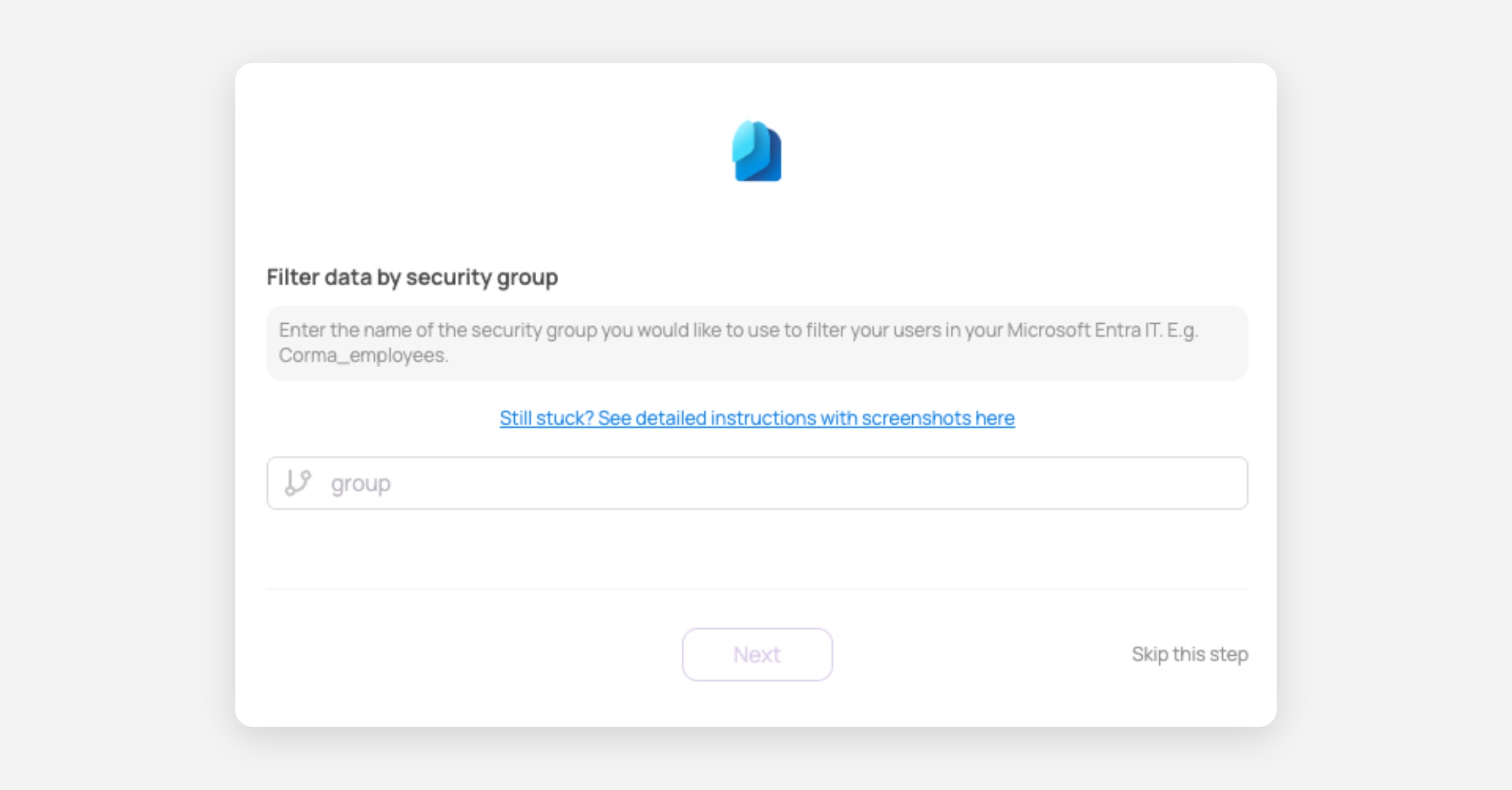
Filter data by security group
Or click on skip this step to synch all users from your Entra
Retrieve your security group
Log in to Microsoft Entra ID and Navigate to Groups
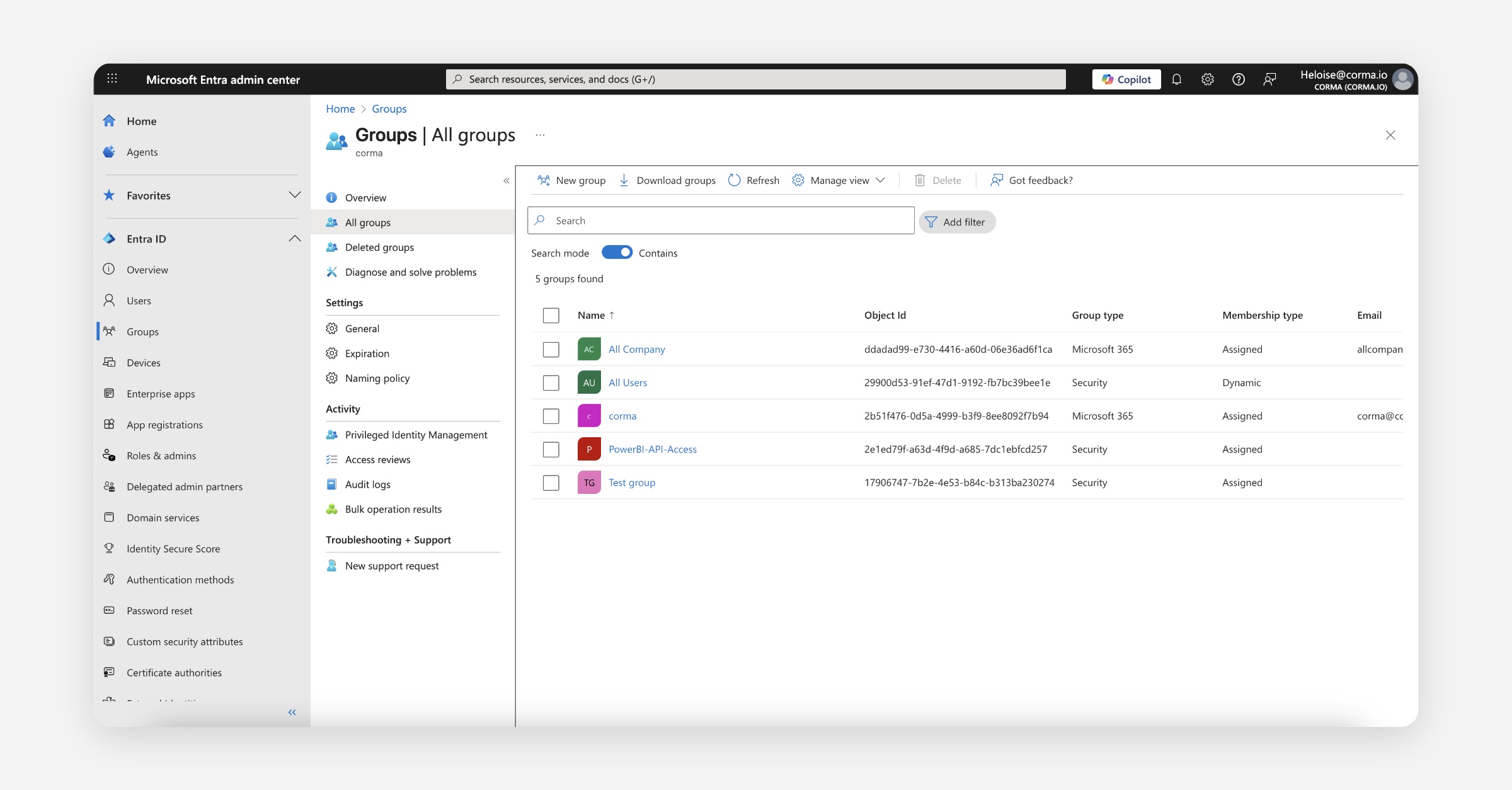
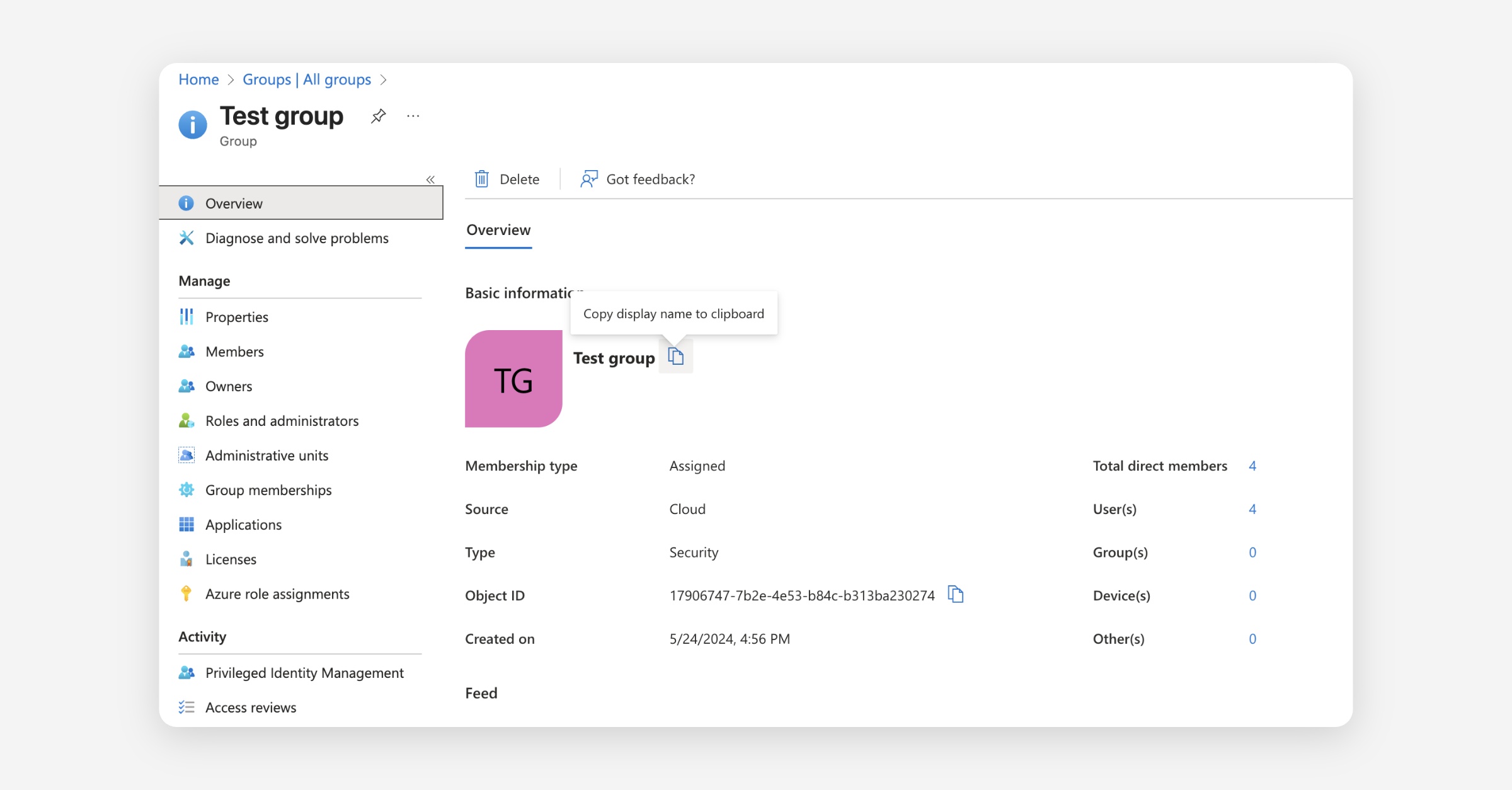
Select a security Group with the users you want Corma to synch
Copy the groups name from Entra and past it in Corma
Select your professional Entra ID account
Authorize Corma to access the different scopes
Refresh the page if button still shows "connect"
You’re all set !
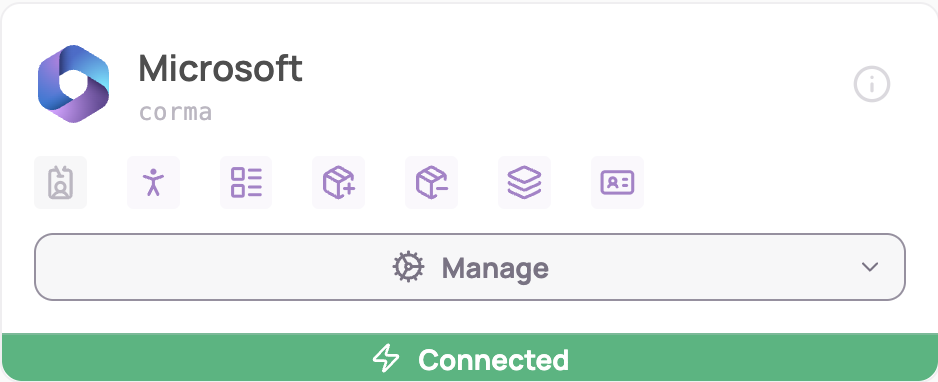
You may encounter an error when attempting to connect the Microsoft integration, even when using credentials from a user who is a Global Admin and Application Admin
To fix the issue, please follow these steps:
In settings, invite as admin the Microsoft admin account that will connect Corma to Entra.
Log out of Corma.
Log back in to Corma using Microsoft SSO. Make sure you sign in with the same Entra admin email that was invited.
Go to the Integrations page in Corma.
Connect Microsoft. Ensure the connection is completed using the same Microsoft admin account.
Additional relevant information regarding the Microsoft connector
You have the possibility to filter on Microsoft groups the users that will be imported into Corma. When connecting Microsoft or by going to Connectors > Microsoft > Settings, you can edit at any time the Entra group filtering your are applying
User synced from Microsoft Entra will be mapped as follows:
Member in Entra <> Employee in Corma
Guest in Entra <> External in Corma
Was this helpful?