

How to connect Corma to your Microsoft tenant account
This article covers the process to auto-install the Corma Launcher extension on the Chrome & Edge web browser on a Window computer using Microsoft Intune, which involves:
Pushing an administrative template to end-user devices (steps 1-3).
Validating that the installation was successful (Step 4).
The installation process doesn’t identify the visitors (end-users) or include metadata about them. Pair this installation with a follow-up configuration to identify visitors to Corma.
For complete documentation on using Intune to push administrative templates, see Microsoft's article: Using the settings catalog.
Prerequisites
⚠️ Prerequisite Check
Google Admin Console Conflict: This installation method is not compatible if you already use Google Admin Console to manage Chrome extensions on target devices. If so, continue using Google Admin Console for Corma.
Separate Profiles: Chrome and Edge policies must be configured as two separate profiles in Intune.
Before you continue, we recommend that you communicate efficiently with your teams on the Corma app. You can use our one pager communication document for this purpose.
Find below the detailed steps for the following prerequisites:
Create a configuration profile
Configure your new profile
Complete the profile creation workflow
Validate the installation
Create a configuration profile
Sign in to the Microsoft Intune admin center
Navigate to Devices > Configuration Profiles
Select + Create profile above the Search bar
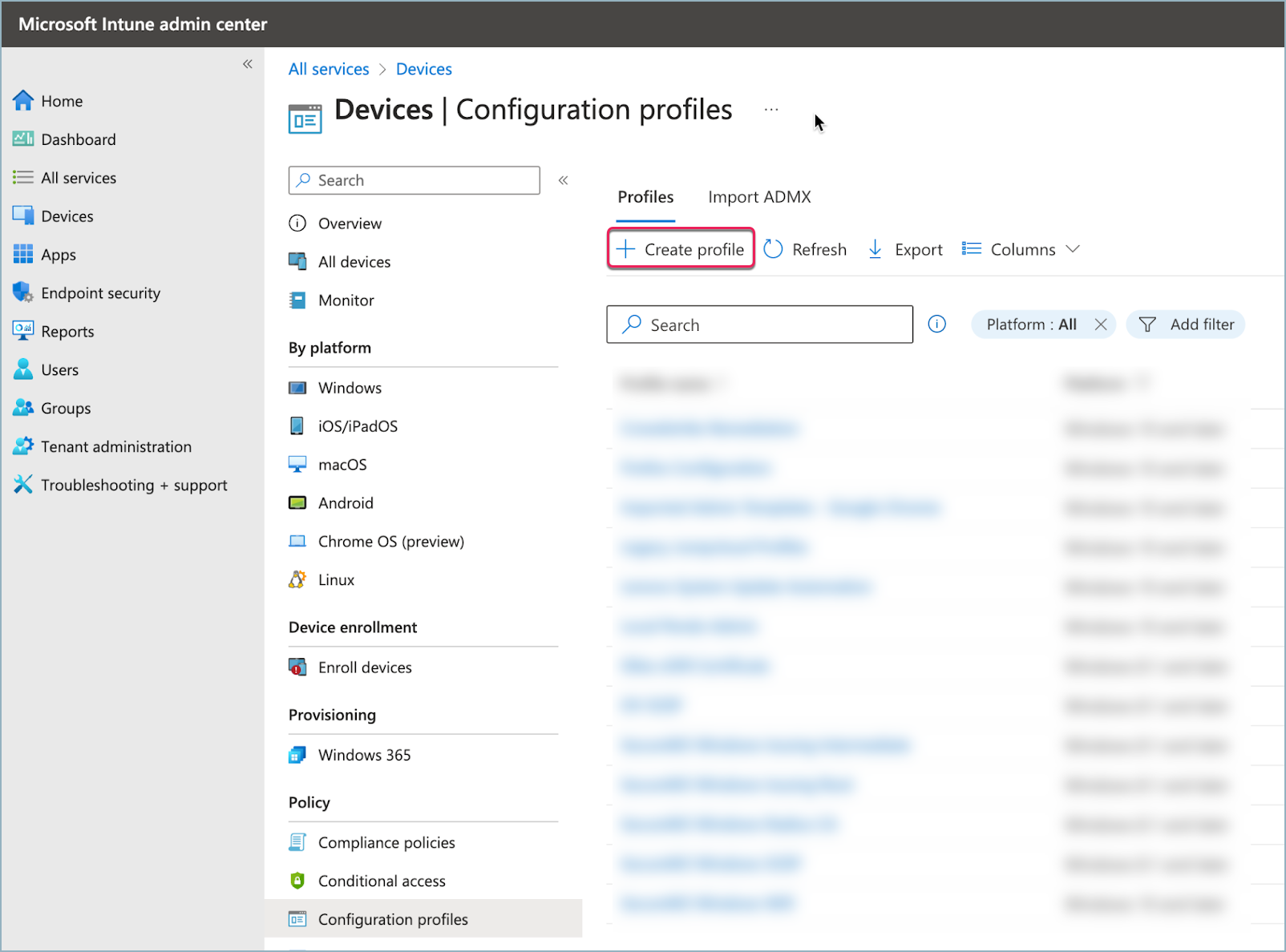
In the profile settings:
Platform: Select
Windows 10 and later.Profile type: Select
Settings Catalog.
Select Create in the bottom-left corner of the form
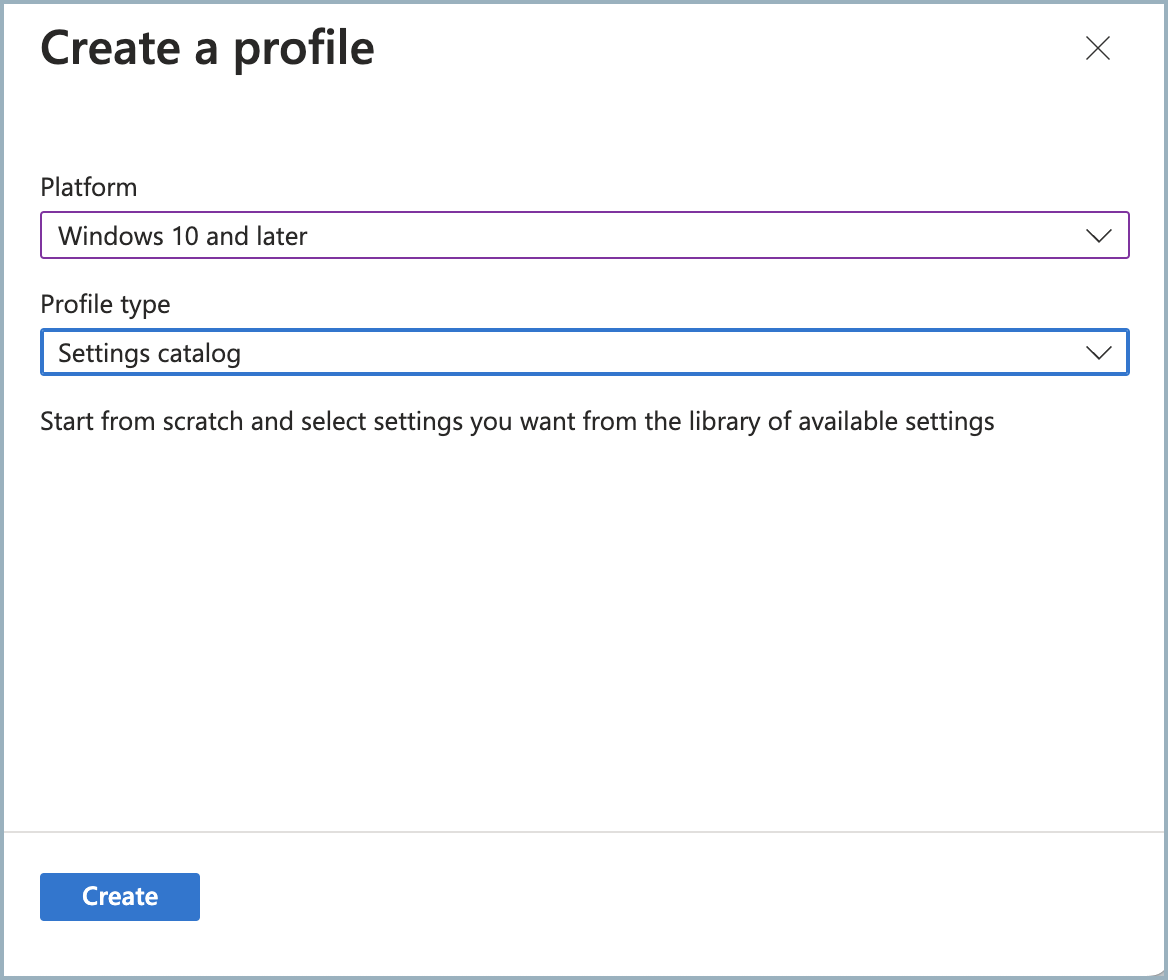
Select Create in the bottom-left corner.
In the Basics tab, enter a name (e.g., Corma Launcher - Chrome) and an optional description.
Select Next to open Configuration settings.
Configure extension settings
In the Configuration settings tab, select + Add settings. This opens a settings pane.
Configure the extensions (both can be done at the same time in the same policy.
For chrome extension:
In the Configuration settings tab, select + Add settings.
Search for
ExtensionInstallForcelistin the Settings picker search bar.Select Configure the list of force-installed apps and extensions under Google > Google Chrome > Extensions.

Close the settings picker side pane.
Toggle the setting to Enabled.

Enter the Corma Chrome extension string into the input box:
iolppafpkhfdepflackhngphhjkocjoa;https://clients2.google.com/service/update2/crx
For Microsoft Edge
Download the Microsoft Edge Policy Templates.
Extract the archive and navigate to
windows\admx.Copy
msedge.admx,msedgeupdate.admx, andmsedgewebview2.admxtoC:\Windows\PolicyDefinitions\.Copy matching
.admlfiles fromwindows\admx\en-UStoC:\Windows\PolicyDefinitions\en-US\.Open Group Policy Management Editor for your GPO.
Navigate to:
Computer Configuration > Policies > Administrative Templates > Microsoft Edge > ExtensionsRight-click Control which extensions are installed silently and select Edit.

Close the settings pane
Select Enabled

In the Value column, paste:
olpgbphkganafbdmkdjddhpfhnjoapke
Click OK to close the contents window, then click Apply and OK.
⚠️ Chrome and Edge profiles need to be configured as 2 seperate profiles
Complete the profile creation workflow
(Optional) Adjust scope tags in the Scope tags tab if required by your organization.
For full documentation on scope tags, see Microsoft's article: Use role-based access control (RBAC) and scope tags for distributed IT.
Select Next to open the Assignments tab.
Assign the profile to target users or devices.
ℹ️ Tip: We recommend targeting a single test device first before rolling out to larger employee groups.
Select Next to open Review + create.
Review your configuration and select Create.
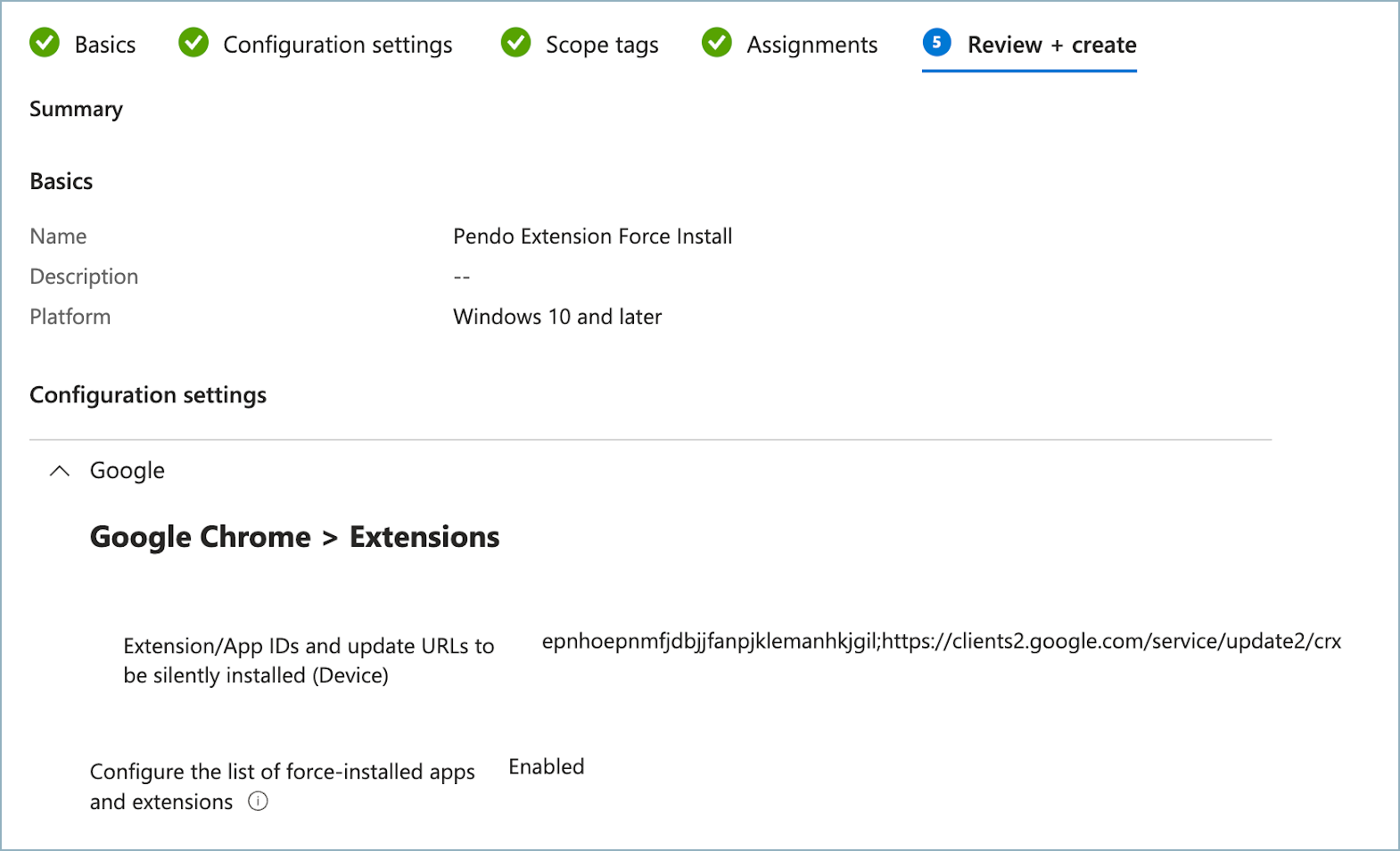
Validate the installation
Confirm Registry Key Presence On a target Windows device:
Open the Registry Editor (regedit).
Navigate to:
HKEY_LOCAL_MACHINE > SOFTWARE > Google > Chrome > ExtensionInstallForceList
Verify that a key exists containing:
epnhoepnmfjdbjjfanpjklemanhkjgil;<https://clients2.google.com/service/update2/crx>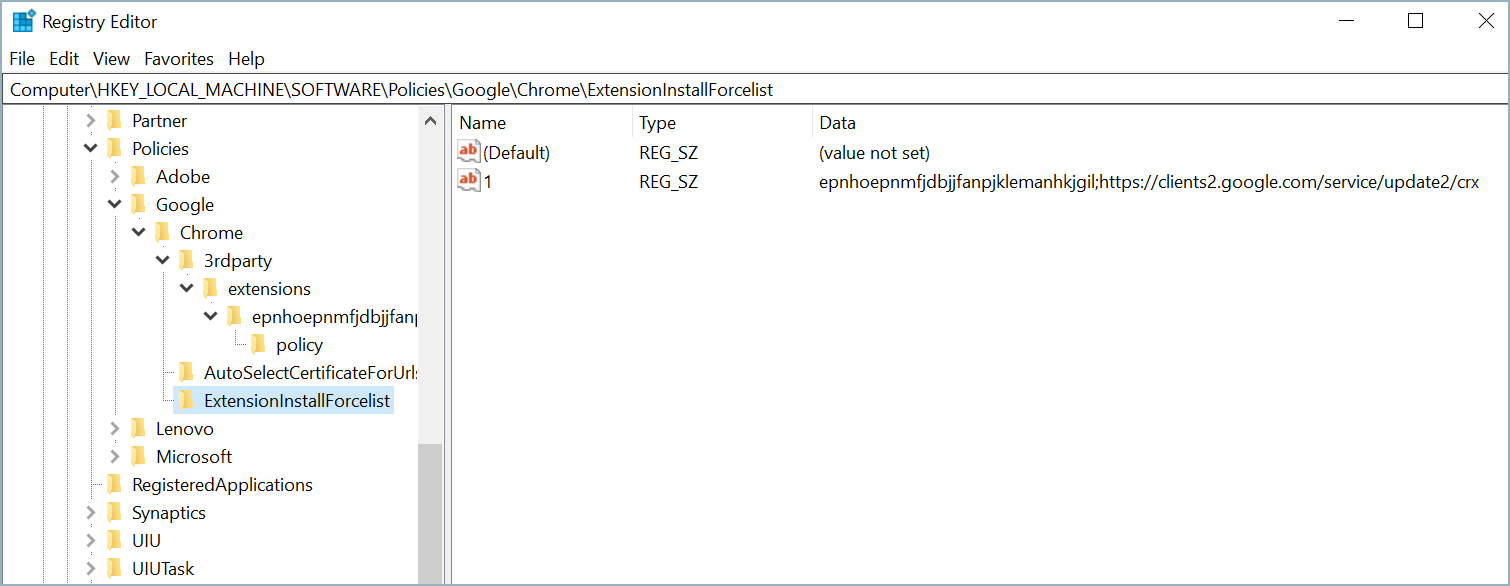
Confirm Extension in Browser
Open Google Chrome or Microsoft Edge on the target device (restart if open).
Open
chrome://extensionsoredge://extensionsin your browser.Confirm that Corma Launcher is listed and managed by your organization.