Group Policy Object (GPO)
How to deploy extensions using GPO
This article explains how to create a Group Policy Object (GPO), link it to an Organizational Unit (OU), and force-install the Corma browser extension across domain-joined Windows devices.
Note: GPO deployment applies to Windows domain environments. For macOS devices, deploy via Jamf or Kandji.
Step 1: Open Group Policy Management as Administrator
Press the Windows Key or click the Start Menu.
Type
Group Policy Managementorgpmc.msc.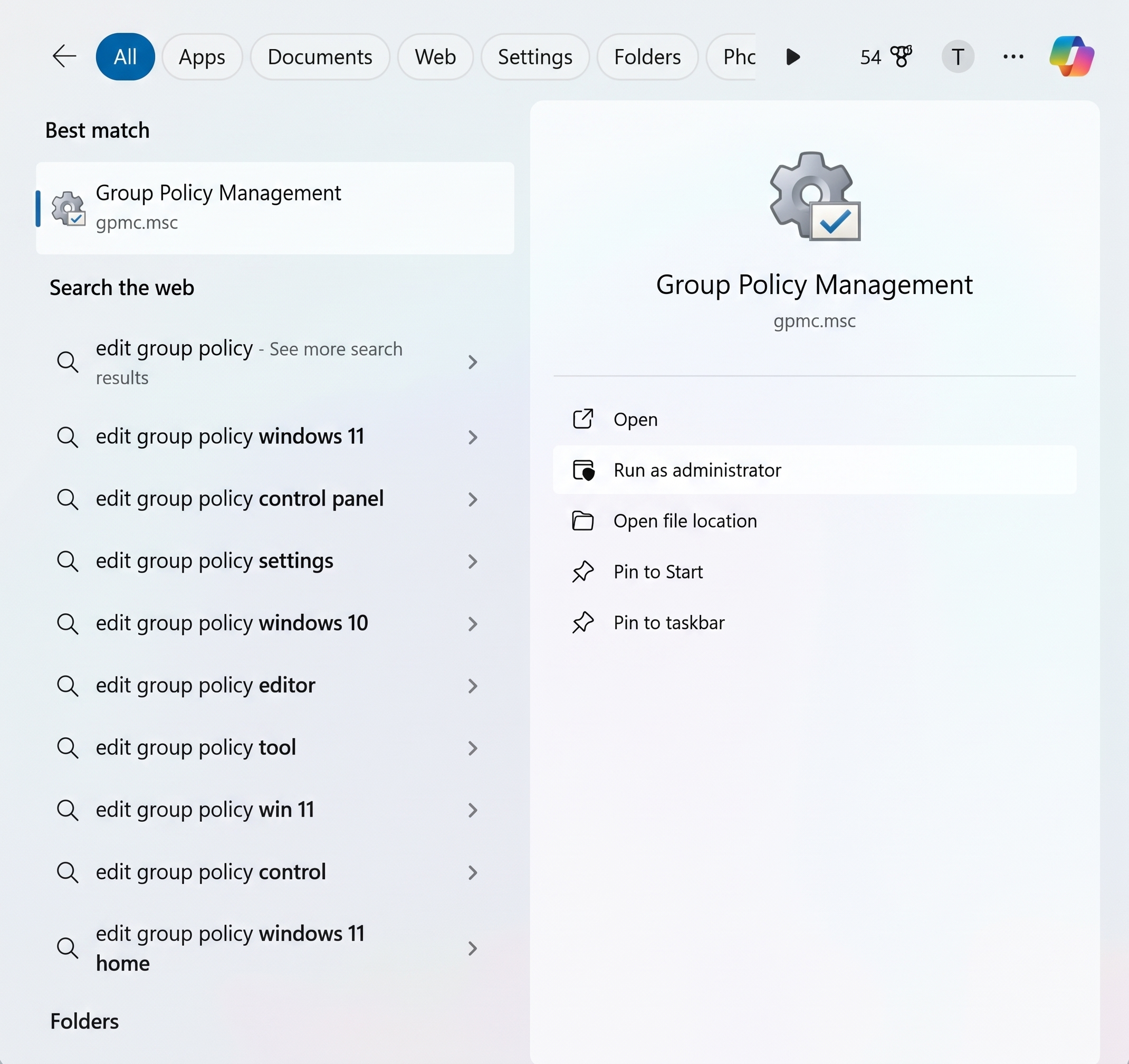
In the right-hand preview panel, click Run as administrator.
Step 2: Create a New GPO and Link It to an OU
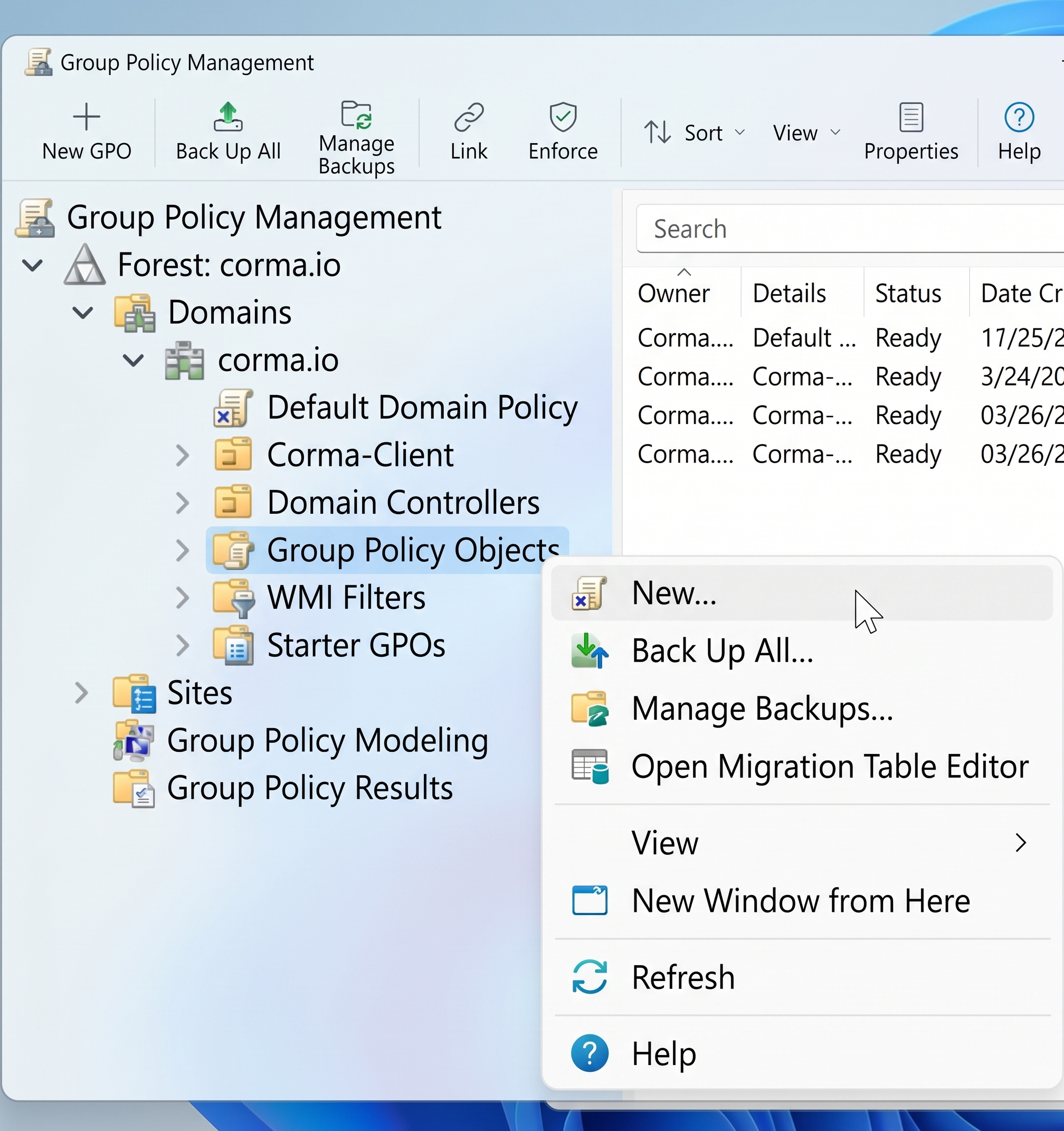
In the Group Policy Management console, expand your domain forest.
Right-click Group Policy Objects and select New.
In the New GPO dialog, enter
Corma-GPOunder Name: and click OK.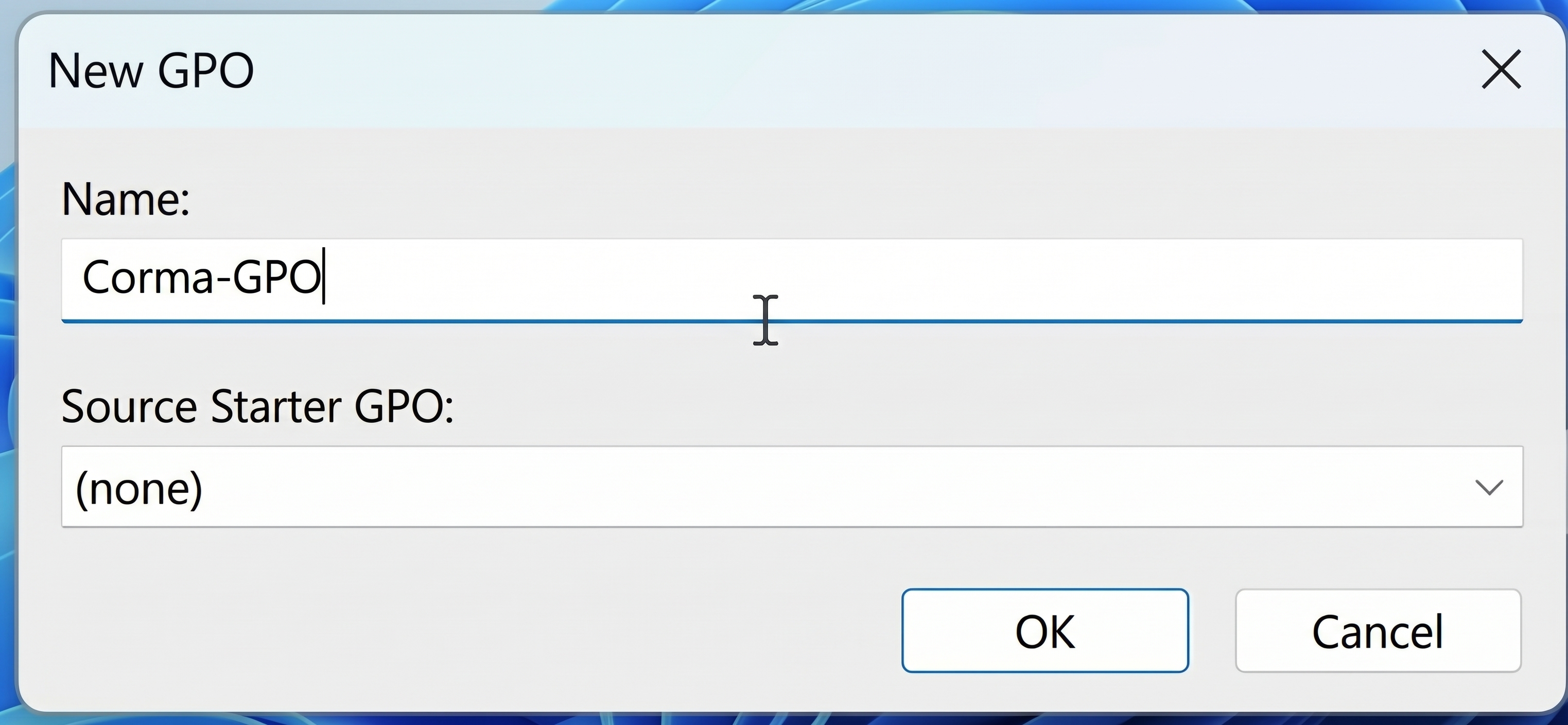
Right-click your target Organizational Unit (OU) containing your managed devices (e.g.,
Corma-Client).Click Link an Existing GPO....
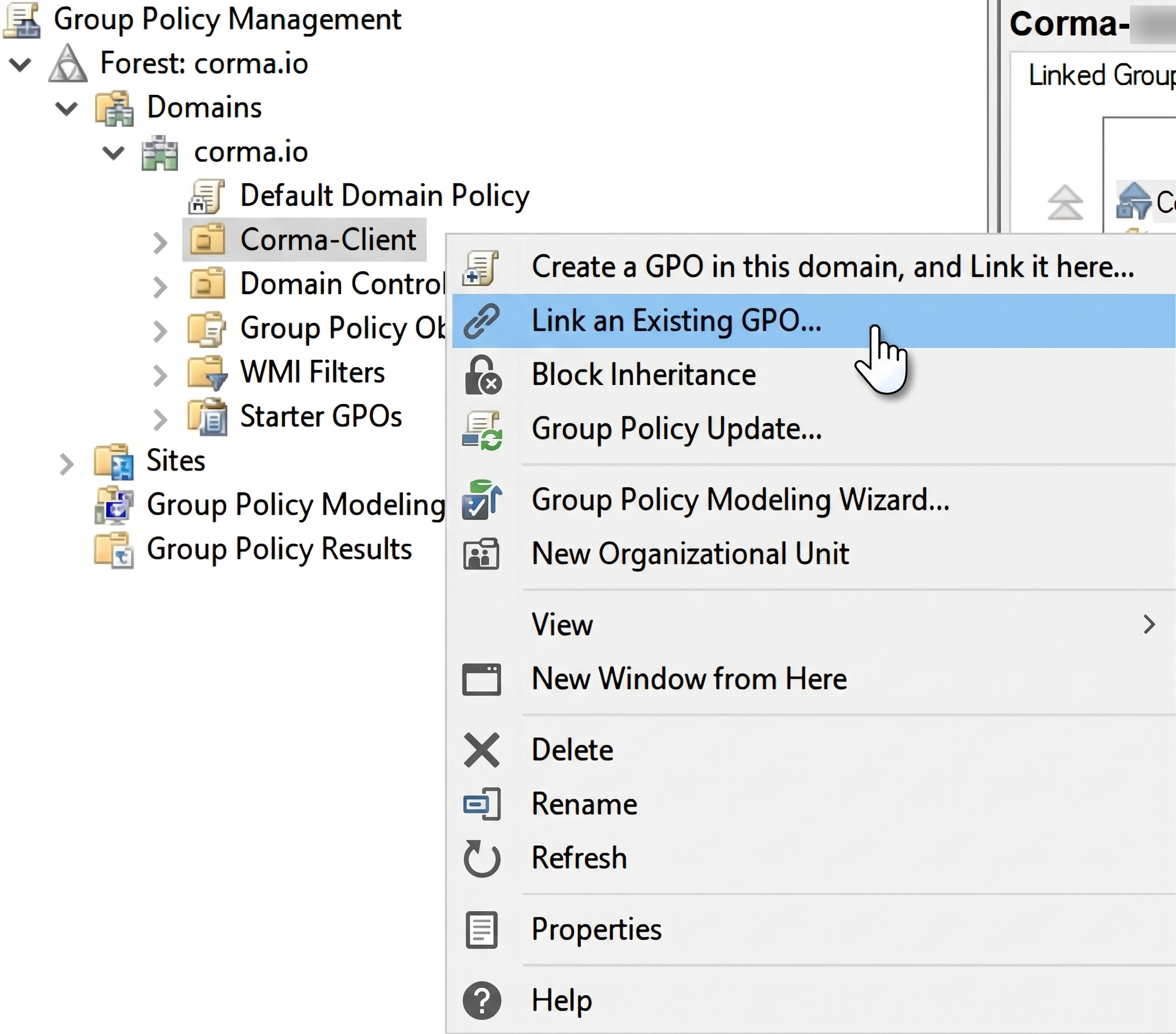
Select
Corma-GPOfrom the list and click OK.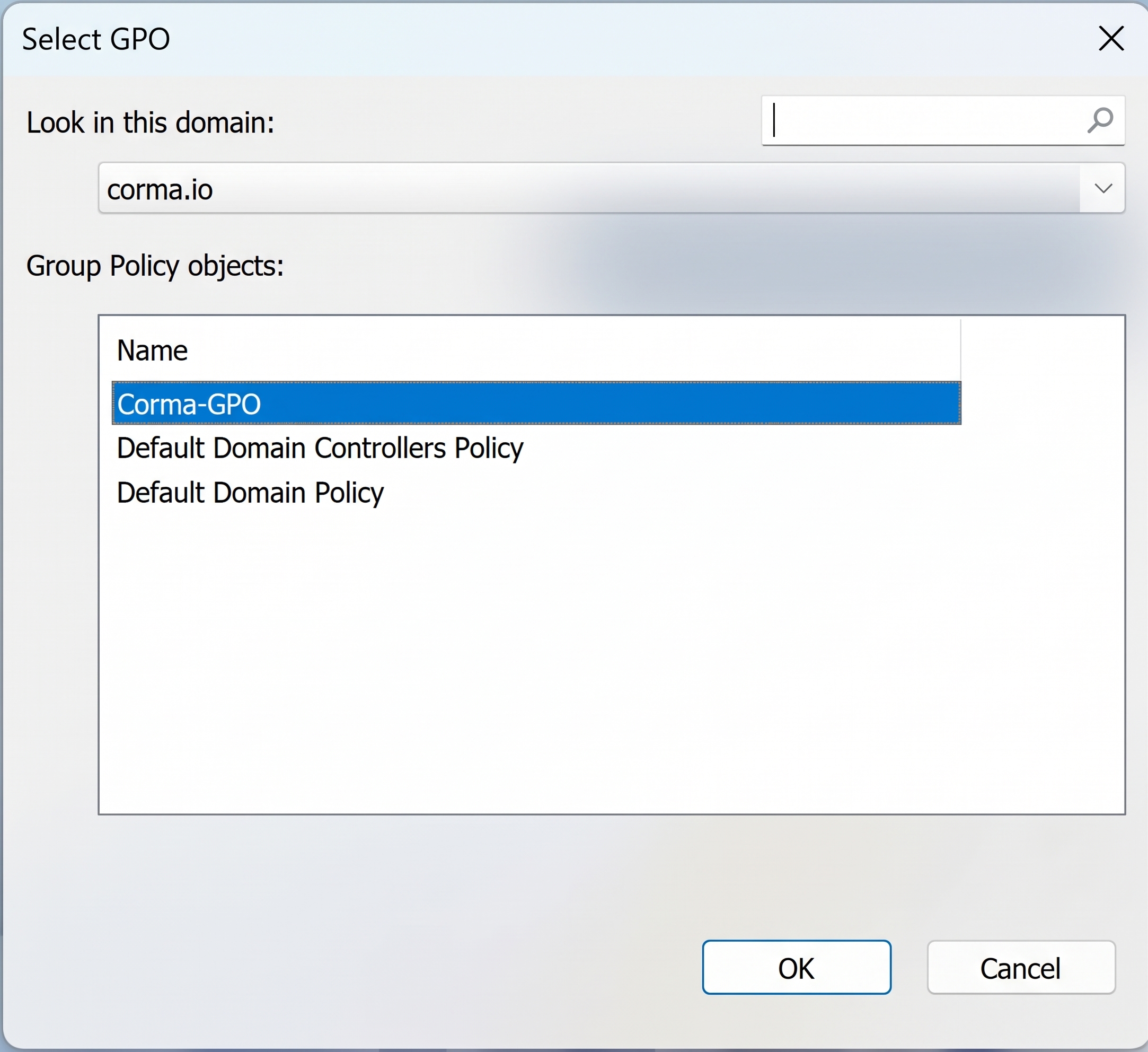
Verification:
Corma-GPOappears with a link icon directly under your target Organizational Unit in the left navigation tree.
Step 3: Download the template for your browser and configure the extension GPO
This step depends on the browser you are using. Find tutorials below.
On Chrome
Download the template and configure the extension GPO in Chrome
Download the “policy_templates.zip” template file
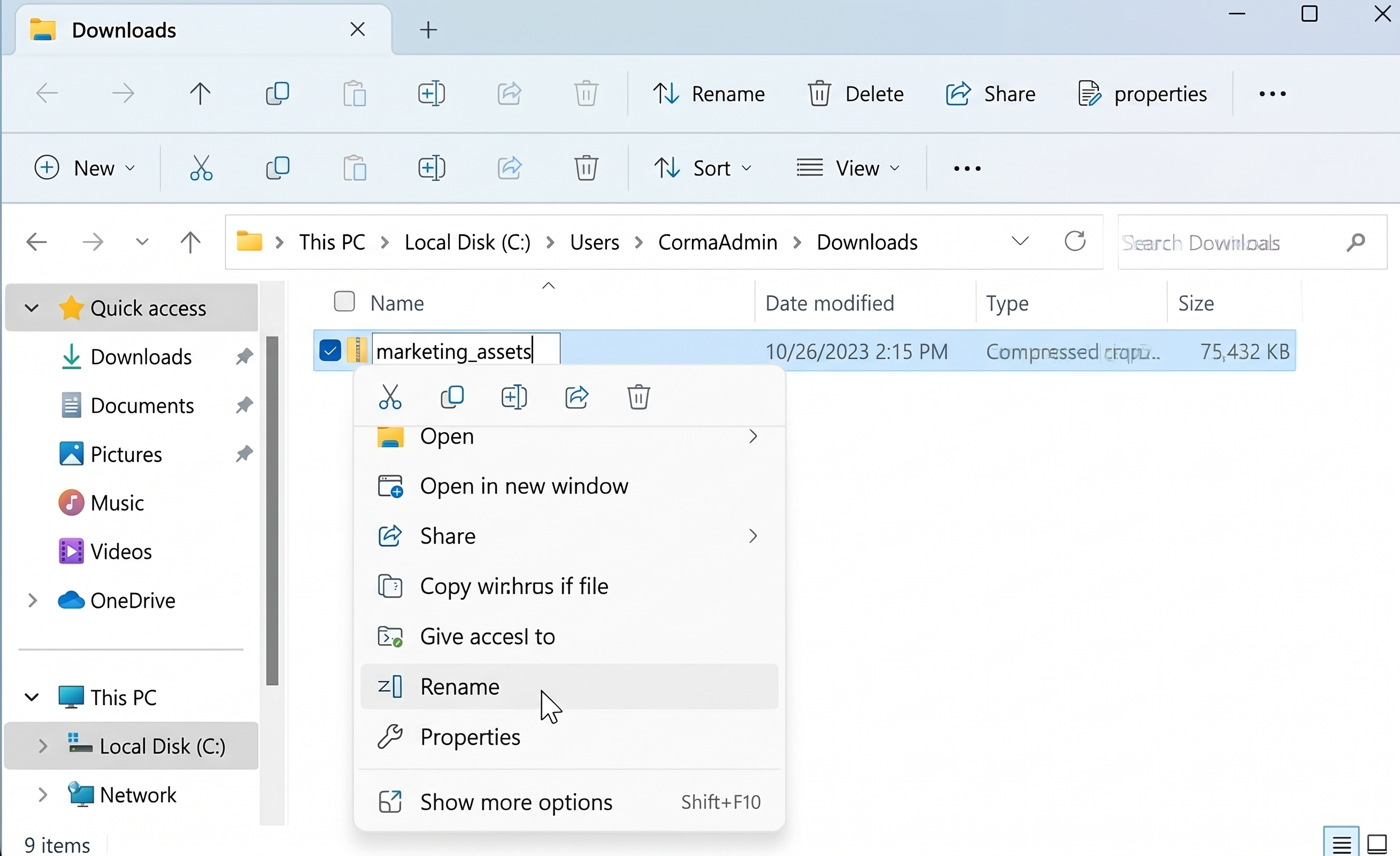
Right-click the "policy_templates.zip" file in Explorer, select Rename, and rename it "chrome_policy_templates".
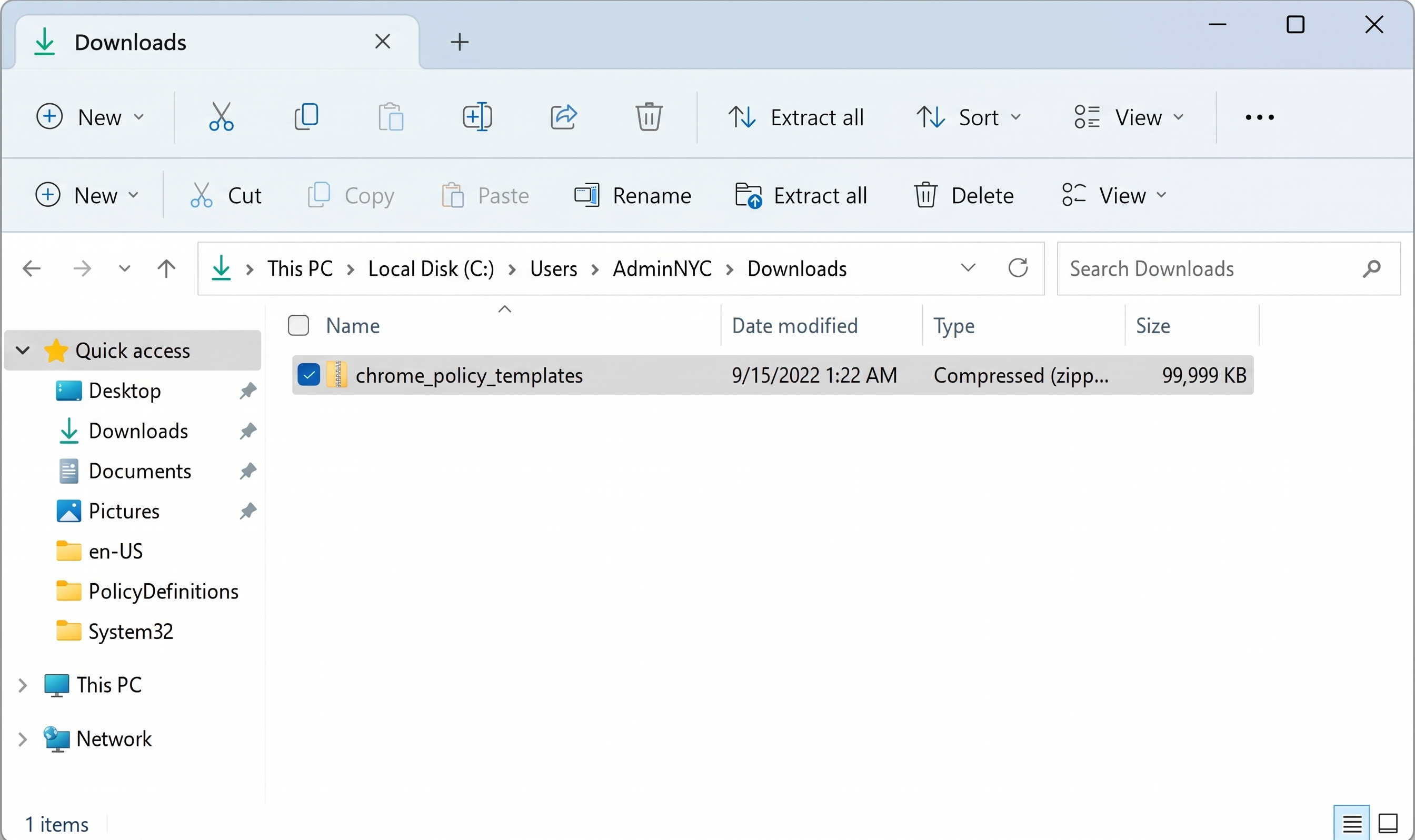
Select the "chrome_policy_templates" file that you just renamed and then select Extract all.
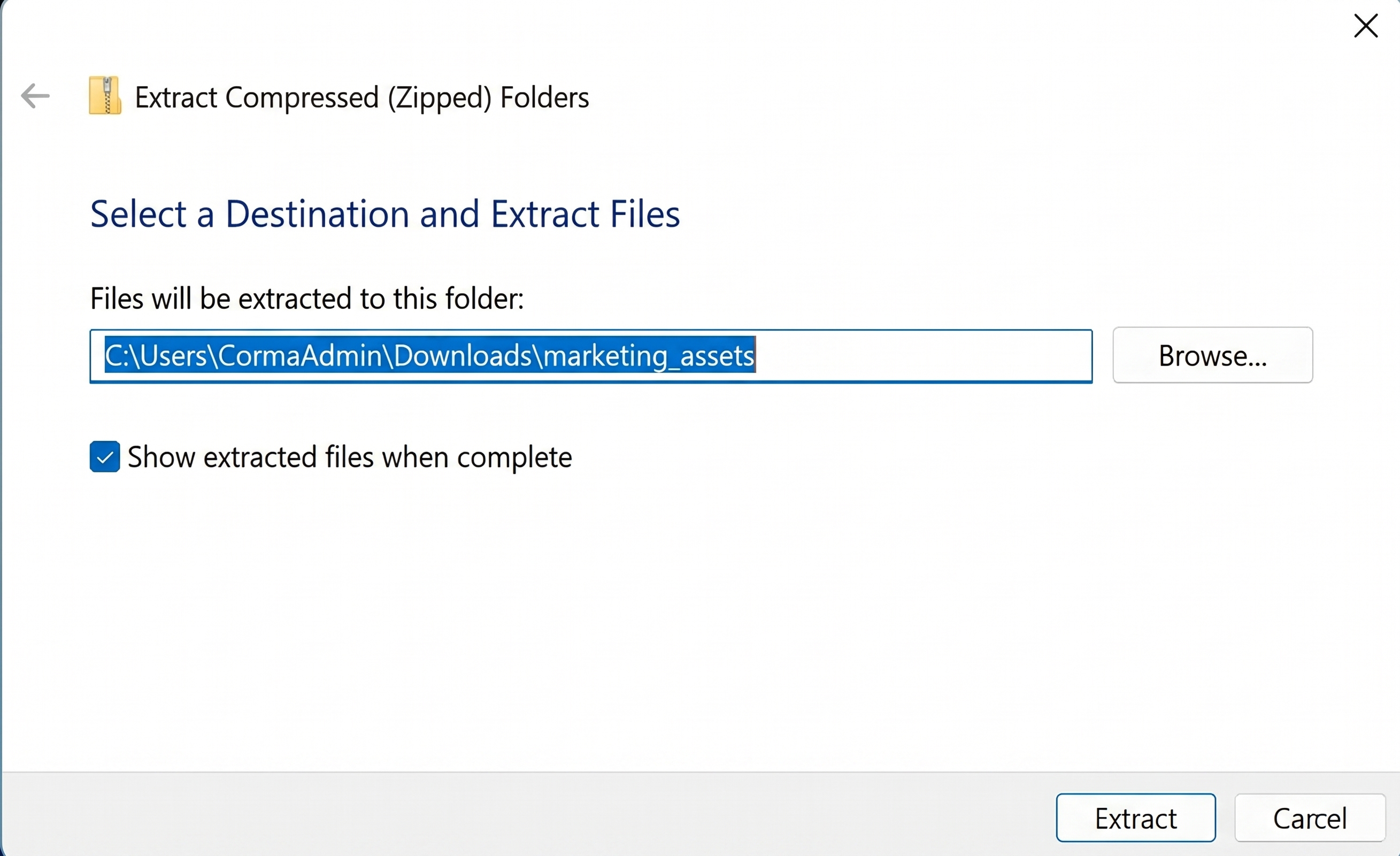
In the Select a Destination and Extract Files pop-up, select Browse, select your "Downloads" folder, and select Extract.
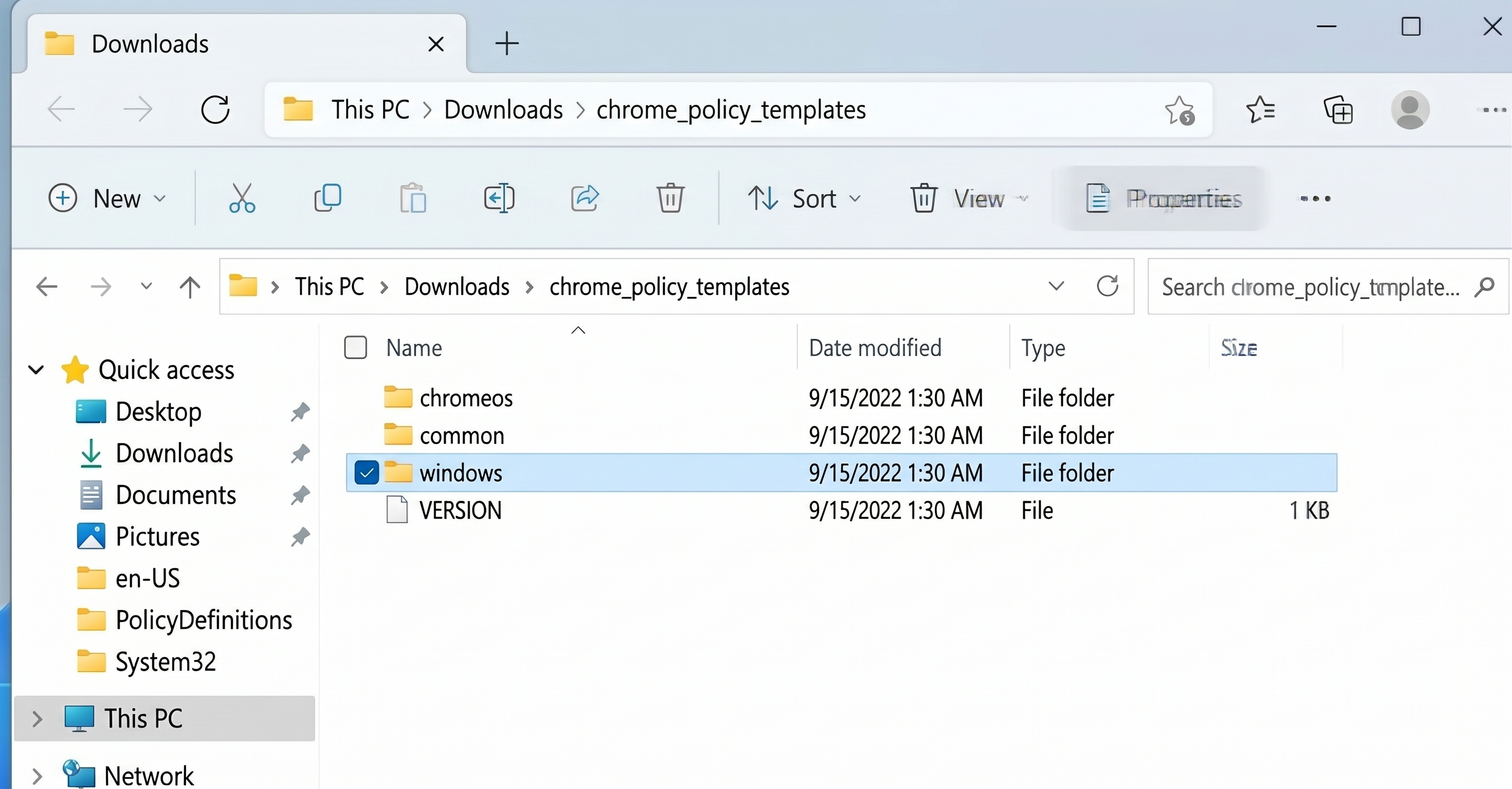
In the "Downloads" folder, open the "chrome_policy_templates" folder that you just extracted, and open the "windows" folder inside it.
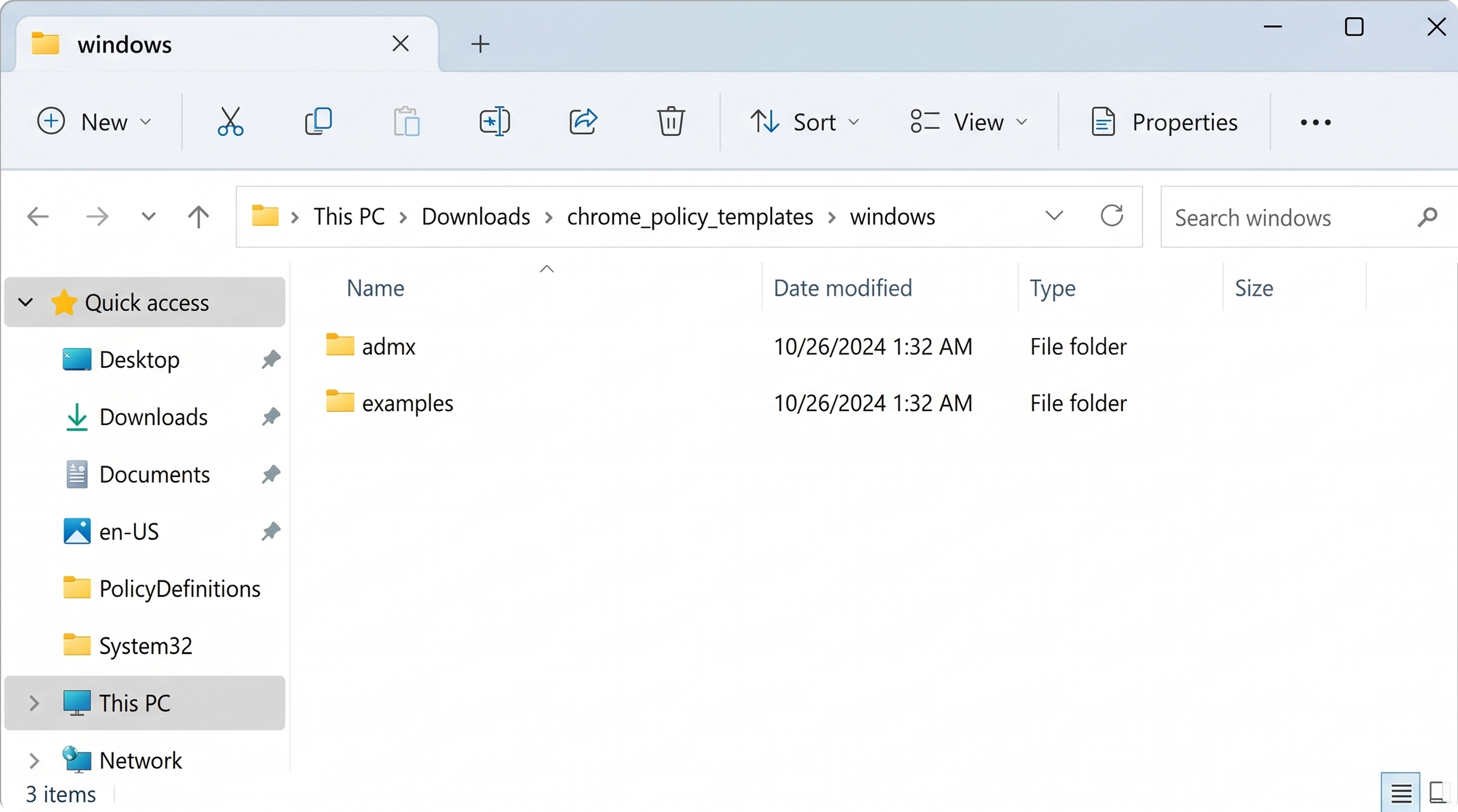
In the "windows" folder, open the "admx" folder.
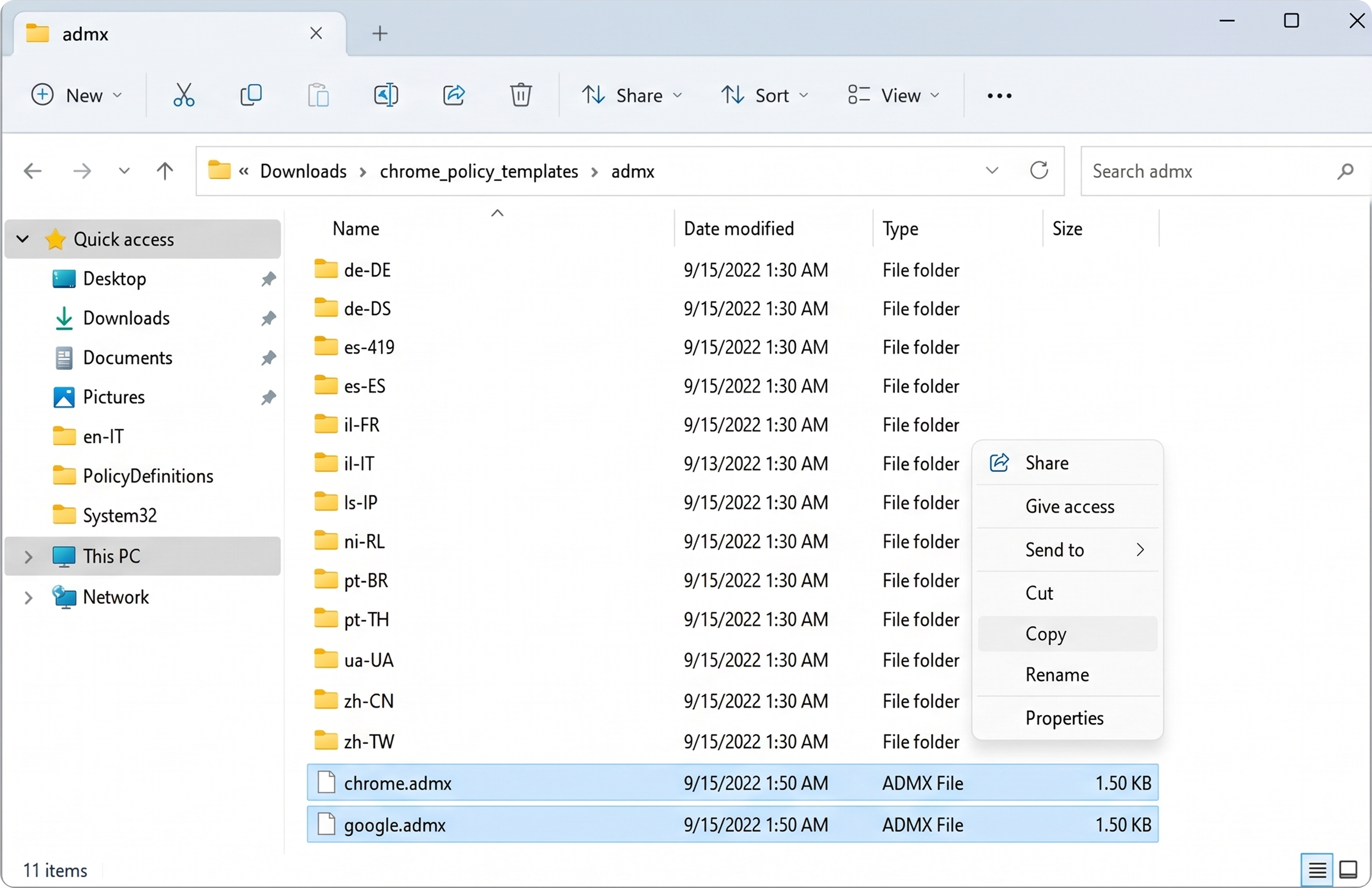
Select the two files named "chrome.admx" and "google.admx", right-click the two files, and select Copy.
Open "C:/Windows" in a new Explorer window, right-click on the "Policy Definitions" folder, and select Paste.
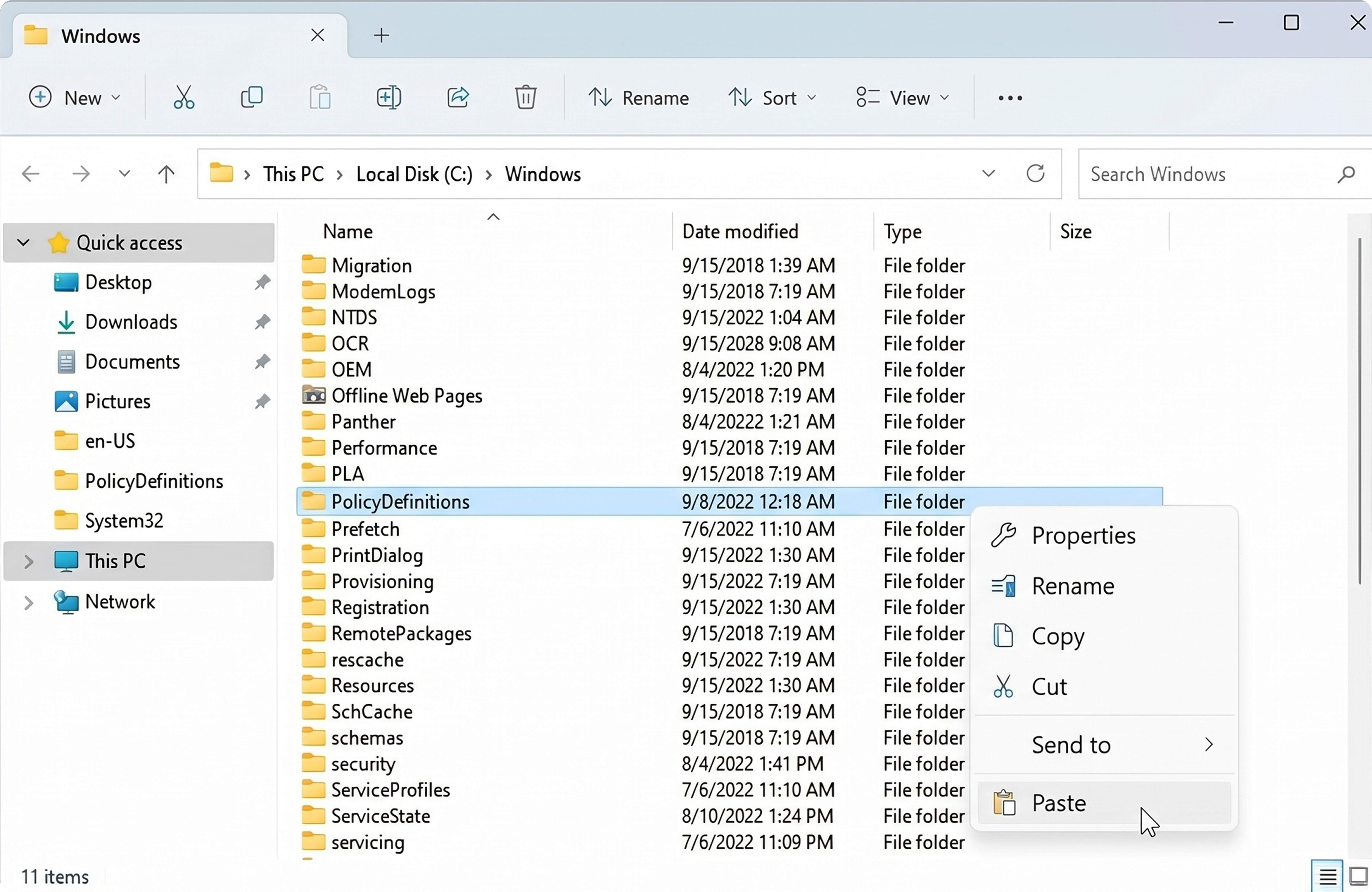
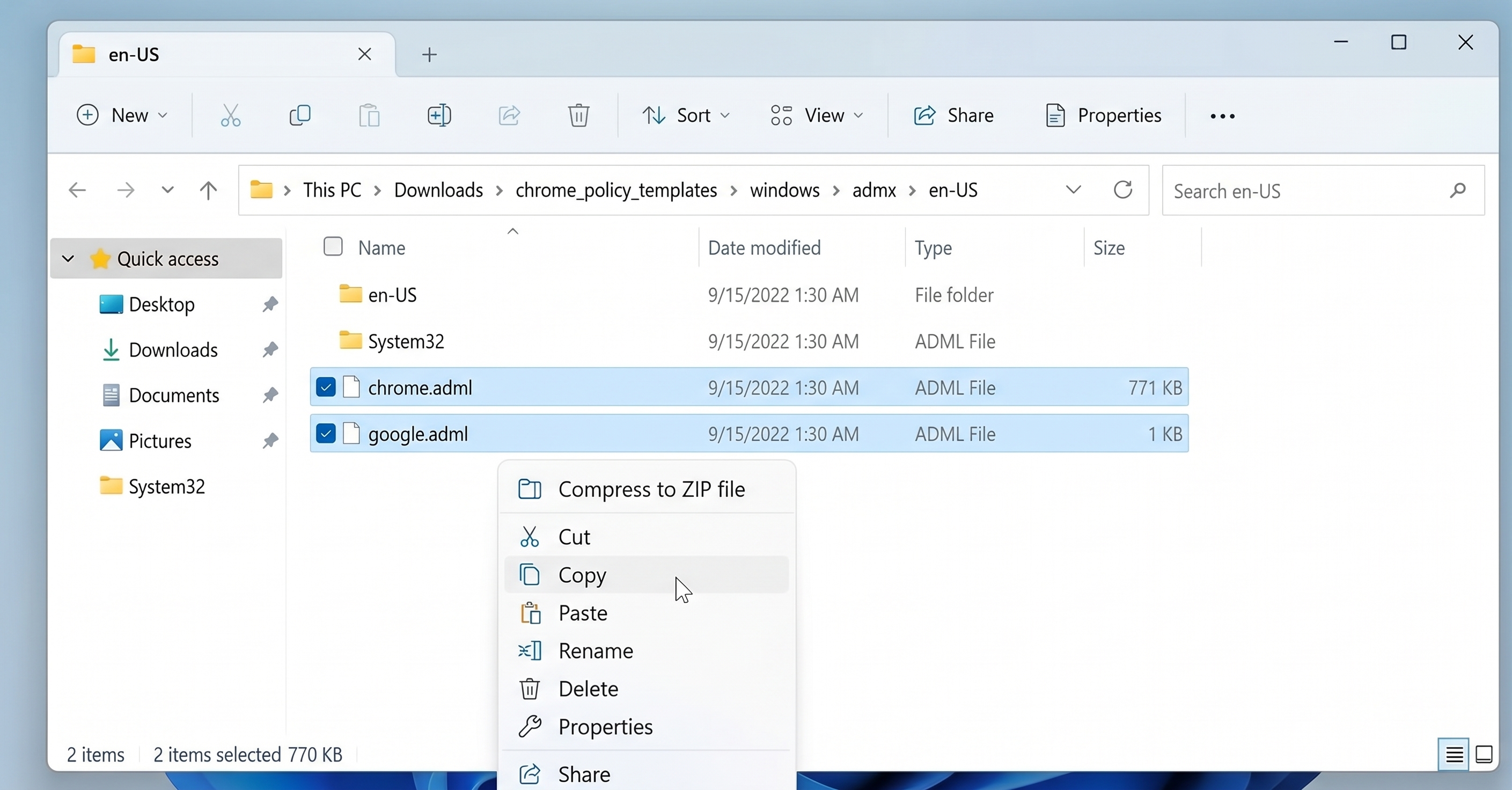
Return to the "admx" folder again, open the "en-US" folder inside that, select the two files named "chrome.adml" and "google.adml", right-click the two files, and select Copy.
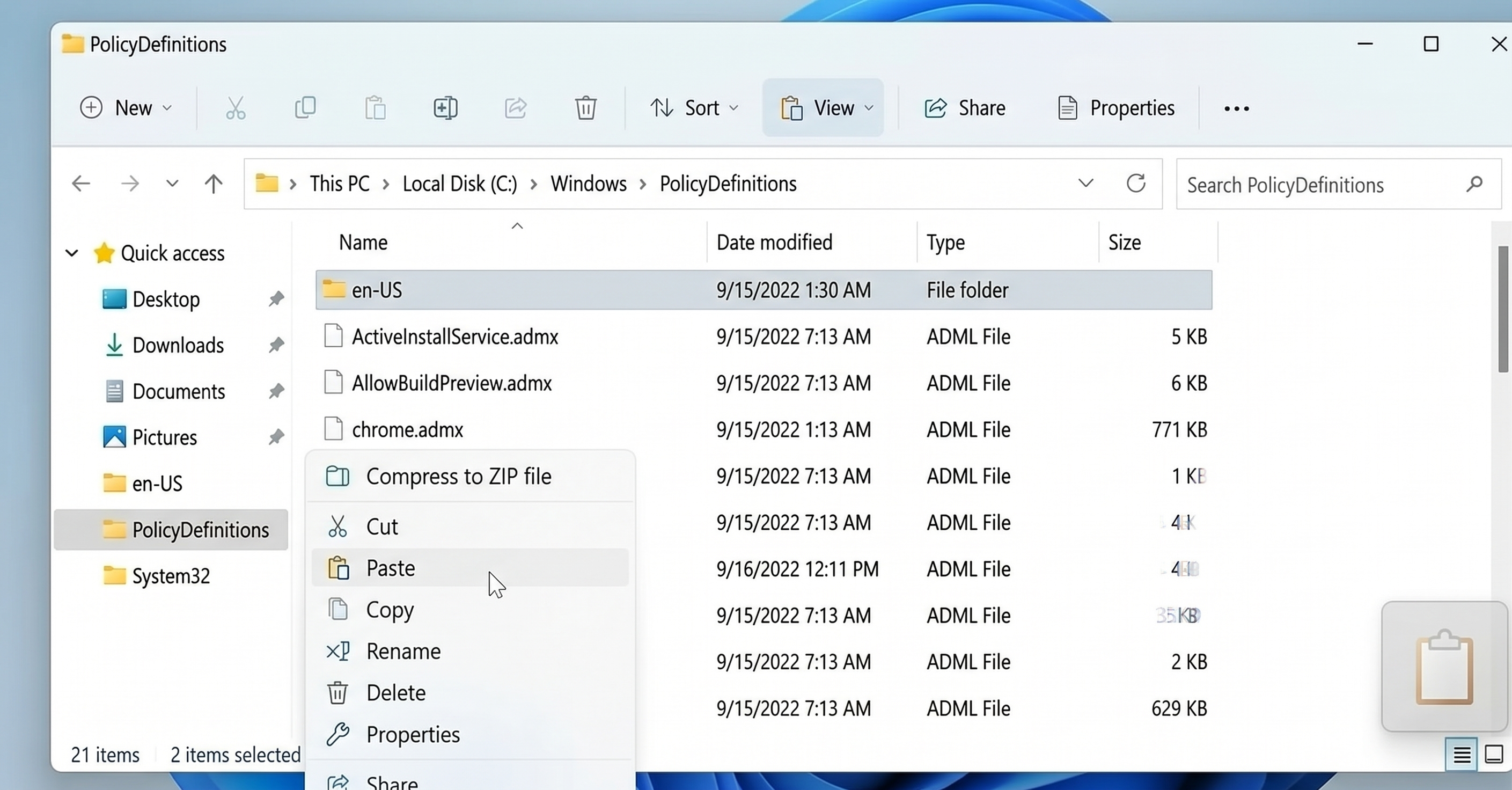
Return to the "Policy Definitions" folder again, right-click the "en-US" folder, and select Paste.
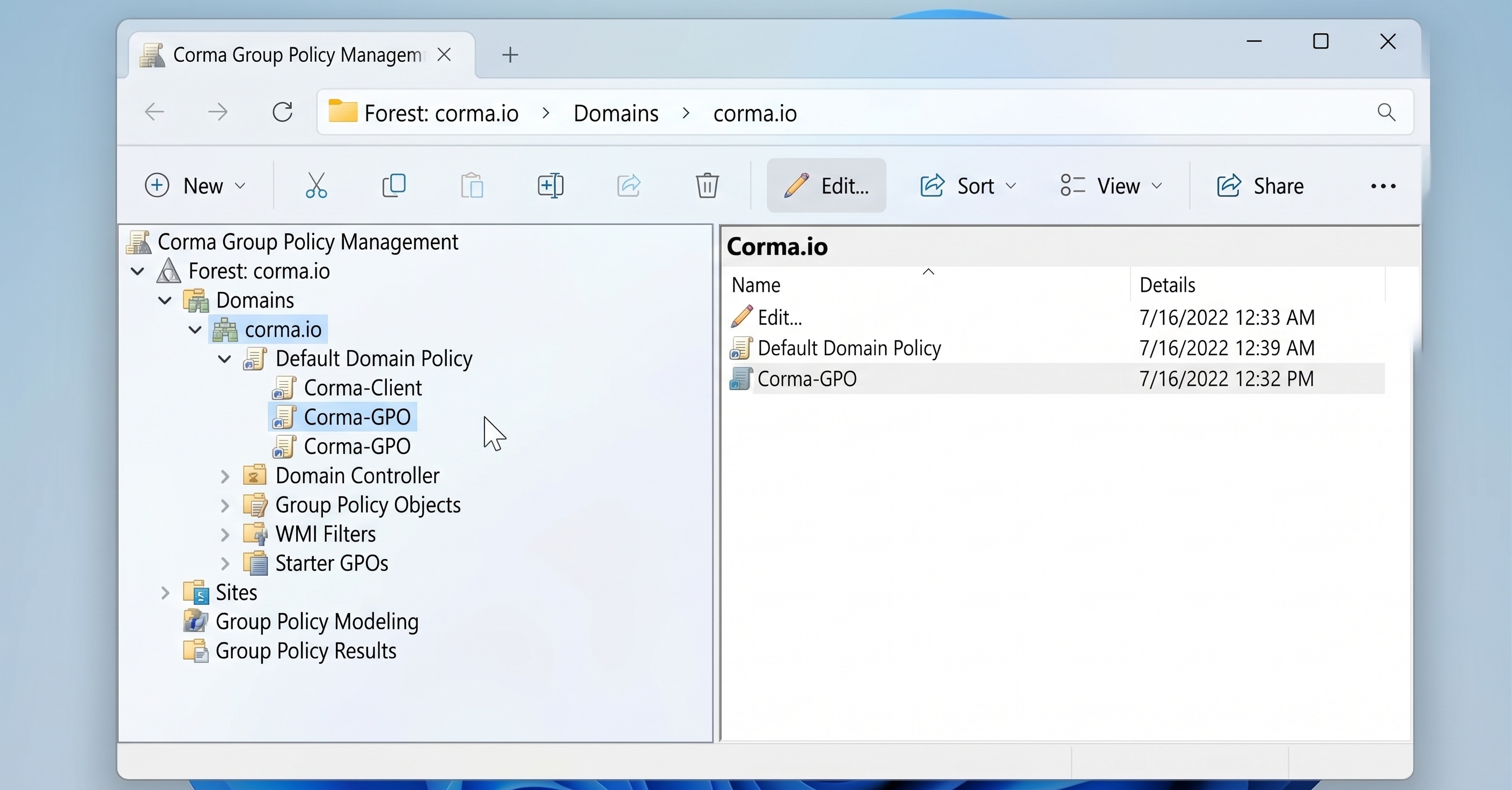
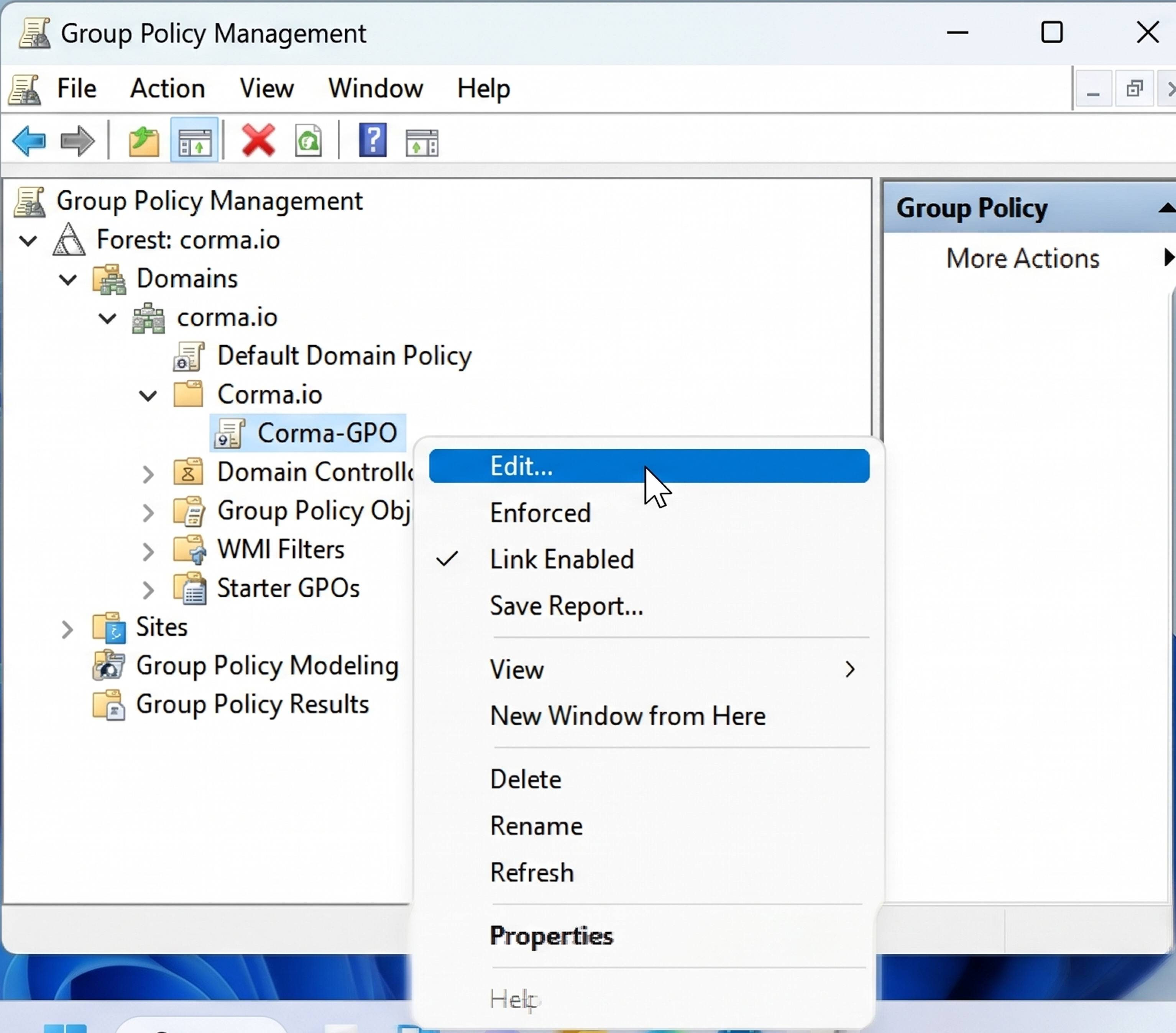
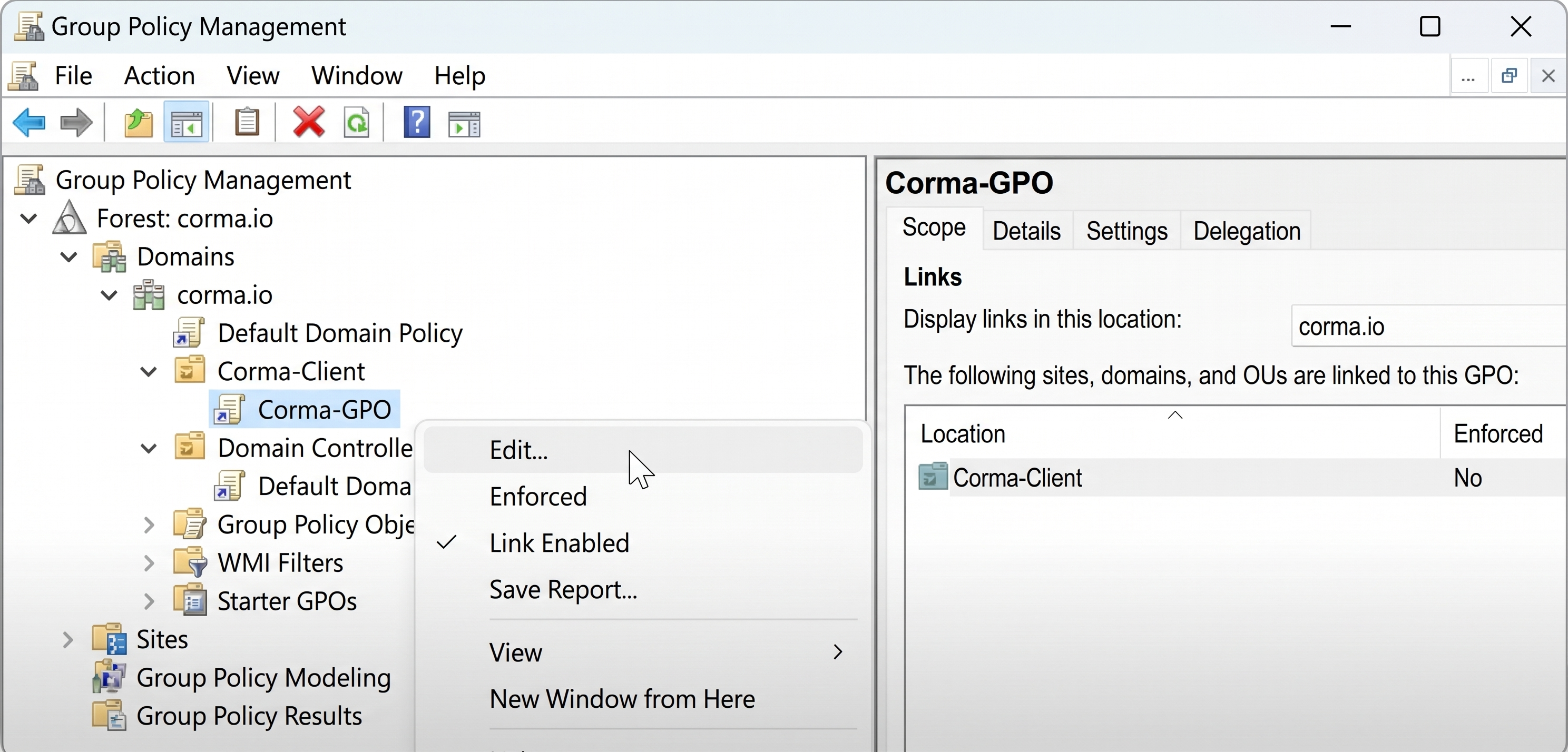
Right-click your OU from the "Group Policy Management" folder, as you did at the beginning of this article, and select Edit.
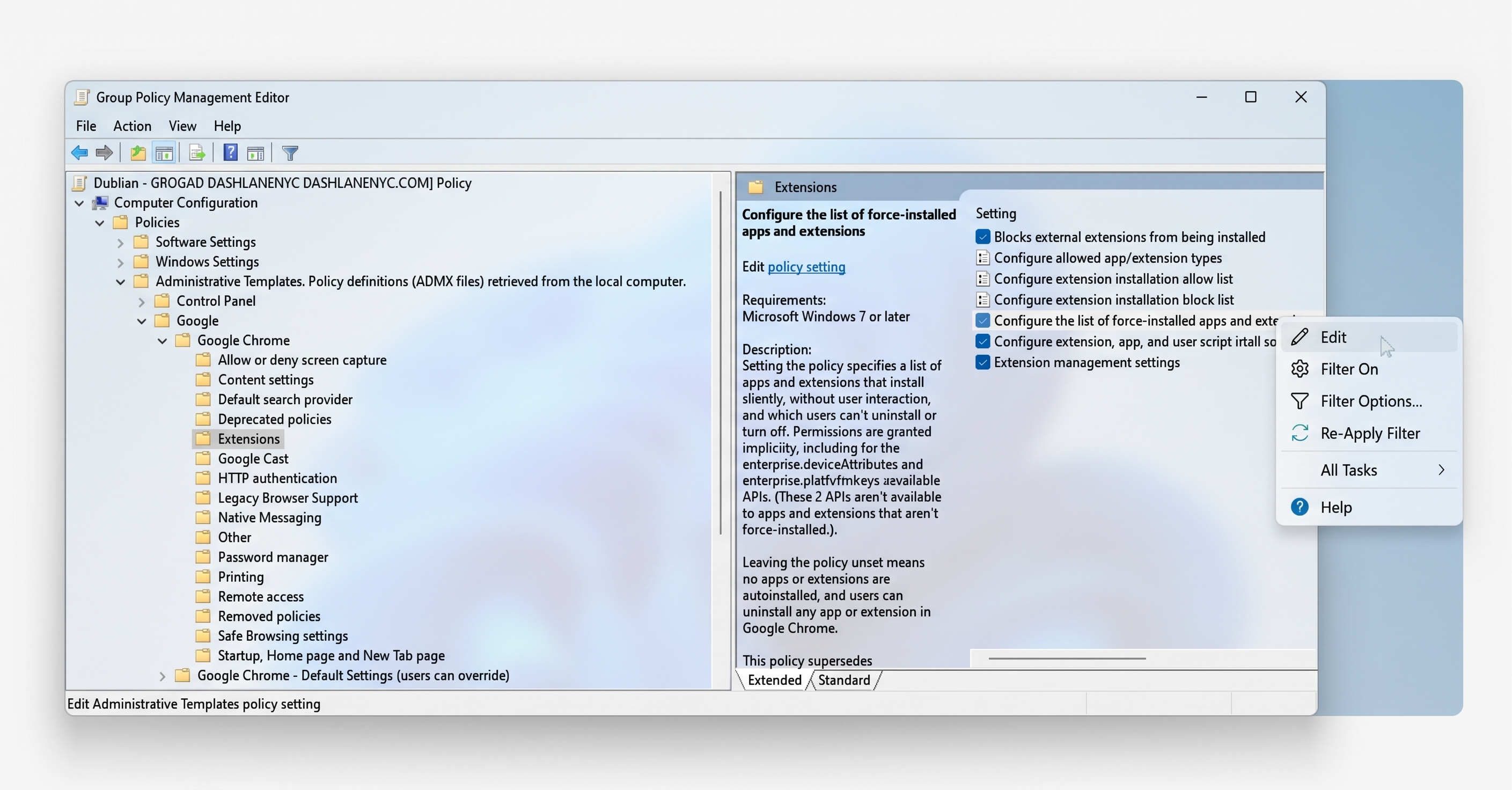
In the Group Policy Management Editor, open "Computer Configuration", "Policies", "Administrative Templates: Policy definitions (ADMX files) retrieved from the local computer, "Google", "Google Chrome", and "Extensions". Then right-click "Configure the list of force-installed apps and extensions" and select Edit.
In the Configure the list of force-installed apps and extensions pop-up, select Enabled, and select Show. In the Show Contents pop-up, paste
iolppafpkhfdepflackhngphhjkocjoa;https://clients2.google.com/service/update2/crx, and select OK.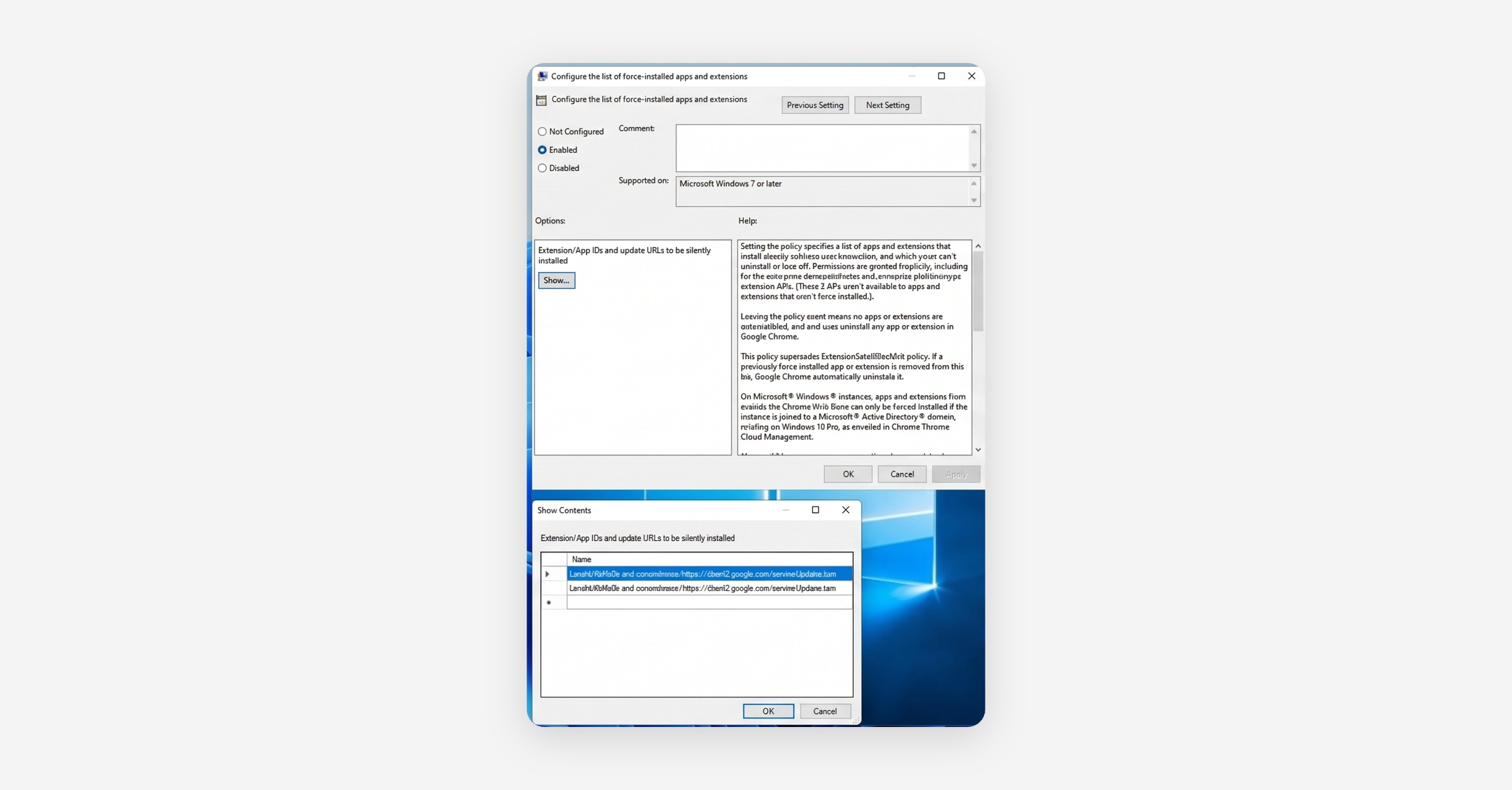
On Edge
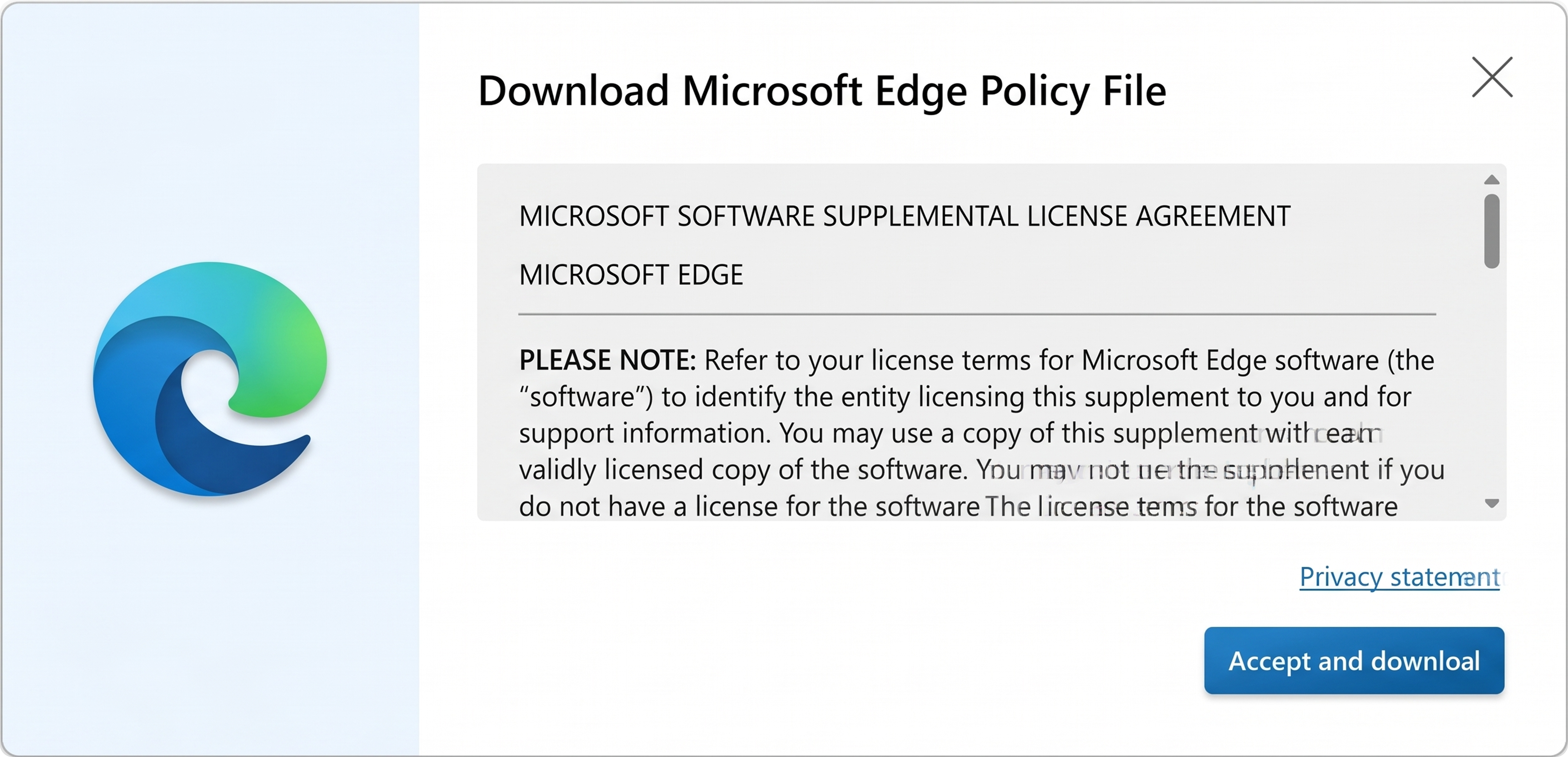
Download the policy template at https://www.microsoft.com/en-us/edge/business/download — select Accept and download for the Windows 64-bit policy file.
Extract MicrosoftEdgePolicyTemplates to your Downloads folder.
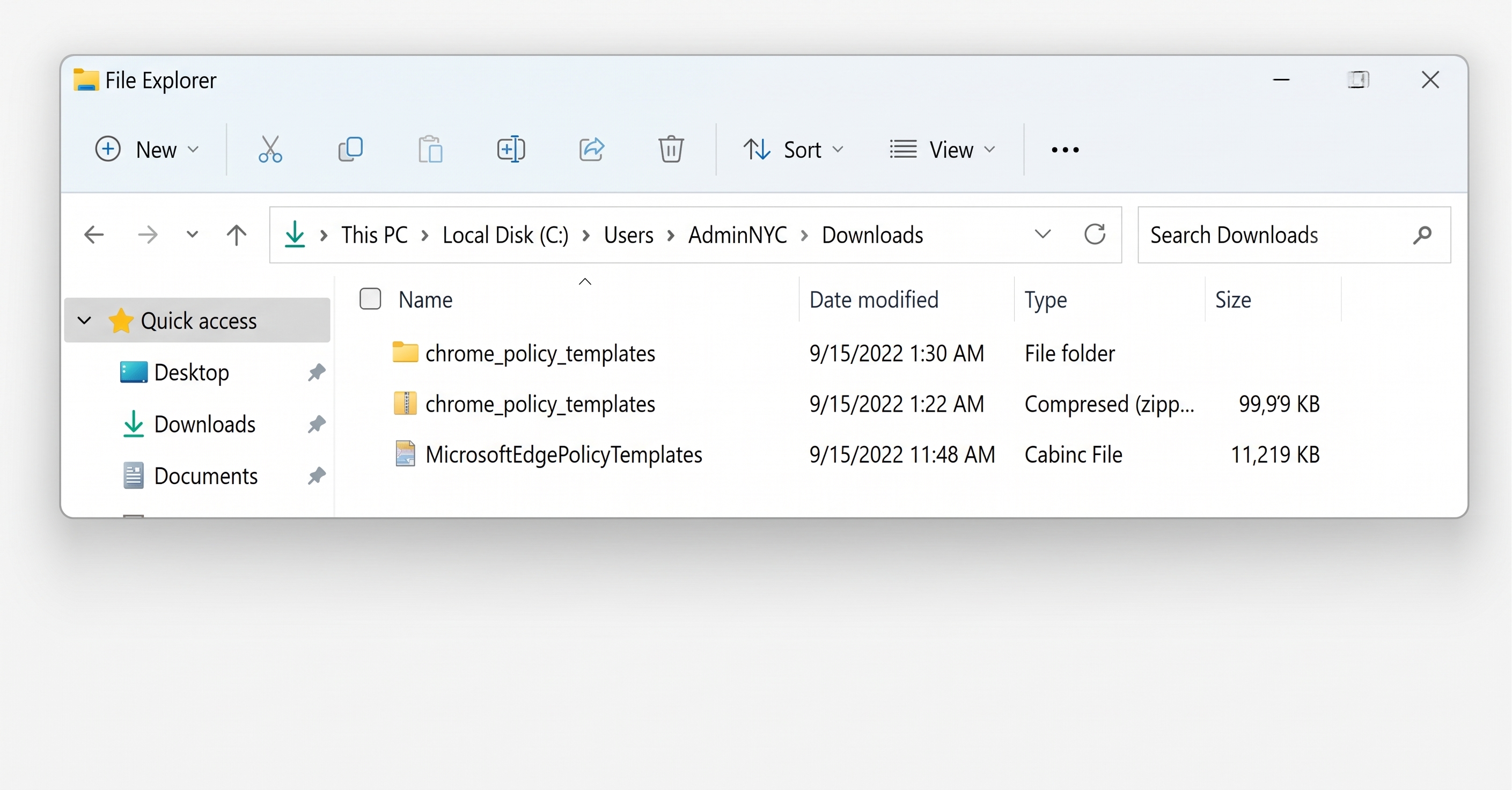
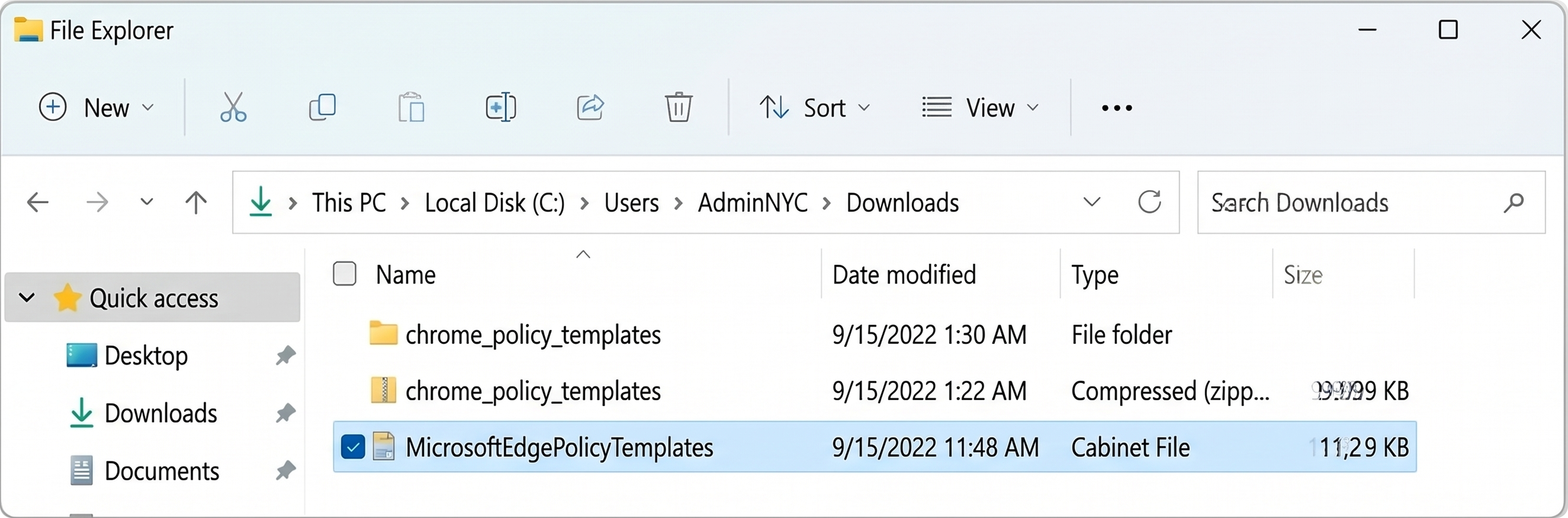
Navigate into MicrosoftEdgePolicyTemplates > windows > admx.
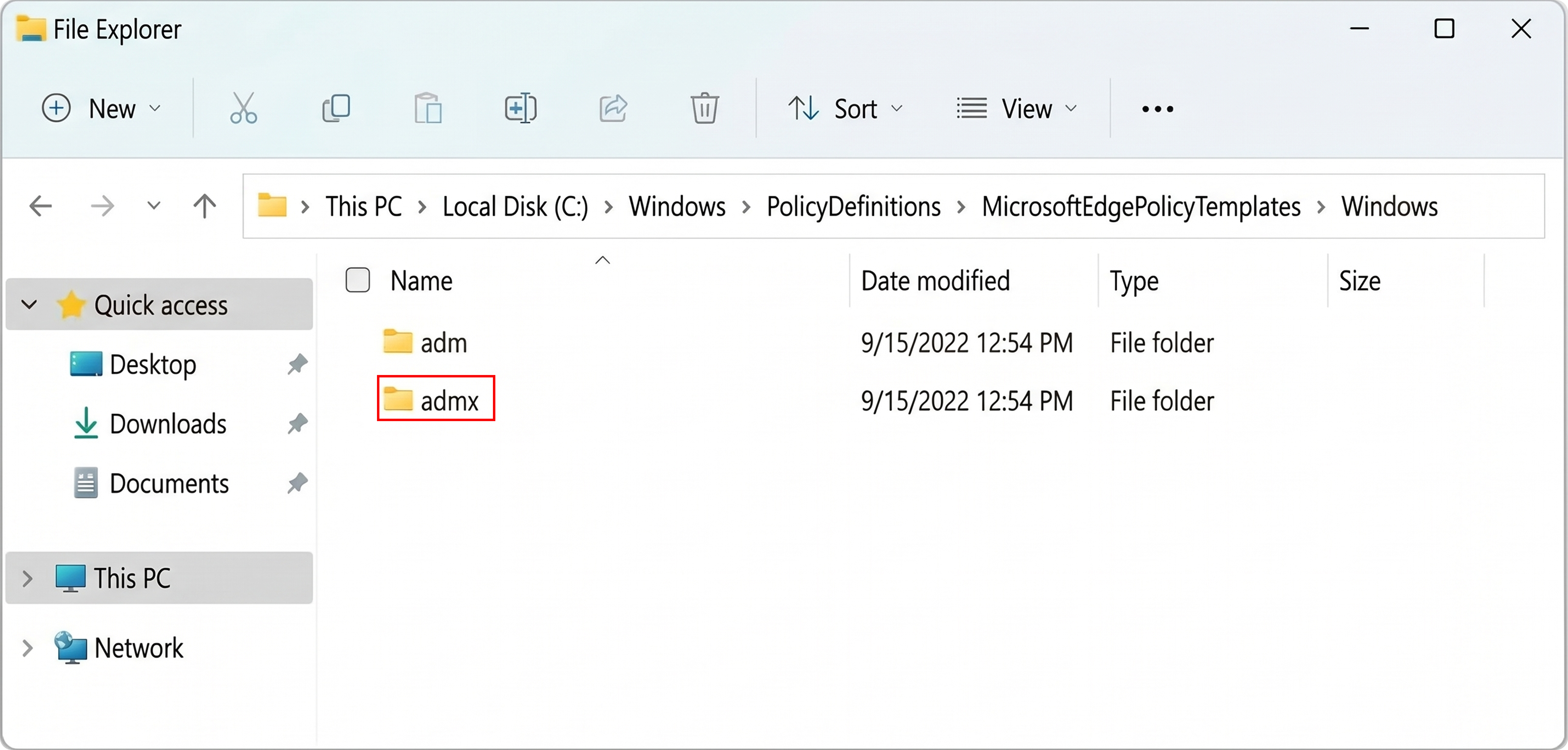
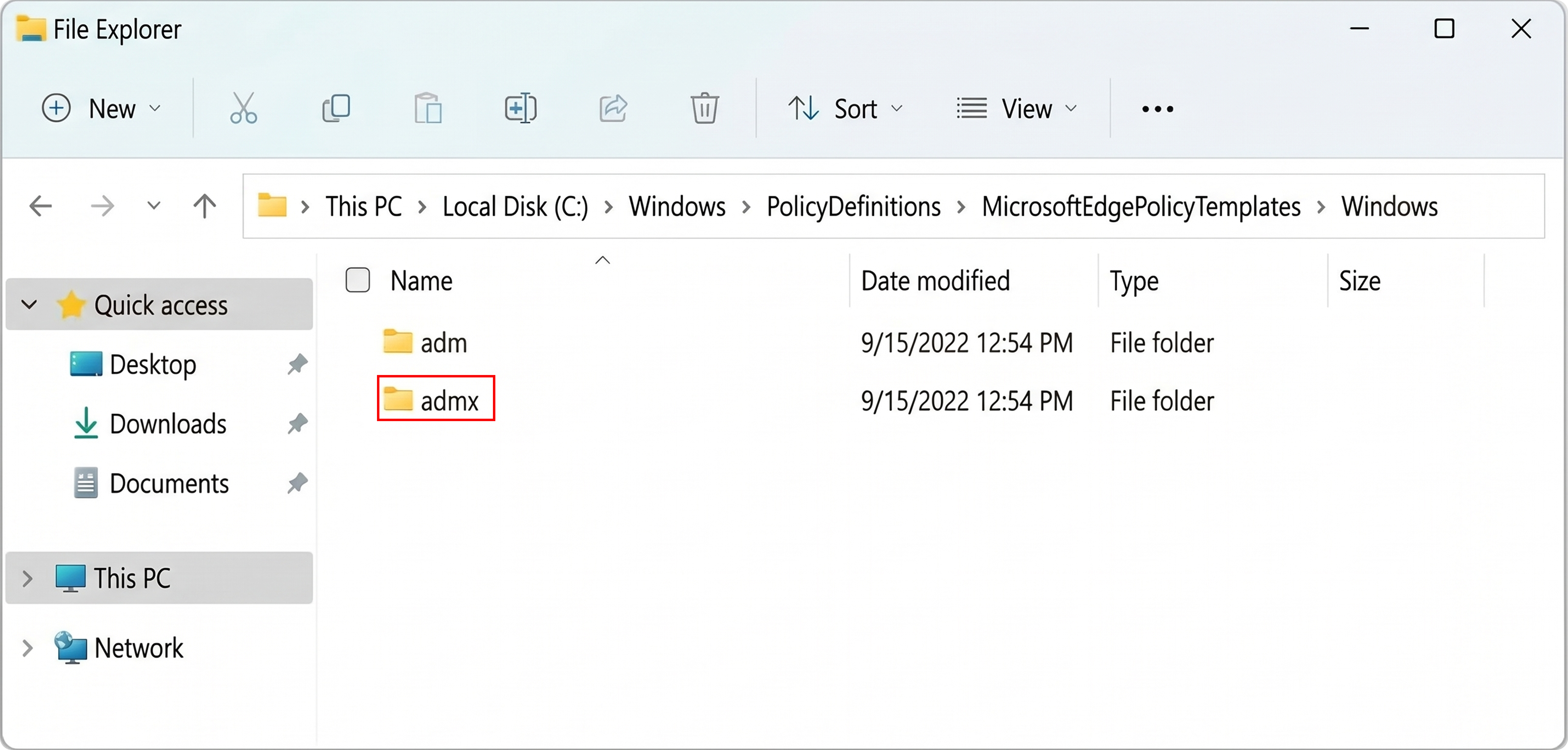
Copy the three .admx files (msedge.admx, msedgeupdate.admx, and msedgewebview2.admx) to C:\Windows\PolicyDefinitions.
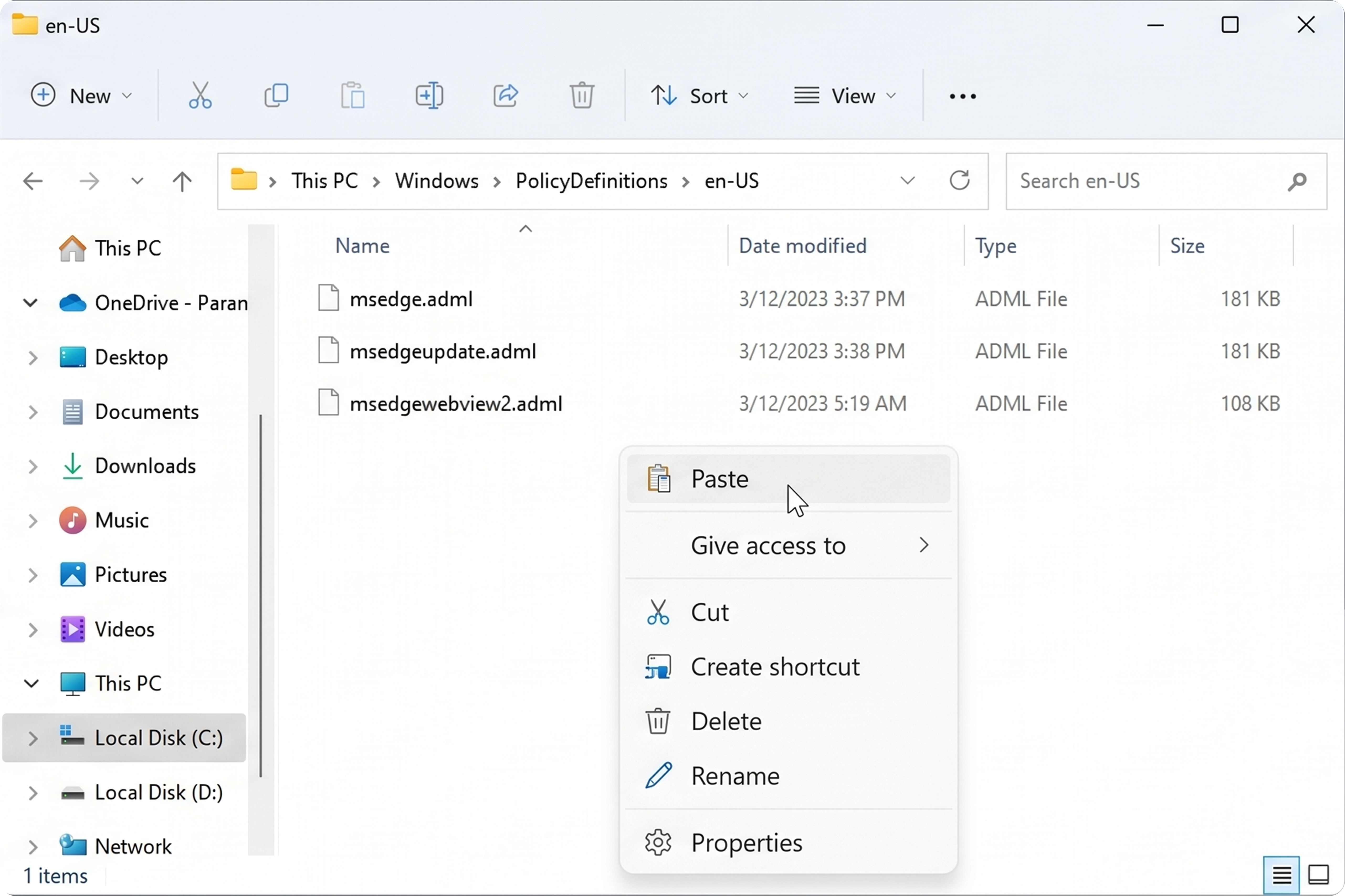
Open the en-US subfolder. Copy msedge.adml, msedgeupdate.adml, and msedgewebview2.adml to C:\Windows\PolicyDefinitions\en-US.
Open Group Policy Management Editor by right-clicking your OU and selecting Edit.
Navigate to: Computer Configuration > Policies > Administrative Templates > Microsoft Edge > Extensions.
Right-click Configure the list of force-installed extensions and select Edit.
Select Enabled, click Show, and paste:
olpgbphkganafbdmkdjddhpfhnjoapke;https://edge.microsoft.com/extensionwebstorebase/v1/crxClick OK to save.
On Mozilla Firefox
Download and install the Firefox ADMX templates
Download the Firefox policy templates from https://github.com/mozilla/policy-templates/releases — download the latest policy_templates.zip.
Extract the archive to your Downloads folder.
Navigate into the extracted folder > windows > admx.
Copy firefox.admx and mozilla.admx to C:\Windows\PolicyDefinitions.
Open the en-US subfolder. Copy firefox.adml and mozilla.adml to C:\Windows\PolicyDefinitions\en-US.
Configure the force-install policy in GPO
The Corma extension is published on the Firefox Add-ons store. The URL below always installs the latest store version.
Open Group Policy Management Editor by right-clicking your OU and selecting Edit.
Navigate to: Computer Configuration > Policies > Administrative Templates > Mozilla > Firefox > Extensions.
Right-click Extensions to Install and select Edit.
Select Enabled, click Show, and paste the extension install URL:
https://addons.mozilla.org/firefox/downloads/latest/corma-software-management-tool/latest.xpiClick OK to save.
(Optional) Block users from disabling the extension to prevent users from removing or disabling the extension:
In the same Extensions section, right-click Extensions that cannot be disabled and select Edit.
Select Enabled, click Show, and paste the extension ID (keep the curly braces):
{562a59a3-3e52-48f8-8e9f-985aab0b27b0}Click OK to save.
Step 3 (optional): Pin the extension to browser toolbars with GPO
Chrome
Right-click your OU from the "Group Policy Management" folder, as you did at the beginning of this article, and select Edit.
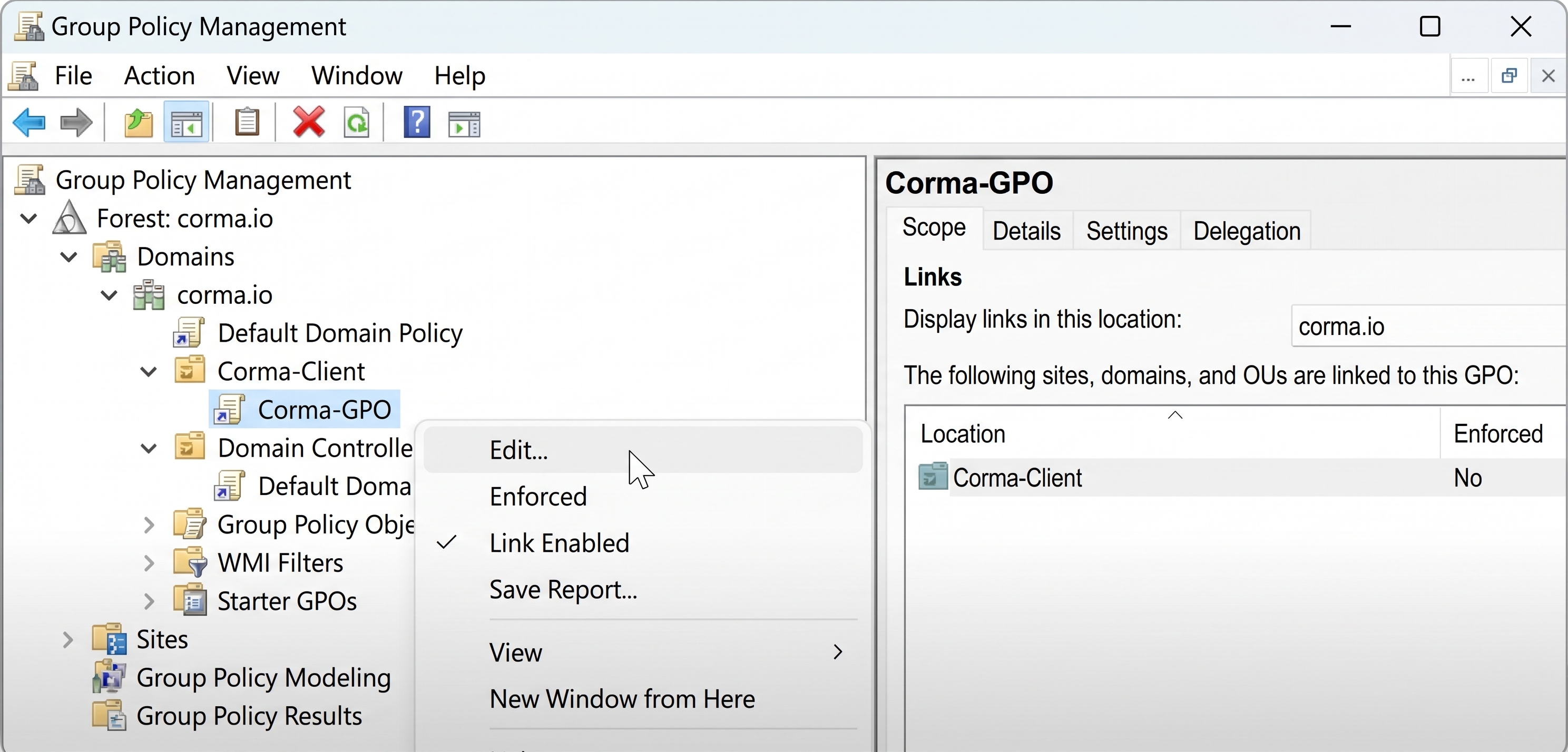
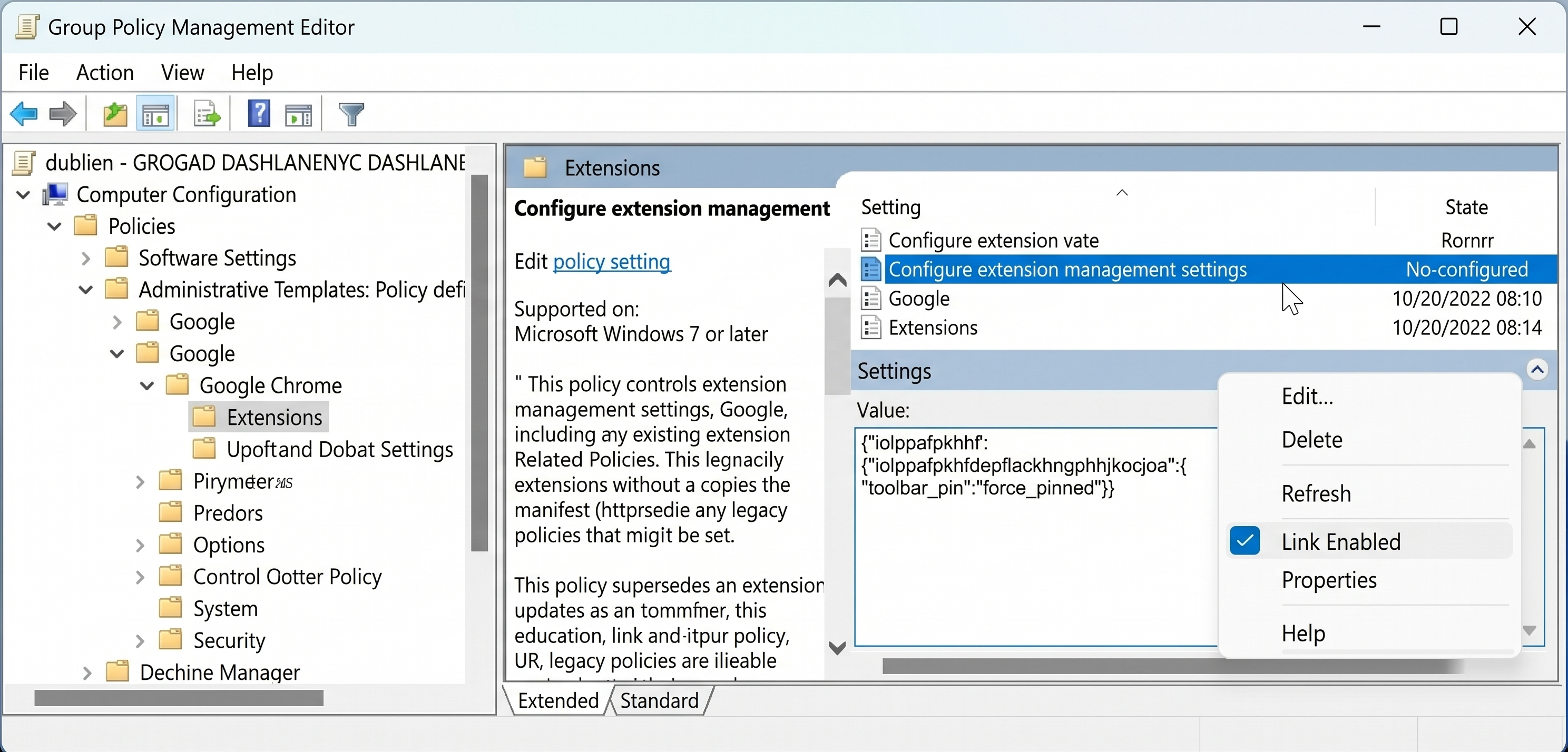
In the Group Policy Management Editor, open "Computer Configuration", "Policies", "Administrative Templates: Policy definitions (ADMX files) retrieved from the local computer, "Google", "Google Chrome", "Extensions", and then "Configure extension management settings".
Select Enabled, and paste the following value for "Configure extension management settings":
{"iolppafpkhfdepflackhngphhjkocjoa":{"toolbar_pin":"force_pinned"}}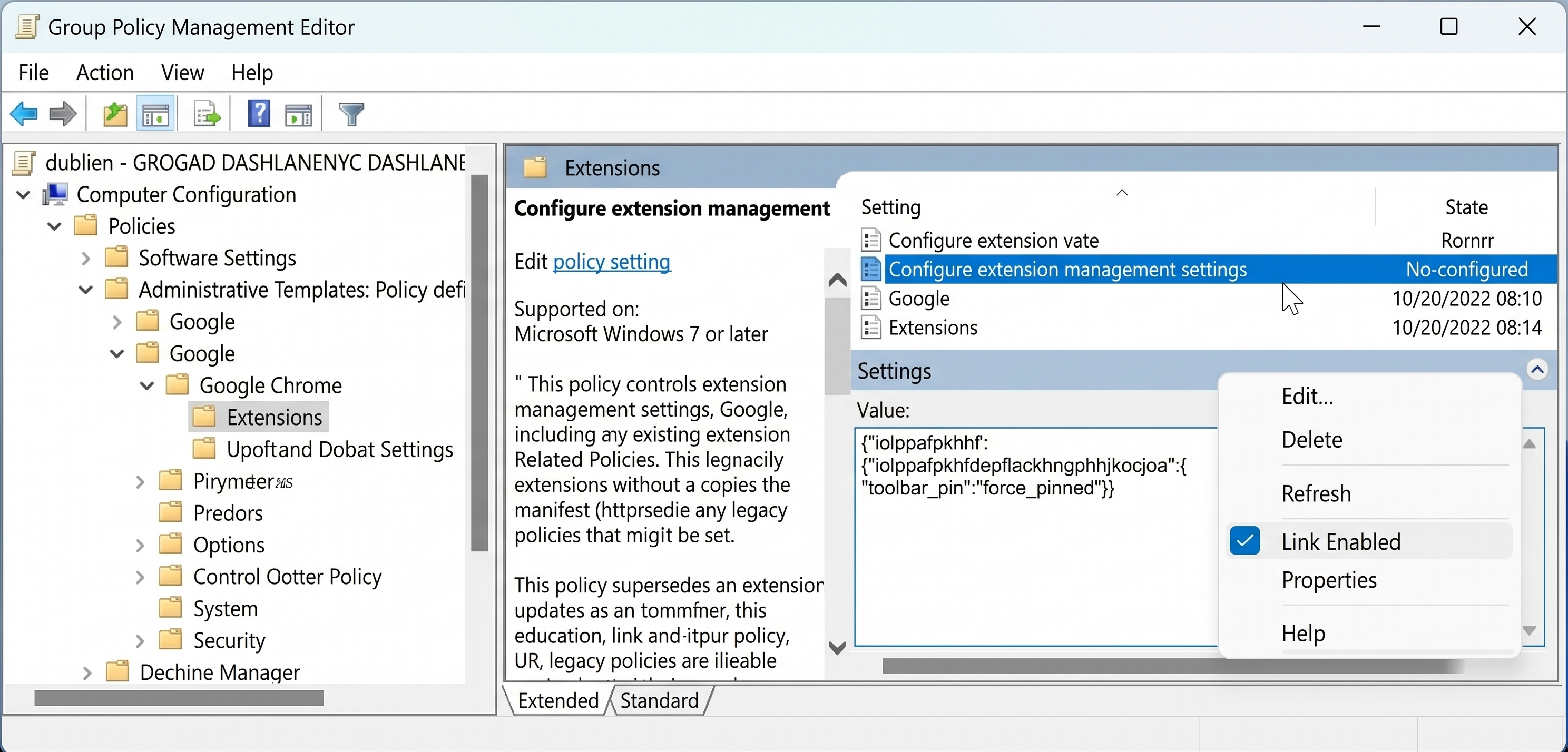
Select OK and Apply
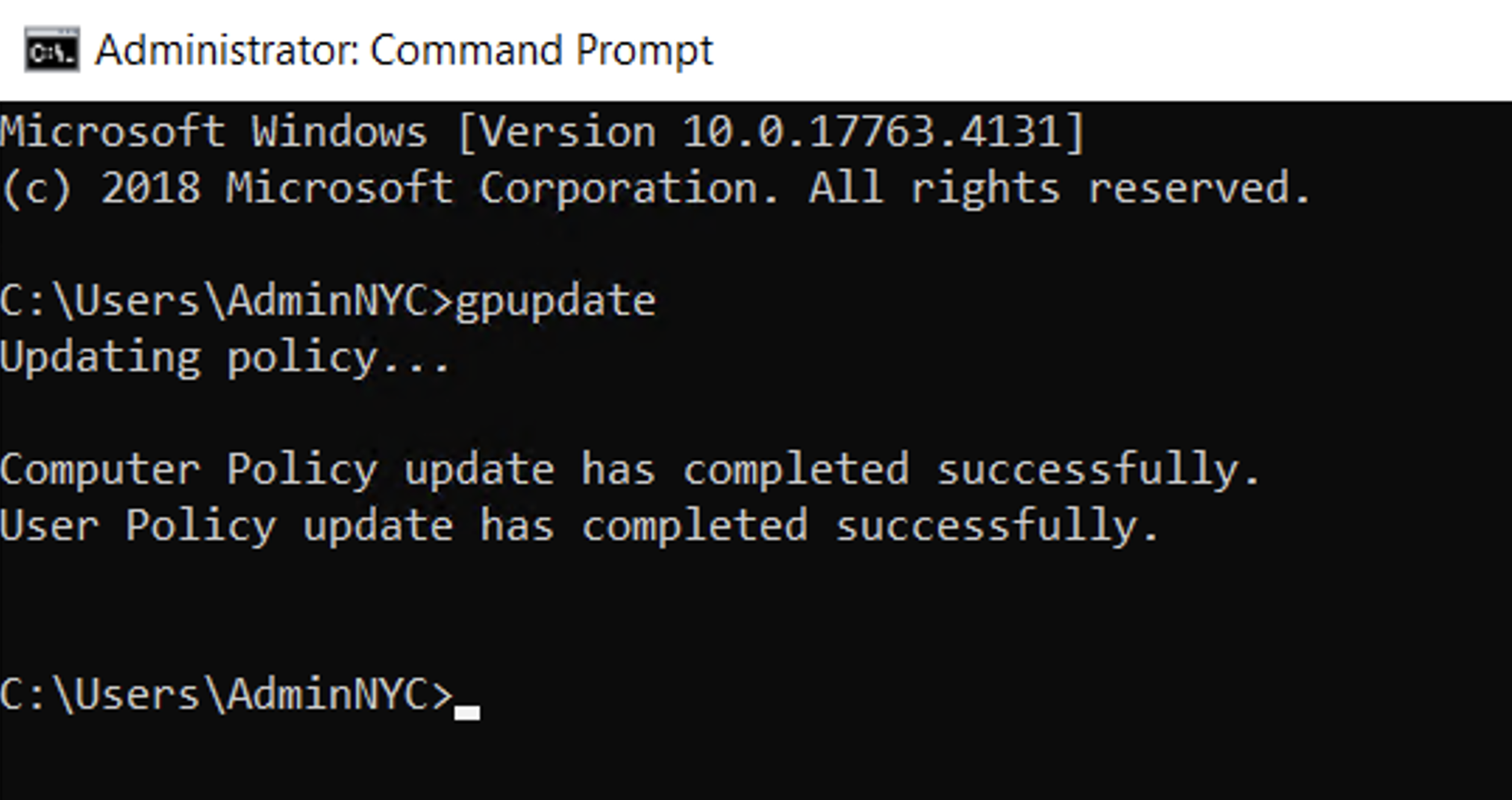
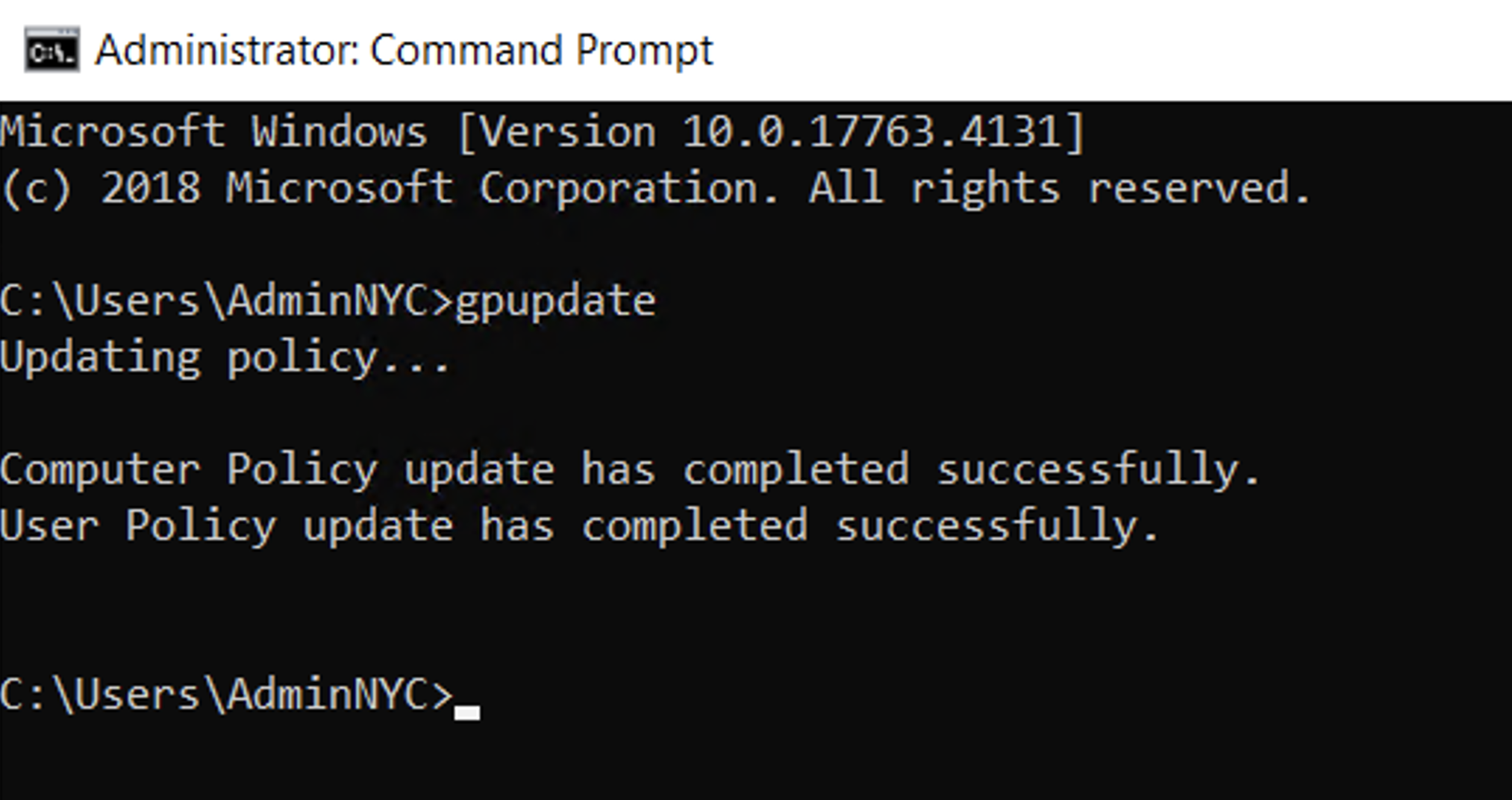
Run gpupdate on the server and the client computer.
Check the client computer. The Corma C will appear pinned in the browser toolbar.
Microsoft Edge
Right-click your OU from the "Group Policy Management" folder, as you did at the beginning of this article, and select Edit.
In the Group Policy Management Editor, open "Computer Configuration", "Policies", "Administrative Templates: Policy definitions (ADMX files) retrieved from the local computer, "Microsoft Edge", "Extensions", and then "Configure extension management settings".
Select Enabled, and paste the following value for "Configure extension management settings":
{"olpgbphkganafbdmkdjddhpfhnjoapke":{"toolbar_state":"force_shown"}}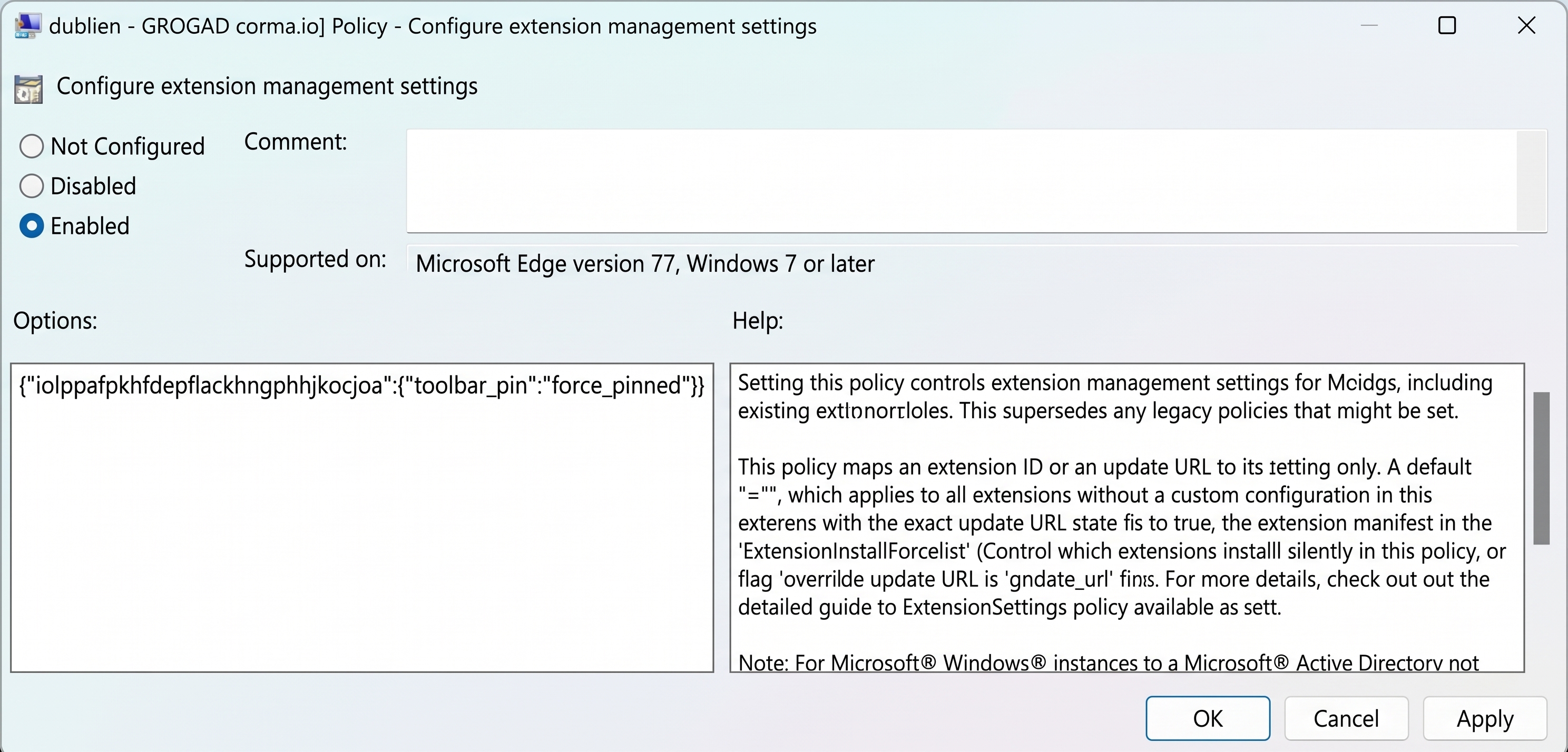
Select OK and Apply
Run gpupdate on the server and the client computer.