
Docs / Browser extensions
Manually deploy the Corma extension
How to manually install the Corma extension and login
This guide explains how to manually install the Corma extension and log in. It also clarifies the two login methods: automatic login if already connected to the Corma app or manual login through redirection.
Steps to install and login
Download the Corma Extension
If you deploy the extension on a browser where you are logged in with your professional email, Corma will automatically authenticate you.
Log In to the Extension
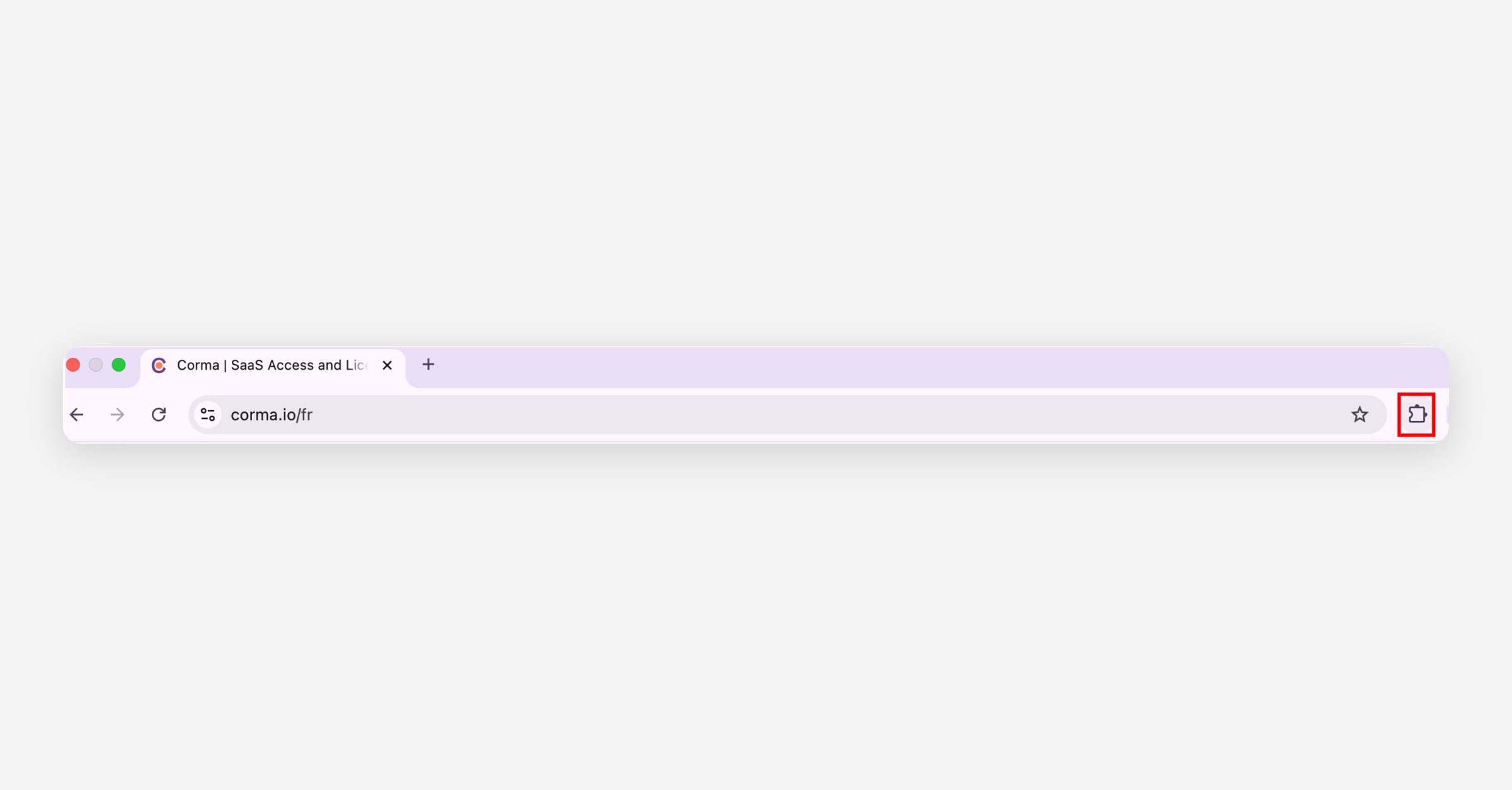
After downloading, click on the Corma extension icon near the puzzle icon at the right of your search bar.
The login process depends on your current session:
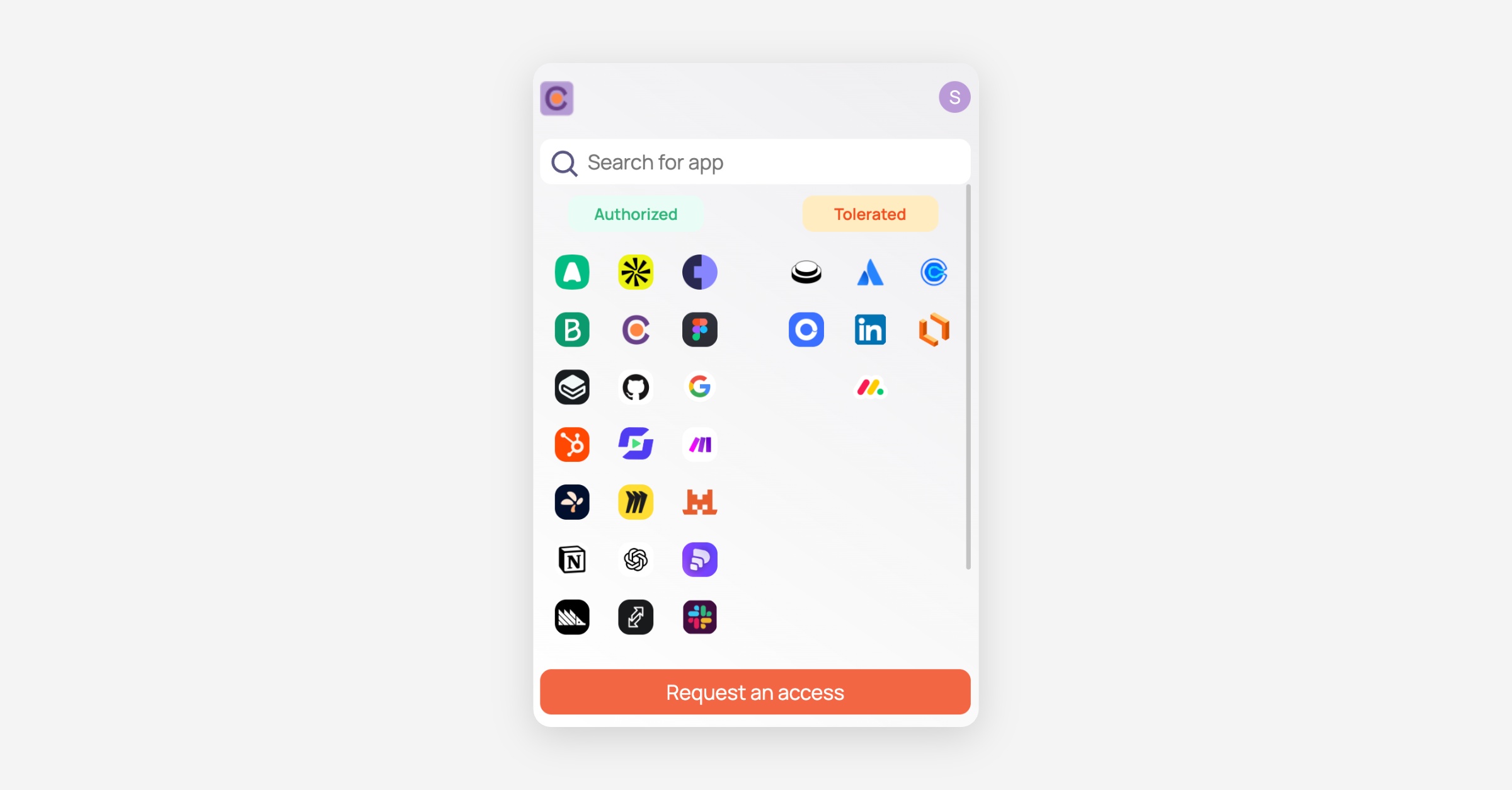
Auto-login: If you are already logged into the Corma app in your browser, the extension will automatically connect.
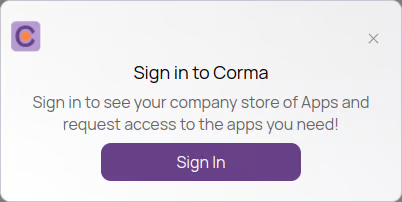
Manual login: If not logged in, a popup will redirect you to Corma.io. Enter your credentials to log in. Once logged in, the extension connects automatically and will collect data.
Pin the extension to your navigator (Optional)
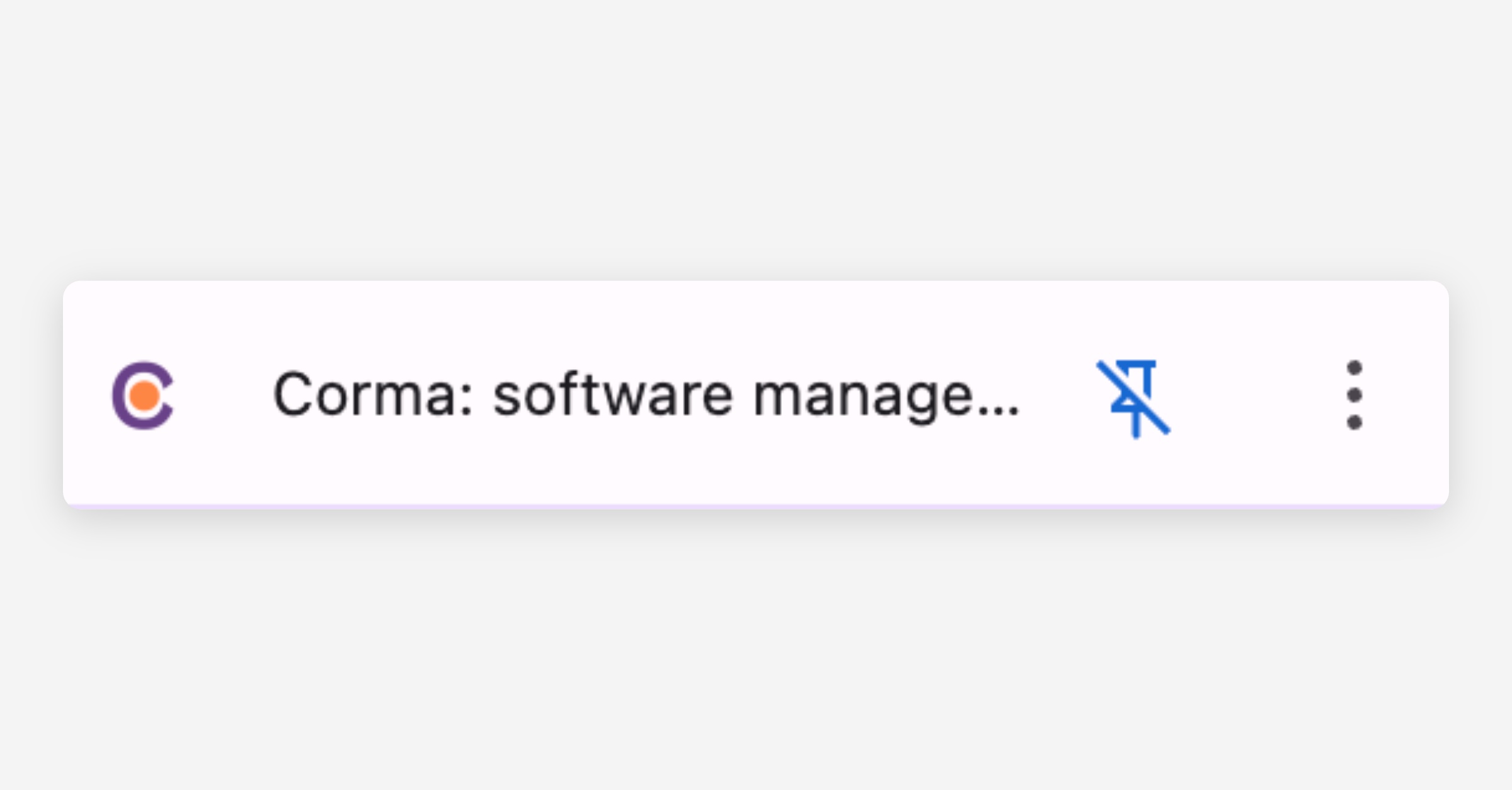
Pin the Corma extension to your browser toolbar so you can access it instantly whenever you need it.
Was this helpful?