
Docs / Integrations
Claude - Agent
A service account with admin access is required to connect Claude to Corma with the Agent
With the Agent connected to Claude, you can:
Collect license types: retrieve every Claude licenses used by your employees, and have them listed in Corma by types, which are either Free, Pro, Max, Team Standard, Team Premium or Enterprise licenses. Get valuable insights on who is using what in your company to quickly make sure everyone has the appropriate Claude license at the right time.
License (de)provisioning: automatically create or delete Claude accounts from Corma without going manually to your Claude workspace. The agent now automatically handles these tasks, fully on its own, and without needing any SCIM or any public API either.
Retrieved data: License Type, License Role, Email, Username
Here’s how to setup your Claude Agent properly:
On your Corma app go to the Data sources page
Under "All data sources" search for “Claude” and find the one with the agent icon. Then click on “Connect”
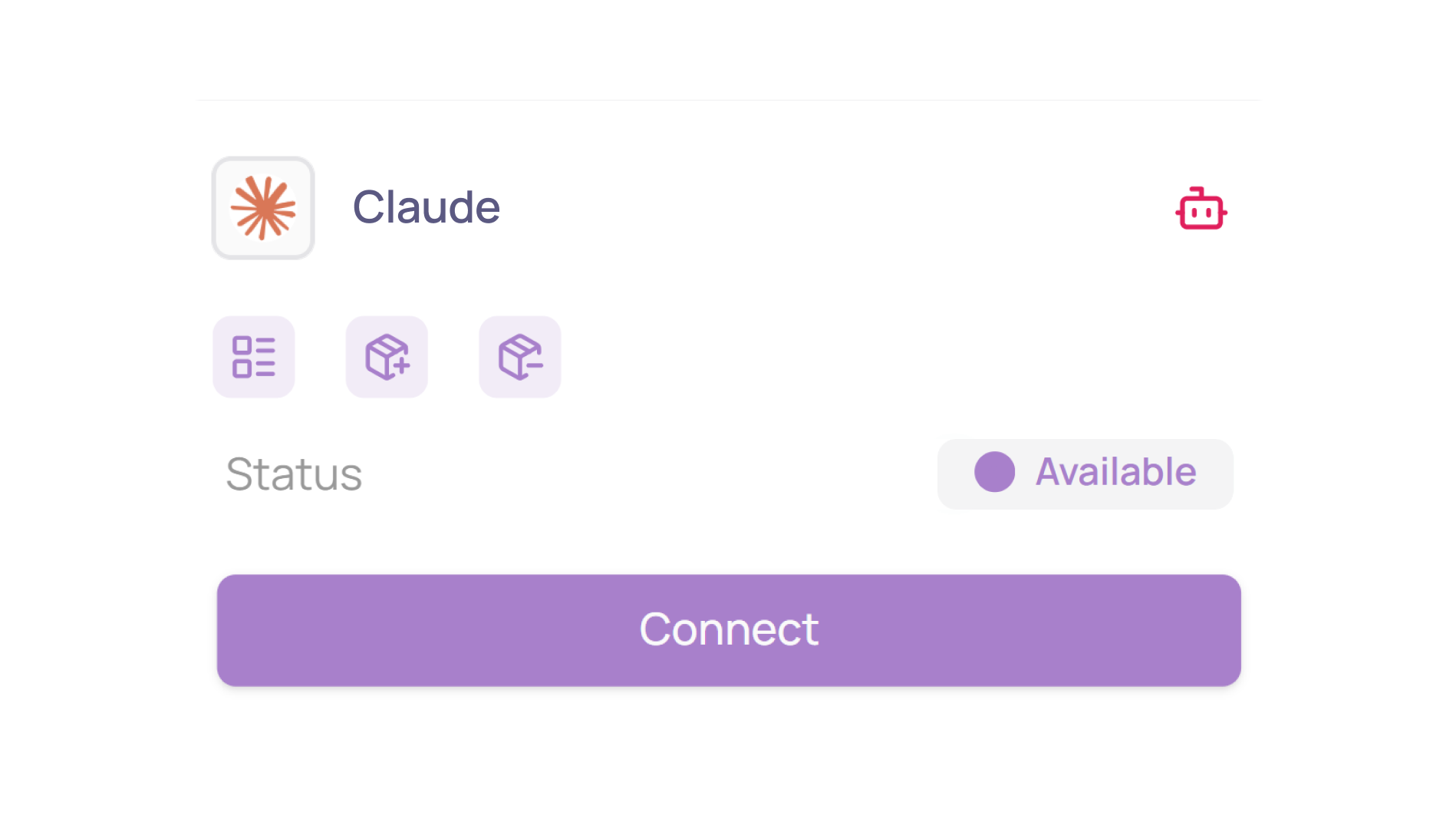
Click on "Connect" again
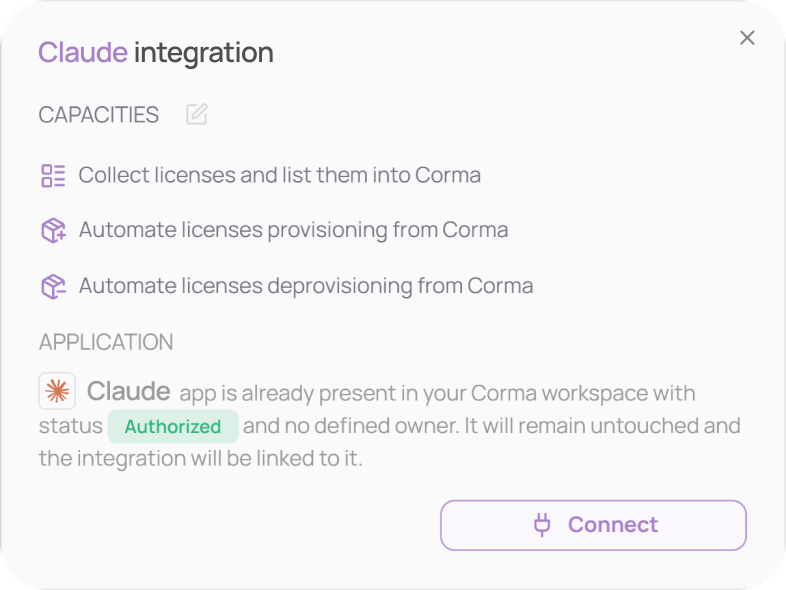
Connect manually to your Claude service account
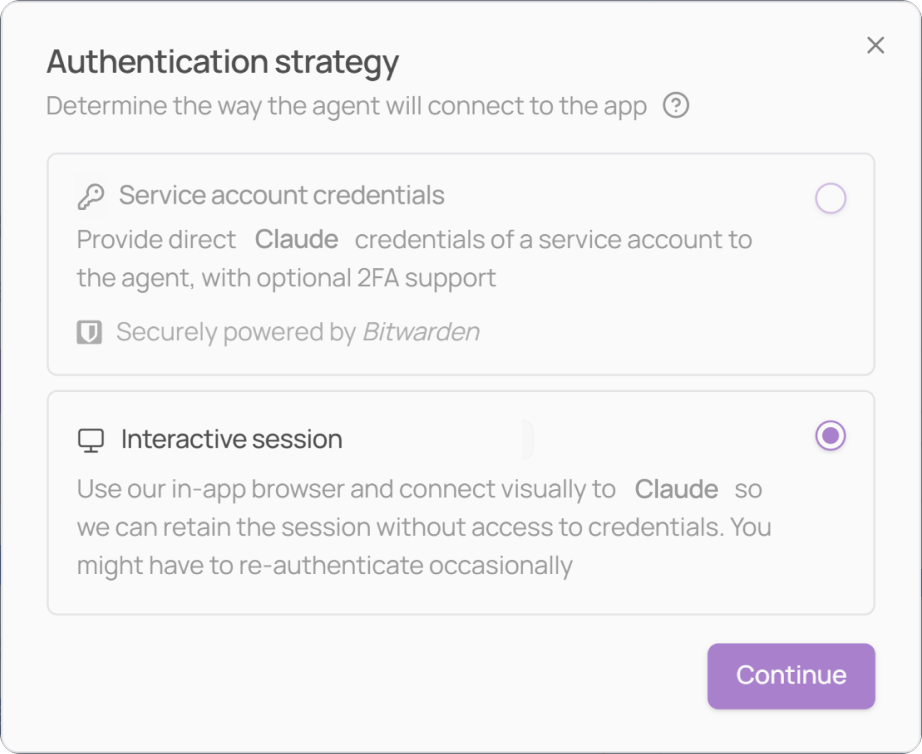
As Claude doesn’t support password modification, you have to connect manually to your Claude service account through an interactive browser.
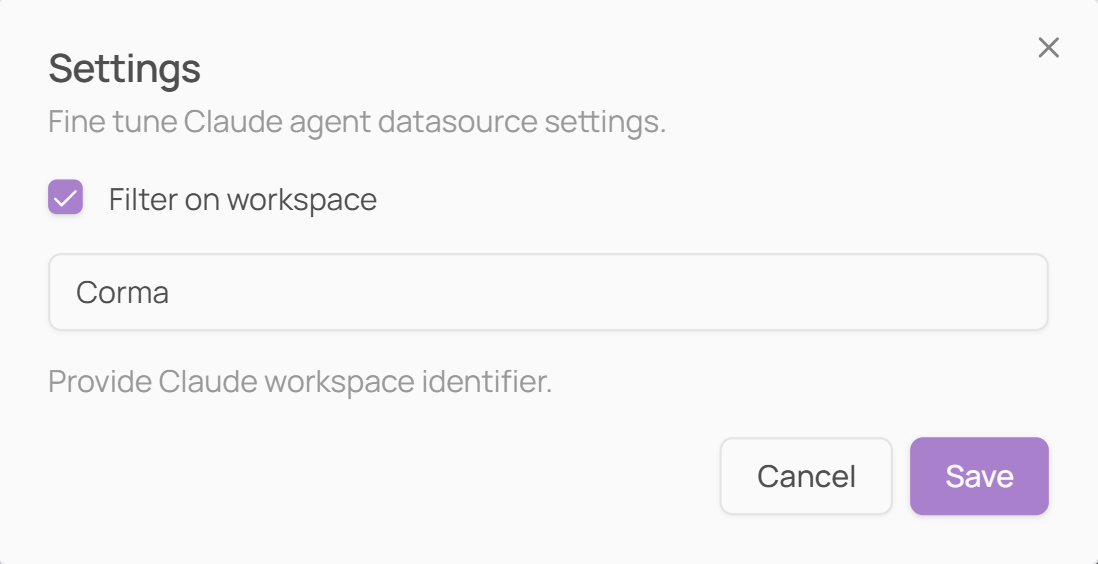
Select which workspace you want the agent to operate on
Please indicate the exact workspace name as it appears in the app's interface (not an ID or URL), ensuring the agent operates on the correct workspace and not on a personal or unrelated account.
Corma will open an embedded browser window. Log in to Claude as you normally would using your service account, including any SSO flow, 2FA code, or email verification your company requires.
If you receive a 2FA code by email during this process, simply enter it in the browser as prompted.
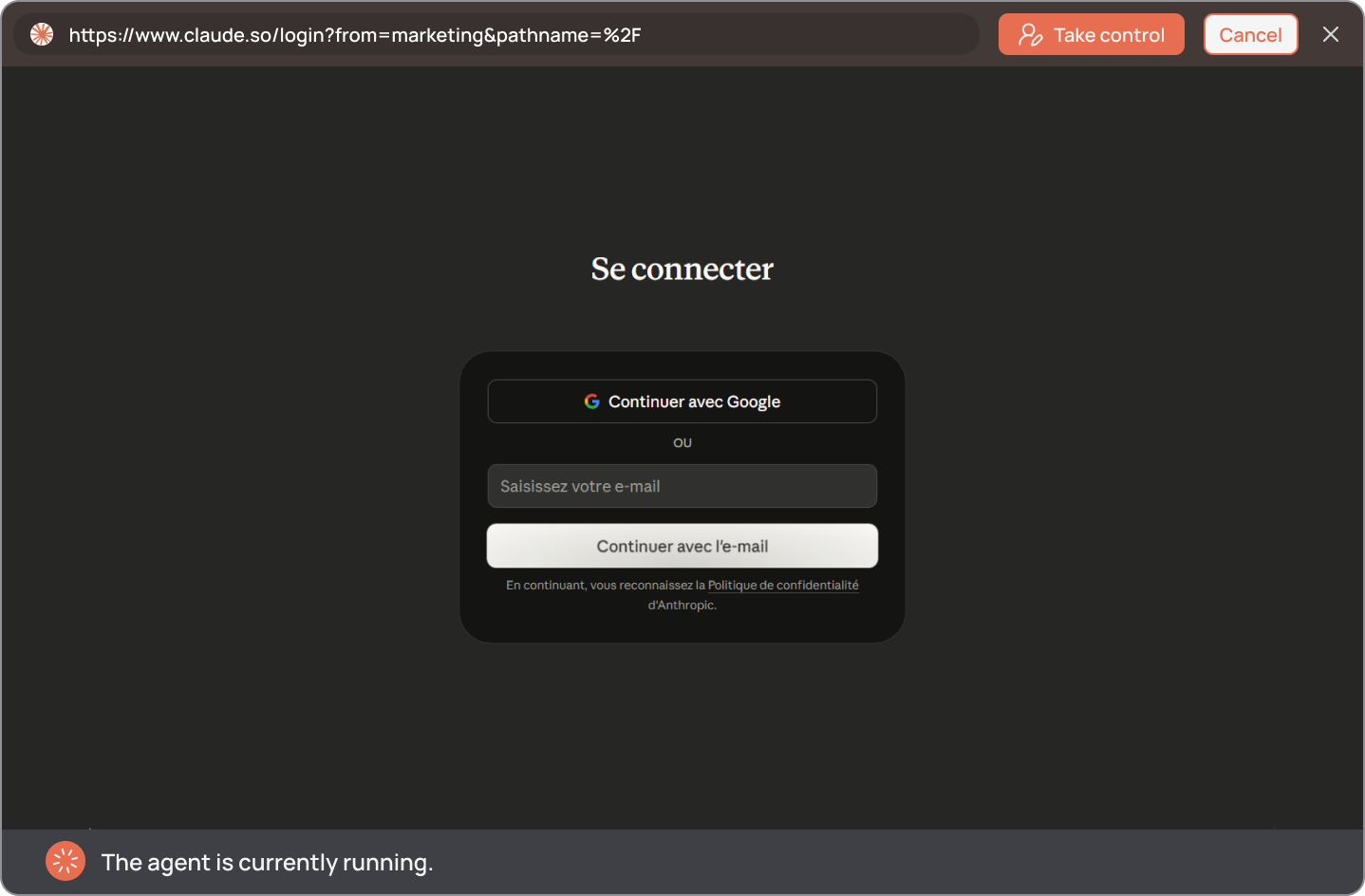
Once you successfully logged in, click on “Validate login”
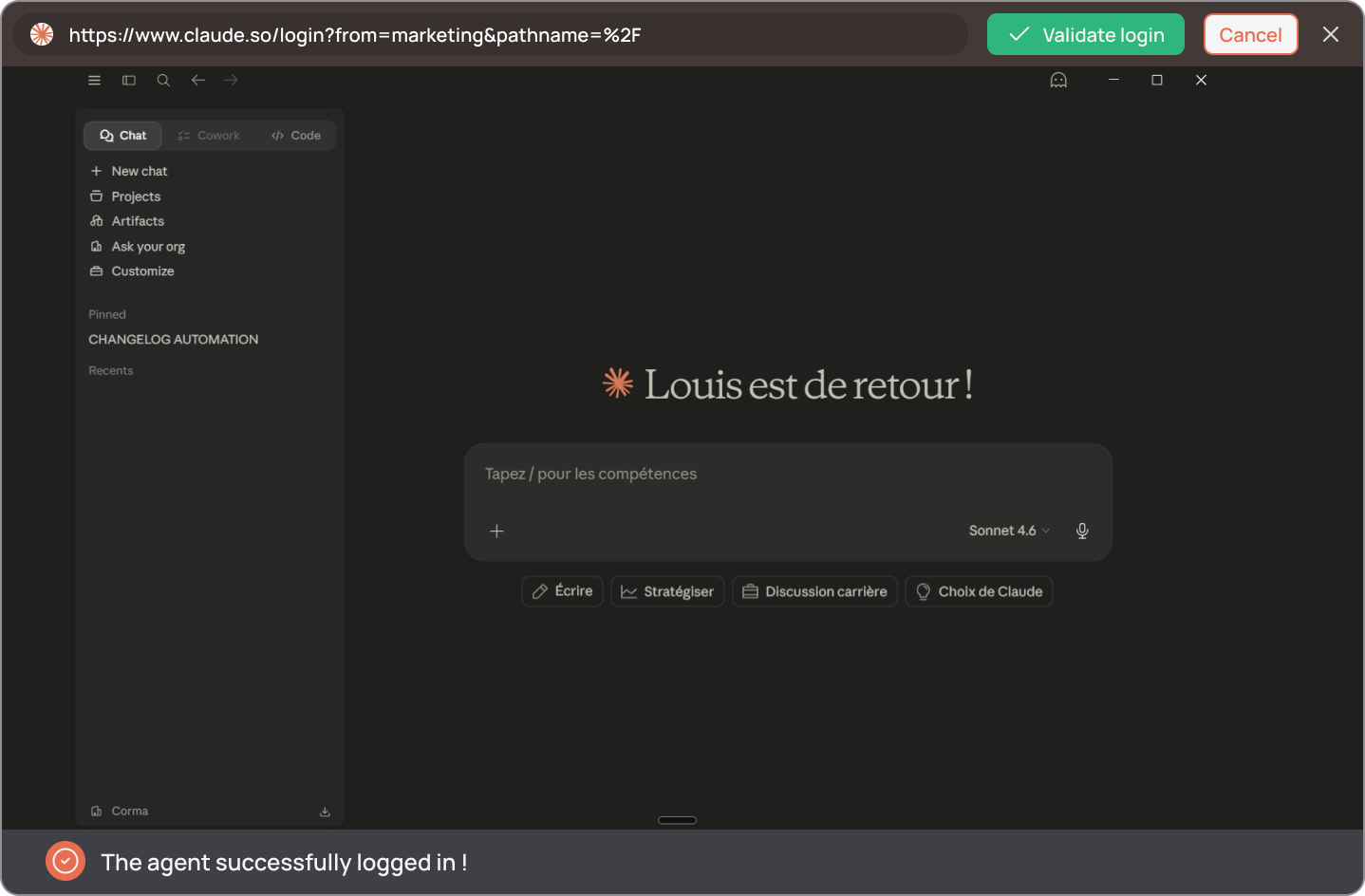
You’ve successfully connected Claude to Corma!
Data should be synchronized within the next 24 hours and will be synched every day to your Corma app.
Was this helpful?